
Okwu mmalite
This manual provides detailed instructions for the safe and efficient operation of your Prixton Picasso Portable Projector. Please read this manual thoroughly before using the device and retain it for future reference.
Kedu ihe dị na Igbe ahụ
Mgbe i bupuchara, biko hụ na ihe niile dị:
- Prixton Picasso Portable Projector
- Njikwa anya
- HDMI USB
- eriri USB
- (Optional: 100" Projection Screen, if included in your package)

Image: Prixton Picasso portable projector with a projection screen.
Ozi nchekwa
- Elela anya ozugbo na oghere projector mgbe lamp dị na.
- Gbaa mbọ hụ na ikuku ikuku dị mma iji gbochie ikpo oke ọkụ.
- Debe ngwaọrụ ahụ na mmiri ma ọ bụ mmiri mmiri ndị ọzọ.
- Jiri naanị ihe nkwụnye ọkụ enyere.
- Agbalịla ịkwatu ma ọ bụ rụzie ihe onyonyo ahụ n'onwe gị. Kpọtụrụ ndị ọrụ ruru eru.
Ngwaahịa gafereview
The Prixton Picasso is a portable Full HD projector designed for versatile use. It features a high-quality LED lamp na ọtụtụ nhọrọ njikọ.
Akụkụ ndị bụ isi:
- Full HD 1920 x 1080 native resolution.
- 9000 lumens brightness (260 ANSI lumens).
- 3000:1 contrast ratio.
- Ọkụ lamp life of over 50,000 hours.
- Projection distance: 1 to 7 meters.
- Projection size: 30" to 210".
- Wireless connectivity for Android and iOS devices.
- Multiple input ports: 2x HDMI, USB 2.0, TF card, Jack, AV IN, DC IN.

Image: Prixton Picasso projector shown with its remote control.

Foto: Top view of the projector, highlighting the lens and control buttons.
Melite
1. Ntinye
Place the projector on a stable, flat surface. Ensure there is adequate space around the projector for ventilation. The optimal projection distance is between 1 and 7 meters, allowing for a screen size from 30 to 210 inches.

Image: Visual guide for projection distance and screen size.
2. Njikọ ike
Connect the power adapter to the DC IN port on the projector and then plug it into a power outlet.
3. Ike izizi
Press the power button on the projector or the remote control to turn on the device. The indicator light will illuminate.

Image: Projector displaying its brightness specification.

Image: Projector powered on and projecting light.
4. Mgbanwe nke Isi Ihe na Ndozi
Adjust the focus ring on the projector lens until the image is clear. Use the keystone correction dial (if available) to correct any trapezoidal distortion of the image.

Image: Projector emphasizing Full HD compatibility, relevant for image clarity.
Ntuziaka ọrụ
1. Nhọrọ Isi mmalite ntinye
Use the "Source" button on the remote control or the projector to select your desired input: HDMI 1, HDMI 2, USB, TF Card, or AV.
2. Ijikọ Ngwaọrụ
- HDMI: Connect your laptop, gaming console, or other HDMI-enabled devices using an HDMI cable.
- Kaadị USB/TF: Insert a USB drive or TF card into the respective port to play media files ozugbo.
- Nke: Use the AV input for older devices with composite video output.
3. Wireless Connection (Screen Mirroring)
The projector supports wireless screen mirroring for both Android and iOS devices.
- Select the "Screen Mirroring" or "Wireless Display" option from the projector's main menu.
- For iOS devices, enable "Screen Mirroring" or "AirPlay" on your device and select the projector from the list.
- For Android devices, enable "Wireless Display," "Smart View," or "Cast" on your device and select the projector.
- Ensure both the projector and your mobile device are connected to the same Wi-Fi network for optimal performance.
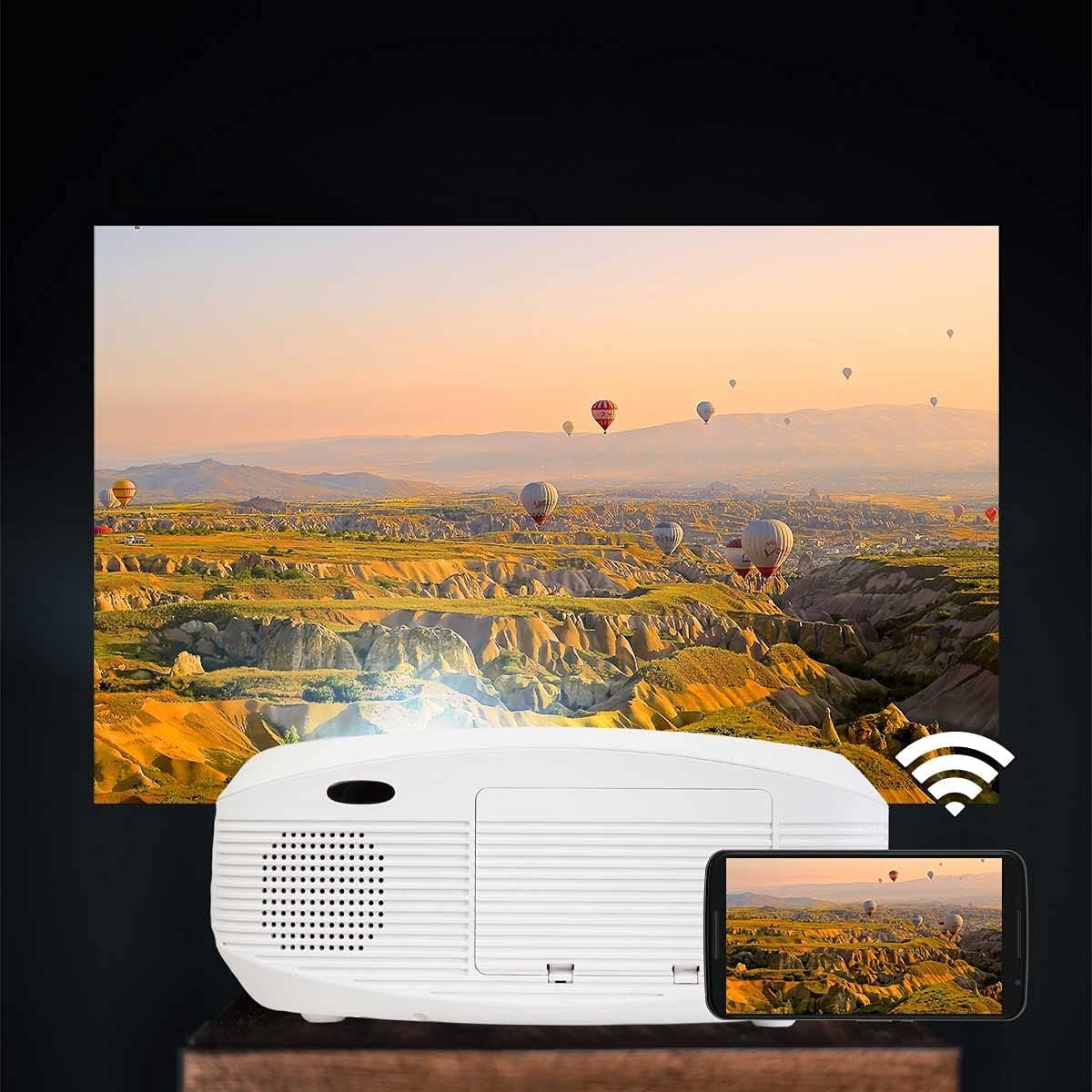
Image: Projector connected wirelessly to a smartphone.

Image: Wireless connectivity icon and smartphone mirroring.
4. Mmepụta ọdịyo
The projector has built-in speakers. You can also connect external speakers or headphones via the 3.5mm audio jack for enhanced sound.
Nlekọta
- Na-ehicha oghere: Use a soft, lint-free cloth specifically designed for optical lenses to gently wipe the projector lens. Avoid using abrasive cleaners.
- Na-ehicha Casing: Wipe the projector's exterior with a soft, dry cloth. Do not use liquid or aerosol cleaners.
- Igwe ikuku: Regularly check that the ventilation openings are not blocked by dust or debris to ensure proper airflow and prevent overheating.
- Nchekwa: When not in use for extended periods, store the projector in a cool, dry place, protected from dust.
Nchọpụta nsogbu
| Nsogbu | Ihe nwere ike ime | Ngwọta |
|---|---|---|
| Ọnweghị onyonyo egosiri | Power not connected; incorrect input source; cable not connected properly. | Check power connection; select correct input source; ensure HDMI/USB/AV cables are securely connected. |
| Onyonyo na-agba agba | A naghị agbanwe anya; ihe ngosi onyonyo dị nso/dị anya na ihuenyo. | Adjust the focus ring on the lens. Adjust projection distance. |
| Ihe onyonyo agbagọ (ọdịdị trapezoid) | Ihe ngosi onyonyo anaghị adaba na ihuenyo ahụ. | Adjust keystone correction dial. Reposition the projector. |
| Enweghị ụda | Volume too low; audio cable not connected; source device muted. | Increase projector volume; check audio cable connections; unmute source device. |
| Cannot connect to Wi-Fi / Screen Mirroring issues | Incorrect Wi-Fi password; devices not on the same network; device compatibility issues. | Verify Wi-Fi password; ensure both devices are on the same 2.4GHz Wi-Fi network; restart both devices. |
| Spot on the lens / projected image | Dust or debris on the lens or inside the projector. | Gently clean the lens with a soft, lint-free cloth. If the spot is internal, contact customer support. |
Nkọwapụta
| Njirimara | Nkọwa |
|---|---|
| Ụdị | Prixton |
| Aha Nlereanya | Picasso |
| Akwadoro ojiji | Cinema ụlọ |
| Njirimara Pụrụ Iche | Portable, Wireless Connection |
| Teknụzụ Njikọta | HDMI, USB |
| Ngosipụta mkpebi | 1920 x 1080 (HD zuru ezu) |
| Ngosipụta kachasị | 1920 x1080 |
| Ụdị ngosi | LCD |
| Ụdị Ihe | Enwere ike ibugharị |
| Ụdị nkwụnye | Ala Ugwu |
| Icha ọkụ | Lumen 9000 (260 ANSI Lumens) |
| Wattage | 85 Watt |
| Control Device Type | Njikwa anya |
| Ngwa dakọtara | Laptọọpụ, Smartphone |
| Ọnụọgụ ọdịiche | 3000:1 |
| Maximum Projection Distance | 7 mita |
| Ìhè Isi Iyi Ndụ | Awa 50,000 |
| Ogo onyonyo kacha | 210 sentimita asatọ |
| Ogologo amụma kacha nta | 1 mita |
| Ogo onyonyo kacha nta | 30 sentimita asatọ |
| Ndekọ vidiyo | H.264 |
| Mba onye si | China |
Akwụkwọ ikike na nkwado
Your Prixton Picasso Portable Projector is covered by a standard manufacturer's warranty. Please refer to the specific warranty terms provided at the time of purchase for details on coverage duration and conditions.
For technical support, troubleshooting assistance, or warranty claims, please contact Prixton customer service. Contact information can typically be found on the official Prixton websaịtị ma ọ bụ na akwụkwọ ịzụrụ ihe gị.
Iwu nloghachi: This product is eligible for return or replacement within 30 days of purchase, subject to the retailer's return policy.