
Okwu mmalite
This manual provides essential information for the safe and efficient operation of your Arafuna 10.5 Inch Dual Screen Portable DVD Player. Please read these instructions thoroughly before using the device and retain them for future reference. This system is designed for in-car entertainment, offering a main player and a secondary monitor for simultaneous viewing.
Ihe ngwugwu
Nyochaa na etinyere ihe niile edepụtara n'okpuru na ngwugwu gị:
- 1x Main DVD Player (10.5 Inch)
- 1x Slave Monitor (10.5 Inch)
- Ihe ndozi 2x
- 1x njikwa anya
- 2x Headrest Straps
- 1 x chaja ụgbọ ala
- 1 x HDMI USB
- 1 x AC nkwụnye ọkụ
- 1x DC Cable
- 1 x eriri RCA

Foto 1: Included components in the Arafuna Dual Screen Portable DVD Player package.
Melite
1. Mounting the Players
The players can be mounted using either the provided mounting brackets or headrest straps.
- Using Mounting Brackets:
- Attach the base of the mounting bracket to the headrest posts.
- Tighten the fixing screws to secure the base.
- Insert the DVD player or monitor onto the bracket until it clicks into place.
- Using Headrest Straps:
- Securely fasten the headrest straps around the headrest and the back of the player/monitor.
- Ensure the player/monitor is stable and does not obstruct the driver's view.

Foto 2: Step-by-step installation guide for the headrest mounting bracket.
2. Connecting the Players
To enable dual-screen playback, connect the main DVD player to the slave monitor.
- Jikọọ ihe enyere Igwe ọkụ DC from the DC OUT port on the main player to the DC IN port on the slave monitor.
- Jikọọ ihe enyere HDMI USB from the HDMI OUT port on the main player to the HDMI IN port on the slave monitor. This ensures high-quality video and audio transmission to the secondary screen.
3. Powering the System
The system can be powered via the car charger, AC adapter, or its internal rechargeable battery.
- chaja ụgbọ ala: Plug the car charger into your vehicle's cigarette lighter socket and connect the other end to the DC IN port on the main player.
- AC nkwụnye: For home use, connect the AC adapter to a standard wall outlet and the DC IN port on the main player.
- Batrị dị n'ime: The main player features a 5000mAh rechargeable battery, providing extended playback time when external power is unavailable. Ensure the battery is charged before use.

Foto 3: Connection diagram for the dual screen system, showing power and signal flow.
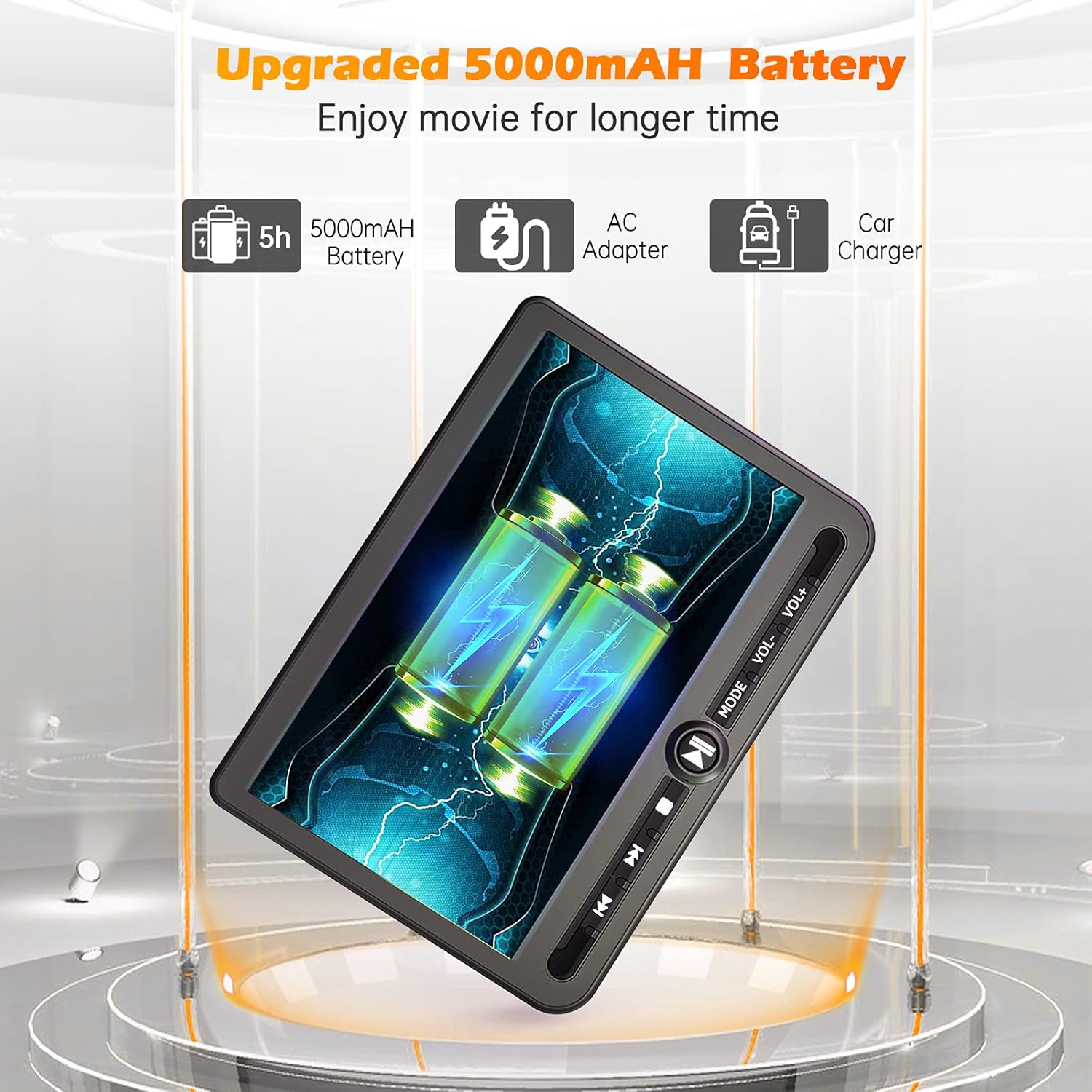
Foto 4: Power options including the 5000mAh battery, AC adapter, and car charger.
Ntuziaka ọrụ
1. Njikwa ntọala
The main player features control buttons on the unit and can also be operated via the included remote control.
- Bọtịnụ ike: Pịa ka ịgbanwuo/gbanyụọ otu.
- Bọtịnụ Kwụsị/Kwụsị: Na-amalite ma ọ bụ kwụsịtụ ọkpụkpọ.
- Kwụsị bọtịnụ: Kwụsị ịkpọghachi ya.
- Bọtịnụ ndị gara aga/ na-esote: Na-agafe na egwu/isiakwụkwọ gara aga ma ọ bụ nke na-esote.
- Mpịakọta +/- bọtịnụ: Na-edozi olu ọdịyo.
- Bọtịnụ ụkpụrụ: Switches between input sources (DVD, USB, SD).
2. Playing DVDs
- Insert a DVD disc into the main player's disc slot.
- The player will automatically detect the disc and begin playback. If not, press the 'Play' button or select 'DVD' mode.
- Use the control buttons or remote to navigate menus, play, pause, or stop.
3. USB/SD Kaadị playback
The player supports media playback from USB drives and SD cards.
- Tinye draịva USB n'ime ọdụ ụgbọ USB ma ọ bụ kaadị SD n'ime oghere kaadị SD.
- Press the 'Mode' button to select 'USB' or 'SD' input.
- Gaa n'ihu na nke gị files using the control buttons or remote and select the desired media to play.
4. Ọrụ Ebe Nchekwa Ikpeazụ
The player features a last memory function, which allows it to resume playback from where it was last stopped, even after being powered off.
5. Region Free & Multi-Format Support
This DVD player is region-free, allowing playback of DVDs from any region. It also supports multiple media formats from USB and SD cards.

Foto 5: Features including USB/TF card support, region-free playback, and last memory function.
6. Sync Screen to TV
You can connect the main DVD player to a larger TV screen using the provided RCA cable for a home viewahụmahụ.
- Connect one end of the RCA cable to the AV OUT port on the main DVD player.
- Connect the other end of the RCA cable to the corresponding AV IN ports on your television.
- Select the correct AV input source on your television.

Foto 6: Connecting the portable DVD player to a TV using the RCA cable.
Nlekọta
1. Nhicha
- Use a soft, dry cloth to clean the exterior of the players.
- Maka akara isi ike, ntakịrị dampen akwa na mmiri. Zere iji kemịkalụ siri ike ma ọ bụ ihe nchacha.
- Do not spray cleaning solutions directly onto the screen or into any openings.
- To clean the disc lens, use a specialized DVD lens cleaning disc.
2. Nlekọta batrị
- Ka ịgbatị ndụ batrị ogologo, zere ịchaji batrị ugboro ugboro.
- Charge the battery regularly, even if the device is not in use for extended periods.
- Chekwaa ngwaọrụ ahụ n'ebe dị jụụ, kpọrọ nkụ na-adịghị na ìhè anyanwụ kpọmkwem na oke okpomọkụ.
Nchọpụta nsogbu
If you encounter issues with your Arafuna DVD player, refer to the following common problems and solutions:
| Nsogbu | Ihe nwere ike ime | Ngwọta |
|---|---|---|
| Onye ọkpụkpọ anaghị agba ọkụ. | No power supply; discharged battery; faulty power adapter/cable. | Ensure power cable is securely connected. Charge the battery using the AC adapter or car charger. Test with a different power source if available. |
| No picture or sound on slave monitor. | Loose or incorrect HDMI/DC cable connection. | Check that the HDMI and DC cables are securely connected between the main player and the slave monitor. Ensure they are connected to the correct IN/OUT ports. |
| DVD disc does not play or skips. | Disc is dirty, scratched, or inserted incorrectly; lens is dirty; incompatible disc format. | Clean the disc with a soft cloth. Ensure the disc is inserted correctly with the label side up. Use a lens cleaning disc. Try a different, known-good disc. |
| No sound from player. | Volume is too low or muted; headphones not properly connected; faulty audio settings. | Increase the volume. Check headphone connection. Ensure no mute function is active. |
| Amataghị kaadị USB/SD. | ezighi ezi file format; card/drive not properly inserted; corrupted media. | Gbaa mbọ hụ na mgbasa ozi files are in a supported format. Reinsert the USB drive or SD card. Try a different USB drive or SD card. |
Nkọwapụta
| Njirimara | Nkọwa |
|---|---|
| Ụdị | Arafuna |
| Nọmba nlereanya | DM-12 |
| Nha ihuenyo | 10.5 sentimita asatọ |
| Ụdị ngosi | LCD |
| Teknụzụ Njikọta | HDMI, USB |
| Mediadị Mgbasa Ozi Akwadoro | DVD, USB, SD Card |
| Batrị enwere ike ịchaji | Yes (5000mAh Lithium-polymer) |
| UPC | 730096858222 |
Akwụkwọ ikike
This Arafuna product is covered by a Akwụkwọ ikike onye nrụpụta afọ 1 site na ụbọchị ịzụrụ. Akwụkwọ ikike a na-ekpuchi ntụpọ dị na ngwa na arụ ọrụ n'okpuru ojiji nkịtị. Ọ naghị ekpuchi mmebi nke n'ụzọ na-ezighị ezi, ihe mberede, mgbanwe na-akwadoghị, ma ọ bụ ihe na-akpata mpụga.
Nkwado
For technical assistance, warranty claims, or further inquiries regarding your Arafuna 10.5 Inch Dual Screen Portable DVD Player, please refer to the contact information provided with your purchase or visit the official Arafuna support websaịtị.