
Okwu mmalite
This manual provides detailed instructions for the GLIDiC SB-WS91-MRTW/BK TW-9000 Fully Wireless Earphones. Please read this guide thoroughly before using your device to ensure proper operation and to maximize its lifespan. Keep this manual for future reference.

Image: The GLIDiC SB-WS91-MRTW/BK TW-9000 fully wireless earphones, shown with their charging case. The earphones are black and feature the GLIDiC logo. The charging case is also black and has an open lid, revealing the earbud compartments.
Melite
Ihe ngwugwu
Gbaa mbọ hụ na ihe niile dị na ngwugwu:
- GLIDiC SB-WS91-MRTW/BK TW-9000 Earphones (Left and Right)
- Akpa nchaji ikuku
- Igwe nchaji USB
- Akwụkwọ ntuziaka (akwụkwọ a)
Ịchaji ekwe ntị na akpa
Before first use, fully charge the earphones and the charging case. The case can be charged via the included USB cable or wirelessly.
- Place the earphones into the charging case, ensuring they are correctly seated.
- Wired Nchaji: Connect the USB charging cable to the charging port on the case and to a USB power adapter (not included) or a computer's USB port.
- Nchaji ikuku: Place the charging case on a compatible Qi-certified wireless charging pad.
- The indicator lights on the case will show the charging status. Refer to the LED indicator section for details.

Image: The GLIDiC SB-WS91-MRTW/BK TW-9000 charging case with earphones inside, placed on a wireless charging pad. A USB cable is connected to the pad. The setup is on a table with breakfast items in the background, illustrating everyday use.
Njikọ Bluetooth izizi
Follow these steps to pair your earphones with a new device for the first time:
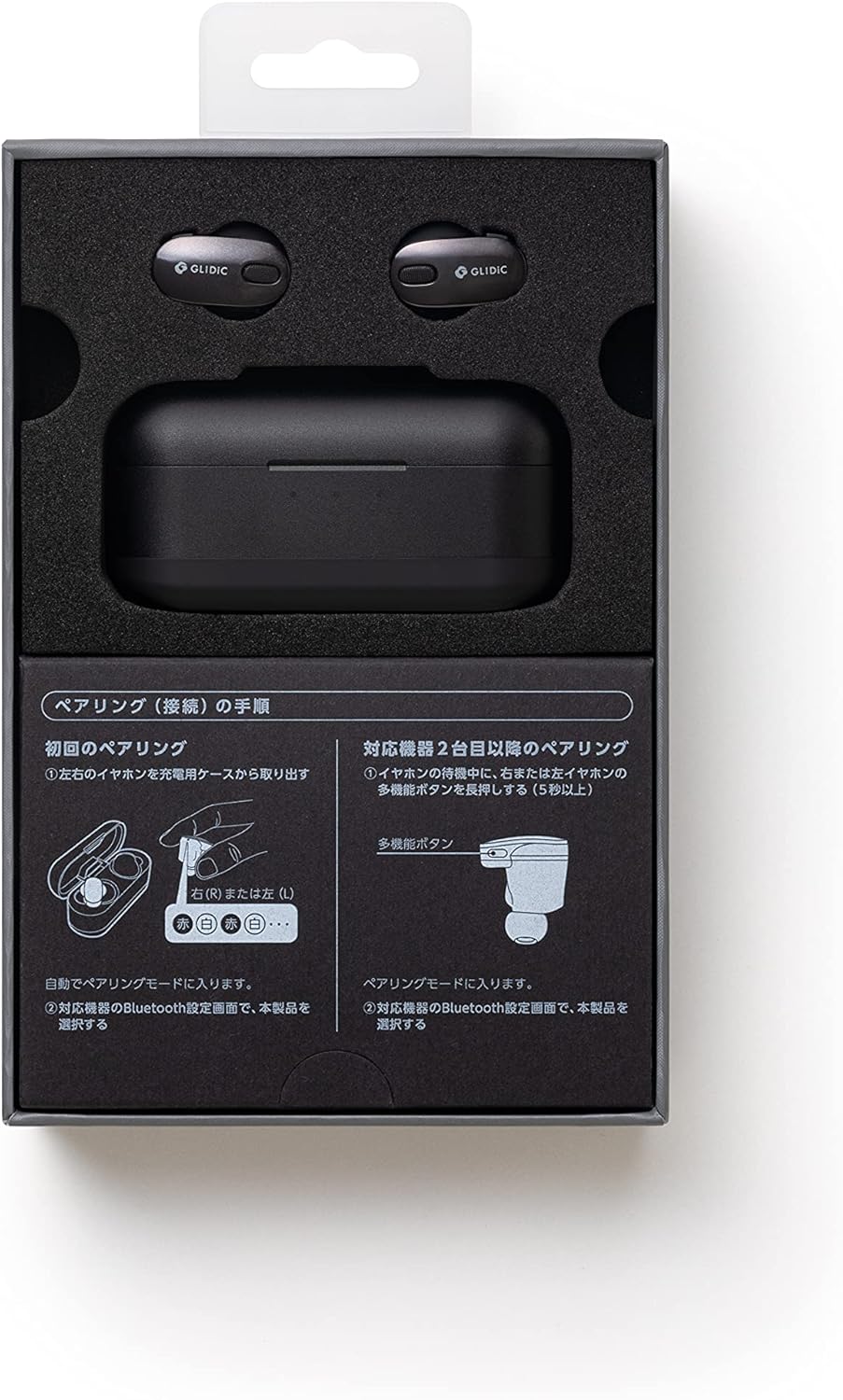
Image: A diagram illustrating the pairing procedure for the GLIDiC SB-WS91-MRTW/BK TW-9000 earphones. It shows two main sections: "First Pairing" and "Pairing with a second device or later". For first pairing, it depicts taking the earphones out of the case, which automatically enters pairing mode. For subsequent pairings, it shows pressing and holding the multi-function button on either the left or right earphone for 5 seconds while in standby mode to enter pairing mode.
- Open the charging case and remove both the left and right earphones. They will automatically enter pairing mode.
- Na ngwaọrụ gị (ama, mbadamba, laptọọpụ), gaa na ntọala Bluetooth.
- Chọọ maka ngwaọrụ dị ma họrọ "GLIDiC TW-9000"site na listi.
- Once connected, a confirmation sound or message will indicate successful pairing.
Pairing with a Second Device or Later
To pair with another device or re-pair after initial setup:
- Ensure the earphones are in standby mode (not connected to another device).
- Press and hold the multi-function button on either the left (L) or right (R) earphone for approximately 5 seconds until the indicator light flashes, indicating pairing mode.
- On your device, go to Bluetooth settings and select "GLIDiC TW-9000" to connect.
Ịrụ ọrụ ekweisi
Gbanyụọ/ Gbanyụọ
- Ike Na: Remove the earphones from the charging case. They will power on automatically.
- Gbanyụọ: Place the earphones back into the charging case. They will power off automatically and begin charging.
Iyi ekwe ntị
Insert the earphones gently into your ears, ensuring a comfortable and secure fit. Adjust them until the sound quality is optimal and external noise is minimized. The correct fit is crucial for effective Active Noise Cancellation.
Njikwa
The GLIDiC TW-9000 earphones feature touch controls and support voice control for various functions. Specific touch gestures and voice commands may vary. Refer to the quick start guide or manufacturer's website for detailed control mappings.
- Gwuo/kwụsịtụ: N'ozuzu, otu pịa na ekweisi ọ bụla.
- Track na-esote: Often a double tap on the right earphone.
- Gara aga Track: Often a double tap on the left earphone.
- Azịza/Kwụsị Oku: Single tap during an incoming call.
- Mee ka onye enyemaka olu rụọ ọrụ: Long press or specific tap sequence.
Nkagbu Noise nọchiri anya (ANC)
The earphones are equipped with Active Noise Cancellation to reduce ambient noise. This feature can be toggled on or off, or switched to an ambient sound mode, typically through a specific touch control gesture. Consult the detailed control instructions for your model.
Nlekọta
Nhicha
Ịdị ọcha mgbe niile na-enyere aka ịnọgide na-adị mma na ịdị ọcha.
- Use a soft, dry, lint-free cloth to wipe the earphones and charging case.
- Maka unyi isi ike, ntakịrị dampen the cloth with water or a mild, non-abrasive cleaner. Avoid getting moisture into openings.
- Clean the ear tips regularly. If removable, they can be washed with mild soap and water, then thoroughly dried before reattaching.
- Ejila kemịkalụ siri ike, mmanya na-aba n'anya, ma ọ bụ ihe na-emerụ ahụ.
Nchekwa
Mgbe a naghị eji ya, debe ekweisi ndị ahụ n'ime akpa chaja ha iji chebe ha pụọ na uzuzu, mmebi, na iji mee ka ha dị ọcha.
Nlekọta batrị
Ka ịgbatị ndụ batrị:
- Zere ka batrị ndị ahụ na-agbapụta nke ọma mgbe niile.
- Debe ngwaọrụ ahụ n'ebe dị jụụ ma kpọọ nkụ, ebe okpomọkụ dị oke njọ na-agaghị adị.
- If storing for an extended period, charge the case and earphones to about 50% capacity.
Nchọpụta nsogbu
Ọ bụrụ na ị na-enwe nsogbu, gbalịa ngwọta ndị a:
Enweghị ụda ma ọ bụ njikọ na-akwụsị akwụsị
- Gbaa mbọ hụ na akwụgoro ekwe ntị.
- Lelee na agbanyere Bluetooth na ngwaọrụ gị yana ekwe ntị jikọọ.
- Move the earphones closer to your device and away from potential interference sources (e.g., Wi-Fi routers, other Bluetooth devices).
- Nwaa iweghachite ma jikwa ngwaọrụ gị jikọọ ekwe ntị.
- Malitegharịa ngwaọrụ isi iyi ọdịyo gị.
Igwe ntị anaghị akwụ ụgwọ
- Gbaa mbọ hụ na ejikọrọ eriri chajị na echekwabara na ikpe ahụ yana isi iyi ike.
- Ọ bụrụ na ị na-eji chaja ikuku, hụ na e tinyere akpa ahụ n'ọnọdụ kwesịrị ekwesị na pad chaja ahụ.
- Check for any debris in the charging port of the case or on the earphone charging contacts.
- Gbalịa eriri chaja dị iche ma ọ bụ nkwụnye ọkụ.
One Earphone Not Working
- Tinye ekwe ntị abụọ ahụ n'ime akpa chaja, mechie mkpuchi ahụ, chere sekọnd ole na ole, wee wepụ ha.
- Gbaa mbọ hụ na akwụgoro ekwe ntị abụọ ahụ.
- Perform a factory reset if the issue persists (refer to manufacturer's websaịtị maka ntuziaka akọwapụtara).
Nkọwapụta
| Aha Nlereanya | SB-WS91-MRTW/BK (TW-9000) |
| Ụdị | GLIDiC |
| Teknụzụ Njikọta | Ikuku (Bluetooth) |
| Teknụzụ nzikọrịta ozi ikuku | Bluetooth |
| Ntinye ntị | Na Ntị |
| Ụdị Ihe | Na Ntị |
| Njikwa mkpọtụ | Nkagbu mkpọtụ nọ n'ọrụ |
| Ụdị njikwa | Njikwa olu |
| Ngwa dakọtara | Laptops, Smart Speakers, Smartphones |
| Batrị | 3 batrị lithium polymer (gụnyere) |
| Ibu Ibu | 0.24 kilo (240 g) |
| Akụkụ ngwaahịa | 3 x 8 x 4 cm |
| Ụdị ihe | Metallic (Material not specified) |
| Ngwa gụnyere | Cable, Wireless Charging Case |
Akwụkwọ ikike na nkwado
For warranty information and technical support, please refer to the warranty card included with your product or visit the official GLIDiC websaịtị. Debe ihe akaebe nke ịzụrụ maka akwụkwọ ikike.
If you require further assistance, please contact GLIDiC customer service through their official channels.