
1. Okwu mmalite
Thank you for choosing the Gaiam Smart Weight Scale. This manual provides essential information for setting up, operating, maintaining, and troubleshooting your device. Please read these instructions carefully before use to ensure proper functionality and accurate measurements.
2. Ihe ngwugwu
- Gaiam Smart Weight Scale
- 3 x AAA Batteries (pre-installed or included)
- Akwụkwọ ntuziaka onye ọrụ
3. Nhazi
3.1 Ntinye batrị
If batteries are not pre-installed, open the battery compartment on the underside of the scale. Insert 3 AAA batteries, ensuring correct polarity (+/-). Close the compartment securely.
3.2 Ntinye mbu
Place the scale on a hard, flat, and stable surface. Uneven or soft surfaces, such as carpet, can affect measurement accuracy. Avoid placing it near heat sources or in direct sunlight.

Image: The Gaiam Smart Weight Scale, showcasing its sleek design and four metallic sensor pads.
3.3 Ngwa nbudata na ijikọ
To utilize the smart features and track comprehensive body composition metrics, download the official Gaiam Smart Scale app from your device's app store. Chọọ maka "Gaiam Smart Scale" on the Apple App Store or Google Play Store.
Enable Bluetooth on your smartphone or tablet. Open the Gaiam Smart Scale app and follow the on-screen instructions to pair your scale. Step onto the scale to activate it and initiate the pairing process.

Image: The Gaiam Smart Weight Scale positioned alongside a tablet and smartphone, both showing the Gaiam app interface, illustrating the device's connectivity.
4. Operating the Scale
4.1 Inyocha ihe
- Gbaa mbọ hụ na ọnụ ọgụgụ ahụ dị n'elu ala siri ike, dịkwa larịị.
- Step onto the scale barefoot with your feet evenly placed on the metallic sensor pads.
- Stand still until your weight is displayed on the scale's screen.
- If connected to the app, additional body composition data will be transmitted to your device.
4.2 Understanding App Metrics
The Gaiam Smart Scale app is designed to provide a comprehensive analysis of your body composition. When successfully paired, the app can display up to 13 different measurements, including:
- Arọ (lbs)
- Abụba Ahụ (%)
- Mmiri ahụ (%)
- Muscle Mass (lbs)
- Ọkwa oke ibu
- Protein (%)
- BMR (Kcal)
- Abụba visceral
- Bone Mass (lbs)
- Lean Body Mass (lbs)
- Metabolic Afọ
- BMI (Nleba Ntụkọba Ahụ)
- Skeletal Muscle (%)
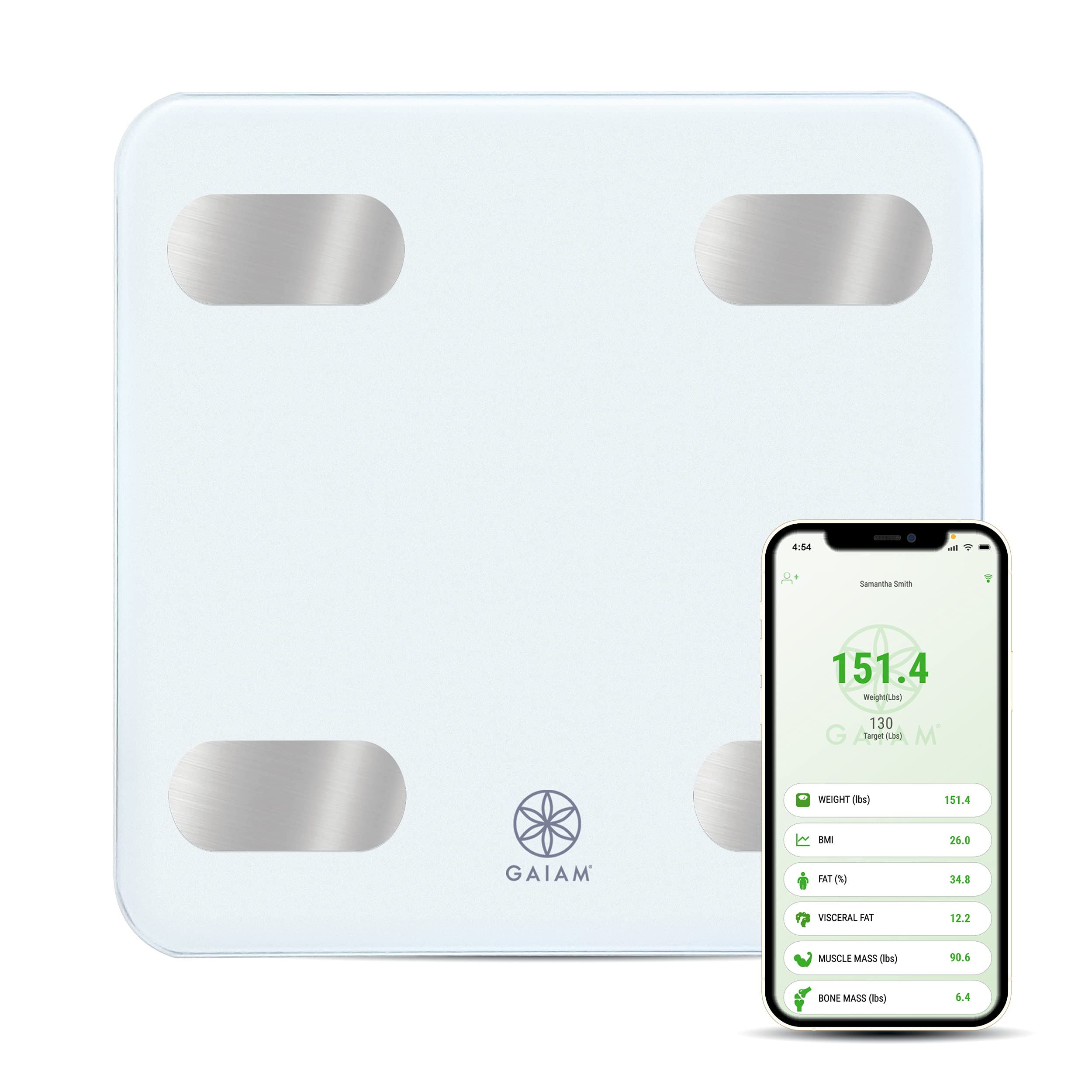
Image: An infographic detailing the 13 comprehensive body composition measurements, such as weight, fat percentage, muscle mass, and BMI, that the Gaiam Smart Scale app can track.

Image: A smartphone screen showing the Gaiam app interface, displaying a user's current weight, target weight, and a list of body metrics including BMI, fat percentage, na oke akwara.
4.3 Njikọta Ngwa
The Gaiam Smart Scale app may integrate with other popular health tracking platforms such as Google Fit, Samsung Health, and Apple Health, allowing you to synchronize your data across multiple applications. Refer to the app's settings for integration options.
5. Nlekọta
5.1 Nhicha
Clean the scale's surface with a soft, damp cloth. Do not use abrasive cleaners or immerse the scale in water. Avoid harsh chemicals that could damage the surface or electronic components.
5.2 nnọchi batrị
When the battery indicator appears on the display or the scale fails to power on, replace all 3 AAA batteries simultaneously. Do not mix old and new batteries.
5.3 Nchekwa
Store the scale in a cool, dry place away from extreme temperatures and humidity. Do not store objects on top of the scale for extended periods.
6. Nchọpụta nsogbu
6.1 Ọgụgụ na-ezighi ezi
- Elu: Ensure the scale is placed on a hard, flat, and stable surface. Carpet or uneven floors can cause inaccuracies.
- Ndozigharị: If readings are inconsistent, step on the scale briefly to turn it on, then step off and wait for it to display "0.0" before stepping on again for a measurement.
- Nkwenye: For best results, weigh yourself at the same time each day, preferably in the morning before eating or exercising.
6.2 Scale Not Turning On
- Batrị: Check if the batteries are correctly installed and not depleted. Replace all 3 AAA batteries if necessary.
- Nkwalite: Ensure you are stepping firmly onto the scale to activate it.
6.3 App Connectivity Issues / No Data Transfer
- Bluetooth: Verify that Bluetooth is enabled on your smartphone or tablet.
- Ọnọdụ ngwa: Ensure the Gaiam Smart Scale app is open and running in the foreground during measurement.
- Mmelite ngwa: Check your device's app store for any available updates for the Gaiam Smart Scale app.
- Note on App Functionality: Some users have reported issues with the long-term functionality and support of the Gaiam Smart Scale app, including difficulties with updates and data synchronization. If you experience persistent app-related problems, the scale may still function as a basic digital weight scale.
6.4 "Lo" or "Err" Display
- "Lo": Indicates low battery. Replace batteries.
- "Err": May indicate an overload (weight exceeds maximum capacity) or a measurement error. Step off the scale, wait for it to clear, and try again.
7. Nkọwapụta
| Njirimara | Nkọwa |
|---|---|
| Ụdị | Gaiam |
| Nlereanya | Ọkwa ibu Smart |
| Agba | Ọcha |
| Njirimara Pụrụ Iche | Smart (Bluetooth Connectivity) |
| Ikike ibu ibu | 400 pound |
| Ịgụ izi ezi | ± 0.2 pounds |
| Akụkụ ngwaahịa | 11 x 2 x 11 sentimita asatọ |
| Ibu Ibu | 3.16 pound |
| Batrị | 3 batrị AAA (gụnyere) |
| ASIN | B098PJRHHR |
| UPC / GTIN | 627987692815 |
8. Akwụkwọ ikike na nkwado
For warranty information or technical support, please refer to the official Gaiam websaịtị ma ọ bụ kpọtụrụ ndị ahịa ha ozugbo. Debe nnata nzụta gị ka ihe akaebe nke ịzụrụ.