
Okwu mmalite
This manual provides essential information for setting up, operating, maintaining, and troubleshooting your HP 2022 14-inch HD Laptop. Please read this guide thoroughly to ensure proper use and to maximize the performance and longevity of your device.
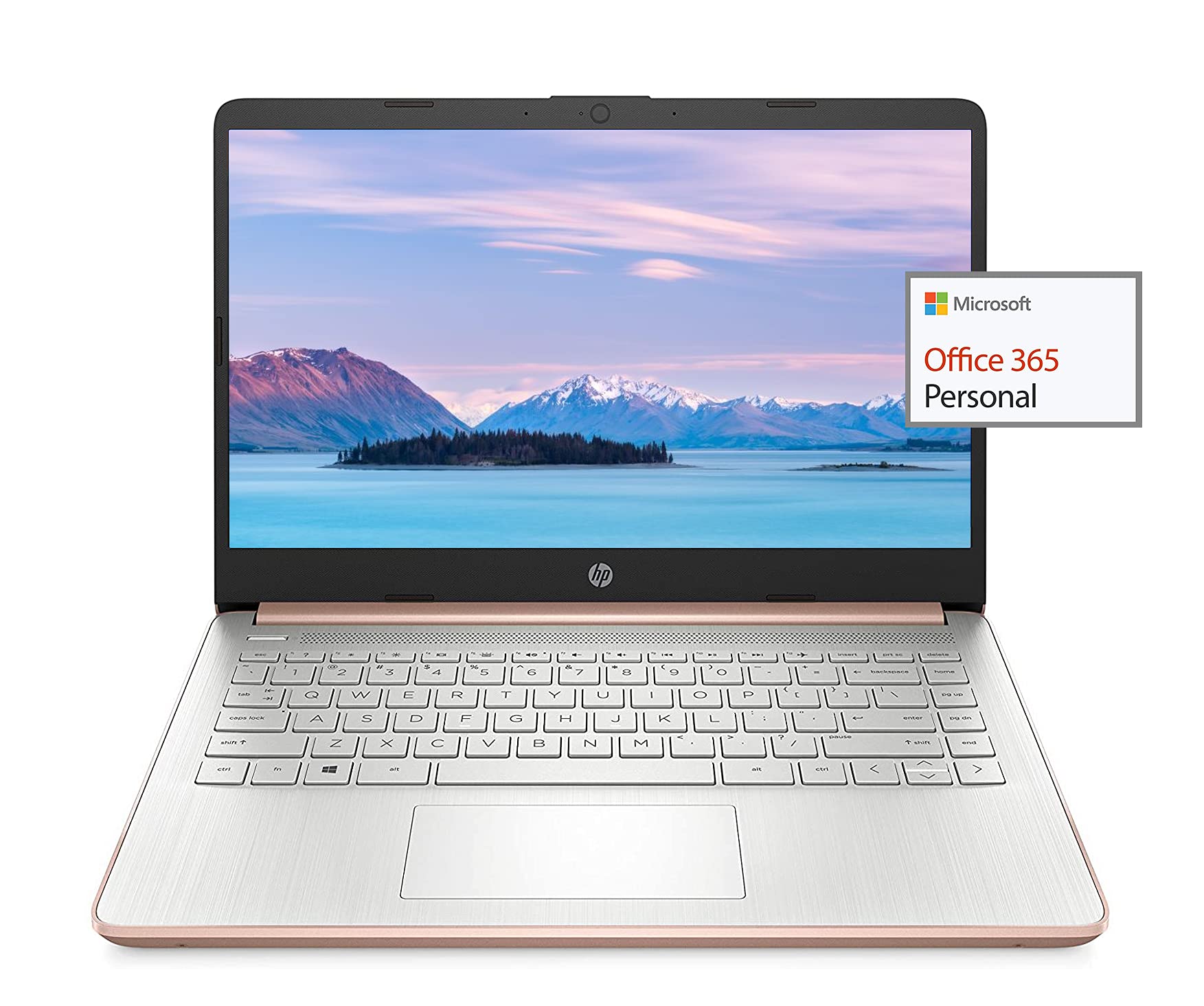
Image: The HP 14-inch HD Laptop, showcasing ya sleek imewe.
Melite
1. Gbanwee ike mbụ
Connect the power adapter to the laptop and a power outlet. Open the laptop lid. The laptop should power on automatically or by pressing the power button, typically located on the keyboard deck.
2. Ntọala Sistemụ Ọrụ
Follow the on-screen prompts to complete the Windows 10 setup. This includes selecting your region, connecting to a Wi-Fi network, and creating a user account.
3. Activating Microsoft Office 365
Your laptop includes a 1-year subscription to Microsoft Office 365. To activate:
- Launch any Office application (e.g., Word, Excel).
- Sign in with your Microsoft account. If you do not have one, create a new account.
- Click "Activate Office" and follow the subsequent prompts.
- Complete steps 1, 2, and 3 as instructed.
- Click "Refresh" once Office is ready.
- Open a document and accept the license agreement to finalize activation.

Image: The HP laptop displaying Microsoft Office 365 applications.
4. Switching Out of Windows 10 S Mode
Windows 10 in S mode is designed for security and performance, exclusively running apps from the Microsoft Store. If you need to install apps from outside the Microsoft Store, you can switch out of S mode. This is a one-way switch and cannot be undone.
- Gaa na Ntọala > Mmelite & Nchekwa > Nkwalite.
- In the "Switch to Windows 10 Home" or "Switch to Windows 10 Pro" section, select Gaa na Ụlọ Ahịa.
- Na Switch out of S mode (or similar) page that appears in the Microsoft Store, click the Nweta bọtịnụ.
- After confirming, you will be able to install apps from outside the Microsoft Store.
5. Njikọ Peripherals
Your laptop features various ports for connecting external devices:
- USB Type-A & Type-C: For connecting USB devices like external drives, mice, and keyboards.
- HDMI: Maka ijikọ na ngosipụta mpụga ma ọ bụ ihe nrụpụta.
- Njikọ Jack ekweisi/igwe okwu: Maka ntinye/mpụta ọdịyo.
- Onye Na-agụ Kaadị Mgbasa Ozi: Maka itinye kaadị SD.

Foto: Akụkụ view of the HP laptop, highlighting the SuperSpeed USB Type-A, USB Type-C, HDMI 1.4b, and headphone/microphone combo ports.

Image: Opposite side view of the HP laptop, showing the media card reader slot.
Ntuziaka ọrụ
1. Njikwa Ike
- Ike Na: Pịa bọtịnụ ike.
- Modera Modera: Mechie mkpuchi ahụ ma ọ bụ pịa bọtịnụ ike obere oge.
- Mechie: Go to Start > Power > Shut down.
- Malitegharịa: Go to Start > Power > Restart.
2. Ngosipụta ojiji
The laptop features a 14-inch HD (1366 x 768) display with a micro-edge bezel design and WLED-backlit BrightView technology. Adjust brightness using the function keys (F2/F3) or through Windows display settings.

Image: The HP laptop display showcasing its micro-edge bezel and HD resolution.
3. Ahụigodo na Touchpad
The standard keyboard provides comfortable typing. The integrated touchpad supports multi-touch gestures for navigation. Refer to Windows settings for customizing touchpad sensitivity and gestures.
4. Webigwefoto na ọdịyo
The HP True Vision 720p HD camera with integrated dual array digital microphones is suitable for video calls. The laptop features HP custom-tuned dual speakers for clear audio output.

Image: The HP laptop showing the webcam in use and highlighting the dual speaker setup.
5. Njikọ ikuku
- Wi-Fi 5 (1x1): Connect to wireless networks for internet access. Manage Wi-Fi connections via the network icon in the taskbar.
- Bluetooth Bluetooth: Pair with Bluetooth-enabled devices such as headphones, speakers, or mice. Access Bluetooth settings via Windows Settings > Devices > Bluetooth & other devices.
Nlekọta
1. Nlekọta batrị
The laptop's battery provides up to 10.5 hours of video playback and up to 9 hours of wireless streaming. To prolong battery life:
- Zere oke okpomọkụ.
- Akwụsịla batrị kpamkpam ugboro ugboro.
- Utilize HP Fast Charge for quick recharging.
- Hazie ntọala ike na Windows iji mee ka ojiji batrị ka mma.
2. Njikwa nchekwa
Your laptop is equipped with 256GB SSD and 64GB eMMC storage. Regularly manage your files to ensure sufficient free space. Use Disk Cleanup and Storage Sense features in Windows to remove unnecessary files.
3. Nhicha Laptọọpụ
- Jiri akwa dị nro na-enweghị ntụpọ dampejiri mmiri ma ọ bụ ihe nhicha ihuenyo kpuchie maka ngosi.
- Maka ahụigodo na chassis, jiri akwa dị nro. Zere kemịkalụ siri ike.
- Gbaa mbọ hụ na agbanyụrụ laptọọpụ wee wepụ ya tupu ihicha ya.
4. Mmelite ngwanrọ
Keep your operating system and drivers updated. Windows Update automatically handles system updates. Check the HP support website for driver updates specific to your model.
Nchọpụta nsogbu
Okwu na azịza ndị nkịtị:
- Laptọọpụ adịghị arụ ọrụ: Hụ na e jikọtara ihe nkwụnye ike ahụ nke ọma, batrị ahụ nwekwara ike ịchaji zuru oke. Nwaa ebe a na-esi ike ọzọ.
- Gosipụta nsogbu: Check display cable connections if using an external monitor. Adjust brightness settings.
- Enweghị ụda: Verify volume levels, check audio output device settings in Windows, and ensure headphones are properly connected.
- Nsogbu njikọ Wi-Fi: Restart your router and laptop. Check Wi-Fi settings and ensure airplane mode is off.
- Ịrụ ọrụ nwayọ: Close unnecessary applications. Check for background processes. Ensure sufficient free storage space.
Maka nsogbu ndị ọzọ gbasara nchọpụta nsogbu ma ọ bụ nsogbu ndị na-adịgide adịgide, gaa na nkwado HP websaịtị ma ọ bụ kpọtụrụ ọrụ ndị ahịa HP.
Nkọwapụta
| Njirimara | Nkọwapụta |
|---|---|
| Ụdị | HP |
| Aha Nlereanya | HP 2022 |
| Nha ihuenyo | 14 sentimita asatọ |
| Nhazi | AMD 3020e (2 Cores, 4 Threads, 1.2GHz Base, 2.6GHz Max Boost) |
| RAM | 8 GB DDR4 |
| Nchekwa | 256GB SSD + 64GB eMMC (Total 320 GB) |
| Eserese | Ihe osise AMD Radeon agbakwunyere |
| Sistemụ nrụọrụ | Windows 10 Home in S mode (upgradeable) |
| Njikọta | Wi-Fi 5 (1x1), Bluetooth 5.0 |
| ọdụ ụgbọ mmiri | USB Type-A, USB Type-C, HDMI 1.4b, Headphone/Microphone Combo, Media Card Reader |
| Webcam | HP True Vision 720p HD Camera |
| Ndụ batrị (Njikere) | Up to 10.5 Hours (video playback) |
| Ibu | 3.24 pound |
| Akụkụ (L x W x Th) | 8.86"L x 12.76"W x 0.71"th |

Foto: Ofeview of the HP 14 laptop's key features including AMD 3020e processor, battery life, Windows 10 S mode, HP Fast Charge, and Wi-Fi 5 & Bluetooth 5.0.
Akwụkwọ ikike na nkwado
Your HP laptop comes with a standard manufacturer's warranty. Please refer to the warranty documentation included with your purchase for specific terms and conditions. For technical support, driver downloads, and service information, visit the official HP support websaịtị ma ọ bụ kpọtụrụ ọrụ ndị ahịa HP ozugbo.
Maka nchekwa ọzọ, tụlee ịzụtaasing extended protection plans from your retailer.