
1. Okwu mmalite na gafereview
The Poly Savi 8210 UC is a professional-grade wireless DECT single-ear headset designed for secure and clear communication across multiple devices. It offers robust security features, including military-grade 256-bit AES encryption, making it suitable for environments requiring high privacy. The headset features Poly Acoustic Fence technology for noise cancellation and provides extensive wireless range and talk time.

Image: Poly Savi 8210 UC Monaural Headset. This image displays the single-ear headset with its microphone boom, designed for comfortable and clear audio communication.
2. Kedu ihe dị na Igbe ahụ
Chọpụta na ihe niile dị na ngwugwu:
- Poly Savi 8210 UC Bluetooth Wireless DECT Headset
- Isi isi
- Global Teck Microfiber Cloth

Image: Contents of the box. This image shows the Poly Savi 8210 UC headset, its charging base, and a Global Teck microfiber cleaning cloth, indicating the complete product package.
3. Nhazi
3.1 Ijikọ Isi
The Savi 8210 UC base connects to your desk phone, PC/Mac via USB-A, and can also pair with mobile phones via Bluetooth. Ensure the base is placed near your communication devices.
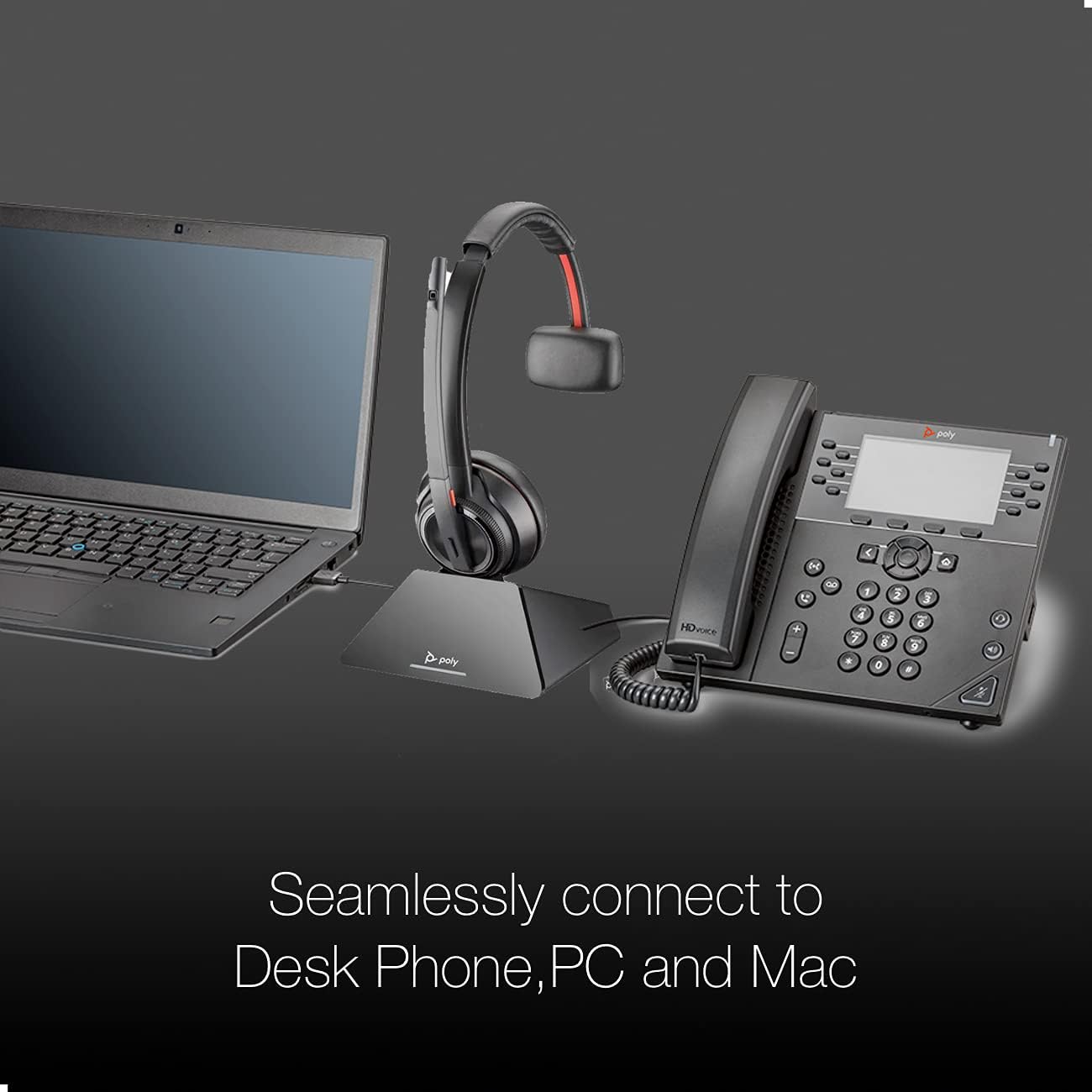
Image: Seamless connectivity. This image illustrates the Poly Savi 8210 UC headset base connected to both a laptop (PC/Mac) via USB and a desk phone, demonstrating its multi-device compatibility.
3.2 Base Controls and Indicators
Familiarize yourself with the buttons and LED indicators on the headset base:

Image: Headset base controls. This image highlights various buttons and indicators on the headset base, including the computer button, mobile phone button, desk phone button, incoming call ringer, Bluetooth pairing button/LED, subscription button/LED, and charging LED.
- Computer Button: Selects the PC/Mac as the audio source.
- Mobile Phone Button: Selects a paired mobile phone as the audio source.
- Desk Phone Button: Selects the desk phone as the audio source.
- Incoming Call Ringer: Indicates an incoming call.
- Bluetooth Pairing Button/LED: Initiates Bluetooth pairing mode and indicates connection status.
- Subscription Button/LED: Used for subscribing the headset to the base and indicates subscription status.
- Ịchaji LED: Indicates the charging status of the headset.
3.3 Nchaji izizi
Before first use, place the headset on the base to charge. A full charge takes approximately three hours. The charging LED on the base will indicate charging status.
4. Ntuziaka ọrụ
4.1 Powering On/Off and Talk Time
The headset automatically powers on when removed from the base and powers off when placed back on the base. The headset provides up to 13 hours of talk time on a full charge.

Image: Talk Time: 13 Hours. This image highlights the impressive 13-hour talk time capability of the Poly Savi 8210 UC headset, ensuring extended use.
4.2 Njikwa oku
- Oku na-aza/Nkwụsị: Press the Call Control button on the headset or the active device button on the base.
- Ndozi olu: Use the volume up/down buttons on the headset.
- Mechie: Pịa bọtịnụ Ogbi dị na ekweisi ka ogbi ma ọ bụ mebie igwe okwu.
4.3 ndakọrịta
The Poly Savi 8210 UC is designed for broad compatibility with various communication platforms and VoIP softphones, including:

Image: Compatible Platforms. This image displays logos of various communication platforms such as Skype, Lync, Mitel, RingCentral, Avaya, GoToMeeting, Google Meet, Amazon Chime, Unify, Cisco, Zoom, Vonage, Microsoft Teams, Fuze, 8x8, and BlueJeans, indicating broad software compatibility for the headset.
- Bugharịa
- RingCentral
- 8x8
- Vonage
- Otu Microsoft
- Skype
- Nzukọ Google
- GoToMeeting
- Hazie
- Cisco
- And more business applications.
5. Nlekọta
5.1 Nhicha
Regularly clean the headset and base with a soft, dry cloth. For the ear cushion, use the provided Global Teck Microfiber Cloth. Avoid using harsh chemicals or abrasive materials.
5.2 Nchekwa
When not in use, store the headset on its charging base to ensure it is always ready. Store in a cool, dry place away from extreme temperatures.
6. Nchọpụta nsogbu
6.1 No Audio/Poor Audio Quality
- Ensure the headset is charged and properly seated on the base.
- Verify the correct audio source (PC, mobile, or desk phone) is selected on the base.
- Lelee ọkwa olu na ekweisi na ngwaọrụ ejikọtara.
- Confirm the headset is subscribed to the base. If not, re-subscribe using the subscription button.
6.2 Headset Not Connecting
- For PC/Mac: Ensure the USB-A cable is securely connected.
- For Mobile: Ensure Bluetooth is enabled on your mobile device and the headset is in pairing mode (press and hold the Bluetooth pairing button on the base).
- Restart the base by unplugging and re-plugging the power adapter.
6.3 Microphone Issues
- Hụ na e tinyere ụda igwe okwu ahụ nke ọma n'akụkụ ọnụ gị.
- Lelee na akpọchighị igwe okwu.
- Verify microphone settings in your computer's sound preferences or communication software.
7. Nkọwapụta
| Aha Nlereanya | Savi 8210 UC |
| Ụdị | Poly (Global Teck Worldwide) |
| Teknụzụ Njikọta | Wireless (DECT, Bluetooth) |
| Teknụzụ ikuku | Bluetooth |
| Ntinye ntị | Na Ntị |
| Ụdị Ihe | Na Ntị |
| Njikwa mkpọtụ | Nkagbu mkpọtụ nọ n'ọrụ |
| Igwe okwu | Included, Noise Cancellation (Poly Acoustic Fence) |
| Oge Okwu | Ruo awa iri abụọ |
| Oge ịkwụ ụgwọ | awa 3 (ụgwọ zuru oke) |
| Ikuku iche | Up to 590 ft / 180 m (line-of-sight) |
| Nchekwa | DECT Security Step C, 256-bit AES encryption |
| Ngwa dakọtara | Laptop, Tablets, Cellphone, Computer, Macbook, PC, Android, iOS |
| Ibu Ibu | 0.5 kilogram |
| Ihe onwunwe | Akpụkpọ anụ (ohiri isi ntị) |
8. Akwụkwọ ikike
The Poly Savi 8210 UC headset comes with a Poly/Plantronics warranty against any manufacturing defects. Please refer to the official Poly website or your purchase documentation for specific warranty terms and duration.
9. Nkwado
For technical assistance, troubleshooting, or warranty claims, please contact Global Teck Worldwide, the seller/distributor of this product. You can find their contact information on your purchase receipt or by visiting their official websaịtị.
For additional product information and resources, visit the official Poly websaịtị.