
PROVISION ISR PROVISION ISR
Provision ISR All-in-one Webntuziaka Onye ọrụ cam
Model: PROVISION ISR
Okwu mmalite
Thank you for choosing the Provision ISR All-in-one Webcam. This device is designed to simplify your online video activities by integrating a high-quality webcam, microphone, speaker, and adjustable LED light into a single, convenient unit. This manual provides detailed instructions for setup, operation, maintenance, and troubleshooting to ensure you get the most out of your new webcam.

The Provision ISR All-in-one Webcam, shown with its packaging, highlighting its integrated features.
Ngwaahịa gafereview
The Provision ISR All-in-one Webcam combines essential features for a seamless video communication experience.
- HD zuru ezu Webcam: Delivers crystal clear 1080p video at 60 frames per second.
- Ọkà okwu arụnyere n'ime ya: Integrated 2.5W speaker for clear audio output.
- Igwe okwu na-akagbu mkpọtụ: Captures clear audio while reducing background noise.
- 3-Level Adjustable LED Light: Provides optimal illumination for various lighting conditions.
- Mkpuchi Nzuzo agbakwunyere: Ensures privacy when the webcam anaghị eji.
- USB Plug & Play: No drivers required for quick and easy setup.
- 2-Axis Rotating Clip: Allows for flexible positioning and angle adjustment.

Isi atụmatụ nke webcam including Full HD video, adjustable LED light, built-in speaker, and noise-cancelling microphone.

Nke webcam in use during a video conference, highlighting its all-in-one capabilities.
Melite
Setting up your Provision ISR Webcam is a simple plug-and-play process.
- Bupụ ihe ahụ Webcam: Jiri nlezianya wepu webcam sitere na ngwugwu ya.
- Ugwu ahụ Webcam:
- Open the flexible clip base.
- Ugwu ahụ webcam on top of your monitor, laptop screen, or a flat surface.
- Adjust the clip to ensure the webcam is stable and securely positioned. The 2-axis rotating clip allows for 360° horizontal rotation and 90° vertical tilt.
- Jikọọ na Kọmputa gị:
- Tinye eriri USB ahụ site na webcam banye n'ọdụ ụgbọ mmiri USB dị na kọmputa gị.
- Nke webcam is plug-and-play, meaning no additional drivers are typically required. Your operating system should automatically detect and install the necessary components.
- Nyochaa njikọ:
- Open a video conferencing application (e.g., Zoom, Skype, Google Meet) or your computer's camera application.
- Select the "Provision ISR Webcam" as your video and audio input device in the application settings.

Nke webcam features USB Plug & Play connectivity, compatible with various operating systems and video conferencing applications.

Physical dimensions of the webcam and the flexibility of its 2-axis rotating clip for optimal positioning.
Ntuziaka ọrụ
Adjusting the LED Fill Light
Nke webcam features an integrated LED fill light with three adjustable brightness levels to ensure you are well-lit in any environment.
- To turn on the light or cycle through brightness levels, gently touch the touch-sensitive area on the top of the webcam.
- There are three distinct brightness settings. Continue touching to cycle through the levels and turn the light off.

Demonstration of the LED fill light providing illumination, with an illustration of its three adjustable levels.

The adjustable LED light is controlled via a simple touch interface.
Iji mkpuchi nzuzo
For enhanced privacy and security, the webcam includes a built-in privacy cover.
- To cover the lens, simply slide the cover over the camera lens.
- To uncover the lens, slide the cover away from the camera lens.

Nke webcam features a built-in privacy cover for security, along with its speaker and microphone.

The privacy cover can be easily opened and closed with a single finger.
Video and Audio Quality
Nke webcam is equipped with a 6-layer F1.6 glass lens for superb video quality and a 100° wide field of view, ideal for conferences and family video calls.
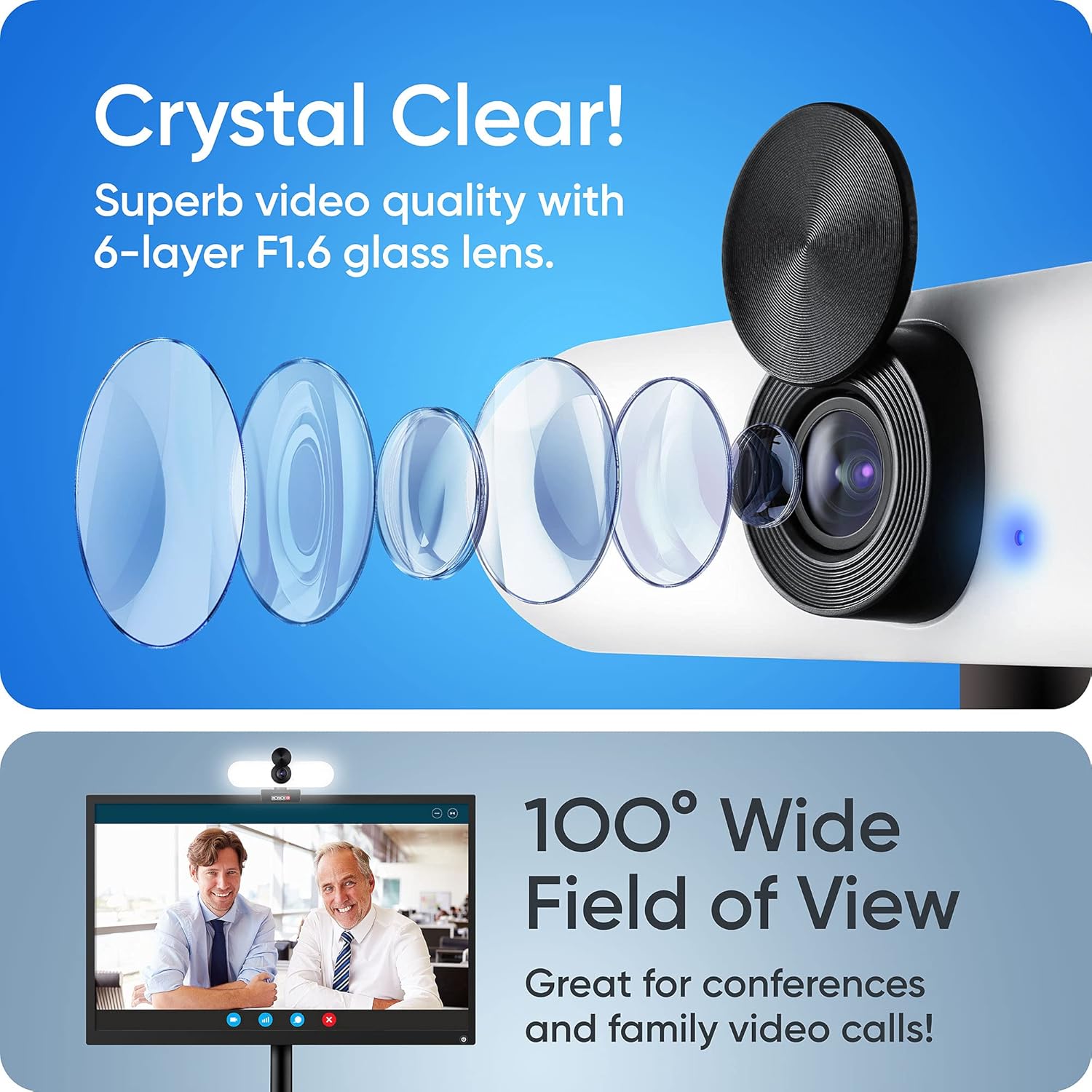
Nke webcam's advanced lens system provides crystal clear video and a wide field of view.

Nke webcam automatically adjusts for optimal exposure correction.

Nke webcam provides sharp focus for clear image capture.
Ndakọrịta
The Provision ISR Webcam is designed for broad compatibility with various operating systems and popular video conferencing applications.
Sistemu eji arụ ọrụ akwadoro:
- Windows 7, 8, 10
- Mac OS 10.6+
- Android 5.0+
- Xbox
- Chrome OS
Ngwa dakọtara:
- Bugharịa
- Skype
- Facebook Messenger
- Cisco Webex
- Otu Microsoft
- Nzukọ Google
- GoToMeeting
- Na ọtụtụ ndị ọzọ...
Nlekọta
Proper maintenance will ensure the longevity and optimal performance of your webcam.
- Na-ehicha oghere: Use a soft, lint-free cloth specifically designed for optical lenses to gently wipe the camera lens. Avoid using harsh chemicals or abrasive materials.
- Na-ehicha ahụ: Hichapụ webcam body with a soft, dry cloth. If necessary, a slightly damp enwere ike iji akwa mee ihe, mana hụ na mmiri adịghị abanye na ngwaọrụ ahụ.
- Nchekwa: Mgbe ejighị ya ogologo oge, chekwaa ya webcam in a cool, dry place, away from direct sunlight and extreme temperatures. Use the privacy cover to protect the lens.
- Zenarị Mbelata na Mmetụta: Jikwaa webcam na nlezianya iji gbochie mmebi site na ọdịda ma ọ bụ mmetụta.
Nchọpụta nsogbu
If you encounter issues with your Provision ISR Webcam, gbalịa usoro nchọpụta nsogbu ndị a:
- WebAchọpụtaghị cam:
- Hụ na e tinyere eriri USB n'ime abụọ ahụ nke ọma webcam na kọmputa gị.
- Gbalịa ịkwụnye webbanye n'ọdụ ụgbọ USB dị iche na kọmputa gị.
- Malitegharịa ekwentị gị na kọmputa.
- Check your operating system's device manager (Windows) or System Information (Mac) to see if the webcam dị na ndepụta.
- Enweghị Vidiyo/Ihuenyo Ojii:
- Make sure the privacy cover is open.
- Gbaa mbọ hụ na nke ziri ezi webcam is selected in your video conferencing application's settings.
- Check if another application is currently using the webcam, which might prevent access.
- No Audio Input (Microphone):
- Verify that "Provision ISR Webcam" is selected as the microphone input device in your application's audio settings.
- Check your computer's sound settings to ensure the microphone is not muted and its volume is adequate.
- Ensure no other application is exclusively using the microphone.
- No Audio Output (Speaker):
- Verify that "Provision ISR Webcam" or "USB Audio Device" is selected as the speaker output device in your application's audio settings and your computer's sound settings.
- Check the volume levels on both your computer and within the application.
- Ogo vidiyo na-adịghị mma:
- Hụ na oghere ahụ dị ọcha (lee ngalaba mmezi).
- Check your internet connection speed, as a slow connection can affect video quality in online calls.
- Adjust the LED fill light for better illumination.
Nkọwapụta
Detailed technical specifications for the Provision ISR All-in-one Webcam.
| Njirimara | Nkọwapụta |
|---|---|
| Ụdị | PROVISION ISR |
| Nọmba nlereanya | PROVISION ISR |
| ASIN | B094W6SSRR |
| Mkpebi vidiyo | 1080p zuru oke |
| Ọnụego Frame | 60 fps (implied from title) |
| Igwe oghere oghere | F1.6 (implied from image) / 1.6 Millimeters |
| Ubi nke View | Ogologo akụkụ 100° |
| Mbugharị anya | 1x Multiplier |
| Dijitalụ mbugharị | 2x Multiplier |
| Atụmatụ pụrụ iche | Low light performance, Built-in LED light (3 levels), Built-in Speaker (2.5W), Noise-Cancelling Microphone, Privacy Cover |
| Teknụzụ Njikọta | USB |
| Ndozi onyonyo | Mba |
| Ihe Nchịkwa Ihe Nchịkwa | CMOS |
| Akụkụ ngwugwu | 14.3 x 6.9 x 6.6 cm; 240 grams |
| Ogologo eriri USB | 5.25 Feet (implied from image) |
Akwụkwọ ikike na nkwado
Information regarding warranty and customer support for your Provision ISR Webcam.
Specific warranty details are not provided in the product information. Please refer to the product packaging or the official Provision ISR websaịtị maka ozi akwụkwọ ikike kachasị ọhụrụ.
For technical support or further assistance, please visit the official Provision ISR support page or contact their customer service department. Contact information can typically be found on the manufacturer's websaịtị ma ọ bụ ngwaahịa akwụkwọ.

Provision ISR, a company with expertise in video surveillance and web cameras since 2007.
Ask a question about this manual
Ask about setup, troubleshooting, compatibility, parts, safety, or missing instructions. Manuals+ will review the question and use this page’s manual context to help answer it.