
Okwu mmalite
Thank you for choosing the Newskill Manticore Gaming PC Case. This manual provides essential information for the proper installation, operation, and maintenance of your new PC chassis. Please read these instructions carefully before beginning the assembly process to ensure optimal performance and longevity of your components.
Ngwaahịa gafereview
The Newskill Manticore is an ATX mid-tower gaming PC case designed for high-performance builds. It features a mesh front panel for superior airflow, a tempered glass side panel to showcase your components, and four pre-installed 120mm ARGB fans for effective cooling and customizable aesthetics.
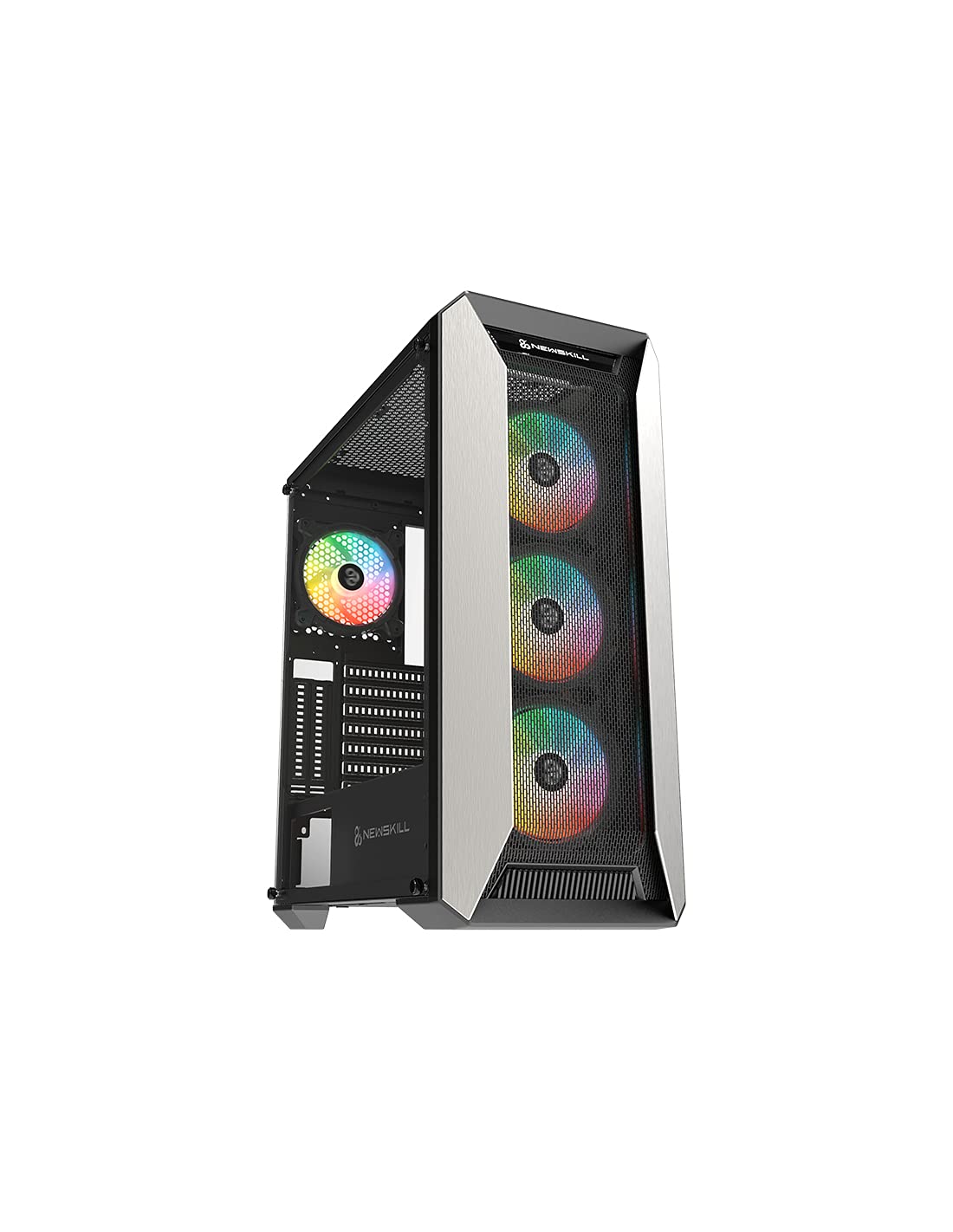
Foto 1: N'ihu view of the Newskill Manticore Gaming PC Case, highlighting the mesh front and tempered glass side panel.
Akụkụ ndị bụ isi:
- ATX Mid-Tower compatibility
- Mesh front panel for optimized airflow
- Akụkụ akụkụ enyo nwere iwe
- Four pre-installed 120mm ARGB fans
- Two removable dust filters
- USB 3.0 connectivity on the front panel
Ntọala na nwụnye
1. Iwepu ngwongwo
Carefully remove the PC case from its packaging. Inspect for any damage that may have occurred during shipping. Retain the packaging for future transport or warranty claims.
2. Njirimara akụrụngwa
Before installation, familiarize yourself with the case components and included accessories:
- Newskill Manticore PC Case
- Accessory box (screws, cable ties, standoffs)
- Akwụkwọ ntuziaka (akwụkwọ a)
3. Nwụnye motherboard
- Remove the tempered glass side panel by unscrewing the thumb screws.
- Install the necessary motherboard standoffs into the motherboard tray.
- Carefully place your ATX motherboard onto the standoffs, aligning the screw holes.
- Chekwaa motherboard site na skru ndị enyere.
4. Nrụnye Ike Ike (PSU).
- Locate the PSU mounting area at the bottom rear of the case.
- Slide your PSU into position from the rear of the case.
- Secure the PSU with screws from the exterior rear of the case.
5. Nchekwa mbanye nwụnye
The case supports various storage configurations. Refer to your specific drive type for mounting instructions (e.g., 2.5" SSDs, 3.5" HDDs).
6. Ntinye Kaadị eserese na Kaadị Mgbasawanye
Remove the necessary PCIe slot covers and install your graphics card or other expansion cards, securing them with screws.
7. Njikọ ihu panel
Connect the front panel cables (USB 3.0, HD Audio, Power Switch, Reset Switch, Power LED, HDD LED) to the corresponding headers on your motherboard. Consult your motherboard manual for exact pin layouts.
8. Njikwa USB
Jiri ihe e ji ewepụ eriri na ebe e ji ejikọta eriri ndị dị n'azụ tray motherboard jikwaa eriri ndị ahụ. Nke a na-eme ka ikuku na ịma mma dịkwuo mma.
Ntuziaka ọrụ
Ịgbanyụ/ Gbanyụọ
Press the power button located on the top panel of the case to turn on your system. To shut down, use the operating system's power-off function or press and hold the power button for several seconds for a forced shutdown (not recommended for regular use).
Njikwa ọkụ ARGB
The pre-installed ARGB fans can be controlled via your motherboard's ARGB software (if compatible) or a dedicated ARGB controller (if included or purchased separately). Refer to your motherboard or controller manual for specific instructions on changing lighting effects and colors.
Nlekọta
Nchacha uzuzu uzuzu
The Newskill Manticore includes two removable dust filters (typically located on the top and bottom/front). Regularly clean these filters to maintain optimal airflow and prevent dust buildup inside your PC. Gently slide them out, clean with water and mild soap, or use a vacuum cleaner, and ensure they are completely dry before re-inserting.
Nchacha nke mpụga
Jiri nwayọ hichaa elu mpụta, damp akwa . Zere ihe nchacha ma ọ bụ ihe mgbaze nke nwere ike imebi njedebe ma ọ bụ iko dị ọkụ.
Nchọpụta nsogbu
Enweghị ike
- Ensure the PSU is properly connected to the wall outlet and switched on.
- Verify all power cables from the PSU are correctly connected to the motherboard and components.
- Lelee njikọ mgba ọkụ ike nke panel ihu na motherboard.
Ndị Fans anaghị agbagharị / ARGB anaghị enwu ọkụ
- Gosi na ejikọrọ eriri igwe fan ọkụ na motherboard ma ọ bụ onye njikwa fan.
- Check ARGB connections to the motherboard's ARGB header or dedicated controller.
- Ensure ARGB software or controller settings are correctly configured.
Ikuku ikuku na-adịghị mma / ekpo oke ọkụ
- Clean dust filters regularly.
- Ensure no obstructions are blocking air intake or exhaust vents.
- Verify all fans are spinning correctly and oriented for optimal airflow.
For further assistance, please contact Newskill support.
Nkọwapụta
| Njirimara | Nkọwa |
|---|---|
| Aha Nlereanya | Manticore |
| Nọmba nlereanya | 1102 |
| Ụdị ikpe | Mid Tower |
| Ndakọrịta Motherboard | ATX |
| Akụkụ (L x W x H) | 60 x 60 x 85 cm |
| Ibu | 1 n'arọ |
| Ihe onwunwe | Igwe ọkụ, igwe |
| Usoro jụrụ oyi | Air (4x 120mm ARGB fans included) |
| N'ihu I / O Ports | USB 3.0, Audio Jacks, Power, Reset |
| Ihe nzacha uzuzu | 2 (nwere ike iwepụ) |
| Akwadoro ojiji | Ịgba egwu |
Ozi akwụkwọ ikike
The Newskill Manticore PC Case comes with a Akwụkwọ ikike onye nrụpụta afọ 2. This warranty covers defects in materials and workmanship under normal use. It does not cover damage caused by misuse, accident, modification, or unauthorized repair. Please retain your proof of purchase for warranty claims.
Nkwado na kọntaktị
For technical support, troubleshooting assistance, or warranty inquiries, please visit the official Newskill website or contact their customer service department. You can find contact information on the Newskill websaịtị: www.newskillgaming.com