
1. Okwu mmalite
This manual provides detailed instructions for the installation, operation, and maintenance of your Cestovet Android 10 Car Radio. Please read this manual thoroughly before using the product to ensure proper functionality and safety. This unit is specifically designed for Honda CRV models manufactured between 2012 and 2016.

Image 1.1: Cestovet Android 10 Car Radio Main Unit
Vidiyo 1.1: Ngwaahịa gafereview for Honda CRV 2012-2016 Car Radio. This video provides a general visual overview of the car radio's features and compatibility.
2. Ozi nchekwa
- Always operate the device responsibly and in accordance with local traffic laws.
- Do not attempt to install or repair the unit if you are not qualified. Refer to a professional installer.
- Zere ka anwụ na-acha kpọmkwem ma ọ bụ okpomọkụ dị oke elu ghara ịpụta ìhè ruo ogologo oge.
- Keep the screen clean and free from obstructions.
3. Ihe ngwugwu
Nyochaa na etinyere ihe niile edepụtara n'okpuru na ngwugwu gị. Ọ bụrụ na ihe ọ bụla na-efu ma ọ bụ mebie, biko kpọtụrụ nkwado ndị ahịa.

Image 3.1: Package Contents. This image displays the main unit, various cables, and installation tools included with the product.
- Isi Isi (ngosipụta nke 10-inch)
- Power Cable Harness
- Eriri USB (x2)
- Antenna GPS
- USB RCA
- CanBus Decoder
- Igwe okwu mpụga
- Screwdriver
- Plastic Removal Tool (Crowbar)
- Akwụkwọ ntuziaka (akwụkwọ a)
4. Ntọala na nwụnye
Professional installation is recommended. Ensure the vehicle's battery is disconnected before beginning installation.
4.1 Nyochaa nwụnye tupu etinye ya
- Confirm vehicle compatibility (Honda CRV 2012-2016).
- Inspect all components for damage.
- Familiarize yourself with your vehicle's dashboard removal process.
4.2 Njikọ njikọ
Connect the provided wiring harness to the car radio and then to the vehicle's factory wiring. Ensure all connections are secure. The CanBus decoder should be connected as per the wiring diagram to ensure proper communication with the vehicle's systems, including steering wheel controls.
4.3 Nwụnye anụ ahụ
- Carefully remove the factory radio and dashboard trim.
- Mount the new Cestovet unit into the dashboard opening.
- Secure the unit using appropriate screws or clips.
- Reconnect the vehicle's battery and test the unit before reassembling the dashboard trim.
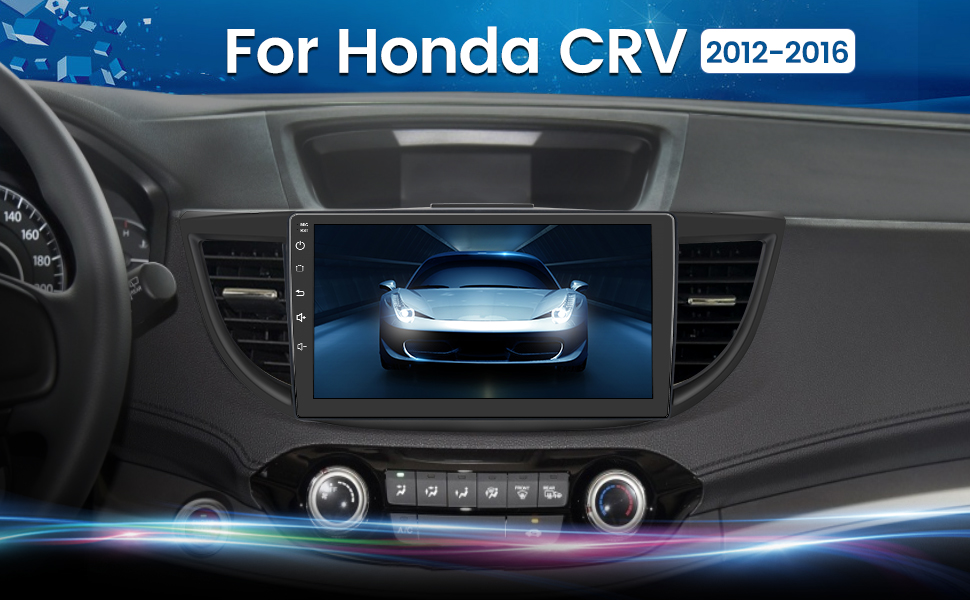
Image 4.1: Installed Car Radio. This image shows the Cestovet Android 10 Car Radio seamlessly integrated into a Honda CRV dashboard.
5. Ntuziaka ọrụ
5.1 Ọrụ ndị bụ isi
- Gbanyụọ/ Gbanyụọ: Press and hold the power button on the unit's side panel.
- Njikwa olu: Use the volume buttons on the side panel or steering wheel controls.
- Bọtịnụ ụlọ: Returns to the main Android home screen.
- Bọtịnụ azụ: Navigates to the previous screen or menu.
5.2 Carplay na gam akporo Auto
Connect your iPhone or Android phone via a USB cable to enable Carplay or Android Auto functionality. This allows for seamless integration of navigation, music, calls, and messages directly on the car radio's display.
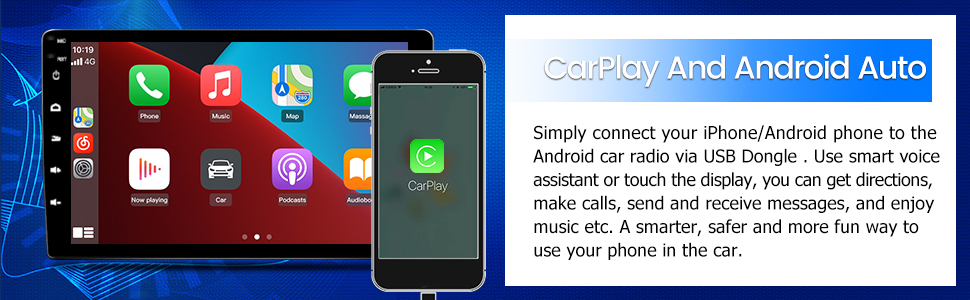
Image 5.1: Carplay and Android Auto. This image illustrates the user interface for Carplay and Android Auto on the car radio's display.
5.3 Njikọ Bluetooth
Pair your mobile device via Bluetooth for hands-free calling and audio streaming. Navigate to the Bluetooth settings on the car radio, enable Bluetooth, and search for your device. Select your device from the list to pair.
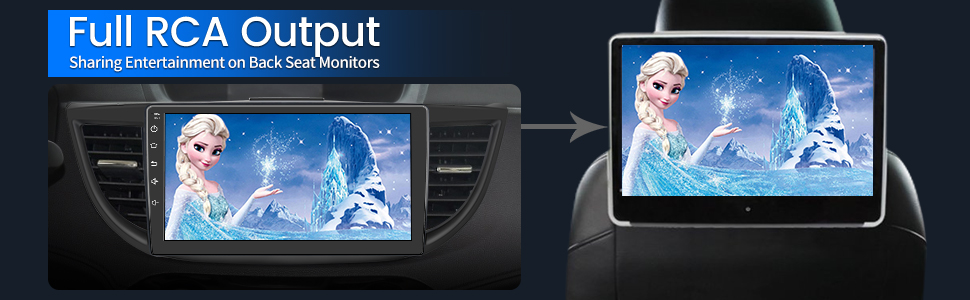
Image 5.2: Bluetooth Music. This image shows the Bluetooth music interface, allowing for wireless audio playback from a paired device.
5.4 WiFi njikọ
Connect the car radio to a WiFi hotspot (e.g., from your smartphone) to access online features, download apps, and browse the internet. Go to Settings > Network & Internet > Wi-Fi, then select your desired network and enter the password.

Image 5.3: WiFi Connection. This image displays the car radio's screen with various app icons, indicating internet access via WiFi.
5.5 GPS igodo
The unit supports both online and offline navigation. Ensure the GPS antenna is properly installed for optimal signal reception. Pre-installed maps or downloadable map applications can be used for guidance.
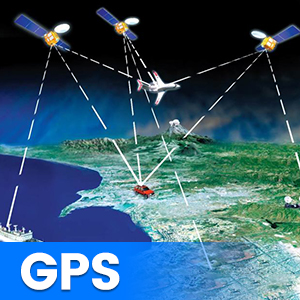
Image 5.4: GPS Functionality. This graphic illustrates the global positioning system (GPS) satellites providing navigation data to the car radio.
5.6 Steering Wheel Controls (SWC)
The unit supports integration with your vehicle's existing steering wheel controls. After installation, you may need to configure the SWC settings in the unit's menu to map the buttons correctly.
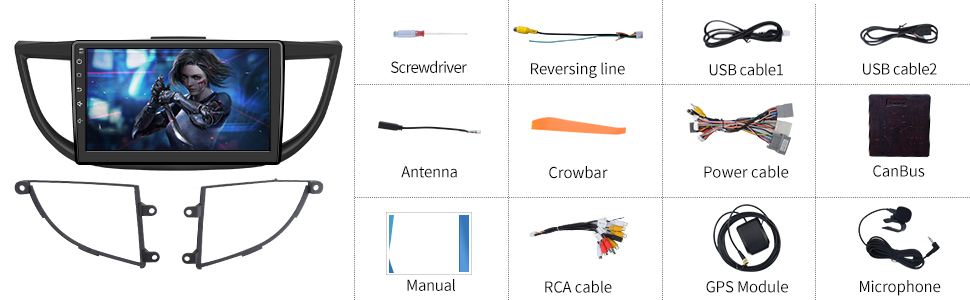
Image 5.5: Steering Wheel Controls. This image shows the on-screen interface for configuring steering wheel controls.
5.7 N'azụ View Nkwado igwefoto
The car radio supports a rearview camera (sold separately). When a compatible camera is connected and the vehicle is shifted into reverse, the screen will automatically display the camera feed, assisting with parking maneuvers.

Foto 5.6: N'azụ View Support. This graphic demonstrates how the car radio supports a rearview camera, displaying parking guidelines.
5.8 Full RCA Output
The unit features full RCA output, allowing you to connect external monitors, such as backseat displays, to share entertainment with passengers.

Image 5.7: Full RCA Output. This image shows video content from the car radio being displayed on a backseat monitor.
6. Nlekọta
- Nchacha ihuenyo: Use a soft, lint-free cloth to gently wipe the screen. Avoid abrasive cleaners or solvents.
- Mmelite ngwanrọ: Periodically check for available software updates through the unit's settings menu or the manufacturer's websaịtị iji hụ na arụmọrụ kacha mma yana ịnweta atụmatụ ọhụrụ.
- General Nlekọta: Debe unit ahụ pụọ na uzuzu na mmiri.
7. Nchọpụta nsogbu
Ọ bụrụ na ị na-enwe nsogbu, rụtụ aka na nsogbu ndị a na-ahụkarị na ngwọta ndị a:
| Nsogbu | Ngwọta enwere ike |
|---|---|
| Enweghị ike | Check power cable connections and vehicle's fuse box. Ensure the ignition is on. |
| Enweghị ụda | Verify speaker connections. Check volume levels and audio output settings. Ensure the amplifier (if external) is powered. |
| Efuola akara GPS | Gbaa mbọ hụ na ejikọrọ antenna GPS nke ọma ma nwee nke doro anya view of the sky. Move the vehicle to an open area. |
| Njikọ Bluetooth na-ada ada | Ensure Bluetooth is enabled on both devices. Delete previous pairings and try again. Restart both devices. |
| Ihuenyo mmetụ anaghị anabata | Perform a soft reset using the 'RST' button (if available) or power cycle the unit. |
8. Nkọwapụta
Key technical specifications of the Cestovet Android 10 Car Radio:
- Sistemụ nrụọrụ: Android 10
- Ngosipụta nha: 10 sentimita asatọ
- Mkpebi: 720 x1280
- RAM: 2GB
- Nchekwa Dị n'ime (ROM): 32GB
- Njikọta: Wi-Fi, Bluetooth
- Atụmatụ pụrụ iche: Carplay, Android Auto, GPS Navigation, Touchscreen, Steering Wheel Control Support, Rear View Camera Support, DSP (Digital Sound Processor)
- Ụkpụrụ mmepụta ụda: Speaker, Stereo
- Ibu ihe: Ihe dị ka 4.93 pound
- Akụkụ ngwugwu: Ihe dịka 17.87 x 10.12 x 7.56 sentimita asatọ
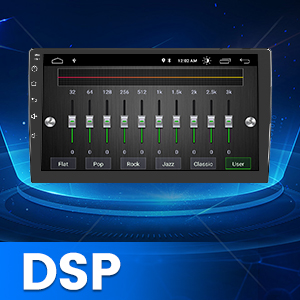
Image 8.1: DSP Functionality. This graphic illustrates the Digital Sound Processor (DSP) for enhanced audio customization.
9. Akwụkwọ ikike na nkwado
For warranty information, technical support, or any inquiries regarding your Cestovet Android 10 Car Radio, please refer to the contact information provided at the point of purchase or visit the official Cestovet websaịtị. Debe nnata nzụta gị dị ka ihe akaebe nke ịzụrụ maka nkwupụta ikike.