
1. Okwu mmalite
This manual provides instructions for the ELECROW 8-inch Portable Monitor, Model DIS00008R. This compact monitor features a 1280x800 resolution, a 16:10 aspect ratio, and built-in dual speakers. It is designed for compatibility with various HDMI-enabled devices, including Raspberry Pi, PCs, and game consoles. The monitor supports VESA mounting for flexible installation options.

Image 1.1: The ELECROW 8-inch Portable Monitor displaying a colorful image.
2. Kedu ihe dị na Igbe ahụ
Nyochaa na etinyere ihe niile ndị a na ngwugwu gị:
- 1 x ELECROW 8-inch Portable Monitor
- 1 x HD to Mini HD Cable
- 1 x USB Power Cord (USB A to Micro USB)
- 1 x Igwe nkwụsi ike
- Akwụkwọ ntuziaka onye ọrụ 1 x (akwụkwọ a)

Image 2.1: All items included in the product package.
3. Nhazi ntuziaka
3.1 Ijikọ Monitor
To set up the monitor, connect the mini HD port for video signal transmission and the USB port for power. Only two cables are required for operation.
- Connect one end of the provided HD to Mini HD cable to your source device (e.g., PC, Raspberry Pi, game console) and the other end to the mini HD port on the monitor.
- Connect the USB power cord to the monitor's USB port and the other end to a USB power source (e.g., PC USB port, USB wall adapter, power bank).

Image 3.1: The monitor is powered via a USB cable, compatible with various USB power sources.
3.2 VESA rịgoro
The monitor supports VESA mounting for alternative installation options. Refer to the VESA mounting standard for compatible brackets and installation procedures.

Image 3.2: The monitor offers wide compatibility with devices outputting HD signals.
4. Ntuziaka ọrụ
4.1 Basic Arụmọrụ
Once connected to a power source and a video input, the monitor will automatically display the input signal. Use the buttons on the monitor (typically labeled Menu, +, -, Auto) to navigate the on-screen display (OSD) menu and adjust settings such as brightness, contrast, and color.
4.2 Resolution Adjustment
The optimal resolution for this monitor is 1280 x 800. If you experience display issues such as white lines or flickering, adjust the output resolution of your connected device to 1280 x 800.

Image 4.1: The monitor's native resolution is 1280x800.
4.3 Horizontal and Vertical Modes
The monitor can be used in both horizontal (landscape) and vertical (portrait) orientations, depending on your application needs. Adjust the display settings on your connected device to match the desired orientation.

Image 4.2: The monitor supports both horizontal and vertical display modes.
4.4 zuru oke Viewna n'akuku
The IPS screen technology provides a wide 178-degree viewnkuku na-eme ka onyonyo dị mma, na-ahụ na ọ na-agbanwe agbanwe site n'akụkụ dị iche iche.

Image 4.3: The monitor offers a wide 178-degree viewakụkụ n'akuku.
4.5 Ndị ọkà okwu arụnyere n'ime
The monitor includes built-in dual speakers for audio output. Ensure your source device is configured to send audio through the HDMI connection.
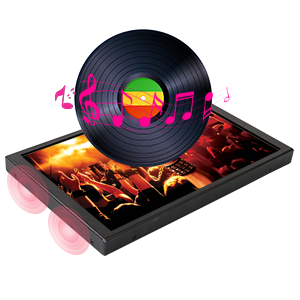
Image 4.4: The monitor features built-in speakers.
5. Nlekọta
To ensure the longevity and optimal performance of your ELECROW 8-inch Portable Monitor, follow these maintenance guidelines:
- Na-ehicha ihuenyo: Jiri ákwà dị nro, nke na-enweghị lint nke e mere kpọmkwem maka ngwa eletrọniki. Maka ihe ndị siri ike, jiri obere ákwà dị nro.ampen the cloth with water or a screen-cleaning solution. Avoid harsh chemicals, abrasive materials, or direct spraying onto the screen.
- Na-ehicha Casing: Wipe the monitor's metal casing na akwa dị nro, kpọrọ nkụ.
- Nchekwa: When not in use, store the monitor in a cool, dry place away from direct sunlight and extreme temperatures.
- Ijikwa: Handle the monitor carefully to prevent drops or impacts, which can damage internal components or the screen.
6. Nchọpụta nsogbu
This section addresses common issues you might encounter with your monitor.
6.1 Display Flickering or White Lines
If the display flickers or shows white lines, the output resolution from your source device may not be optimal for the monitor.
- Ngwọta: Adjust the output resolution of your connected device (PC, Raspberry Pi, etc.) to the monitor's native resolution of 1280 x 800.
6.2 Washed-Out Colors
If the colors appear washed out, check the monitor's OSD settings for color adjustments (brightness, contrast, saturation). If the issue persists after adjusting settings, the unit may be faulty. Contact customer support if necessary.
6.3 Enweghị akara ngosi
If the monitor displays "No Signal", ensure the HD cable is securely connected to both the monitor and the source device. Verify that the source device is powered on and configured to output video.
6.4 Raspberry Pi Specific Display Issues (e.g., Black Border, Flickering)
For Raspberry Pi users experiencing issues like a black border around the screen or intermittent flickering, specific configuration adjustments may be required in the Raspberry Pi's `config.txt` file.
- Ngwọta: Access the Raspberry Pi's terminal and run the command: sudo leafpad /boot/config.txt
- Locate the following entries. If present, remove the '#' character at the beginning of the line to uncomment them, and set their values as shown:
- hdmi_force_hotplug=1
- hdmi_drive=1
- hdmi_mode=16
- disable_overscan=1
- Save the changes to the `config.txt` file and reboot your Raspberry Pi.
7. Nkọwapụta
Detailed technical specifications for the ELECROW 8-inch Portable Monitor:
| Njirimara | Nkọwapụta |
|---|---|
| Ụdị | ELECROW |
| Aha Nlereanya | DIS00008R |
| Nha ihuenyo | 8 sentimita asatọ |
| Mkpebi | 1280x800 |
| Akụkụ akụkụ | 16:10 |
| Ụdị ngosi | LCD (IPS) |
| Ọnụego ume ọhụrụ | 60 Hz |
| Ọnụọgụ ọdịiche | 800:1 |
| Icha ọkụ | 300 lm |
| Viewna n'akuku | 170 ogo |
| Oge nzaghachi | 16 nkeji |
| Njikọta | Mini HDMI, USB Type C (for power) |
| Audio | Built-In Dual Speakers |
| Ụdị nkwụnye | Desk Mount, Wall Mount (VESA compatible) |
| Akụkụ ihe (D x W x H) | 0.6"D x 7.7"W x 4.8"H |
| Ibu Ibu | 0.71 kilogram |
| Voltage | 5 volts |

Image 7.1: Physical dimensions of the monitor.
8. Akwụkwọ ikike na nkwado
8.1 Ozi akwụkwọ ikike
This ELECROW monitor comes with a Akwụkwọ ikike nke Onye nrụpụta afọ 1. Biko dowe ihe akaebe nke ịzụrụ ihe maka akwụkwọ ikike.
8.2 Nkwado ndị ahịa
For technical assistance, troubleshooting, or warranty inquiries, please contact ELECROW customer support. Refer to the contact information provided on the official ELECROW websaịtị ma ọ bụ akwụkwọ ịzụrụ ihe.