
1. Okwu mmalite
This manual provides detailed instructions for the setup, operation, maintenance, and troubleshooting of your UF-TOOLS 7-Inch LCD Digital Microscope. Please read this manual thoroughly before using the device to ensure proper functionality and to maximize its lifespan.
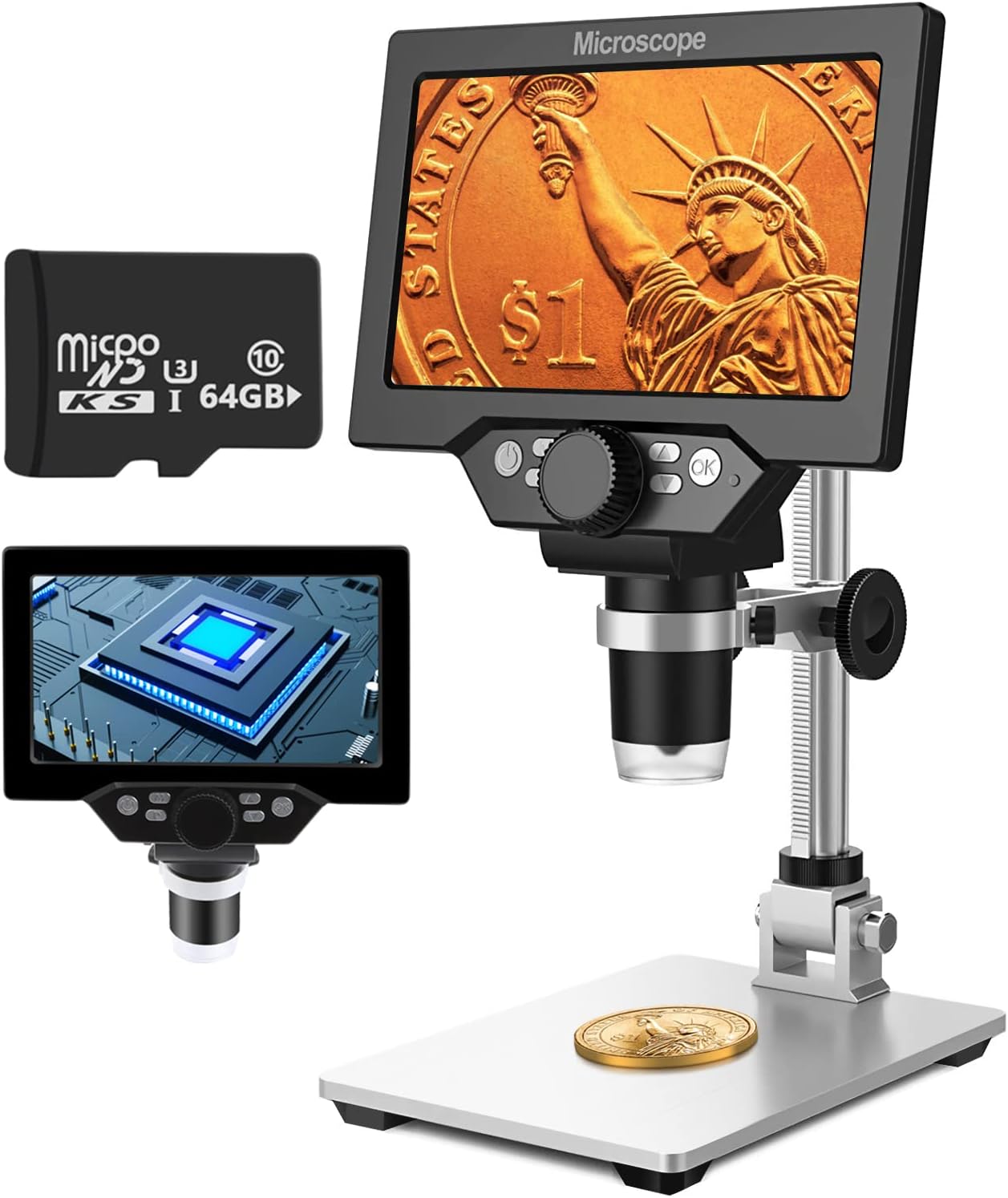
Image 1.1: UF-TOOLS 7-Inch LCD Digital Microscope with included 64GB TF card, showing the main unit and stand.
1.1 Atụmatụ
- Ihuenyo 7-inch LCD: Provides a clear, high-definition display for direct viewing without a computer.
- 10X-1200X Magnification: Continuous zoom capability for observing various objects.
- Igwefoto 12MP: Captures high-resolution images and 1080P video.
- 64GB TF Card: Included for direct storage of photos and videos. Supports up to 128GB.
- 8 ọkụ ọkụ na-agbanwe agbanwe: Ensures optimal illumination for detailed observation.
- Flexible Aluminum Alloy Stand: Allows for 90° angle adjustment and 2-10cm focus distance adjustment.
- Batrị 3000mAh arụnyere n'ime ya: Offers portability with up to 6 hours of operation on a full charge.
- Njikọ PC: Compatible with Windows 7/8/10 for larger display and data transfer.
2. Ihe ngwugwu
Chọpụta na ihe niile edepụtara n'okpuru dị na ngwugwu gị:
- UF-TOOLS 7-Inch LCD Digital Microscope Unit
- Adjustable Aluminum Alloy Stand
- 64GB TF kaadị
- eriri USB
- Ihe nkwụnye ọkụ (ọ bụrụ na etinyere ya)
- Akwụkwọ ntuziaka (akwụkwọ a)

Image 2.1: The microscope package includes a 64GB TF card for storage.
3. Ntuziaka Nhazi
3.1 Assembling the Microscope
- Jiri nlezianya wepụ ihe niile dị na igbe ahụ.
- Attach the microscope unit to the adjustable aluminum alloy stand. Ensure it is securely fastened using the provided screws or locking mechanisms.
- Insert the 64GB TF card into the designated slot on the microscope unit.
- Place the assembled microscope on a stable, flat surface.

Image 3.1: Product dimensions and adjustable stand features, including 270° rotation and height adjustment.
3.2 Ịchaji batrị
The microscope has a built-in 3000mAh rechargeable battery. Before first use, fully charge the device.
- Connect the USB cable to the microscope's charge port and the other end to a power adapter or a computer's USB port.
- Ìhè nchaji ga-egosi ọkwa nchaji.
- A full charge typically provides up to 6 hours of continuous use.

Image 3.2: The microscope features a long-lasting rechargeable battery, charged via USB.
4. Ntuziaka ọrụ
4.1 Ngwaọrụ gafereview na njikwa

Foto 4.1: Ofeview of the microscope's controls and ports, including charge port, MicroSD slot, light regulation, fixed knob, lifting adjusting bracket knob, and various function buttons.
- Gbanyụọ/ Gbanyụọ: Pịa ma jide bọtịnụ ike ka ịgbanwuo ma ọ bụ gbanyụọ ngwaọrụ ahụ.
- Video/Camera Playback: Use dedicated buttons to switch between video recording, photo capture, and playback modes.
- System Key Programming: Access menu settings for various configurations.
- Object Distance Adjustment: Adjust the distance between the lens and the object.
- Ibe elu/ala: Navigate through menus or captured media.
- Confirm Key/Camera Button: Select options or capture photos/videos.
- Light Regulation: Adjust the brightness of the 8 LED lights.
- Fixed Knob: Secures the microscope unit to the stand.
- Lifting Adjusting Bracket Knob: Adjusts the height of the microscope unit on the stand.
4.2 Ịgbanwe Mbuli elu na Nlekwasị Anya
- Place the object you wish to observe on the base plate.
- Adjust the height of the microscope unit using the Lifting Adjusting Bracket Knob to get a rough focus.
- Use the focus wheel on the microscope lens to fine-tune the focus until the image on the 7-inch LCD screen is clear.
- The magnification range is 10X to 1200X. Adjust the distance between the lens and the object, along with the focus wheel, to achieve the desired magnification.

Image 4.2: The microscope features an adjustable screen, free length adjustment, and precise focus control.

Image 4.3: Digital magnification from 10X to 1200X, demonstrating the zoom capability on small objects.
4.3 Iji ọkụ ọkụ LED
The microscope is equipped with 8 adjustable LED lights to illuminate your subject. Use the Light Regulation control to increase or decrease brightness as needed for optimal viewing.

Image 4.4: The 8 LED lights provide adequate illumination for observing objects in various lighting conditions.
4.4 Ise foto na vidiyo
With the included 64GB TF card, you can directly save images and videos.
- In photo mode, press the Confirm/Camera button to capture an image.
- In video mode, press the Confirm/Camera button to start recording, and press again to stop.
- Captured media can be reviewed using the playback function.
4.5 PC Connectivity
Iji view observations on a larger screen or transfer files, connect the microscope to a Windows PC (Windows 7/8/10) using the provided USB cable.
- Connect the microscope to your PC via the USB cable.
- The microscope should be recognized as a storage device or a webcam, depending on the mode selected on the microscope.
- You can then access the stored images/videos or use the microscope as a live camera feed.

Image 4.5: Connect the microscope to a PC for a larger viewing experience and data management.
5. Nlekọta
5.1 Nhicha
- oghere: Use a soft, lint-free cloth specifically designed for optical lenses. For stubborn smudges, a small amount of lens cleaning solution can be applied to the cloth, not directly to the lens.
- Ihuenyo: Wipe the LCD screen gently with a microfiber cloth. Avoid harsh chemicals.
- Ahụ: Clean the microscope body and stand with a soft, dry cloth. Do not use abrasive cleaners or solvents.
5.2 Nchekwa
- Store the microscope in a cool, dry place away from direct sunlight and extreme temperatures.
- Ọ bụrụ na-echekwara ruo ogologo oge, hụ na a chajịrị batrị n'akụkụ ya (ihe dịka 50%) iji mee ka ndụ ya dị ogologo.
- Keep the lens covered to prevent dust accumulation.
5.3 Nlekọta batrị
- Zere ịchaji batrị ugboro ugboro.
- Chaji batrị ahụ mgbe niile, ọbụlagodi na ọ naghị arụ ọrụ, iji hụ na ọ dị mma.
- Ewepụla batrị ahụ na okpomọkụ dị elu.
6. Nchọpụta nsogbu
- Enweghị ike:
- Ensure the battery is charged. Connect the microscope to a power source and try again.
- Lelee njikọ eriri ọkụ.
- Onyonyo na-adịghị ahụkebe:
- Adjust the focus wheel carefully.
- Adjust the height of the microscope unit on the stand.
- Ensure the object is properly illuminated by adjusting the LED lights.
- Clean the lens if smudges or dust are present.
- Cannot Capture Photos/Videos:
- Ensure a TF card is inserted and properly formatted.
- Check if the TF card has sufficient storage space.
- Verify the device is in the correct photo or video capture mode.
- PC Not Recognizing Device:
- Ensure the USB cable is securely connected to both the microscope and the PC.
- Gbalịa ọdụ ụgbọ USB dị iche na kọmputa gị.
- Restart both the microscope and the PC.
- Ensure your PC is running Windows 7/8/10.
7. Nkọwapụta
| Njirimara | Nkọwa |
|---|---|
| Aha Nlereanya | SUGON-Digital Microscope |
| Nha ihuenyo | 7 inch LCD |
| Nkwalite | 10X-1200X |
| Mkpebi igwefoto | 12MP |
| Mkpebi vidiyo | 1080P |
| Nchekwa | 64GB TF Card (Max 128GB supported) |
| Ọkụ | 8 ọkụ ọkụ LED |
| Ike batrị | 3000mAh Lithium Polymer |
| Ndụ batrị | Ruo awa 6 (ihe dị ka.) |
| Ndakọrịta PC | Windows 7/8/10 |
| Ihe onwunwe | Ọla, plastik |
| Ibu Ibu | 2.44 pound (1.11 n'arọ) |
| Akụkụ ngwugwu | 9.8 x 8.19 x 3.35 sentimita asatọ |
8. Akwụkwọ ikike na nkwado
UF-TOOLS provides the following warranty and support for this product:
- Oge nloghachi: 45 days limited product return period.
- Iwu mgbanwe: 18 months exchange for product defects.
For technical support or warranty claims, please contact UF-TOOLS customer service through the retailer where the product was purchased or visit the official UF-TOOLS websaịtị maka ozi kọntaktị.
Note: Warranty terms may vary based on region and retailer. Please retain your proof of purchase.