
Okwu mmalite
The Sharkoon Skiller SGK30 is a mechanical gaming keyboard designed for performance and durability. It features customizable RGB lighting, N-Key rollover, and a 1000Hz polling rate for responsive gameplay and typing. This manual provides essential information for setting up, operating, and maintaining your keyboard.

Image: Sharkoon Skiller SGK30 Mechanical Gaming Keyboard banner displaying the product name and type.
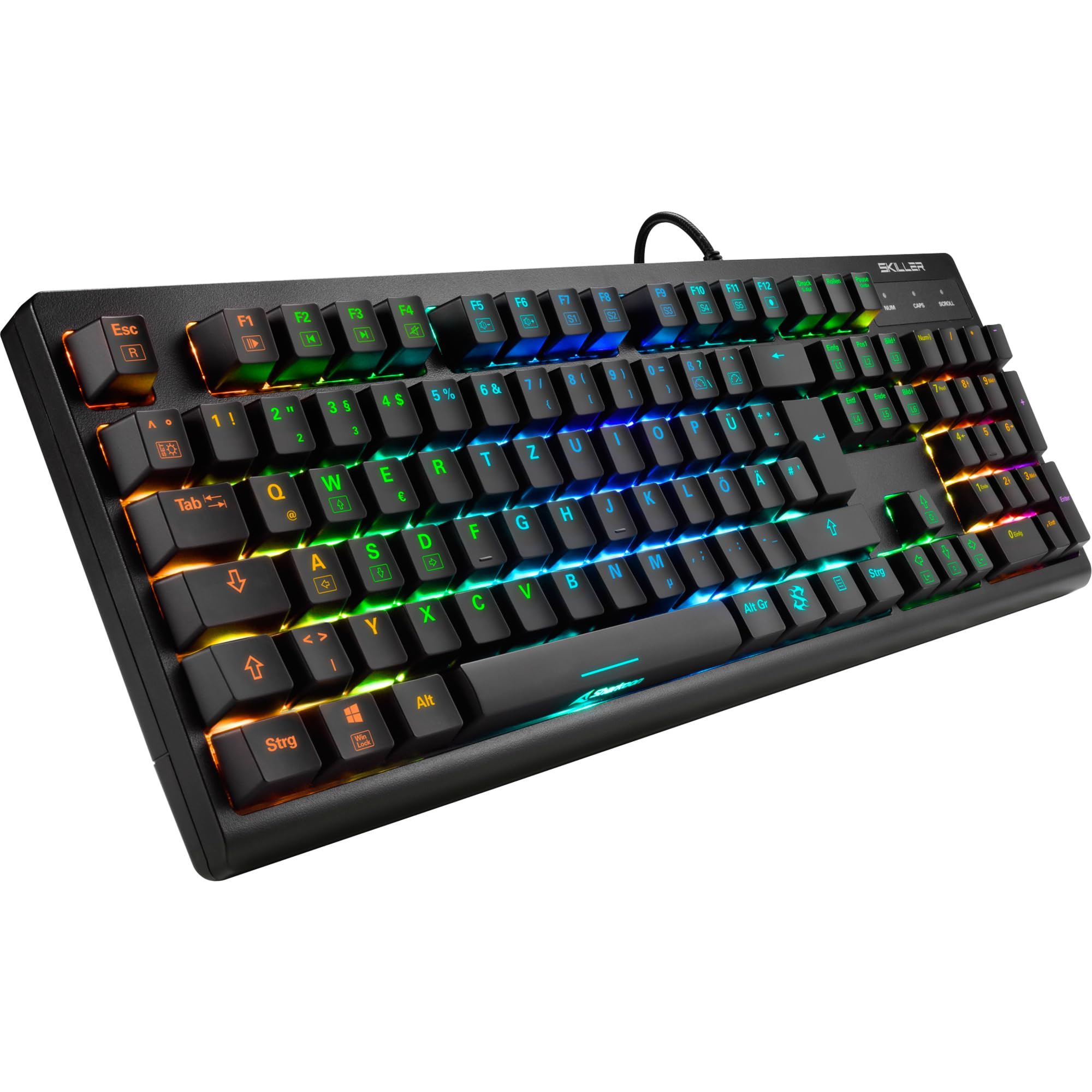
Foto: A n'elu-ala view of the Sharkoon Skiller SGK30 mechanical gaming keyboard, showcasing nhazi ya zuru oke yana ọkụ azụ azụ RGB dị egwu.
Ngwaahịa gafereview Vidiyo
Vidiyo: Ngwaahịa a kwụsịrịview of the Sharkoon Skiller SGK30 Mechanical Gaming Keyboard, demonstrating its features, RGB lighting effects, and mechanical switches.
Melite
Follow these steps to set up your Sharkoon Skiller SGK30 keyboard:
- Mepee ahụigodo: Carefully remove the keyboard and the included USB cable from its packaging.
- Jikọọ na Kọmputa: Plug the Micro USB end of the cable into the keyboard's port and the standard USB-A end into an available USB port on your computer.
- Nwụnye ọkwọ ụgbọala: The keyboard is plug-and-play. Your operating system (Windows 10 or later recommended) should automatically detect and install the necessary drivers.
- Nwụnye ngwanrọ (Nhọrọ): For advanced customization of RGB lighting and key assignments, download the official Sharkoon software from the manufacturer's websaịtị.

Image: The Sharkoon Skiller SGK30 keyboard positioned on a desk, ready for connection.
Ntuziaka ọrụ
Ọrụ igodo isi
The Sharkoon Skiller SGK30 features a standard layout with additional function keys accessible via the FN igodo.
- FN + F1-F12: Access multimedia controls (e.g., play/pause, volume up/down, mute).
- FN + Windows igodo: Kpọchie/meghee igodo Windows iji gbochie ịpị ihe mberede n'oge egwuregwu.
- N-Key Rollover: All keys are registered simultaneously, ensuring every keystroke is detected, even during rapid input.
Njikwa ọkụ RGB
The keyboard offers extensive RGB lighting customization. Use the following combinations to adjust lighting effects:
- FN + Insert/Home/Page Up/Delete/End/Page Down: Cycle through various pre-programmed lighting effects.
- FN + Arrow Keys (Up/Down): Adjust brightness levels of the lighting.
- FN + Arrow Keys (Left/Right): Gbanwee ọsọ nke mmetụta ọkụ na-agbanwe agbanwe.
- Custom Illumination: Use the dedicated software for advanced per-key lighting customization.

Foto: A nso nso view of the keyboard keys highlighting the adjustable RGB illumination capabilities.
Nhazi ngwanrọ
For advanced settings, macro programming, and detailed RGB customization, download and install the Sharkoon Skiller SGK30 software from the official Sharkoon websaịtị. Akụrụngwa na-enye gị ohere:
- Create and save custom lighting profiles.
- Program macros for specific keys.
- Ọrụ igodo remap.

Image: A screenshot showing the graphical user interface of the Sharkoon Skiller SGK30 customization software, illustrating various options for lighting and key remapping.
Nlekọta
Mmezi kwesịrị ekwesị na-eme ka keyboard gị dị ogologo ma rụọ ọrụ nke ọma:
- Nhicha: Use a soft, dry cloth to wipe the surface of the keyboard. For deeper cleaning, use compressed air to remove dust and debris from between the keycaps.
- Mwepụ isi igodo: If necessary, keycaps can be carefully removed using a keycap puller (not included) for thorough cleaning of the switches. Reinstall keycaps by pressing them firmly onto the switch stems.
- Zere Mmiri mmiri: Do not expose the keyboard to liquids. In case of spills, immediately disconnect the keyboard and allow it to dry completely before reconnecting.
- Nchekwa: Chekwaa ahụigodo ahụ n'ebe dị jụụ, kpọrọ nkụ pụọ na ìhè anyanwụ kpọmkwem na oke okpomọkụ.

Foto: A nso nso view of the mechanical switches on the Sharkoon Skiller SGK30 keyboard, illustrating their design for durability and ease of maintenance. Note: This model is available with Red switches, while the image shows Blue switches.
Nchọpụta nsogbu
If you encounter issues with your Sharkoon Skiller SGK30 keyboard, refer to the following common solutions:
| Nsogbu | Ihe nwere ike ime | Ngwọta |
|---|---|---|
| Ahụigodo anaghị aza | Njikọ USB rụrụ arụ, ọdụ ụgbọ USB adịghị mma, nsogbu ọkwọ ụgbọ ala. |
|
| Ọkụ RGB anaghị arụ ọrụ ma ọ bụ ezighi ezi | Lighting settings incorrect, software conflict. |
|
| Igodo anaghị edebanye aha | Uzuzu / irighiri ihe n'okpuru mkpuchi igodo, mgba ọkụ adịghị mma. |
|
Nkọwapụta
| Njirimara | Nkọwa |
|---|---|
| Ụdị | Sharkoon |
| Nọmba nlereanya | 4044951030026 |
| Ụdị ahụigodo | Igwe eji egwu igwe |
| Ngbanwe Ụdị | Red Switch (Blue switches are also available for this model series) |
| Njikọta | Micro USB |
| Ọnụego ntuli aka | 1000Hz |
| N-Key Rollover | Akwadoro |
| RGB ọkụ | Customizable RGB |
| Sistemụ nrụọrụ | Windows 10 (ma dakọtara na ụdị Windows ndị ọzọ) |
| Akụkụ (LxWxH) | 44 x 14.4 x 3.5 cm |
| Ibu | 867 g |
Kedu ihe dị na Igbe ahụ
The Sharkoon Skiller SGK30 package includes:
- Sharkoon Skiller SGK30 Mechanical Gaming Keyboard
- eriri USB
Akwụkwọ ikike na nkwado
For warranty information and technical support, please refer to the official Sharkoon websaịtị ma ọ bụ kpọtụrụ onye na-ere ahịa mpaghara gị. Debe ihe akaebe nke ịzụrụ ihe maka akwụkwọ ikike.
Rịba ama: Nkọwapụta na atụmatụ ngwaahịa nwere ike ịgbanwe na-enweghị ọkwa tupu oge eruo.