
1. Okwu mmalite
This manual provides detailed instructions for the installation, operation, and maintenance of your Cestovet 10.1 Inch Android 13 Car Stereo Radio. Designed for Jeep Compass (2010-2016) and Jeep Patriot (2009-2016), this unit features Wireless CarPlay, Android Auto, Bluetooth, WiFi, Steering Wheel Control (SWC), Mirror Link, and GPS navigation. Please read this manual thoroughly before installation and use to ensure optimal performance and safety.
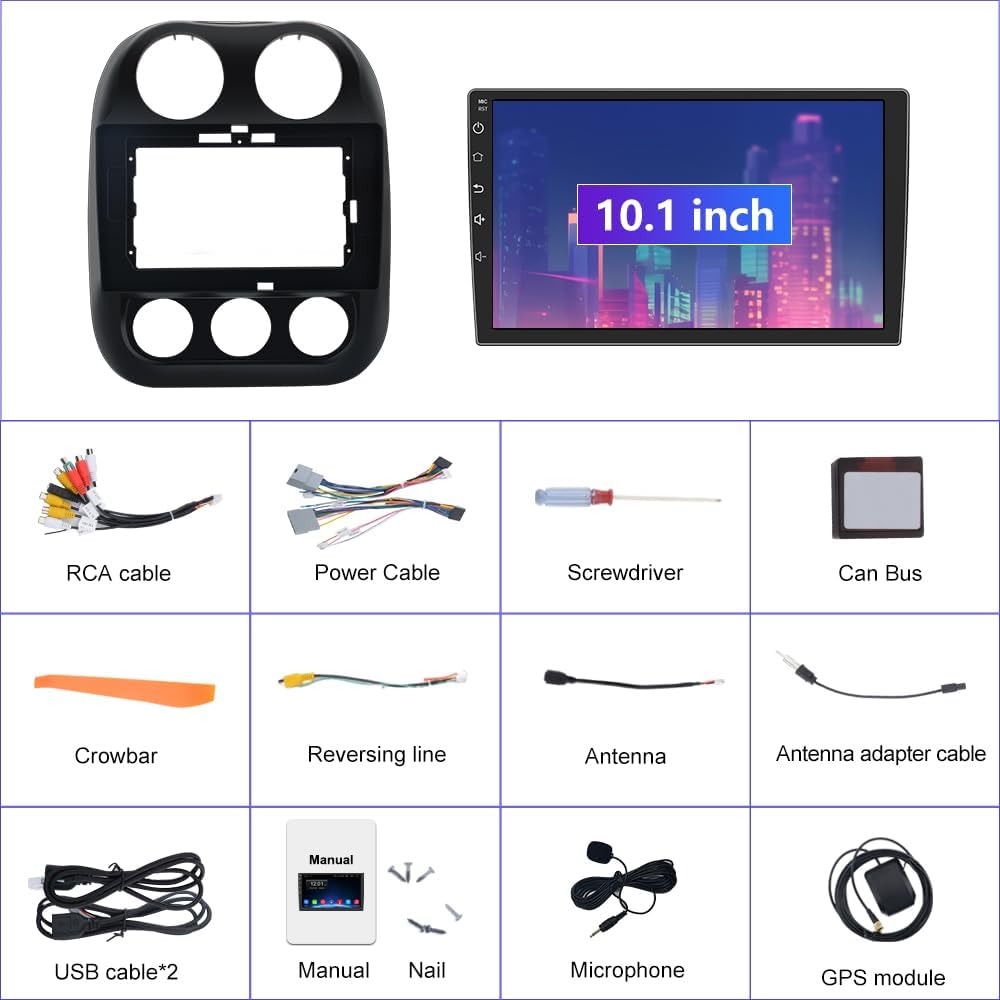
2. Kedu ihe dị na Igbe ahụ
Carefully unpack all items and ensure everything listed below is present:
- 10.1-inch Android 13 Car Stereo Main Unit
- Dash Installation Mount Trim Kit
- Power Cable with CANBUS Module
- Antenna redio
- Antenna GPS
- Eriri USB (x2)
- RCA Cable & Backup Microphone Interface
- Backup Microphone
- HD Reversing Camera
- Reversing Camera Extension Cable
- Installation Tool (Crowbar, Screwdriver)
- Akwụkwọ ntuziaka onye ọrụ
3. Ntọala & nwụnye
3.1 Lelee tupu ntinye
- Ensure your vehicle is a Jeep Compass (2010-2016) or Jeep Patriot (2009-2016) for compatibility.
- Turn off the vehicle's engine and disconnect the negative terminal of the car battery to prevent electrical shorts.
- Gather all necessary tools, including the provided installation tool.
3.2 Wiring & Connections
Refer to the wiring diagram and videos for detailed connection instructions. Proper wiring is crucial for functionality.

Ihe dị mkpa: If you experience no sound after installation, ensure the white 4-pin or 8-pin connector (depending on your car's amplifier system) is correctly plugged into the main wiring harness. The CANBUS module is essential for power and integrating steering wheel controls.
Video 3.1: Detailed guide on how to install the car stereo unit and its wiring.
3.3 Nzọụkwụ nwụnye n'ozuzu
- Using the provided crowbar, carefully pry open and remove the original radio and dash panel.
- Connect the main power harness, ensuring the CANBUS module is correctly integrated.
- Connect the Radio Antenna, GPS Antenna, and USB cables to their respective ports on the new unit.
- If installing a rear camera, connect the reversing video input wire and power the camera from the reverse lamp sekit.
- Mount the 10.1-inch Android 13 Car Stereo into the dash trim kit.
- Carefully re-install the new unit into the dashboard, ensuring all clips and screws are secure.
- Reconnect the car battery and test all functions before fully reassembling the dashboard.

4. Ntuziaka ọrụ
4.1 Power On/Off & Touchscreen Interface
Press the power button on the unit to turn it on or off. The 10.1-inch touchscreen provides intuitive control over all functions. Swipe and tap to navigate through apps and settings.
4.2 Njikọ Wi-Fi
To access online features and download apps, connect the unit to a Wi-Fi network:
- Swipe down from the top of the screen to access the quick settings panel.
- Tap the Wi-Fi icon to turn it on.
- Go to Settings > Network & Internet > Wi-Fi.
- Họrọ netwọk nke ịchọrọ ma tinye paswọọdụ ma ọ bụrụ na kpaliri gị.
Video 4.1: Demonstrates Wi-Fi and Hotspot connection steps (0:06-0:25).
4.3 Njikọ Bluetooth
Pair your smartphone via Bluetooth for hands-free calling and audio streaming:
- On the car stereo, open the 'Phone' app or go to Settings > Connected devices > Bluetooth.
- Ensure Bluetooth is enabled on both the stereo and your smartphone.
- Chọọ maka available devices on your smartphone and select the stereo's device name (e.g., "BCB-Android845").
- Kwado koodu njikọ na ngwaọrụ abụọ ahụ.
Video 4.2: Shows Bluetooth pairing for calls and music streaming (0:44-0:55).
4.4 CarPlay ikuku na gam akporo Auto
Connect your iPhone or Android phone wirelessly for a seamless in-car experience:
- Ensure Bluetooth and Wi-Fi are enabled on your smartphone and the car stereo.
- On the car stereo, open the 'ZLINK5' app (or similar CarPlay/Android Auto app).
- Follow the on-screen prompts to connect your device. For iPhones, ensure CarPlay is enabled in your phone's settings.
Video 4.3: Demonstrates Wireless CarPlay connection and usage (0:56-1:10).
4.5 GPS igodo
The unit supports both online and offline GPS navigation. Pre-installed maps for North America are available. To use navigation:
- Open the 'Navigation' or 'Maps' app from the home screen.
- Enter your destination using the search function.
- Follow the voice prompts and on-screen directions.
Video 4.4: Shows GPS navigation features and map interaction (1:01-1:09).
Igwe redio FM 4.6
Access the FM radio tuner for local broadcasts:
- Tap the 'Radio' app icon.
- Use the arrow buttons to manually tune frequencies or the search function to scan for stations.
- Save your favorite stations as presets for quick access.
Video 4.5: Demonstrates FM Radio tuning and features (1:45-2:00).
4.7 EQ Settings (Equalizer)
Customize your audio experience with the built-in equalizer:
- Open the 'EQ' app from the app drawer.
- Adjust the frequency bands to fine-tune the sound output.
- Select from various preset sound modes (e.g., Standard, Pop, Rock, Jazz) or create custom settings.
- Adjust the 'Sound Field' to optimize audio for different seating positions in the vehicle.
Video 4.6: Shows how to access and adjust the EQ settings and sound field (1:33-1:44).
4.8 Steering Wheel Controls (SWC)
The unit supports your vehicle's original steering wheel controls for safe and convenient operation. Access the 'SW Learning' app to program or customize button functions.
4.9 Reversing Assistance
When a rear camera is connected, the display automatically switches to the camera view when the vehicle is put into reverse, providing visual assistance for parking and maneuvering.

5. Nlekọta
- Nchacha ihuenyo: Jiri akwa dị nro na-enweghị ntụpọ dampejiri mmiri ma ọ bụ ihe nhicha ihuenyo mee ya. Zere kemịkalụ siri ike ma ọ bụ ihe ndị na-emebi ihe.
- Mmelite ngwanrọ: Periodically check for software updates through the unit's settings or the manufacturer's websaịtị iji hụ na arụmọrụ kacha mma yana ịnweta atụmatụ ọhụrụ.
- Nyocha njikọ: Regularly inspect all wiring connections to ensure they are secure and free from corrosion.
- Okpomọkụ: Zere ikpughe ihe dị n'ime ya n'ọnọdụ okpomọkụ dị oke njọ ruo ogologo oge.
6. Nchọpụta nsogbu
| Nsogbu | Ihe nwere ike ime | Ngwọta |
|---|---|---|
| Unit anaghị agbanye ọkụ | Incorrect power wiring; Blown fuse; Loose battery connection. | Check power cable connections (refer to Section 3.2); Inspect vehicle's fuse box; Ensure battery terminals are secure. |
| Enweghị mmepụta ụda | Incorrect speaker wiring; CANBUS module issue; Volume too low. | Verify speaker connections; Ensure white connector on harness is properly seated (refer to Figure 3.1); Increase volume. |
| Bluetooth/CarPlay/Android Auto anaghị ejikọ | Bluetooth/Wi-Fi off; Device not paired; Interference. | Ensure Bluetooth/Wi-Fi is active on both devices; Re-pair the device; Move away from sources of interference. |
| GPS signal loss or inaccuracy | GPS antenna not properly installed/connected; Obstruction. | Ensure GPS antenna is securely connected and placed in an unobstructed location (e.g., dashboard); Update map data. |
| Steering Wheel Controls not working | CANBUS module issue; SWC not programmed. | Verify CANBUS connection; Use the 'SW Learning' app to program the controls. |
7. Nkọwapụta
- Aha nlereanya: 2GRAM
- Ngosipụta nha: 10 sentimita asatọ
- Mkpebi: 1024 x600
- Sistemụ nrụọrụ: Android 13
- Ebe nchekwa: 2GB Ram, 32GB ROM
- Njikọta: Wi-Fi, Bluetooth, ekwentị mkpanaaka
- Atụmatụ pụrụ iche: Wireless CarPlay, Android Auto, Touchscreen, Voice Command (via Microphone), Steering Wheel Control, Mirror Link, Reversing Assistance, GPS Navigation (North America maps)
- Ụdị ọrụ ụgbọ ala: Car (Jeep Patriot/Compass 2010-2016)
- Ibu ihe: 5.17 pound
- Akụkụ ngwaahịa: 14.96 x 12.99 x 7.09 sentimita asatọ
- Ụdị nkwụnye: Ugwu Panel
- Ngwa gụnyere: Igwe okwu
8. Akwụkwọ ikike
This Cestovet Car Stereo Radio comes with a 1-year warranty from the date of purchase. Please retain your proof of purchase for any warranty claims. The warranty covers manufacturing defects and malfunctions under normal use. It does not cover damage caused by improper installation, misuse, accidents, or unauthorized modifications.
9. Nkwado
For technical assistance, troubleshooting beyond this manual, or warranty claims, please contact Cestovet customer support. Refer to the product packaging or the official Cestovet website for contact information. You may also find additional resources and FAQs on the Cestovet brand store page on Amazon.