
Okwu mmalite
This manual provides comprehensive instructions for the Docooler T-Wolf V11 Wired Gaming Mouse. It covers setup, operation, maintenance, and troubleshooting to ensure optimal performance and longevity of your device. The T-Wolf V11 is designed for both gaming and office use, featuring adjustable DPI, ergonomic design, and customizable RGB lighting.
Njirimara ngwaahịa
- 8-bọtịnụ imewe: Equipped with 8 programmable buttons suitable for various tasks in gaming and office applications.
- DPI nwere ike imeghari: Offers 6 levels of DPI adjustment (1000/1600/2400/3200/4800/6400) for precise cursor control and sensitive operation.
- Ergonomic Arc Design: Engineered for a comfortable grip, fitting closely to your palm to reduce fatigue during extended use.
- Integrated Weights: Features independent weights within the mouse, allowing customization for improved stability and precision to suit individual preferences.
- RGB Colorful Backlight: Provides 6 types of colorful RGB streaming light effects, enhancing the visual experience.
- Ihe owuwu na-adịgide adịgide: Includes a lightweight aluminum alloy anti-skid roller for comfortable and reliable use.
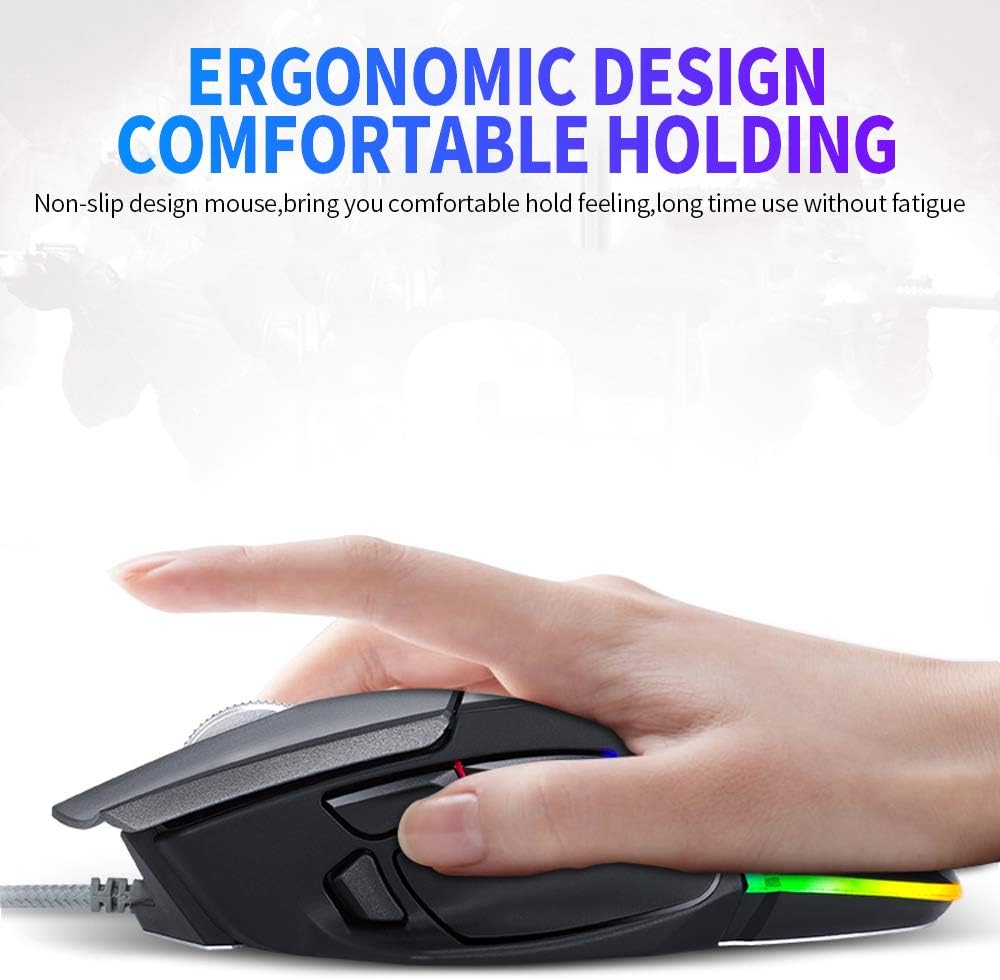
Image: The ergonomic design of the T-Wolf V11 mouse, demonstrating how it comfortably fits the hand to reduce strain during prolonged use.

Image: The T-Wolf V11 mouse illuminated with its dynamic RGB streaming light effects, showcasing the customizable lighting options.
Ntuziaka nhazi
- Mepee òké ahụ: Carefully remove the T-Wolf V11 mouse from its packaging.
- Jikọọ na Kọmputa: Plug the USB connector of the mouse's cable into an available USB port on your computer (desktop or laptop).
- Nwụnye ọkwọ ụgbọala: The mouse is typically plug-and-play. Your operating system (Windows, macOS, Linux) should automatically detect and install the necessary drivers. No additional software installation is usually required for basic functionality.
- Nyochaa arụmọrụ: Once connected, move the mouse to check cursor movement and click the left and right buttons to ensure they are responsive.

Image: The Docooler T-Wolf V11 gaming mouse connected to a laptop, illustrating a typical setup scenario.
Ntuziaka ọrụ
Ọrụ bọtịnụ
- Left Click (Button 1): Standard isi pịa ọrụ.
- Right Click (Button 2): Ọkọlọtọ nke abụọ pịa ọrụ.
- Scroll Wheel (Button 3): Na-apịa ọdịnaya elu/ala. Enwere ike ịpị ya maka ọrụ ịpị etiti.
- DPI Cycle Button (Button 4): Located near the scroll wheel, press to cycle through DPI settings (1000/1600/2400/3200/4800/6400).
- Forward/Backward Buttons (Buttons 5 & 6): Typically located on the side, used for navigation in web ihe nchọgharị ma ọ bụ file ndị na-eme nchọpụta.
- Additional Programmable Buttons (Buttons 7 & 8): These buttons can often be customized using third-party software or operating system settings for specific functions or macros.
Mmezi DPI
Press the DPI cycle button (usually located behind the scroll wheel) to switch between the available DPI settings. Each press will change the sensitivity, allowing you to adapt to different tasks, from precise aiming in games to fast navigation in desktop environments. The RGB lighting may change color to indicate the current DPI level.
Mmetụta ọkụ RGB
The T-Wolf V11 features 6 types of colorful RGB streaming light effects. These effects are pre-programmed and cycle automatically, providing a dynamic visual experience. There is no specific button to change RGB modes on the mouse itself; the lighting patterns are typically fixed or cycle through automatically.

Foto: nkọwa zuru ezu view of the T-Wolf V11 mouse, illustrating its DPI adjustment capabilities and RGB streamer marquee lighting.
Nlekọta
- Nhicha: Jiri akwa dị nro, kpọrọ nkụ hichapụ elu òké ahụ. Maka unyi isi ike, ntakịrị dampen the cloth with water or a mild, non-abrasive cleaner. Avoid using harsh chemicals or excessive moisture.
- ihicha ihe mmetụta: Jiri owu sachaa ihe mmetụta anya dị n'okpuru òké ahụ mgbe niile iji hụ na e nwere ezigbo nsochi.
- Nlekọta USB: Avoid sharply bending or twisting the mouse cable to prevent internal damage. Store the cable neatly when not in use.
- Nchekwa: Mgbe a naghị eji ya ruo ogologo oge, debe òké ahụ n'ebe dị ọcha ma kpọọ nkụ, ebe anwụ na-anaghị anwụ kpọmkwem ma ọ bụ oke okpomọkụ dị oke njọ.
Nchọpụta nsogbu
- Òké anaghị aza:
- Gbaa mbọ hụ na etinyere eriri USB na nchekwa n'ọdụ ụgbọ mmiri USB na-arụ ọrụ na kọmputa gị.
- Gbalịa itinye òké n'ọdụ ụgbọ mmiri USB dị iche.
- Malitegharịa ekwentị gị na kọmputa.
- Cursor Movement is Erratic or Jumpy:
- Hichaa ihe mmetụta anya na ala nke òké ahụ.
- Ensure you are using the mouse on a clean, non-reflective, and uniform surface (e.g., a mouse pad).
- DPI anaghị agbanwe:
- Press the DPI cycle button firmly.
- Ensure the mouse is properly connected and recognized by your system.
- Igwe ọkụ RGB anaghị arụ ọrụ:
- Lelee njikọ USB.
- The RGB lighting is typically automatic; if it's not illuminating, ensure the mouse is receiving power.
Nkọwapụta
| Ụdị | Docooler |
| Nlereanya | V11 |
| Agba | Nwa |
| Teknụzụ Njikọta | Ekwenyere |
| Ọnụọgụ bọtịnụ | 8 |
| Ntọala DPI | 1000/1600/2400/3200/4800/6400 (Adjustable) |
| Ụdị ọkụ azụ | RGB mara mma |
| Ogologo eriri USB | 1.9 mita |
| Nha ihe | 13 x 8.5 x 4.5 cm (5.1 x 3.3 x 1.8 inch) |
| Ibu Ibu | 177g (6.24 ounces) |
| Ngwa dakọtara | Laptọọpụ, PC |
| Ngwaike Platform | PC |
| Isi Iyi Ike | Cable Electric (USB) |
Akwụkwọ ikike na nkwado
For warranty information and technical support, please refer to the documentation provided with your purchase or contact Docooler customer service directly. Keep your proof of purchase for any warranty claims. Support contact details can typically be found on the manufacturer's official websaịtị.