
1. Ngwaahịa gafereview
The KUIDAMOS DSO FNIRSI PRO is a portable digital oscilloscope designed for various measurement tasks. It features a 2.4-inch LCD display, a real-time sampling rate of up to 20MS/s, and an analog bandwidth of 5MHz. This device is equipped with a built-in 1200mAh rechargeable lithium battery, offering approximately 3 hours of continuous operation. It supports waveform storage and management, making it suitable for both maintenance and research and development applications.
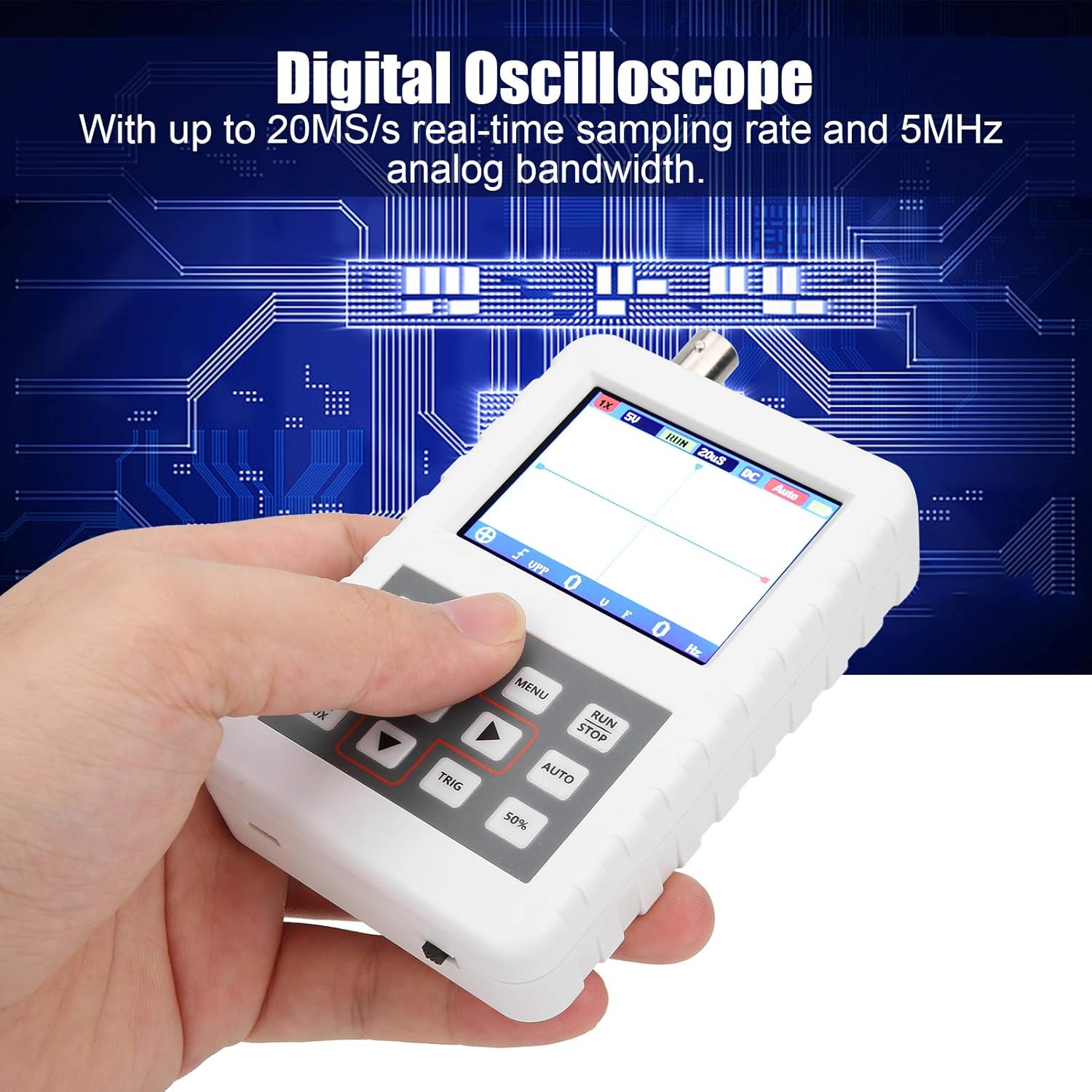
Image 1.1: The DSO FNIRSI PRO Digital Oscilloscope, highlighting its 20MS/s sampling rate and 5MHz analog bandwidth.

Image 1.2: The oscilloscope's 2.4-inch HD LCD screen with 320 x 240 resolution for clear waveform display.

Foto 1.3: Ihu na azụ views of the DSO FNIRSI PRO, illustrating its physical layout.
2. Ihe ngwugwu
Nyochaa na etinyere ihe niile edepụtara n'okpuru na ngwugwu gị:
- 1 x DSO FNIRSI PRO Digital Oscilloscope
- 1 x Matching Probe
- 1 x USB Data Line
- Akwụkwọ ntuziaka onye ọrụ 1 x (akwụkwọ a)
3. Mbido Mbido
3.1 Ịchaji ngwaọrụ
Before first use, fully charge the oscilloscope. Connect the provided USB data line to the device's charging port and to a 5V/1A, 2A, 3A, or 4A USB power adapter. The built-in 1200mAh lithium battery can be charged continuously for approximately 3 hours.
3.2 Ijikọ nyocha
Connect the matching probe to the BNC connector on the top of the oscilloscope. Ensure a secure connection by twisting the probe connector clockwise until it locks into place.
3.3 Gbanyụọ/ gbanyụọ
To power on the device, press and hold the power button (usually located on the side or bottom) for a few seconds until the screen illuminates. To power off, press and hold the power button again until the device shuts down.
4. Ntuziaka ọrụ
4.1 Njikwa na Interface
The oscilloscope features a user-friendly interface with several buttons for navigation and function control.

Image 4.1: Operating the DSO FNIRSI PRO, showing the placement of control buttons.
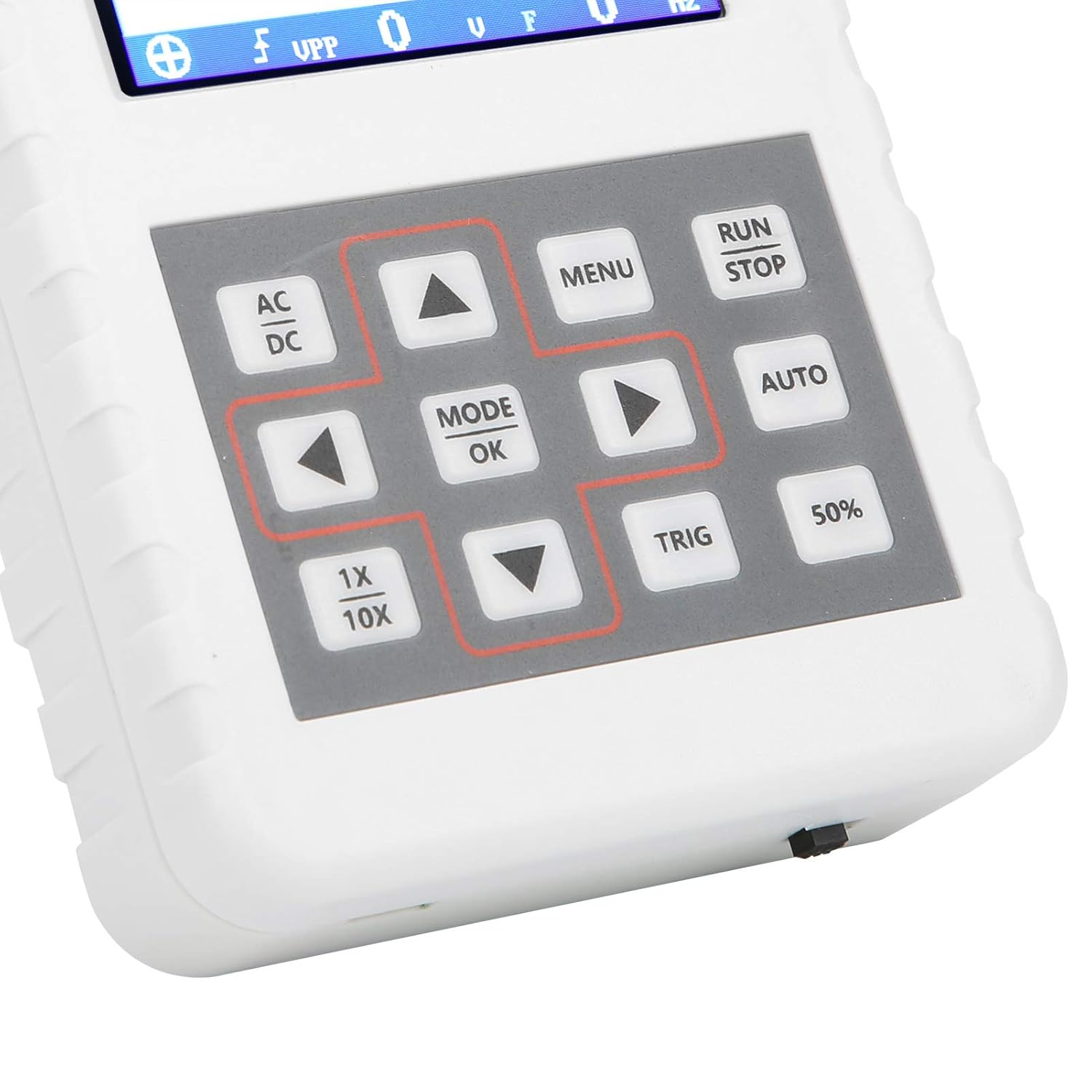
Foto 4.2: Zuru ezu view of the oscilloscope's control panel.
- NchNhr: Accesses the main menu for settings and functions.
- Gbaa/Kwụsị: Starts or pauses waveform acquisition.
- UTgbọala: Automatically adjusts settings for optimal waveform display.
- TRIG: Adjusts trigger level.
- 50%: Sets the trigger level to 50% of the waveform amplitude.
- AC/DC: Toggles between AC and DC coupling modes.
- 1X/10X: Sets the oscilloscope's input attenuation to match the probe's setting.
- MODE/OK: Confirms selections or changes modes.
- Arrow Buttons (Up, Down, Left, Right): Navigate menus and adjust parameters.
4.2 Probe Attenuation Settings
It is critical to match the probe's attenuation setting with the oscilloscope's input setting to ensure accurate measurements.
- Maka 1X measurement (0-40V): Set both the physical switch on the probe and the 1X/10X button on the oscilloscope to the 1X ọnọdụ.
- Maka 10X measurement (40-800V): Set both the physical switch on the probe and the 1X/10X button on the oscilloscope to the 10X ọnọdụ.
4.3 Measurement Modes and Triggering
The oscilloscope supports various trigger modes to stabilize waveform display:
- Otu: Captures a single waveform event and then stops.
- Nkịtị: Captures a waveform only when a trigger condition is met.
- Akpaaka: Continuously acquires waveforms, even without a trigger, but will trigger if a signal is present.
Jiri ihe ONYE button and arrow keys to adjust the trigger level, which determines the voltage point at which the oscilloscope begins to acquire data.
4.4 Waveform Storage and Management
The device includes 16MB of built-in storage, capable of storing up to 500 waveform images. Use the file manager function to browse, view, and manage saved waveforms. This includes viewing detailed information, flipping through images, and deleting unwanted files.

Foto 4.3: Ọpụamples of sine wave measurements at various frequencies.

Foto 4.4: Ọpụamples of square, triangular, and sawtooth wave measurements.
5. Nlekọta na nlekọta
5.1 Nhicha
Jiri ákwà dị nro ma kpọọ nkụ hichaa ngwaọrụ ahụ. Ejila ihe nhicha ma ọ bụ ihe mgbaze, n'ihi na ha nwere ike imebi iheasing or screen. Ensure the device is powered off and disconnected from any power source before cleaning.
5.2 Nlekọta batrị
Ka ịgbatị ndụ batrị ogologo, zere ịchaji batrị ugboro ugboro. Ọ bụrụ na ị na-echekwa ngwaọrụ ahụ ruo ogologo oge, kwụọ ya ihe dị ka 50% ma fanye kwa ọnwa ole na ole.
5.3 Nchekwa
Store the oscilloscope in a cool, dry place, away from direct sunlight, extreme temperatures, and high humidity. Keep it protected from dust and physical impact.
6. Nchọpụta nsogbu
- Issue: Abnormal measured data.
Ngwọta: Check the probe's attenuation switch (1X or 10X) and ensure it matches the setting on the oscilloscope (using the 1X/10X button). If the probe is set to 10X and the oscilloscope is set to 1X, the device will not be damaged, but the data displayed will be incorrect. - Issue: Device does not power on.
Ngwọta: Ensure the battery is sufficiently charged. Connect the device to a power source using the USB data line and allow it to charge for at least 30 minutes before attempting to power it on again. - Issue: Screen is blank or frozen.
Ngwọta: Try performing a soft reset by pressing and holding the power button for an extended period (e.g., 10-15 seconds) until the device powers off, then power it back on. If the issue persists, ensure the battery is charged.
7. Nka na ụzụ nkọwa
| Njirimara | Nkọwapụta |
|---|---|
| Ụdị ngwaahịa | DSO FNIRSI PRO |
| Ngwaahịa ihe | ABS |
| Ọnụọgụ nke ọwa | 1 |
| Nha ihuenyo | Ihe ruru. 6.1cm / 2.4in |
| Mkpebi ihuenyo | 320 x240 |
| Ụdị ngosi | Ihuenyo LCD |
| Bandwit Analog | 5Mhz |
| Oke SampỌnụ ego | 20MSps |
| Ụdị ịkpalite | Single/Normal/Auto |
| Waveform Storage | 16MB (up to 500 waveform pictures) |
| Batrị arụnyere n'ime ya | Batrị lithium 1200mAh |
| Oge Njikere | awa 3 |
| Nchaji ntinye | 5V/1A/2A/3A/4A |
| Onye nrụpụta | KUIDAMOS |
| Mba onye si | USA |
| Nọmba Akụkụ | KUIDAMOStgaix9hwck |
8. Akwụkwọ ikike na nkwado ndị ahịa
For warranty information, technical support, or service inquiries, please refer to the documentation provided with your purchase or contact the seller directly. Keep your purchase receipt as proof of purchase for any warranty claims.