
JIFAR E16
JIFAR E16 1080P Projector User Manual
Ụdị: E16
Okwu mmalite
This user manual provides comprehensive instructions for the setup, operation, maintenance, and troubleshooting of your JIFAR E16 1080P Projector. Please read this manual thoroughly before using the projector to ensure proper functionality and to extend the product's lifespan. Keep this manual for future reference.
Ntuziaka nchekwa
To prevent fire or electric shock, do not expose this appliance to rain or moisture. Do not open the casing to avoid electric shock. Refer all servicing to qualified service personnel.
- Akwụsịla oghere ikuku.
- Jiri naanị mgbakwunye / ngwa ndị nrụpụta akọwapụtara.
- Wepụ ihe mkpuchi projektọ ahụ n'oge oké ifufe ma ọ bụ mgbe ejiri ya ruo ogologo oge.
- Zere ka anya gị na-abanye na lenzi ihe ngosi mgbe i jiri anya gị hụ ihe na-egosi ihe mgbe iamp dị na.
- Gbaa mbọ hụ na ikuku ikuku dị n'akụkụ ihe nrụpụta iji gbochie ikpo oke ọkụ.
Kedu ihe dị na Igbe ahụ
Mgbe imepechara ngwugwu ahụ, chọpụta na agụnyere ihe niile ndị a:
- Ihe mkpuchi oghere projector
- HDMI USB
- Igwe AV
- Njikwa anya
- Ụdọ ọkụ
- Akwụkwọ ntuziaka (akwụkwọ a)

Image: The JIFAR E16 projector shown with its included carrying case, highlighting the compact design and portability.
Ngwaahịa gafereview
Ihu na akụkụ View
Foto: Ihu na akụkụ view of the JIFAR E16 Projector, showing the lens, ventilation, and control buttons on top.
Rear Panel and Ports

Image: Rear panel of the JIFAR E16 Projector, illustrating the HDMI, USB, AV, and audio ports for various connections.
Njikwa anya

Image: The remote control for the JIFAR E16 Projector, showing buttons for power, navigation, source selection, and volume.
Melite
1. Ntinye
Debe ihe ngosi onyonyo ahụ n'elu ebe kwụsiri ike ma dị larịị. Maka ezigbo mma. viewing, position the projector perpendicular to the screen or wall. The projection distance and screen size can vary; refer to the specifications section for recommended distances.
2. Njikọ ike
- Connect the power cord to the projector's power input.
- Tinye nsọtụ ọzọ nke eriri ike n'ime oghere ọkụ.
- Ihe ngosi ọkụ na-egosi ọkụ na projector ga-enwu.
3. Ike izizi
Press the power button on the projector or the remote control to turn on the device. The projector will display the startup screen.
4. Mgbanwe nke Isi Ihe na Ndozi
Adjust the focus ring on the projector lens until the projected image is clear. Use the keystone correction dial (if available) to correct any trapezoidal distortion, ensuring a rectangular image.
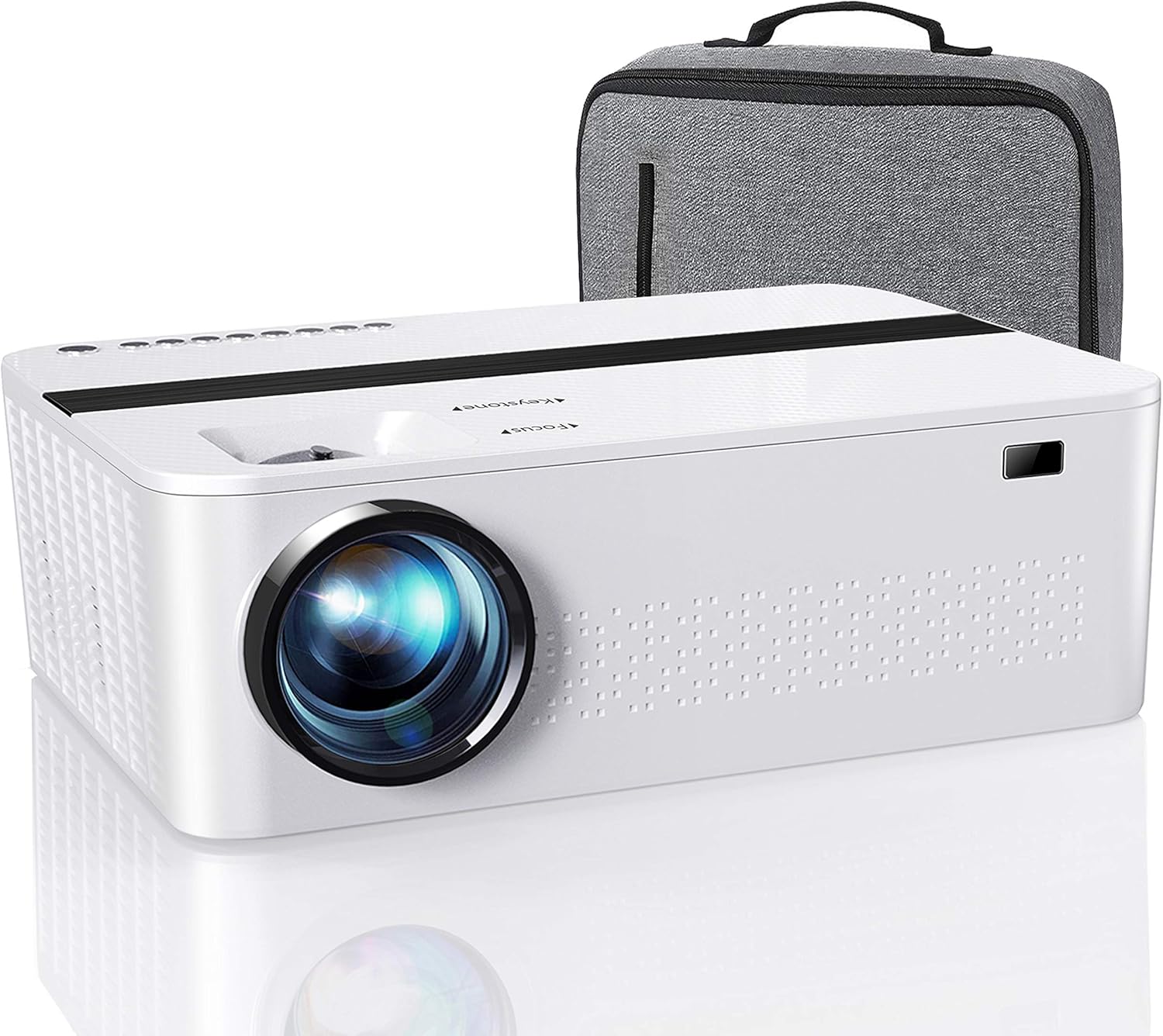
Image: A visual representation of the projector in a home theater setup, demonstrating the clarity and size of the projected image after focus and keystone adjustments.
Na-arụ ọrụ Projector
1. Ijikọ Ngwaọrụ
The JIFAR E16 projector supports various input sources:
- HDMI: Connect laptops, gaming consoles, Blu-ray players, or TV sticks using an HDMI cable.
- USB: Fanye draịva USB ka ọ kpọọ mgbasa ozi files ozugbo.
- Nke: Use the provided AV cable to connect older devices like DVD players.
- Kaadị TF: Insert a TF card for direct media playback.
After connecting a device, press the "Source" button on the remote or projector to select the corresponding input source (e.g., HDMI1, USB, AV).

Image: Diagram illustrating the versatile connectivity of the projector, showing connections to smartphones, tablets, and laptops via various methods.
2. Wireless WiFi Connection (Screen Mirroring)
The projector supports 2.4G and 5G WiFi for screen mirroring from iOS and Android devices.

Image: Visual comparison demonstrating the faster and smoother performance of 5G WiFi connectivity compared to 2.4G for streaming content to the projector.
Maka ngwaọrụ iOS:
- Select "Screen Mirroring" as the input source on your projector.
- Connect your projector to your WiFi network.
- On your iOS device, open Control Center and tap "Screen Mirroring".
- Select your projector's name (e.g., LZS-XXXXXXX) from the list to connect.

Image: Step-by-step guide for connecting an iOS device to the projector via screen mirroring, showing menu selections and connection process.
Note: Due to copyright restrictions, streaming services like Netflix, Amazon Prime, and Disney+ do not support screen mirroring. For these services, please use an HDMI connection with a compatible streaming device (e.g., TV Stick, Chromecast).
3. Njikọ Bluetooth
The projector features built-in Bluetooth for connecting external audio devices such as Bluetooth speakers or headphones.
- Navigate to the Bluetooth settings on the projector's menu.
- Kwado Bluetooth wee chọọ ngwaọrụ dị.
- Select your desired Bluetooth speaker or headphone from the list to pair.
Note: The projector's Bluetooth function is for audio output only. It does not support data transfer from smartphones via Bluetooth.
Nlekọta
1. Na-ehicha oghere
Use a professional lens cleaning cloth or lens paper to gently wipe the projector lens. Avoid using abrasive cleaners or cloths that could scratch the lens surface.
2. Ịsacha Ahụ Ihe Nlereanya
Jiri ákwà dị nro ma kpọọ nkụ hichaa mpụta ihe ngosi ahụ. Maka akara siri ike, jiri obere d hichaa ya.amp cloth can be used, followed by a dry cloth. Do not use harsh chemicals or solvents.
3. Nchekwa
When not in use for extended periods, store the projector in a cool, dry, and dust-free environment. Use the provided lens cover to protect the lens from dust and scratches.
Nchọpụta nsogbu
| Nsogbu | Ihe nwere ike ime | Ngwọta |
|---|---|---|
| Enweghị ike | Power cord not connected; Power outlet issue; Projector in standby mode. | Ensure power cord is securely connected. Try a different outlet. Press power button on projector or remote. |
| Enweghị onyonyo | Incorrect input source selected; Cable not connected properly; Device not outputting signal. | Select correct input source. Check HDMI/USB/AV cable connections. Ensure source device is on and outputting. |
| Onyonyo edoghi anya | Focus not adjusted; Keystone not adjusted; Projector too close/far. | Adjust focus ring. Adjust keystone correction. Reposition projector within recommended distance. |
| Enweghị ụda | Volume too low; Muted; External audio device not connected/paired. | Increase volume. Unmute projector. Check Bluetooth connection or audio cable. |
| Screen Mirroring Issues (Netflix/Prime Video) | Copyright protection on streaming apps. | Connect a streaming device (e.g., Fire TV Stick, Roku) via HDMI to play copyrighted content. |
Nkọwapụta
| Njirimara | Nkọwa |
|---|---|
| Mkpebi obodo | 1280 x 720P (Supports 1920 x 1080P) |
| Ọnụọgụ ọdịiche | 6000:1 |
| Icha ọkụ | 350 ANSI Lumens / 12000L |
| Teknụzụ Njikọta | HDMI, USB, AV, TF Card, WiFi (2.4G/5G), Bluetooth |
| Akụkụ ngwaahịa | 9.26 x 5.5 x 3 sentimita asatọ |
| Ibu Ibu | 4.55 pound |
| Ngosipụta mkpebi | 1920 x 1080 (Supported Input) |
| Eji akwadoro | Ugwu okpokoro |
| Njirimara Pụrụ Iche | Ndị na-ekwu okwu arụrụ arụ |
| Ogologo ihuenyo a na-ahụ anya | Up to 450 inches / 1143 cm |
Akwụkwọ ikike na nkwado
JIFAR is committed to providing excellent products and customer service. Your JIFAR E16 Projector comes with the following support:
- 6-Month Money Back & New Replacement Guarantee: If any problems occur, contact us immediately for a refund or a new replacement within 6 months of purchase.
- 2-Year Professional Technical Support: We offer professional technical assistance for two years from the date of purchase.
- Missing or Broken Parts: If you receive a package with missing parts or a broken item, we will send a new one to you free of charge.
For any inquiries or support, please contact JIFAR customer service through the platform where you purchased the product or refer to the contact information provided on the official JIFAR websaịtị.
Ask a question about this manual
Ask about setup, troubleshooting, compatibility, parts, safety, or missing instructions. Manuals+ will review the question and use this page’s manual context to help answer it.