
ist computers V15 Gen 4 83CQ
Ntuziaka Onye Ọrụ Laptọọpụ Azụmaahịa Lenovo V15 Gen 4
Model: V15 Gen 4 83CQ
Okwu mmalite
This manual provides detailed instructions for the setup, operation, maintenance, and troubleshooting of your Lenovo V15 Gen 4 Business Laptop. Please read this manual thoroughly to ensure proper use and to maximize the lifespan of your device.
Kedu ihe dị na Igbe ahụ
- Laptọọpụ nke Lenovo V15 Gen 4
- 65W AC nkwụnye nwere eriri ike
- Akwụkwọ ntuziaka (akwụkwọ a)
Ngwaahịa gafereview
The Lenovo V15 Gen 4 is a business-grade laptop designed for efficiency and reliability. It features an AMD Ryzen 5 7520U processor, 16GB DDR5 RAM, and a 512GB PCIe NVMe M.2 SSD, running on Windows 11 Pro.

Foto 1: N'ihu view of the Lenovo V15 Gen 4 Laptop.
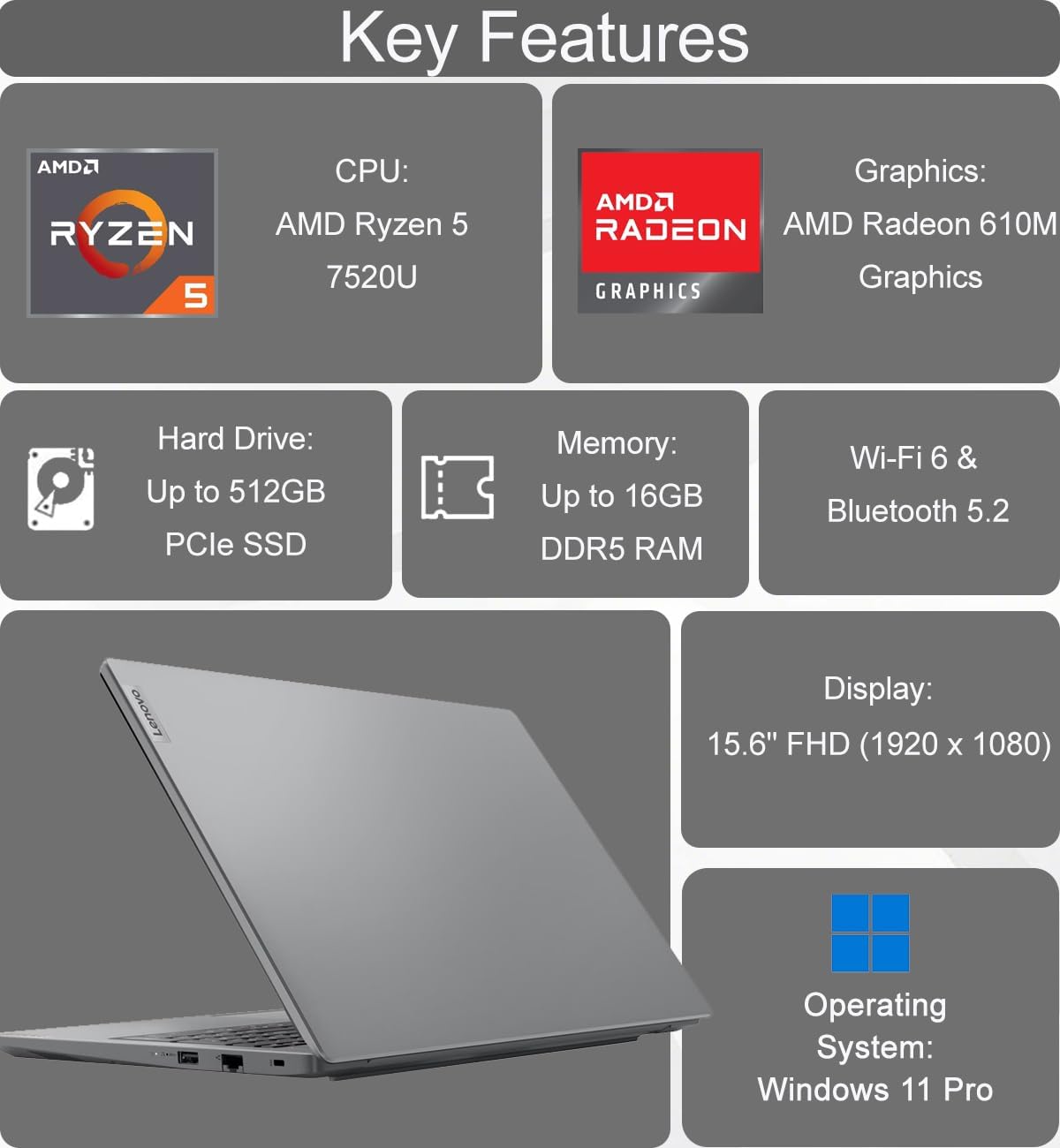
Figure 2: Key features of the Lenovo V15 Gen 4 Laptop.
Njirimara akụrụngwa
Familiarize yourself with the various ports and components of your laptop.
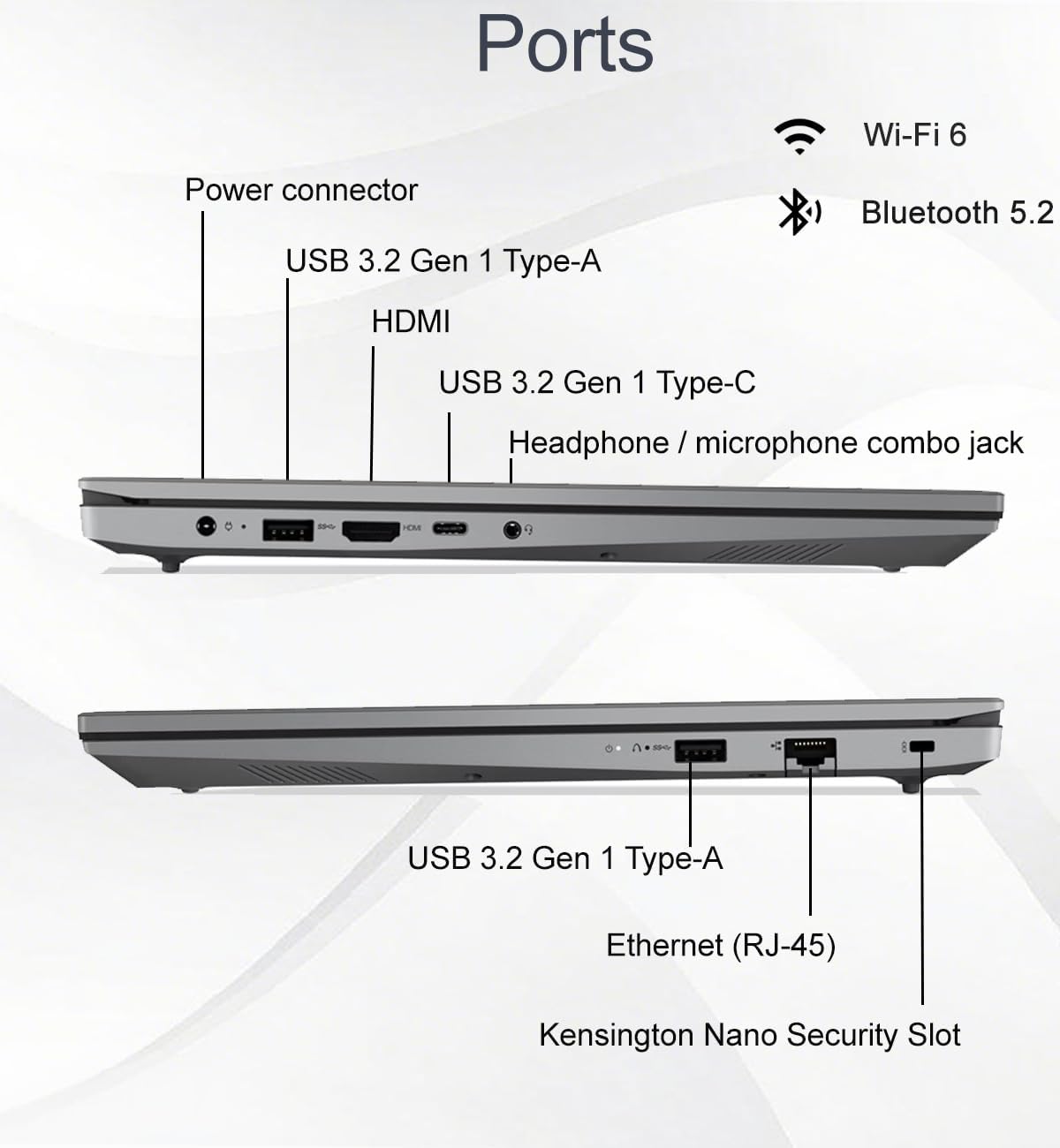
Figure 3: Port layout of the Lenovo V15 Gen 4 Laptop.
- Left Side Ports: Power connector, USB 3.2 Gen 1 Type-A, HDMI 1.4b, USB 3.2 Gen 1 Type-C (supports data transfer, Power Delivery, and DisplayPort 1.2), Headphone/microphone combo jack.
- Right Side Ports: USB 3.2 Gen 1 Type-A, Ethernet (RJ-45), Kensington Nano Security Slot.
Ntuziaka nhazi
- Mepee Laptọọpụ ahụ: Jiri nlezianya wepụ laptọọpụ na ngwa niile na nkwakọ ngwaahịa.
- Njikọ Ike: Plug the 65W AC adapter into the laptop's power connector and then into a power outlet.
- Ike izizi: Open the laptop lid and press the power button. The laptop will guide you through the initial Windows 11 Pro setup process.
- Jikọọ na netwọk: During setup, connect to a Wi-Fi network or use an Ethernet cable for internet access.
- Ntọala Windows zuru oke: Follow the on-screen prompts to configure your operating system, create a user account, and install updates.
Ntuziaka ọrụ
Njikwa Ike
- Ike Na: Press the power button located on the top-right of the keyboard.
- Modera Modera: Mechie mkpuchi ahụ ma ọ bụ họrọ "Ụra" site na menu Mmalite.
- Mechie: Go to Start > Power > Shut down.
- Malitegharịa: Go to Start > Power > Restart.
Ngosipụta na Anya
The laptop features a 15.6-inch Full HD (1920 x 1080) anti-glare display with TÜV Low Blue Light certification for reduced eye strain.

Figure 4: Display features of the Lenovo V15 Gen 4 Laptop.
You can connect up to two external monitors via the HDMI and Type-C ports, supporting resolutions up to 4K (3840x2160) at 60Hz without a docking station.
Webcam and Collaboration
HD agbakwunyere webcam includes a privacy shutter for enhanced security during video calls.

Figure 5: Collaboration features including webcam and keyboard.
Ahụigodo na Ntinye
The full-sized keyboard features a numeric keypad for efficient data entry and is designed to be spill-resistant.
Audio
Experience clear audio with dual-array microphones and 2 x 1.5W stereo speakers, enhanced by Dolby Audio.

Figure 6: Audio features of the Lenovo V15 Gen 4 Laptop.
Njikọta
- Ikuku: Integrated Wi-Fi 6 (802.11ax) and Bluetooth 5.2 for fast and reliable wireless connections.
- Mara: Ethernet (RJ-45) port for stable wired network access.
Ndụ batrị na Nchaji
The laptop is equipped with a battery that provides approximately 10 hours of average usage. It supports rapid charging, reaching up to 80% capacity in one hour.
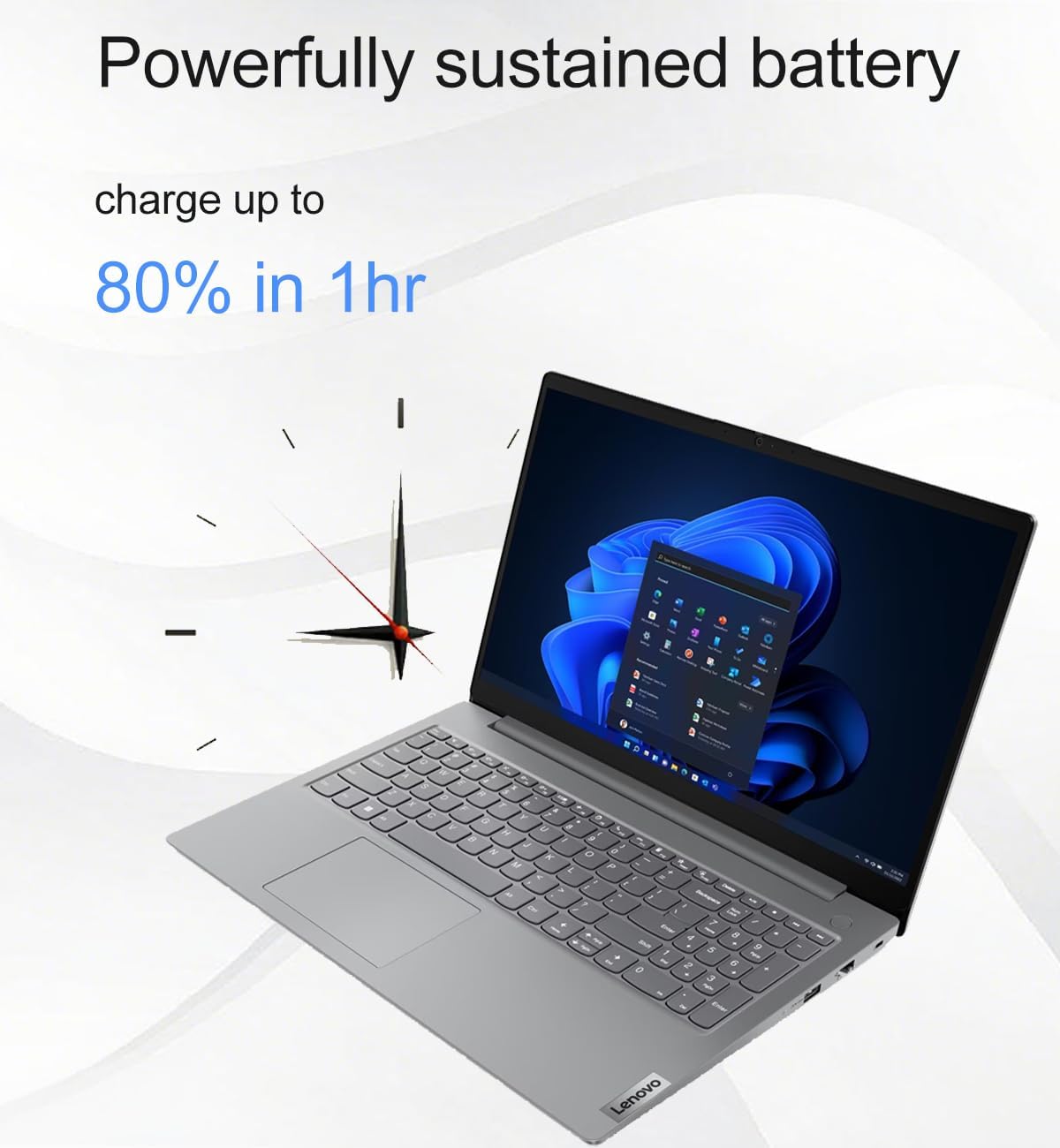
Figure 7: Battery charging capability.
Nlekọta
- Nhicha: Jiri akwa dị nro na-enweghị ntụpọ dampejiri mmiri ma ọ bụ ihe nhicha ihuenyo hichaa ihe ngosi ahụ. Maka kiiboodu na chassis, jiri ákwà dị nro ma kpọọ nkụ. Zere kemịkalụ siri ike.
- Mmelite ngwanrọ: Lelee ma wụnye sistemụ arụmọrụ yana mmelite ọkwọ ụgbọ ala mgbe niile iji hụ na arụmọrụ na nchekwa kacha mma.
- Nlekọta batrị: Iji mee ka batrị dị ogologo, zere oke okpomọkụ ma na-agbapụta batrị ahụ mgbe niile.
- Nchekwa: Debe laptọọpụ ahụ n'ebe dị jụụ ma kpọọ nkụ mgbe a naghị eji ya.
Nchọpụta nsogbu
Okwu na ngwọta nkịtị
- Laptọọpụ anaghị agbanye: Hụ na e jikọrọ ihe nkwụnye AC ahụ nke ọma na laptọọpụ ahụ na ebe ọkụ eletrik na-arụ ọrụ. Nwaa ebe ọkụ eletrik dị iche.
- Ihuenyo oghere: Check if the laptop is in sleep mode. Press any key or the power button to wake it. Ensure external monitors are properly connected if in use.
- Enweghị njikọ ịntanetị: Verify Wi-Fi is enabled and connected to the correct network. If using Ethernet, ensure the cable is securely plugged in and your router is functioning.
- Ịrụ ọrụ nwayọ: Close unnecessary applications. Check for background updates. Restart the laptop.
- Webcam not working: Ensure the privacy shutter is open. Check camera settings in Windows and application permissions.
Maka okwu ndị dị mgbagwoju anya, rụtụ aka na nkwado Lenovo websaịtị ma ọ bụ kpọtụrụ ndị ahịa.
Nkọwapụta
| Njirimara | Nkọwa |
|---|---|
| Aha Nlereanya | V15 Gen 4 83CQ |
| Nhazi | AMD Ryzen 5 7520U (2.8 GHz, 4 Cores) |
| RAM | 16 GB DDR5 (5500 MHz) |
| Nchekwa | 512 GB PCIe NVMe M.2 SSD |
| Ngosipụta | 15.6-inch FHD (1920 x 1080) TN Anti-glare, TÜV Low Blue Light |
| Eserese | Ihe eserese AMD Radeon 610M jikọtara ọnụ |
| Sistemụ nrụọrụ | Windows 11 Pro 64-bit |
| Njikọ ikuku | Wi-Fi 6 (802.11ax), Bluetooth 5.2 |
| ọdụ ụgbọ mmiri | 1x USB-C 3.2 Gen 1 (Data, PD, DP 1.2), 2x USB-A 3.2 Gen 1, 1x HDMI 1.4b, 1x Ethernet (RJ-45), 1x Headphone/Mic Combo Jack |
| Webcam | HD with Privacy Shutter |
| Audio | Dual-array microphones, 2x 1.5W Stereo Speakers, Dolby Audio |
| Ndụ batrị | Approx. 10 hours (average) |
| Akụkụ (LxWxH) | 14.48 x 9.64 x 0.74 sentimita asatọ |
| Ibu | 3.59 pound |
| Ịdị ogologo | MIL-STD-810H tested |
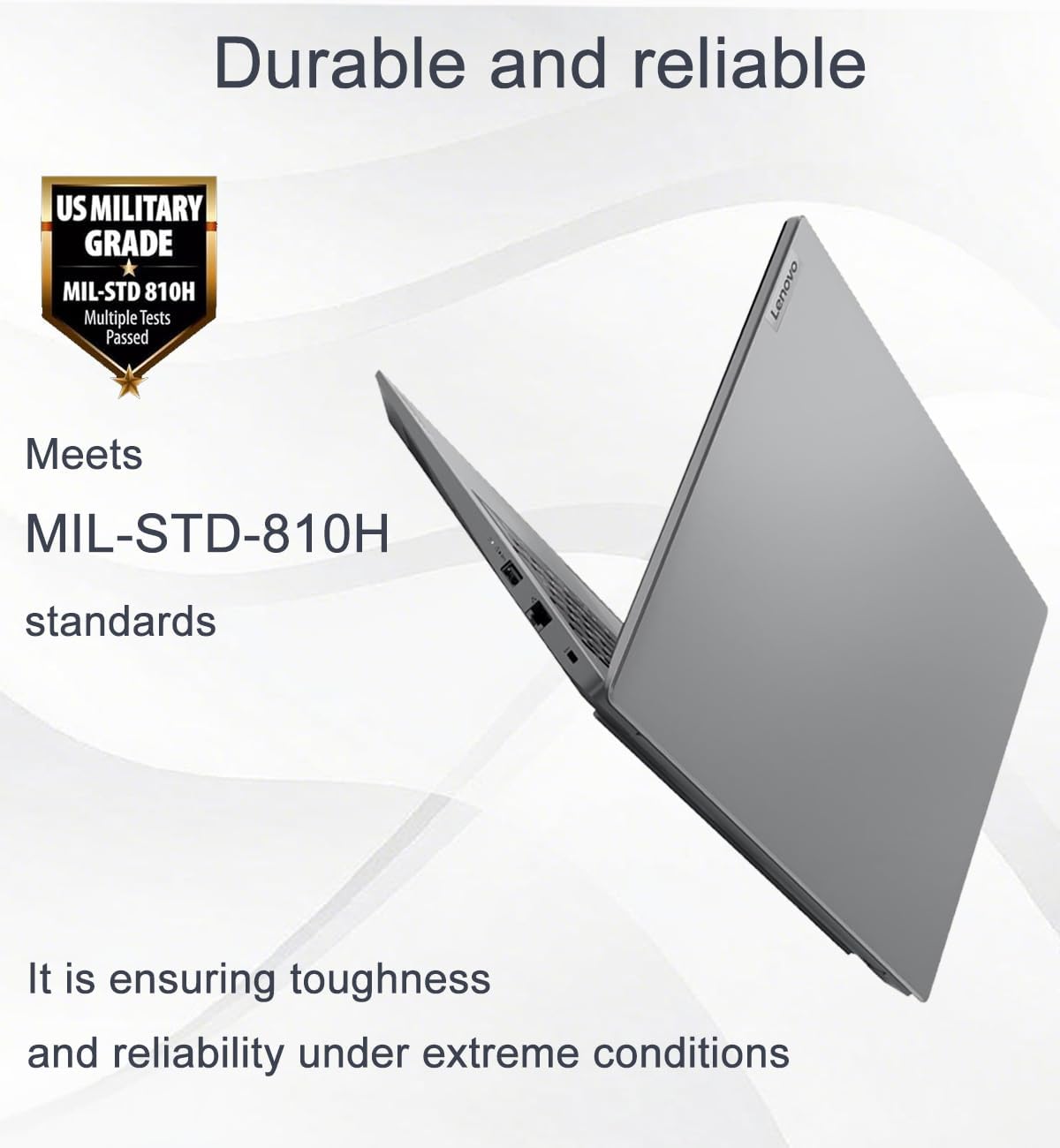
Figure 8: MIL-STD-810H durability standard.

Figure 9: Laptop dimensions and weight.
Akwụkwọ ikike na nkwado
This product comes with a one-year manufacturer warranty on remaining components. For RAM (Memory) and SSD (Storage) upgraded by Issaquah Highlands Tech (IST Computers), a three-year warranty is provided by Issaquah Highlands Tech.
For support, please refer to the official Lenovo support channels or contact Issaquah Highlands Tech directly for issues related to upgraded components.
Gaa leta IST Computers Store maka ozi ndị ọzọ.
Akụrụngwa vidiyo
Ọ nweghị vidiyo ngwaahịa sitere n'aka onye na-ere ahịa dị maka itinye n'akwụkwọ ntuziaka a.
Ask a question about this manual
Ask about setup, troubleshooting, compatibility, parts, safety, or missing instructions. Manuals+ will review the question and use this page’s manual context to help answer it.