
CYNOVA Smart XR
AOCHUAN Smart XR 3-Axis Handheld Gimbal Stabilizer User Manual
Model: Smart XR | Brand: CYNOVA
Okwu mmalite
This manual provides comprehensive instructions for the setup, operation, and maintenance of your AOCHUAN Smart XR 3-Axis Handheld Gimbal Stabilizer. Please read this manual thoroughly before using the device to ensure proper functionality and to maximize your user experience.
Atụmatụ igodo
- Nhazi kọmpat na dị fechaa: Features a 370g lightweight in a small foldable size of 112*154*68mm, easily fitting into your backpack or pocket.
- 3-Axis Stabilization: Equipped with a three-axis stabilization control system for smooth and steady footage.
- Dual Focus Control & Combined Zoom: Allows for precise focus adjustment (clear/faint) by rotating the focusing roller and focal length adjustment (zoom in/zoom out) via a sliding zoom push rod.
- Removable & Rechargeable Battery: Utilizes a 3200mAh lithium-ion battery with up to eight hours of battery life. Supports charging and replacement for extended shooting time.
- iOS & Android App Support: Compatible with a dedicated app offering multiple shooting modes, simple interface design, and stable connectivity.
Melite
1. Ikpughe Gimbal
Carefully unfold the gimbal from its compact storage position. Ensure all joints are securely locked into place before mounting your smartphone.
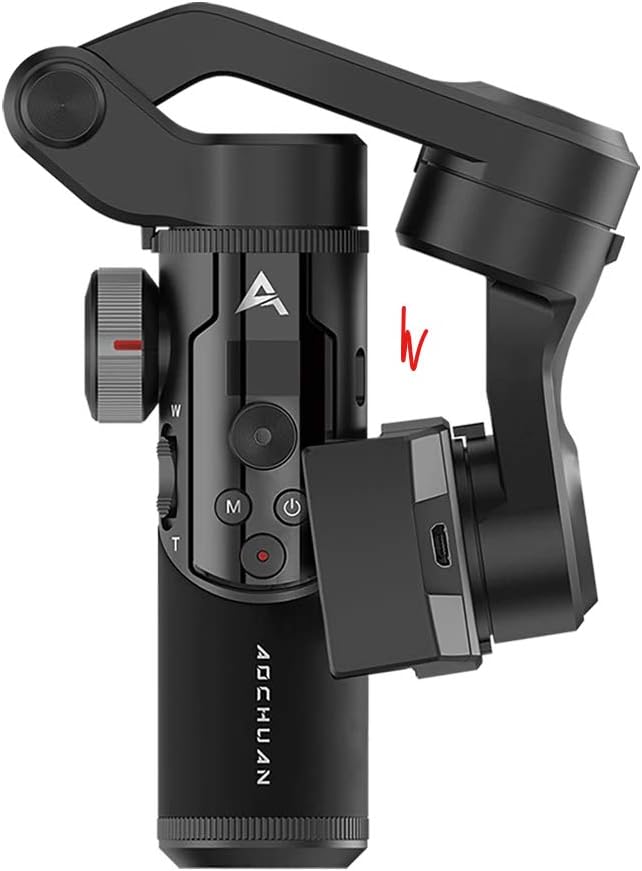
Image: The AOCHUAN Smart XR Gimbal shown in its folded, compact state.
2. Ịwụnye batrị
The Smart XR gimbal uses a removable 3200mAh lithium-ion battery. Unscrew the cap at the bottom of the handle, insert the battery with the correct polarity, and then secure the cap.

Foto: A nso nso view illustrating the removable battery compartment at the base of the gimbal handle.
3. Ịwụnye ekwentị gị
Gbasaa ekwentị clamp and carefully place your smartphone into it, ensuring it is centered and balanced. The gimbal is designed to hold various smartphone sizes securely.

Image: The AOCHUAN Smart XR Gimbal with a smartphone securely mounted, demonstrating its readiness for use.
4. Ijikọ site na Bluetooth
Download the official AOCHUAN app from your device's app store. Power on the gimbal. Open the app and follow the on-screen instructions to connect your smartphone to the gimbal via Bluetooth. This connection enables full control over gimbal functions and shooting modes.
Na-arụ ọrụ Gimbal
Njikwa agafelaview

Foto: nkọwa zuru ezu view of the gimbal's control panel, highlighting the LCD display which shows current mode, battery level, and Bluetooth status.
- Bọtịnụ ike: Pịa ma jide ka ịgbanwuo/ gbanyụọ.
- Bọtịnụ Ụdị (M): Cycles through different operating modes.
- Joysticks: Na-achịkwa mmegharị pan na ntụgharị nke gimbal.
- Focus Roller (W/T): Rotates to adjust focus (clear/faint).
- Ihe mmịfe mbugharị: Slides to adjust focal length (zoom in/zoom out).
- Bọtịnụ ndekọ: Initiates and stops video recording or takes photos.
Ụdị arụ ọrụ
The Smart XR offers several intelligent shooting modes for diverse scenarios:
- Half-Follow Mode (PF): The gimbal follows your pan movements while keeping the tilt and roll axes locked.
- Full-Follow Mode (F): The gimbal follows both your pan and tilt movements, keeping the roll axis locked.
- POV Mode (Global Lock): All three axes (pan, tilt, roll) follow your movements, providing a first-person perspective.
- Full-Lock Mode (L): All three axes are locked, keeping the camera pointing in a fixed direction regardless of gimbal movement.
- Mad "dog" Mode (GO): A quick transition mode for dynamic shots.
Video: An official demonstration of the AOCHUAN Smart XR Gimbal's various operating modes and features, including its compact design, removable battery, and dual focus control.
Switching Orientation
The gimbal supports quick switching between landscape and portrait modes, ideal for different social media platforms and content creation needs. Refer to the app for specific controls.
Advanced Filming Modes (via App)
Utilize the companion app to unlock advanced filming modes such as Inception, Time-lapse, and Hitchcock for creative video effects.
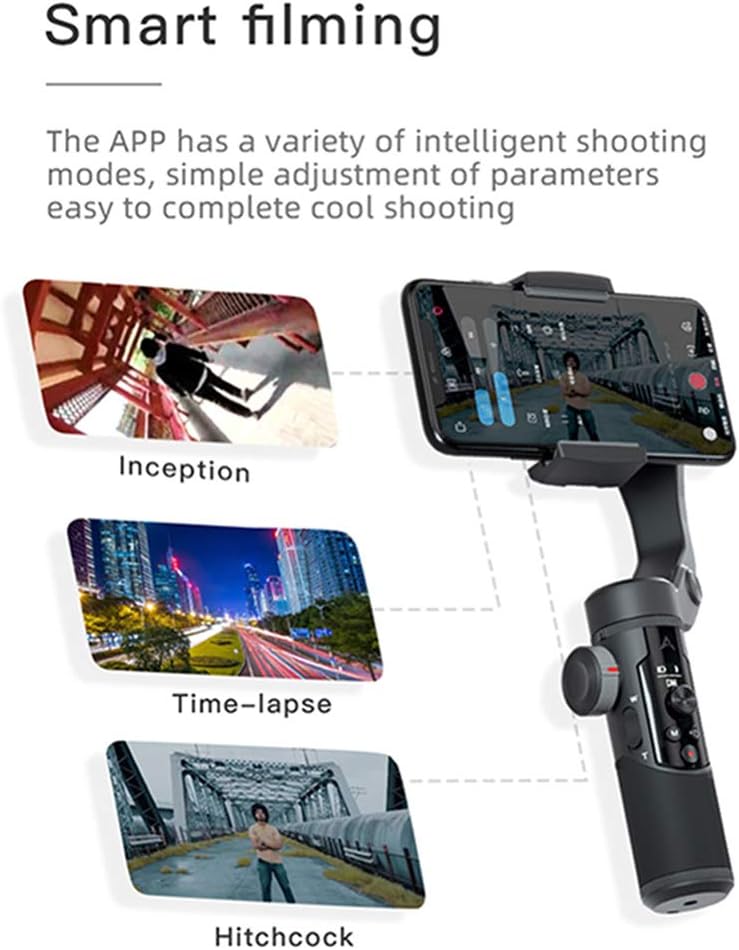
Image: A visual representation of the advanced filming modes, such as Inception, Time-lapse, and Hitchcock, accessible through the dedicated smartphone application.
Nlekọta
- Nhicha: Jiri ákwà dị nro ma kpọọ nkụ hichaa ihe e ji asa ákwà ahụ. Zere iji ihe nhicha mmiri ma ọ bụ ihe mgbaze.
- Nchekwa: Store the gimbal in a cool, dry place, away from direct sunlight and extreme temperatures. When not in use for extended periods, remove the battery.
- Nlekọta batrị: Fully charge the battery before first use. For long-term storage, charge the battery to about 50% to prolong its lifespan.
Nchọpụta nsogbu
- Gimbal anaghị agba ọkụ: Gbaa mbọ hụ na chajịrị batrị zuru oke yana itinye ya nke ọma.
- Ụkwụ na-adịghị akwụsi iketage: Ensure your smartphone is properly balanced in the clamp. Recalibrate the gimbal via the app if necessary.
- Nsogbu njikọ Bluetooth: Ensure Bluetooth is enabled on your smartphone and the gimbal. Restart both devices and try reconnecting.
- Ngwa anaghị aza: Close and reopen the app. Check for app updates in your device's app store.
Nkọwapụta
| Ụdị | CYNOVA |
| Nlereanya | Smart XR |
| Ibu Ibu | 370 grams (13.1 ounces) |
| Akụkụ ngwugwu | 7.09 x 5.59 x 3.03 sentimita asatọ |
| Agba | Nwa |
| Ngwa dakọtara | Camera, Cellphone (iOS & Android) |
| Ike batrị | 3200mAh lithium-ion |
| UPC | 787823498428 |
Akwụkwọ ikike na nkwado
For detailed warranty information and customer support, please refer to the product packaging or visit the official CYNOVA website. You can also contact their customer service directly for assistance with product registration, technical issues, or repair services.
Note: Specific warranty terms and support contact details are subject to change by the manufacturer. Always refer to the most current information provided with your product or on the manufacturer's official channels.
Ask a question about this manual
Ask about setup, troubleshooting, compatibility, parts, safety, or missing instructions. Manuals+ will review the question and use this page’s manual context to help answer it.