
1. Okwu mmalite
This manual provides essential information for the safe and efficient use of your iiyama G2470HSU-B1 23.8-inch IPS Full HD 165Hz Gaming Monitor. Please read these instructions thoroughly before operating the device and retain them for future reference.
2. Ozi nchekwa
- Etinyela ihe nlele ahụ n'ime mmiri ma ọ bụ n'ime ụlọ iji gbochie ọkụ ma ọ bụ ihe mberede.
- Emeghela ihe nlele ahụ casing. Enweghị akụkụ ọrụ ọ bụla dị n'ime ya. Nye ndị ọrụ ruru eru ọrụ niile.
- Gbaa mbọ hụ na ikuku ikuku dị mma. Akwụsịla oghere ikuku.
- Jiri naanị eriri ọkụ ewetere na nleba anya.
- Debe ihe nlele ahụ n'elu ebe kwụsiri ike ma dị larịị iji gbochie ya ịda.
- Zere itinye ihe ndị dị arọ na eriri ike.
3. Ihe ngwugwu
Chọpụta na ihe niile edepụtara n'okpuru dị na ngwugwu gị:
- iiyama G2470HSU-B1 Monitor
- Nyochaa Stand (Base and Olu)
- Igwe ọkụ ọkụ
- HDMI USB
- USB DisplayPort
- USB Upstream Cable
- Akwụkwọ ntuziaka (akwụkwọ a)
4. Nhazi
4.1 Ịchịkọta Stand
- Jiri nlezianya tinye ihe nlele ahụ n'elu ákwà dị nro ma dị ọcha iji gbochie ọwa.
- Attach the stand neck to the back of the monitor. Ensure it clicks securely into place.
- Attach the stand base to the neck and tighten the screw at the bottom of the base.

Foto 4.1: N'ihu view of the monitor with stand.
4.2 Ijikọ Monitor
Jikọọ ihe nleba anya na kọmputa gị ma ọ bụ ngwaọrụ ndị ọzọ site na iji eriri kwesịrị ekwesị.
- Ntinye vidiyo: Connect either an HDMI cable or a DisplayPort cable from your computer's graphics card to the corresponding port on the monitor.
- Igwe USB: Connect the USB upstream cable from your computer to the USB-B port on the monitor to enable the monitor's USB 2.0 ports.
- Mmepụta ọdịyo: If desired, connect headphones or external speakers to the 3.5mm audio output jack.

Figure 4.2: Monitor input ports.
4.3 Njikọ ike
Jikọọ eriri ọkụ eletrik ahụ na ntinye ike nke ihe nlele ahụ wee tinye nsọtụ nke ọzọ n'ime oghere ọkụ eletrik nke ala.
5. Ntuziaka ọrụ
5.1 Gbanyụọ ma ọ bụ gbanyụọ
Press the power button located on the rear of the monitor to turn it on or off. The power indicator light will illuminate when the monitor is on.
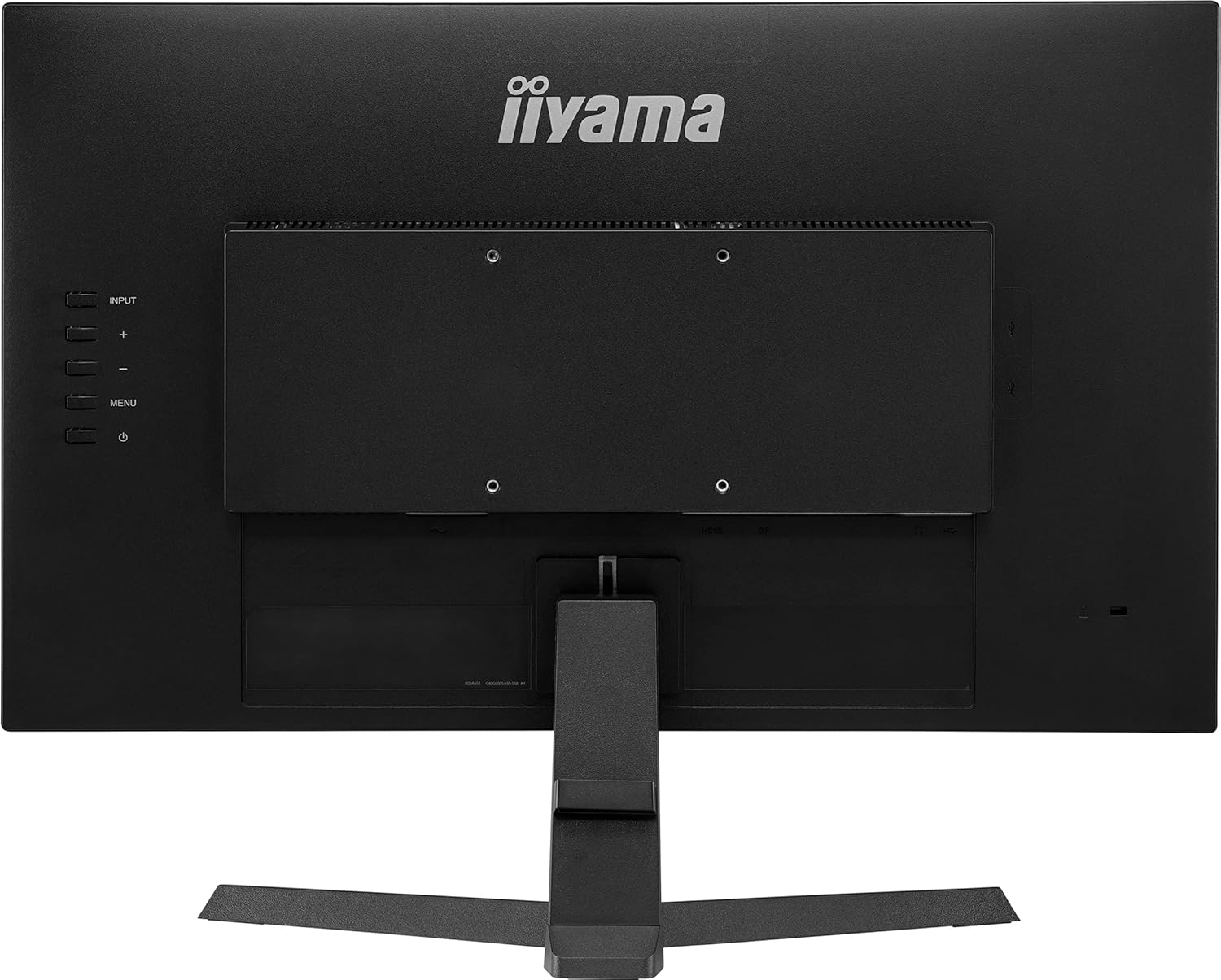
Ọgụgụ 5.1: N'azụ view with control buttons.
5.2 Ngosipụta Ngosipụta (OSD) NchNhr
The OSD menu allows you to adjust various monitor settings. Use the buttons on the rear of the monitor to navigate and select options.
- Ntinye: Select the video input source (HDMI, DisplayPort).
- Foto: Hazie nchapụta, ọdịiche, nkọ, na okpomọkụ agba.
- Audio: Control volume and mute settings.
- OSD Mbido: Configure OSD language, position, and timeout.
- Gaming Settings: Access features like Black Tuner, FreeSync, and response time overdrive.
5.3 Adjusting Refresh Rate
To utilize the 165Hz refresh rate, ensure your graphics card and connection cable (DisplayPort recommended) support it. Adjust the refresh rate through your computer's display settings:
- Windows: Right-click on the desktop > Display settings > Advanced display settings > Display adapter properties > Monitor tab > Screen refresh rate.
- MacOS: System Settings > Displays > Refresh Rate.
5.4 FreeSync Technology
This monitor supports AMD FreeSync technology, which synchronizes the monitor's refresh rate with your graphics card's frame rate to reduce screen tearing and stuttering. Ensure FreeSync is enabled in the monitor's OSD menu and your graphics card software.
6. Nlekọta
6.1 Na-ehicha ihuenyo ahụ
Jiri nwayọ hichaa ihuenyo ahụ site na iji akwa dị nro na-enweghị lint. Maka akara isi ike, dampen the cloth with a mild, non-abrasive screen cleaner. Do not spray cleaner directly onto the screen.
6.2 Ihicha Casing
Jiri akwa dị nro dị nro hichaa ihe nleba anya casing. Zere iji ihe nhicha siri ike ma ọ bụ ihe mgbaze.
7. Nchọpụta nsogbu
| Nsogbu | Ihe nwere ike ime | Ngwọta |
|---|---|---|
| Enweghị onyonyo na ihuenyo | Akwụsịla eriri ọkụ; Ekwupụrụ eriri vidiyo; ahọpụtara isi mmalite ntinye ezighi ezi. | Check power and video cable connections; Select correct input source via OSD menu. |
| Onyonyo na-agbagọ ma ọ bụ agbagọ | Mkpebi na-ezighi ezi; Nsogbu draịva eserese. | Set resolution to 1920x1080; Update graphics drivers. |
| Ihuenyo na-amagharị | Refresh rate mismatch; Cable issue; FreeSync not properly configured. | Ensure refresh rate is set correctly (165Hz); Try a different video cable; Verify FreeSync settings. |
| Enweghị ụda sitere na ọkà okwu/ekweisi | Volume too low; Audio cable disconnected; Incorrect audio output selected on PC. | Adjust volume in OSD and PC; Check audio cable connection; Select monitor as audio output on PC. |
8. Nkọwapụta
| Njirimara | Nkọwapụta |
|---|---|
| Ụdị | iyama |
| Nọmba nlereanya | G2470HSU-B1 |
| Nha ihuenyo | 24 sentimita asatọ (23.8" viewike) |
| Ụdị ngosi | IPS LED |
| Mkpebi | 1920x1080 (HD zuru ezu) |
| Ọnụego ume ọhụrụ | 165 Hz |
| Oge nzaghachi | 0.8 nkeji |
| Akụkụ akụkụ | 16:9 |
| Ọnụọgụ ọdịiche | 1100:1 |
| Icha ọkụ | 250 cd/m² |
| Viewna n'akuku | 178 Degrees (Horizontal/Vertical) |
| Njikọta | 1x HDMI, 1x DisplayPort, 2x USB 2.0, Audio Out |
| Mmekọrịta na-agbanwe agbanwe | FreeSync |
| Atụmatụ ndị ọzọ | Flicker-Free, Black Tuner |
| Ụdị nkwụnye | Wall Mount (VESA dakọtara) |
| Ibu Ibu | 3.2 kilogram |
| Oriri ike | 20 Watt |
8.1 Energy Information

Figure 8.1: Energy Label.
Maka ozi zuru ezu gbasara ngwaahịa na data arụmọrụ ike, biko gaa na nchekwa data EPREL gọọmentị: https://eprel.ec.europa.eu/qr/160426
9. Akwụkwọ ikike na nkwado
The iiyama G2470HSU-B1 monitor comes with a limited warranty. Please refer to the warranty card included in your package or visit the official iiyama websaịtị maka nkọwa na usoro akwụkwọ ikike.
For technical support, service inquiries, or further assistance, please contact iiyama customer support through their official channels.