
Okwu mmalite
Thank you for choosing the iClever BK10 Bluetooth Wireless Keyboard. This manual provides detailed instructions on how to set up, operate, and maintain your keyboard to ensure optimal performance. Please read this manual carefully before use and retain it for future reference.
Ihe ngwugwu
- iClever BK10 Ikuku Ikuku Bluetooth
- Igwe nchaji USB
- Akwụkwọ ntuziaka onye ọrụ
Nkọwapụta
| Ụdị | iClever |
| Nọmba nlereanya | BK10 |
| Teknụzụ Njikọta | Bluetooth |
| Ngwa dakọtara | Android 9+, ChromeOS (BT 4.0+), Windows 10/11, iPadOS 13.4+, macOS 10.15+ |
| Nhazi ahụigodo | AZERTY |
| Ọnụọgụ igodo | 78 |
| Ngbanwe Ụdị | Mgbanwe mkpa |
| Isi Iyi Ike | Akwanyere batrị |
| Akụkụ ngwaahịa | 43L x 14W x 2.5H centimita |
| Ihe dị n'ime | Acrylonitrile Butadiene Styrene, igwe anaghị agba nchara |
Melite
1. Nchaji mbụ
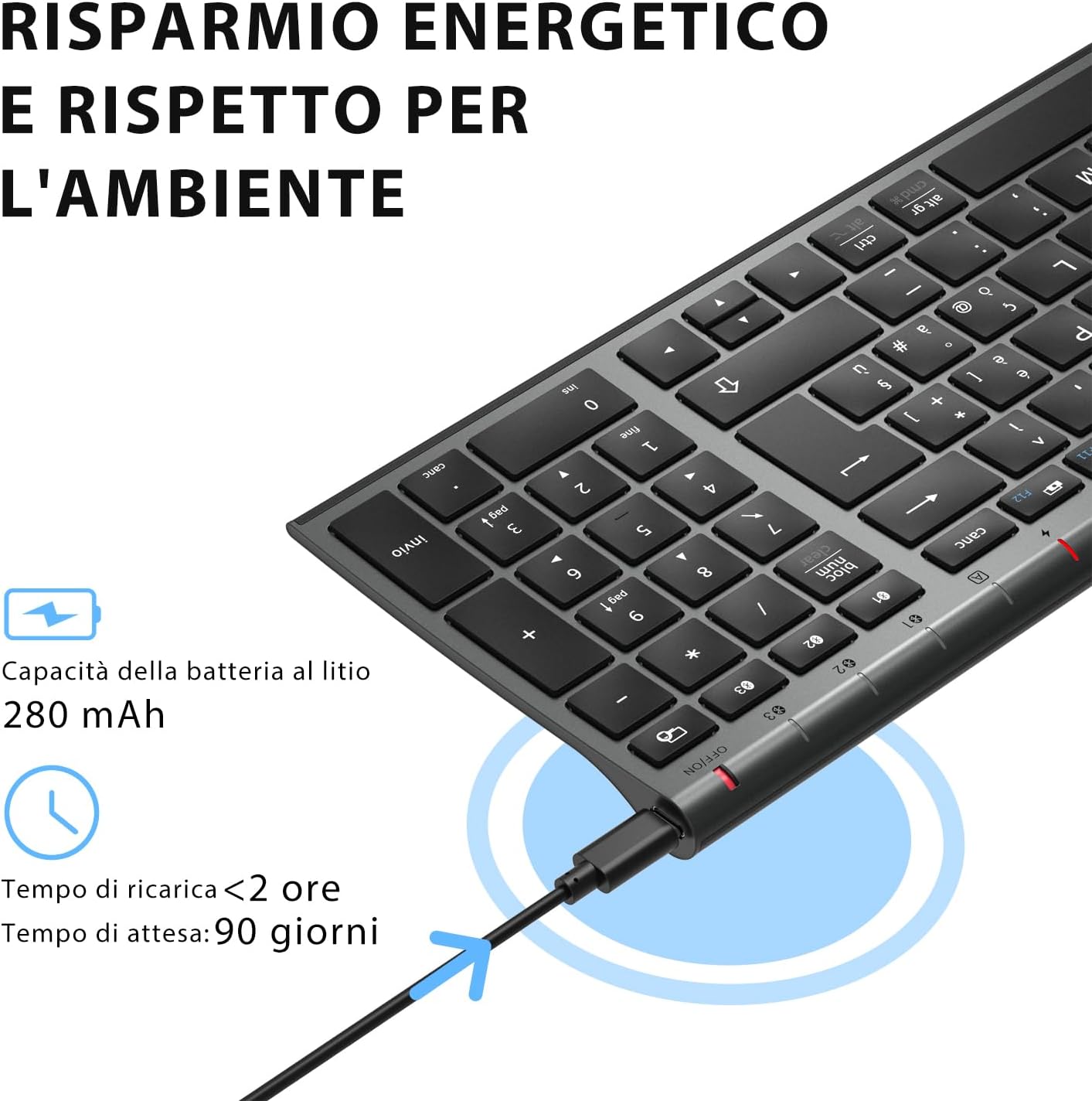
Before first use, fully charge the keyboard. Connect the provided USB charging cable to the keyboard's USB-C port and the other end to a USB power source (e.g., computer, wall adapter). The charging indicator light will show charging status and turn off when fully charged.

The iClever BK10 keyboard connected via USB-C for charging. This image details the 280 mAh lithium battery capacity, a charging time of less than 2 hours, and a standby time of 90 days.
2. Gbanyụọ / gbanyụọ
Locate the power switch on the keyboard. Slide the switch to the 'ON' position to power on the keyboard. Slide it to the 'OFF' position when not in use to conserve battery.
3. Njikọ Bluetooth
The iClever BK10 keyboard supports connection to up to three devices simultaneously.
- Gbanwuo ahụigodo site na iji mgba ọkụ.
- Pịa Fn key simultaneously with one of the Bluetooth channel keys (BT1, BT2, ma ọ bụ BT3) to select a channel.
- Press and hold the selected Bluetooth channel key (e.g., BT1) for 3-5 seconds until the indicator light for that channel starts blinking rapidly. This indicates the keyboard is in pairing mode.
- Na ngwaọrụ gị (kọmputa, mbadamba, ama ama), mee ka Bluetooth rụọ ọrụ ma chọọ ngwaọrụ dị.
- Select "iClever BK10" (or similar name) from the list of found devices.
- Follow any on-screen prompts to complete the pairing process. The indicator light will stop blinking and remain solid for a few seconds, then turn off, indicating a successful connection.

The iClever BK10 keyboard demonstrating its ability to connect to an iPad, MacBook, and iPhone via three distinct Bluetooth channels. The image also illustrates key mapping for Windows/Android (Alt/Cmd) and iPad/Mac (Alt/Cmd) operating systems.
Na-arụ ọrụ ahụigodo
1. Switching Between Paired Devices
To switch between your paired devices, simply press the Fn key along with the corresponding Bluetooth channel key (BT1, BT2, ma ọ bụ BT3) that your device is paired to. The keyboard will automatically connect to the selected device.
2. Function Keys (Fn)
The keyboard features a row of function keys (F1-F12) that also serve as multimedia and shortcut keys. To use the secondary function of these keys, press and hold the Fn key while pressing the desired function key.
3. Ndakọrịta sistemụ arụmọrụ
The iClever BK10 keyboard is designed to be compatible with various operating systems. Key functions may adapt slightly depending on the connected OS. For optimal performance, ensure your device's Bluetooth version is 4.0 or higher.

Close-up of the iClever BK10 keyboard with a hand typing, highlighting the low-profile keys and scissor switch mechanism designed for quiet and comfortable typing.
Nlekọta
1. Nhicha
Iji hichaa ahụigodo gị, gbanyụọ ya ma wepụ ya na ngwaọrụ ọ bụla. Jiri ákwà dị nro, nke na-enweghị ihe na-egbu egbu ntakịrị.ampened with water or a mild cleaning solution. Avoid using harsh chemicals, abrasives, or excessive moisture. Do not spray cleaners directly onto the keyboard.
2. Nlekọta batrị
Iji mee ka batrị nke ahụigodo gị dị ogologo:
- Charge the keyboard fully before its first use.
- Zere igbapu batrị kpamkpam ugboro ugboro.
- Chekwaa ahụigodo ahụ n'ebe dị jụụ, kpọrọ nkụ mgbe ọ naghị eji ya ogologo oge.
- Turn off the keyboard when transporting it or when not in use to prevent accidental key presses and battery drain.
Nchọpụta nsogbu
1. Ahụigodo Anaghị ejikọta/Na-ejikọ
- Hụ na ejiri ahụigodo ahụ rụọ ọrụ ma chajị ya nke ọma.
- Gbaa mbọ hụ na agbanyere Bluetooth na ngwaọrụ gị.
- Ensure the keyboard is in pairing mode (indicator light blinking).
- Gbalịa ikewapụ ma megharịa ahụigodo site na ntọala Bluetooth nke ngwaọrụ gị.
- Malitegharịa ekwentị ahụ ma ahụigodo na ngwaọrụ gị.
- Ensure your device's Bluetooth version is compatible (BT 4.0+ recommended).
2. Igodo anaghị aza
- Check if the keyboard is connected to the correct device.
- Ensure the battery is not low. Charge the keyboard if necessary.
- Malitegharịa ahụigodo ahụ na ngwaọrụ ejikọtara.
- Clean any debris from around the keys.
3. Connection Drops Frequently
- Ensure there are no strong interference sources (e.g., Wi-Fi routers, other Bluetooth devices) nearby.
- Keep the keyboard within the recommended operating range of your device.
- Gbaa mbọ hụ na agbachara ahụigodo nke ọma.
Akwụkwọ ikike na nkwado
iClever products come with a standard warranty. For detailed warranty information, technical support, or customer service, please refer to the warranty card included with your product or visit the official iClever website. Please have your product model number (BK10) and purchase information ready when contacting support.
Ngwaahịa gafereview Onyonyo

A elu-ala view of the iClever BK10 Bluetooth Wireless Keyboard, showcasing its full layout including the numeric keypad and function keys.
Akụkụ view of the iClever BK10 keyboard, illustrating its ultra-thin profile with a thickness ranging from 0.16 inches to 0.45 inches.

The iClever BK10 keyboard positioned on a desk in an office environment, alongside a computer monitor, laptop, tablet, and smartphone, illustrating its versatile use in various professional and personal setups.