
Docooler XUH6362338938855GM
Docooler JINGSHA X99-8D3 Motherboard User Manual
Model: XUH6362338938855GM
1. Okwu mmalite na gafereview
The Docooler JINGSHA X99-8D3 is a high-performance ATX gaming motherboard designed for LGA2011 V3 processors. It features four-channel DDR3 memory support, an M.2 NVME slot for high-speed storage, and multiple PCI-E expansion slots, making it suitable for demanding computing tasks and gaming setups. This manual will guide you through the installation, configuration, and maintenance of your motherboard.
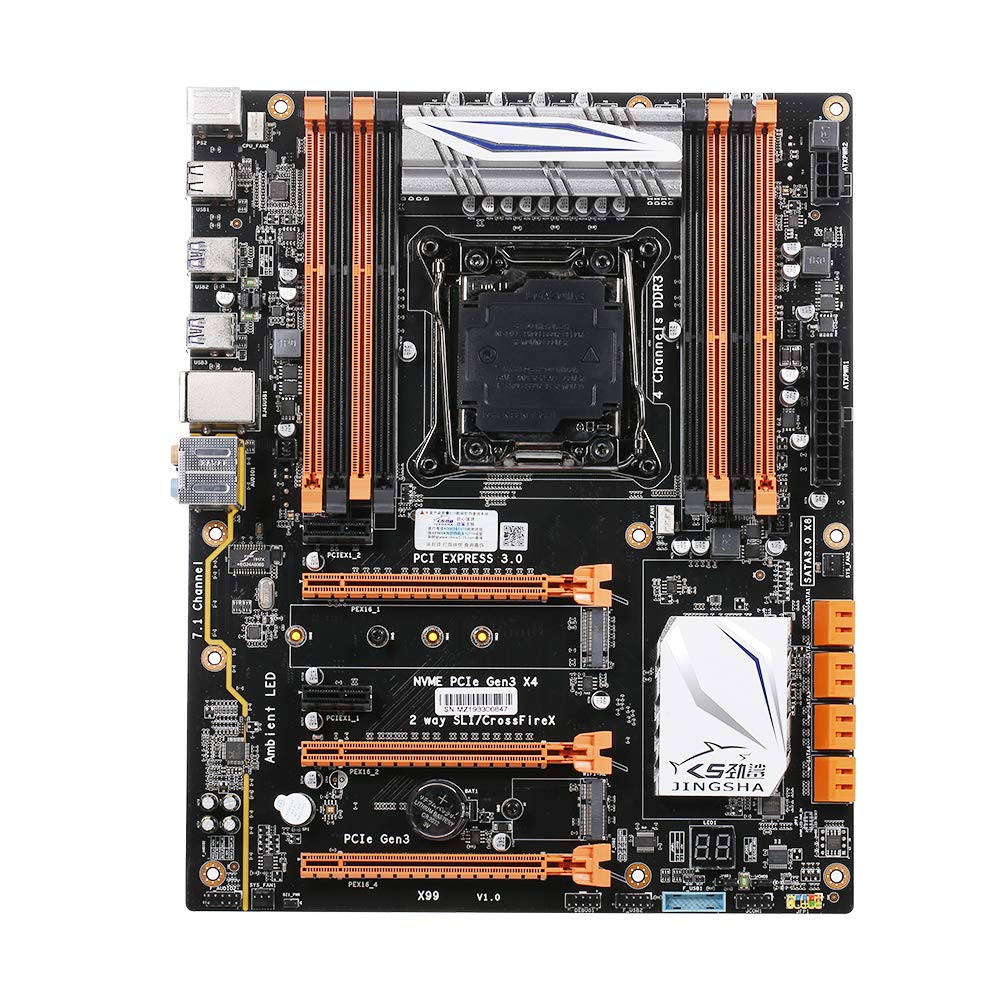
Ọgụgụ 1.1: N'elu-ala view of the Docooler JINGSHA X99-8D3 Motherboard, showcasing its layout with CPU socket, RAM slots, and various expansion slots.
2. Atụmatụ igodo
- M.2 NVME Support: Equipped with an M.2 hard disk port, supporting high-speed PCI-E NVME X4 for optimal operating system and application driver performance.
- Quad-Channel DDR3 Memory: Features 8 DDR3 memory slots across 4 channels, significantly improving capacity and performance, supporting up to 256GB.
- Digital Diagnostic Card: Integrated digital diagnostic card automatically tests hardware devices to ensure proper operation and assist in troubleshooting.
- Multiple PCI-E Expansion Slots: Provides 3 PCI-E expanded slots, configurable as X16/X8 to handle various workloads and multi-GPU setups.
- Ihe owuwu na-adịgide adịgide: Built with a 10-layer PCB and high-quality capacitors for enhanced stability and heat resistance.

Figure 2.1: Diagram illustrating the six core technologies and features of the motherboard, including 4-channel DDR3*8, M.2 hard disk interface, digital diagnostic card, 7.1 channel audio, SATA3.0*8 interface, and Crossfire support.
3. Ihe ngwugwu
Biko chọpụta na ihe niile edepụtara n'okpuru dị na ngwugwu gị:
- 1x Docooler JINGSHA X99-8D3 Motherboard
- 1 x SATA USB
- 1x I/O Baffle (Backplate)
- 1x CPU Fan Board
- A bag of screws
4. Nkọwapụta
| Njirimara | Nkọwapụta |
|---|---|
| Nlereanya | X99-8D3 |
| Ụdị Ihe | ATX |
| Graphic Slot | PCIE3.0 16X*3 |
| Kaadị netwọkụ | Gigabit netwọk kaadị |
| Ọwa ọdịyo | 7.1 Ọwa |
| CPU Type Support | LGA2011 V3 (2629V3/2649V3/2669V3/2678V3/2696V3/2676V3/2673V3) |
| PCB Layers | 10 akwa akwa |
| Oghere ebe nchekwa | DDR3*8 |
| Oke ebe nchekwa | 256GB |
| Njikọ SATA | SATA3.0*8, M.2 NVME |
| PS/2 Interface | Òké/ahụigodo |
| Ịnye ọkụ | 8 PIN*1, 24 PIN*1 |
| USB Interface | USB3.0*6, USB2.0*6 |
| Expanded Interface | PCIE 1X*2, M.2 WIFI*1 |
| Nha ihe | 30.2 x 24.4 cm (11.89 x 9.61 na) |
| Ibu Ibu | 930.5g (32.82oz) |

Ọgụgụ 4.1: Zuru ezu view of the motherboard's rear I/O panel, showing PS/2 ports, USB 2.0, USB 3.0, Gigabit Network Port, and 7.1 Audio Ports.
5. Ntọala na nwụnye
Before beginning installation, ensure your system is powered off and unplugged from the wall outlet. Handle the motherboard by its edges to avoid static discharge.
5.1 Ịwụnye CPU
- Locate the LGA2011 V3 CPU socket on the motherboard.
- Gently push down the CPU retention lever and swing it open.
- Align the triangular mark on your CPU with the corresponding mark on the socket. Carefully place the CPU into the socket without forcing it.
- Mechie ihe njide iji chekwaa CPU ahụ.
- Tinye obere oyi akwa nke ihe mkpuchi okpomọkụ n'elu CPU ahụ.
- Install the CPU cooler according to its manufacturer's instructions, ensuring proper contact and pressure.

Ọgụgụ 5.1: nso nso view of the LGA2011 V3 CPU socket on the motherboard, ready for CPU installation.
5.2 Installing RAM Modules
- Open the clips at both ends of the DDR3 memory slots.
- Align the notch on the RAM module with the key in the memory slot.
- Press down firmly on both ends of the RAM module until the clips snap into place, securing the module.
- For optimal performance, install RAM modules in matching pairs across the four channels as indicated in the motherboard manual or silkscreen.

Foto 5.2: View of the eight DDR3 RAM slots on the motherboard, showing their arrangement for quad-channel memory configuration.
5.3 Installing Storage Devices (M.2 NVME & SATA)
- M.2 NVME SSD: Locate the M.2 slot. Insert the M.2 SSD at an angle into the slot, then gently push it down and secure it with the provided screw.
- Ụgbọ ala SATA: Connect your SATA SSDs or HDDs to the SATA 3.0 ports using SATA data cables. Ensure the power supply SATA power connectors are also attached to the drives.

Figure 5.3: Close-up of the M.2 interface on the motherboard, highlighting its position and the PCI-E Gen3 X4 connection for high-speed data transfer.
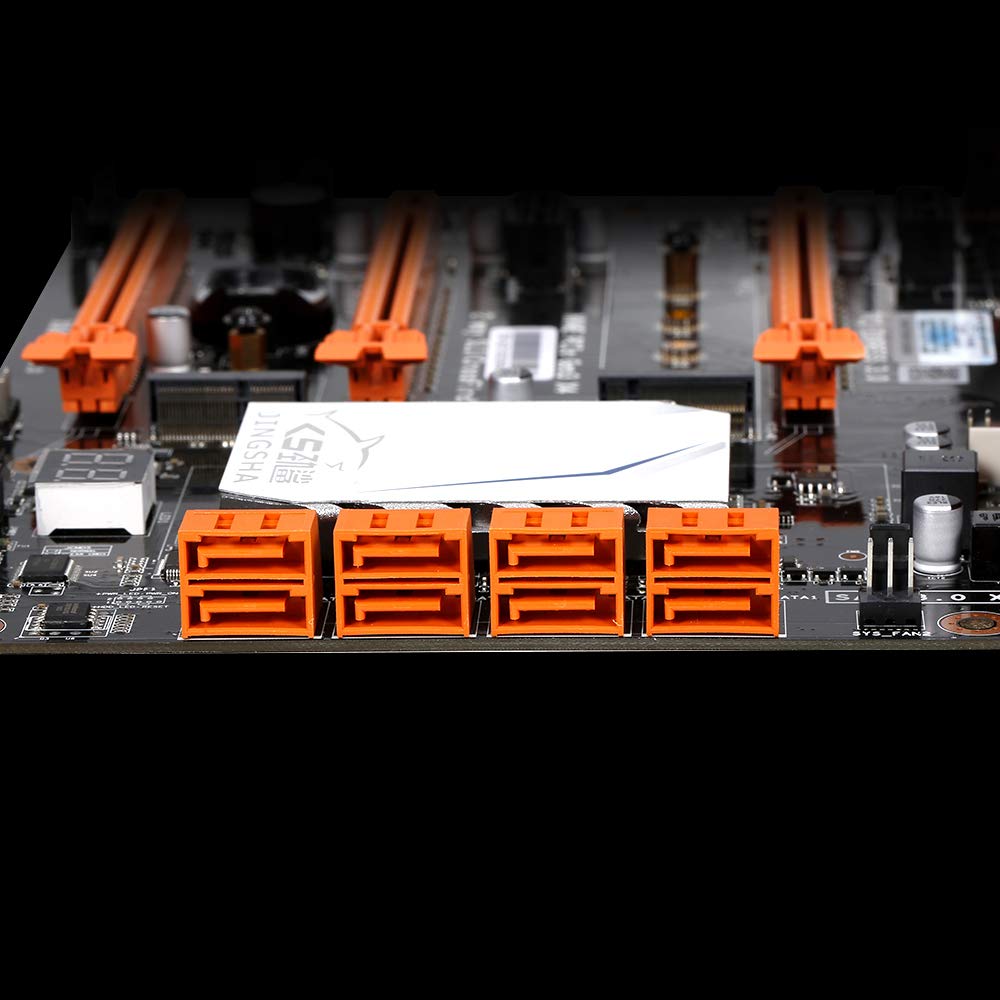
Foto 5.4: View of the eight orange SATA 3.0 ports on the motherboard, providing ample connectivity for storage devices.
5.4 Jikọọ ike ọkọnọ
- Jikọọ njikọ ike ATX nke nwere pin 24 site na ngwa ike gị (PSU) gaa na ọdụ ụgbọ mmiri kwekọrọ na motherboard.
- Connect the 8-pin CPU power connector (EPS12V) from your PSU to the 8-pin port near the CPU socket.
5.5 Installing Expansion Cards (PCIe)
- Locate the desired PCI-E 3.0 x16 or x1 slots.
- Wepu mkpuchi oghere mgbasawanye kwekọrọ na akpa PC gị.
- Align the expansion card with the slot and press down firmly until it is fully seated. Secure the card with a screw to the case.

Ọgụgụ 5.5: N'akuku view of the motherboard, highlighting the three PCI Express 3.0 x16 slots and the smaller PCIe x1 slots, ready for graphics cards and other expansion cards.
6. Ịrụ ọrụ motherboard
6.1 Boot mbụ na ntọala BIOS
- Mgbe ị chịkọtachara ihe niile dị na ya, jikọọ ihe nlele gị, kiibọọdụ gị, na òké gị.
- Power on your system. During the initial boot sequence, repeatedly press the DEL or F2 key (common for JINGSHA motherboards) to enter the BIOS/UEFI setup utility.
- Na BIOS, chọpụta na achọpụtara ihe niile arụnyere (CPU, RAM, nchekwa) nke ọma.
- Hazie usoro buut iji bute mgbasa ozi nrụnye sistemụ arụmọrụ gị ụzọ (USB mbanye ma ọ bụ DVD).
- Chekwaa mgbanwe wee pụọ na BIOS. Usoro ga-amalitegharịa.
6.2 Nwụnye sistemụ arụmọrụ
Follow the instructions provided with your operating system (e.g., Windows, Linux) to complete the installation process. Ensure you install all necessary drivers for the motherboard's chipsets, network, audio, and other components from the manufacturer's website or included driver disc.
7. Nlekọta
Ndozi nke ọma na-achọpụta ogologo ndụ yana ọrụ kwụsiri ike nke motherboard gị.
- Mwepụ uzuzu: Jiri ikuku emechiri emechi hichaa uzuzu sitere na motherboard na ihe ndị dị na ya mgbe niile. Hụ na sistemụ ahụ agbanyụrụ ma gbanyụọ ya tupu ị sachaa ya.
- Mmelite BIOS: Periodically check the Docooler or JINGSHA official website for BIOS updates. BIOS updates can improve compatibility, stability, and performance. Follow update instructions carefully to avoid damaging the motherboard.
- Mmelite ọkwọ ụgbọala: Mee ka draịva sistemụ gị dị ọhụrụ iji hụ na arụmọrụ kachasị mma na ndakọrịta na ngwanrọ na ngwaike ọhụrụ.
- Ọnọdụ gburugburu: Operate the motherboard in a well-ventilated environment with stable temperature and humidity to prevent overheating and component degradation.
8. Nchọpụta nsogbu
Akụkụ a na-ekwu maka nsogbu ndị ị nwere ike izute.
8.1 Enweghị ike / enweghị buut
- Hụ na njikọ ike nke pin 24 ATX na 8-pin CPU dị na motherboard ahụ nwere nchekwa zuru oke.
- Check if the power supply unit (PSU) is switched on and connected to a working power outlet.
- Verify that the front panel power button cable is correctly connected to the motherboard's header.
8.2 Enweghị ihe ngosi
- Ensure your graphics card (if dedicated) is properly seated in its PCI-E slot and has all necessary power cables connected.
- Check that your monitor cable is securely connected to the graphics card or motherboard (if integrated graphics are used, though X99 typically requires a dedicated GPU).
- Try reseating your RAM modules. Incorrectly seated RAM is a common cause of no display.
8.3 POST Code Display (Digital Diagnostic Card)
The motherboard is equipped with a digital diagnostic card (POST code display) that shows a two-digit code during boot-up. Refer to the motherboard's detailed technical documentation (often available on the manufacturer's website) for a list of POST codes and their meanings. This can help pinpoint the exact component causing a boot failure.

Ọgụgụ 8.1: nso nso view showing the integrated digital diagnostic card (POST code display) on the motherboard, which assists in identifying hardware issues during boot.
9. Akwụkwọ ikike na nkwado
For warranty information and technical support, please refer to the documentation provided with your purchase or visit the official Docooler or JINGSHA websaịtị. Debe ihe akaebe nke ịzụrụ maka akwụkwọ ikike.
Ask a question about this manual
Ask about setup, troubleshooting, compatibility, parts, safety, or missing instructions. Manuals+ will review the question and use this page’s manual context to help answer it.