
AZZA CSAZ-340F
AZZA CSAZ-340F CELESTA ATX Mid Tower Gaming Case
Akwụkwọ ntuziaka onye ọrụ
1. Okwu mmalite
This manual provides comprehensive instructions for the installation, operation, and maintenance of your AZZA CSAZ-340F CELESTA ATX Mid Tower Gaming Case. Please read this manual thoroughly before beginning installation to ensure proper setup and to maximize the performance and longevity of your system components.

Foto 1: The AZZA CSAZ-340F CELESTA Mid Tower ATX Case, showcasing its design and form factor.
2. Ozi nchekwa
- Always disconnect the power supply from the wall outlet before installing or removing any components inside the case.
- Handle all components with care to prevent damage from electrostatic discharge (ESD). Consider using an anti-static wrist strap.
- Keep the case and components away from liquids and excessive moisture.
- Ensure proper ventilation around the case to prevent overheating.
- Do not attempt to modify the case structure or components, as this may void your warranty and pose safety risks.
- Keep small parts and packaging materials out of reach of children.
3. Ihe ngwugwu
Chọpụta na ihe niile edepụtara n'okpuru dị na ngwugwu gị:
- AZZA CSAZ-340F CELESTA ATX Mid Tower Gaming Case
- Igbe Ngwa (nwere skru, ihe mgbochi, eriri waya, wdg.)
- Akwụkwọ ntuziaka (akwụkwọ a)
4. Nkọwapụta
The following table details the technical specifications of the AZZA CSAZ-340F CELESTA case:
| Njirimara | Nkọwapụta |
|---|---|
| Ụdị | AZZA |
| Aha Nlereanya | CSAZ-340F CELESTA |
| Ụdị ikpe | Mid Tower |
| Ndakọrịta Motherboard | ATX, Micro-ATX, Obere-ITX |
| Agba | Nwa |
| Ihe onwunwe | Ọla |
| Ụdị Nkwanye Ike | Ugwu ala |
| Usoro jụrụ oyi | Ikuku |
| Fan Size (Included/Supported) | 120mm (Rear included), Supports 120mm/140mm |
| Ogologo ogologo GPU | 320mm |
| Max CPU cooler elu | 165mm |
| Ogologo PSU kacha | 160mm |
| 3.5" HDD Support | 2 |
| 2.5" SSD Support | 4/6 (depending on configuration) |
| Nkwado Fans n'ihu | 3 x 120mm ma ọ bụ 3 x 140mm |
| Top Fan Support | 2 x 120mm ma ọ bụ 2 x 140mm |
| Rear Fan Support | 1 x 120mm |
| Nkwado Radiator n'ihu | Up to 280mm/360mm |
| Nkwado Radiator kacha elu | 2 x 120mm (from image) |
| Nkwado Radiator Rear | 1 x 120mm (from image) |
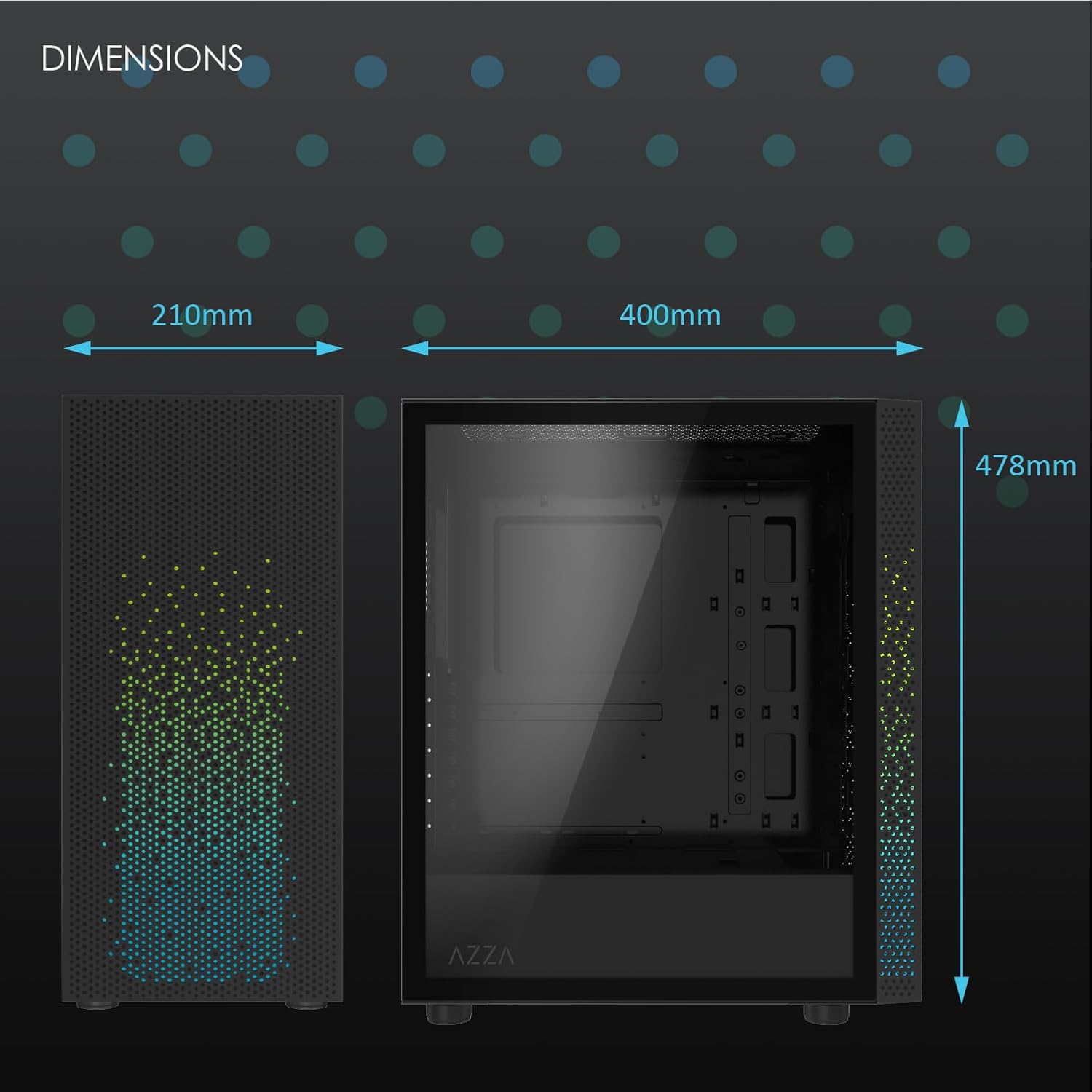
Foto 2: Physical dimensions of the AZZA CSAZ-340F CELESTA case: 210mm (width), 400mm (depth), 478mm (height).

Foto 3: Diagram illustrating fan and radiator mounting options for the AZZA CSAZ-340F CELESTA case, including front, top, and rear configurations.

Foto 4: Internal component support diagram for the AZZA CSAZ-340F CELESTA, showing maximum dimensions for CPU cooler, GPU, and PSU, along with drive bay locations.
5. Ntọala na nwụnye
Follow these steps to install your components into the AZZA CSAZ-340F CELESTA case.
5.1 Na-akwado ikpe ahụ
- Debe akpa ahụ n'elu ebe dị larịị ma kwụsie ike.
- Remove the side panels. Typically, these are secured with thumbscrews at the rear of the case.
5.2 Nwụnye motherboard
- Install the I/O shield (if not pre-installed) into the rear opening of the case.
- Ensure the correct standoffs are installed for your ATX, Micro-ATX, or Mini-ITX motherboard. Adjust or add standoffs as needed using the provided tools.
- Carefully place your motherboard onto the standoffs, aligning the screw holes.
- Secure the motherboard with the appropriate screws from the accessory box. Do not overtighten.
5.3 Ngwa na-enye ike (PSU) nwụnye
- Position the PSU in the bottom rear compartment of the case, ensuring the fan faces downwards (if there's a filtered vent) or upwards.
- Secure the PSU to the case with the provided screws from the rear.
- Route the necessary power cables through the cable management cutouts.
5.4 Ntinye draịva nchekwa (HDD/SSD)
- 3.5 "HDDs: Locate the drive cage. Slide the 3.5" HDDs into the drive trays and secure them, often tool-less or with screws.
- 2.5" SSDs: Mount 2.5" SSDs to the dedicated mounting points on the motherboard tray or drive cage using screws.
- Connect SATA data and power cables to the installed drives.
5.5 Kaadị eserese (GPU) nwụnye
- Wepu ihe mkpuchi oghere PCIe dị mkpa n'azụ ikpe ahụ.
- Carefully insert your graphics card into the appropriate PCIe slot on the motherboard until it clicks into place.
- Jiri skru kechie kaadị eserese ahụ na akpa ahụ.
- Connect any required PCIe power cables from the PSU to the graphics card.
5.6 CPU cooler nwụnye
Install your CPU cooler according to its specific manufacturer instructions. Ensure it does not exceed the maximum height of 165mm.
5.7 Nwụnye Fan na Radiator
The case supports various fan and radiator configurations:
- N'ihu: Up to 3 x 120mm or 3 x 140mm fans, or radiators up to 280mm/360mm.
- N'elu: Up to 2 x 120mm or 2 x 140mm fans, or 2 x 120mm radiators.
- N'azu: 1 x 120mm fan (pre-installed) or 1 x 120mm radiator.
Mount fans and radiators using the appropriate screws and ensure proper airflow direction.
5.8 Njikwa eriri
Utilize the cable management cutouts and tie-down points behind the motherboard tray to route and secure cables. This improves airflow and aesthetics.
5.9 Mgbakọ ikpeazụ
- Double-check all connections and ensure no cables are obstructing fans.
- Reattach the side panels.
- Connect external peripherals (monitor, keyboard, mouse, etc.) and the power cable.
6. Ịrụ ọrụ Sistemụ Gị
Once all components are installed and connected, you can power on your system. The front panel features power and reset buttons, along with USB and audio ports for convenient access.

Foto 5: Close-up of the AZZA CSAZ-340F CELESTA's front panel, highlighting the integrated lighting effects.
7. Nlekọta
- Ihe nzacha uzuzu: Regularly clean the dust filters (if present) to maintain optimal airflow and cooling performance.
- Ime nhicha: Periodically open the case and use compressed air to remove dust from components and fans. Ensure the system is powered off and unplugged before cleaning.
- Nchacha mpụta: Jiri nwayọ hichaa elu mpụta, damp akwa . Zere kemịkalụ siri ike.
8. Nchọpụta nsogbu
Ọ bụrụ na ị na-enwe nsogbu, tụlee usoro nchọpụta nsogbu ndị a na-emekarị:
- Sistemụ anaghị arụ ọrụ:
- Gbaa mbọ hụ na ejikọrọ eriri ọkụ ahụ na PSU na oghere mgbidi.
- Check that the PSU switch is in the "ON" position.
- Verify all internal power connections (24-pin ATX, 8-pin CPU, PCIe power) are seated correctly.
- Confirm front panel power button cables are correctly connected to the motherboard.
- Enweghị mmepụta ihe ngosi:
- Hụ na elele gị na-ejikọ na kaadị eserese (ọ bụghị ọdụ eserese agbakwunyere nke motherboard, ọ gwụla ma ị na-eji eserese agbakwunyere).
- Tinyegharịa kaadị eserese ahụ n'ime oghere PCIe ya.
- Check monitor input selection.
- ekpo oke ọkụ:
- Verify all case fans are spinning and oriented correctly for airflow.
- Clean any dust filters and internal components.
- Ensure CPU cooler is properly seated and making good contact with the CPU.
9. Akwụkwọ ikike na nkwado
For warranty information and technical support, please refer to the official AZZA website or contact AZZA customer service directly. Keep your proof of purchase for warranty claims.
AZZA Official Websaịtị: www.azza.com
Ask a question about this manual
Ask about setup, troubleshooting, compatibility, parts, safety, or missing instructions. Manuals+ will review the question and use this page’s manual context to help answer it.