
Igwefoto mbụ m 3
myFirst Camera 3 Instruction Manual
Model: Camera 3
1. Okwu mmalite
The myFirst Camera 3 is a durable and user-friendly digital camera designed specifically for children aged 3-12. It allows young photographers to capture high-quality 16MP photos and 1080HD videos, fostering creativity and exploration. This manual provides essential information for setting up, operating, maintaining, and troubleshooting your myFirst Camera 3.
2. Kedu ihe dị na Igbe ahụ
Please check the contents of your myFirst Camera 3 package. If any items are missing or damaged, please contact customer support.
- 1x myFirst Camera 3
- 1x Adjustable Neck Lanyard
- 1x 4GB microSD Card (pre-installed or separate)
- 1x Micro USB Nchaji USB
- 2x Mobile Phone Adapter (Type B & Type C)
- 1x Designated Pouch (Detachable)
- 2x Decorative Stickers
- 1x Akwụkwọ ntuziaka onye ọrụ

Image: All items included in the myFirst Camera 3 package.
3. Nhazi
3.1. Ịchaji igwefoto
Before first use, fully charge the camera. Connect the Micro USB charging cable to the camera's charging port and the other end to a USB power source (e.g., computer, wall adapter). The charging indicator light will show the charging status. A full charge provides hours of use thanks to the 1000mAh battery.
3.2. Ịtinye kaadị MicroSD
The camera comes with a 4GB microSD card, capable of storing up to 5000 photos. The camera supports microSD cards up to 32GB. Locate the microSD card slot, typically on the side or bottom of the camera, and gently insert the card until it clicks into place. Ensure the card is inserted in the correct orientation.
3.3. Attaching the Neck Lanyard
Attach the adjustable neck lanyard to the designated loops on the camera's silicone case. This helps prevent accidental drops and makes the camera easy for children to carry.
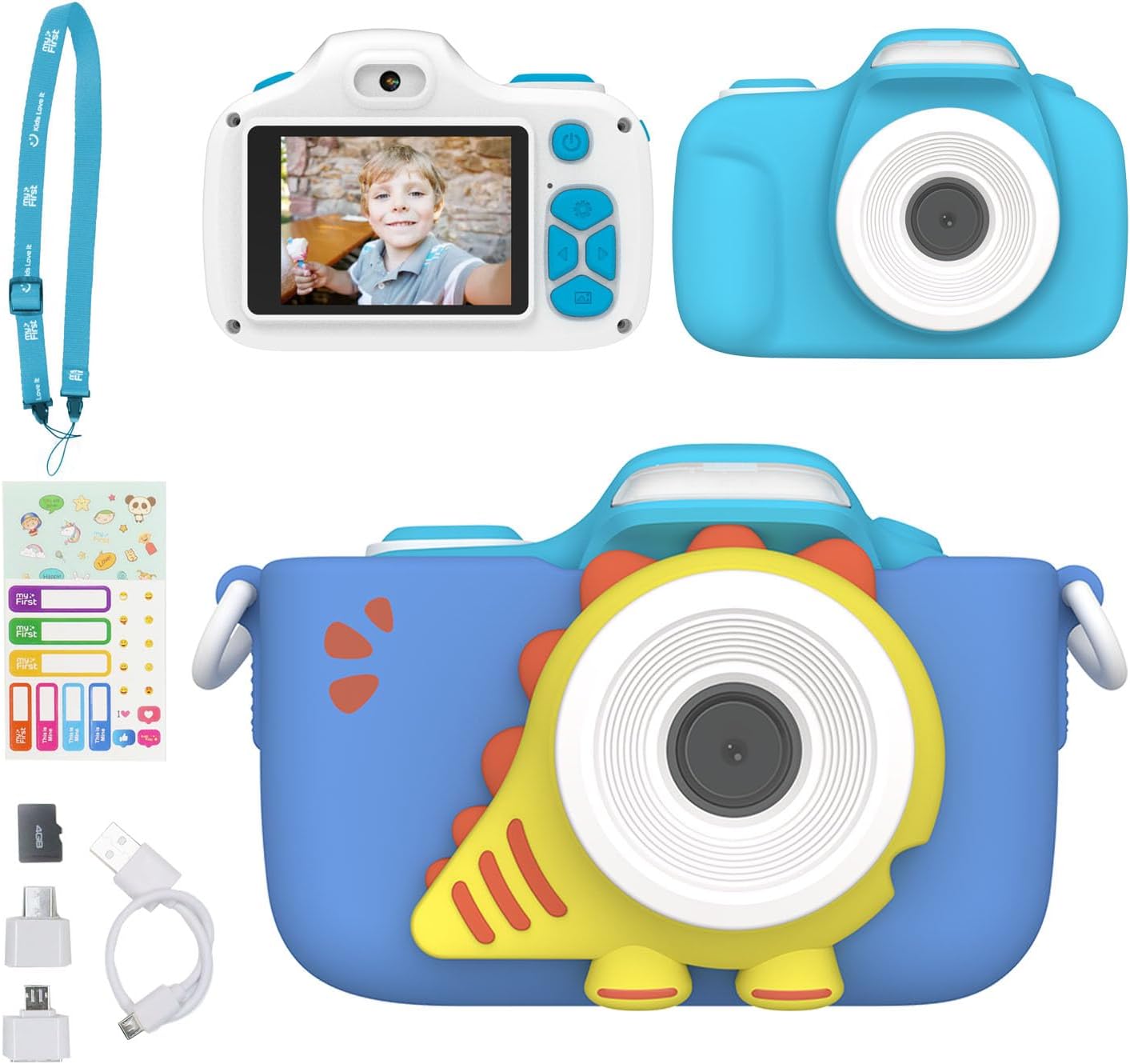
Image: The myFirst Camera 3, showcasing its protective case and lanyard.
4. Na-arụ ọrụ igwefoto
4.1. Gbanyụọ / gbanyụọ
Press and hold the power button (usually located on the top or back of the camera) to turn the camera on or off. The screen will light up, indicating it's ready for use.
4.2. Ise foto
To take a photo, aim the camera at your subject and press the shutter button. The myFirst Camera 3 captures clear 16MP images.

Image: Demonstrating the 16MP photo and 1080P HD video capability.
4.3. Ndekọ vidiyo
Switch to video mode (refer to the camera's on-screen icons or physical buttons) and press the shutter button to start recording. Press it again to stop. The camera records in 1080HD resolution.
4.4. Selfie & Macro Lens
The camera features both a selfie lens and a macro lens. Use the lens switcher (a dedicated button or on-screen option) to toggle between the front-facing selfie lens and the main lens. For close-up shots, activate the macro mode to capture intricate details.

Image: Exploring details with Macro Mode.

Image: Capturing stunning selfies with the built-in timer.
4.5. Using the LED Flash
The built-in LED flash helps brighten up close-up shots or photos taken in low-light conditions. Activate the flash through the camera's settings or a dedicated button.

Image: The myFirst Camera 3's built-in flashlight for brightening close-up shots.
4.6. Creative Features (Frames and Filters)
Unleash creativity with preloaded fun frames and filters. Navigate through the camera's menu to select and apply different artistic effects to your photos.

Image: Continuous shooting and creative frames and filters.
4.7. Agbapụ na-aga n'ihu
The camera supports continuous shooting at 30 frames per second (fps), allowing you to capture a sequence of actions quickly.
5. Nlekọta
5.1. Nhicha
Use a soft, dry cloth to clean the camera body and screen. For the lens, use a specialized lens cleaning cloth. Avoid using liquid cleaners or abrasive materials.
5.2. Nchekwa
Store the camera in a cool, dry place away from direct sunlight and extreme temperatures. When not in use for extended periods, remove the microSD card and ensure the battery is partially charged (around 50%) to prolong its lifespan.
5.3. Nlekọta batrị
To maximize battery life, avoid fully discharging the battery frequently. Charge the camera regularly, even if not in constant use. If the camera will not be used for a long time, charge it every few months.
6. Nchọpụta nsogbu
| Nsogbu | Ihe nwere ike ime | Ngwọta |
|---|---|---|
| Igwefoto anaghị agbanwu. | Low battery; Camera frozen. | Charge the camera fully. If still unresponsive, try resetting by pressing the reset button (if available) or holding the power button for 10-15 seconds. |
| Batrị anaghị ejide ụgwọ. | Battery degradation; Improper charging. | Ensure you are using the provided charging cable and a compatible USB power source. If the issue persists after several charge cycles, the battery may need replacement. Contact customer support. |
| Enweghị ike ịchekwa foto / vidiyo. | MicroSD card full or corrupted; Card not inserted correctly. | Check if the microSD card has enough free space. Reinsert the card. Try formatting the card (this will erase all data). If the problem continues, try a different compatible microSD card. |
| Ọdịdị foto/vidiyo adịghị mma. | Dirty lens; Low light conditions; Incorrect settings. | Clean the camera lens. Ensure adequate lighting. Check camera settings for resolution and flash options. |
7. Nkọwapụta
| Njirimara | Nkọwa |
|---|---|
| Ụdị | Mbụ m |
| Aha Nlereanya | Igwefoto mbụ m 3 |
| Mkpebi ihe mmetụta foto | 16 MP |
| Mkpebi vidiyo | FHD 1080p |
| Nha ihuenyo | 2 sentimita asatọ |
| Ụdị ngosi | LCD |
| Ụdị batrị | Lithium ion (1000mAh) |
| Ike Nchekwa ebe nchekwa | Ruo 32 GB (Micro SD) |
| Teknụzụ Njikọta | Micro USB |
| Ibu Ibu | 80 grams |
| Atụmatụ pụrụ iche | Selfie lens, Macro lens, Built-in Flashlight, Preloaded Frames/Filters, Continuous Shooting |
| Ọkwa Nguzogide mmiri | Ọ bụghị mmiri na-eguzogide |
8. Akwụkwọ ikike na nkwado
For warranty information, product support, or any inquiries, please contact myFirst customer service. You can typically find contact details on the official myFirst websaịtị ma ọ bụ site na ikpo okwu ịzụrụ ihe.
Visit the official myFirst store for more information: myFirst Amazon Store
Akwụkwọ ndị emetụtara - Igwefoto 3
 |
Akwụkwọ ntuziaka onye ọrụ myFirst Camera 3 Akwụkwọ ntuziaka onye ọrụ zuru oke maka igwefoto myFirst 3, na-akọwapụta atụmatụ ya, ọrụ ya, ntọala ya na mmezi ya. |
 |
MyFirst Sketch 3 Digital Drawing Tablet: Ntuziaka mmalite ngwa ngwa Chọpụta myFirst Sketch 3, mbadamba ihe ngosi LCD inch 10 maka ụmụaka. Ntuziaka mmalite ngwa ngwa a na-ekpuchi atụmatụ ya dị ka stylus na-enwe mmetụta nrụgide, ihichapu ngwa ngwa, mgbanaka mkpọchi, na ogologo ndụ batrị. Mụta ihe agụnyere yana ka ngwaọrụ ahụ si arụ ọrụ. |
 |
EU Declaration of Conformity - myFirst Sketch Board Pro Official EU Declaration of Conformity for the myFirst Sketch Board Pro (Model FS2102) by myFirst Tech Asia Pte. Ltd., confirming compliance with relevant EU harmonisation legislation and CE marking regulations. |
 |
SeaLife Micro 3.0 Underwater Camera Instruction Manual Comprehensive instructions for the SeaLife Micro 3.0 Underwater Camera (Item SL550), covering setup, operation, advanced features, photography tips, and support. Available in multiple languages. |
 |
Reolink Duo 3 PoE: 16MP Dual-Lens 180° View PoE Camera Specifications Detailed specifications for the Reolink Duo 3 PoE camera, featuring 16MP Ultra HD, 180° panoramic view, dual lenses, PoE connectivity, advanced night vision, and smart detection capabilities. |
 |
Reolink Duo 3 WiFi: 16MP UHD Dual-Lens Wi-Fi 6 Security Camera Specifications Detailed specifications for the Reolink Duo 3 WiFi, a 16MP UHD dual-lens Wi-Fi 6 security camera featuring 180° panorama, dual-band network, motion tracking, spotlight night vision, two-way audio, and IP67 weatherproofing. |
Ask a question about this manual
Ask about setup, troubleshooting, compatibility, parts, safety, or missing instructions. Manuals+ will review the question and use this page’s manual context to help answer it.