
1. Okwu mmalite
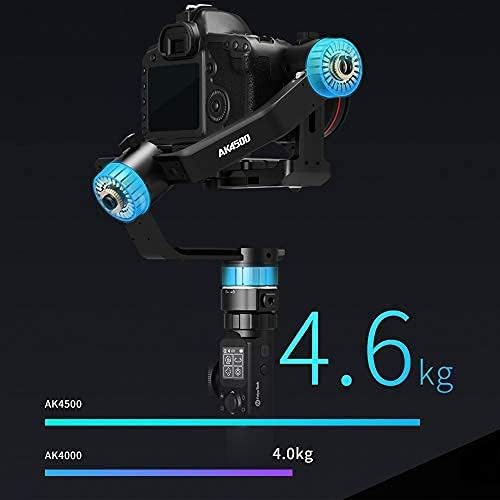
The FeiyuTech AK4500 is a high-performance, lightweight handheld gimbal designed for DSRL and mirrorless cameras. Constructed from ultra-light aluminum alloy, it offers a maximum payload capacity of 10.1 lbs (4.6 kg), making it compatible with a wide range of professional camera setups. Its innovative design features a versatile handle, an intuitive LCD touchscreen for control, and a quick-release plate system for efficient setup.


Akụkụ ndị bụ isi:
- Lightweight & Powerful: Ultra-light aluminum alloy construction with a 10.1 lb (4.6 kg) maximum payload.
- Manfrotto PL501 & Arca-Swiss Compatible: Fixed mounting plate supports both Manfrotto and Arca-Swiss style quick release plates.
- Intuitive LCD Touchscreen: Control all operations and settings directly from the screen without a phone app.
- Versatile Handle Design: Detachable structure allows for various shooting configurations and extended reach with an extension rod.
- 1/4"-20 Mounting Holes: Multiple threaded holes for attaching accessories like extension rods, follow focus, and remote controls.
Ngwaahịa gafereview Vidiyo:
Vidiyo 1: Ihe ngosi vidiyo mmegheasing the FeiyuTech AK4500's design, features, and various applications.
2. Ntọala na Nhazi
Proper setup and balancing are crucial for optimal performance of your FeiyuTech AK4500 gimbal. Follow these steps carefully to ensure your camera is securely mounted and perfectly balanced.
2.1. Battery and Tripod Installation
- Open the battery compartment at the bottom of the gimbal handle.
- Tinye batrị ndị enyere, hụ na ha nwere ike ịhazi polarity.
- Mechie oghere batrị ahụ nke ọma.
- Attach the mini tripod to the 1/4"-20 threaded hole at the bottom of the handle.
2.2. Unlocking the Axes
The gimbal features three-axis locks to secure the arms during transport. Before mounting your camera, unlock all three axes.
- Locate the small lock switches on each of the three axes (tilt, roll, pan).
- Slide each switch to the unlocked position.
- Gently move the gimbal arms to ensure they move freely.
2.3. Igwefoto arịọnụ
- Attach the quick release plate to the bottom of your camera using the provided screw. Ensure it is tightened securely.
- Slide the camera with the attached quick release plate onto the gimbal's mounting base.
- Secure the quick release plate by engaging its locking mechanism.

2.4. Gimbal itule
Balancing the gimbal is essential for smooth operation and to prevent motor strain. Each axis must be balanced individually.
- Tilt Axis Balancing:
- Unlock the tilt axis.
- Point the camera lens upwards. If the camera leans forward or backward, loosen the screw on the tilt arm and adjust the camera's position until it remains stable when pointing upwards.
- Tighten the screw to secure the position.
- Roll Axis Balancing:
- Unlock the roll axis.
- Observe if the camera leans left or right. Loosen the screw on the roll arm and adjust the camera's horizontal position until it remains stable without leaning.
- Mee ka ịghasa sie ike.
- Pan Axis Balancing:
- Unlock the pan axis.
- Hold the gimbal horizontally. If the camera rotates on its own, loosen the screw on the pan arm and adjust the arm's position until the camera remains stable in any horizontal orientation.
- Mee ka ịghasa sie ike.
The gimbal is correctly balanced when the camera remains stable in any angle on all three axes without motor assistance.
Camera Installation and Balancing Video:
Video 2: A detailed step-by-step guide on how to install and balance your camera on the FeiyuTech AK4500 gimbal.
3. Ịrụ ọrụ Gimbal
The FeiyuTech AK4500 offers various modes and controls to enhance your videography. Familiarize yourself with the LCD touchscreen and physical controls for seamless operation.
3.1. LCD Touchscreen Controls
The gimbal features an industry-first LCD touchscreen, allowing direct control over settings and modes without needing a smartphone app.

- Ntugharị: Swipe left/right to access different menus (e.g., Camera settings, Focus/Zoom, Gimbal mode, System setup, Axial).
- Ndozi oke: Use the control wheel and touch interface to adjust settings like ISO, aperture, shutter speed (if supported by camera via cable).
- Nhọrọ ụdị: Easily switch between various shooting modes.
3.2. Shooting Modes and Functions
- Ntughari akpaaka: For precise, repeatable movements.
- Motion Time-lapse: Program complex motion paths for time-lapse photography.
- Portrait/Landscape Switch: One-click switching for vertical or horizontal video.
- Somatosensory Design: Control the gimbal's movement using a remote handle with motion sensors.
Motion Time-lapse Setup Video:
Video 3: Instructions on how to set up and execute a motion time-lapse sequence using the AK4500 gimbal.
3.3. Connectivity and Accessories
- USB Cable Control: Control picture-taking and recording with compatible Sony, Canon, Nikon, and Panasonic cameras.
- Njikwa Wi-Fi: Connect the gimbal with your camera via the Feiyu On app and Wi-Fi for photo/video, zoom, and follow focus control (if supported by camera).
- Nhazi modular: The detachable structure allows for various configurations, including dual handle grip, versatile handle, and extension rod for diverse shooting needs.

4. Nlekọta
To ensure the longevity and optimal performance of your FeiyuTech AK4500 gimbal, regular maintenance is recommended.
- Nhicha: Use a soft, dry cloth to wipe down the gimbal after each use. Avoid using harsh chemicals or abrasive materials.
- Nchekwa: Store the gimbal in its protective case in a cool, dry place when not in use. Ensure all axes are locked to prevent damage during transport.
- Nlekọta batrị: Remove batteries if the gimbal will not be used for an extended period. Store batteries in a cool, dry place and recharge them periodically to maintain their health.
- Mmelite femụwe: Periodically check the official FeiyuTech website for any available firmware updates to ensure your gimbal has the latest features and bug fixes.
5. Nchọpụta nsogbu
If you encounter issues with your FeiyuTech AK4500 gimbal, refer to the following common troubleshooting steps:
- Gimbal is unstable or vibrating:
- Ensure the camera is perfectly balanced on all three axes. Refer to Section 2.4 for detailed balancing instructions.
- Check that all axis locks are fully disengaged.
- Verify that the camera's weight is within the gimbal's payload capacity (max 10.1 lbs / 4.6 kg).
- Camera not responding to controls:
- Ensure the camera is properly connected via USB cable or Wi-Fi.
- Check camera compatibility with the gimbal's control features.
- Restart both the camera and the gimbal.
- Okwu ike:
- Hụ na batrị ndị ahụ chajịchara nke ọma ma tinye ha nke ọma.
- Check for any visible damage to the battery compartment or charging port.
- LCD touchscreen unresponsive:
- Restart the gimbal.
- Ensure the screen is clean and free from moisture or debris.
Maka enyemaka ọzọ, biko kpọtụrụ ndị ahịa FeiyuTech.
6. Nkọwapụta
| Njirimara | Nkọwa |
|---|---|
| Ụdị | FeiyuTech |
| Nlereanya | AK4500 (Manufacturer Part Number: FYTAK45EBLK01) |
| Agba | Nwa |
| Ibu Ibu | 3.5 pound |
| Nkwanye ịdị arọ kacha | Pound 10.1 (4.6 n'arọ) |
| Ngwa dakọtara | Camera (DSLR, Mirrorless) |
| Compatible Camcorder Models | SONY FDR-X3000R, SONY HDR-AS50R (and other DSLR/Mirrorless cameras) |
7. Akwụkwọ ikike na nkwado
For warranty information, technical support, or service inquiries, please visit the official FeiyuTech websaịtị ma ọ bụ kpọtụrụ ngalaba ọrụ ndị ahịa ha. Debe nnata nzụta gị dị ka ihe akaebe nke ịzụrụ maka nkwupụta ikike.
FeiyuTech Official Websaịtị: www.feiyu-tech.com


