
1. Ngwaahịa gafereview
The AMD Ryzen 5 3600XT is a high-performance 6-core, 12-thread desktop processor designed for the AM4 platform. It features a base clock speed of 3.8 GHz and a maximum boost clock of 4.5 GHz. This processor is unlocked for overclocking and supports PCIe 4.0 on compatible X570 and B550 motherboards. It also includes 35 MB of GameCache and supports DDR4-3200 memory.
The AMD Ryzen 5 3600XT comes bundled with the AMD Wraith Spire cooler, an air cooling solution designed to maintain optimal operating temperatures under typical workloads.

Foto 1.1: Retail packaging for the AMD Ryzen 5 3600XT processor. The box displays the Ryzen logo and processor series.
2. Ntọala na nwụnye
Proper installation is crucial for the functionality and longevity of your processor. Ensure your motherboard is compatible with the AM4 socket and supports Ryzen 3000 series processors. For optimal performance, X570 or B550 chipsets are recommended to utilize PCIe 4.0 capabilities.
2.1. Motherboard Compatibility
The AMD Ryzen 5 3600XT processor requires a motherboard with an AM4 socket. It is compatible with various chipsets, including X570, B550, X470, B450, X370, B350, and A320. For full feature support, including PCIe 4.0, X570 or B550 motherboards are recommended. Ensure your motherboard's BIOS is updated to support Ryzen 3000 series processors.
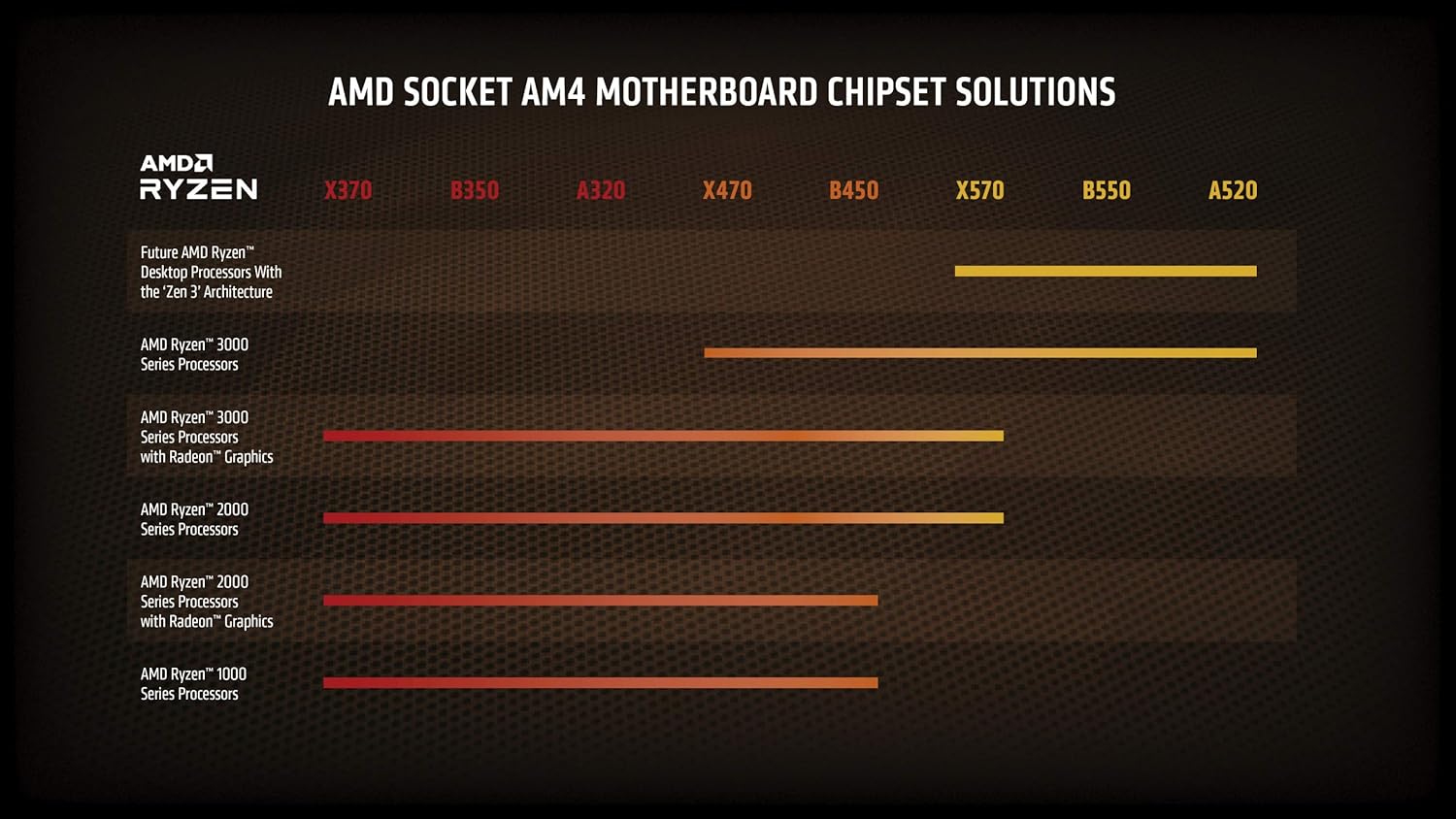
Foto 2.1: Chart illustrating AMD Socket AM4 motherboard chipset compatibility with different Ryzen processor generations. The Ryzen 3000 series is compatible with a wide range of chipsets.
2.2. Nwụnye Nhazi
- Kwadebe motherboard: Ensure the CPU socket lever is open.
- Hazie Nhazi ahụ: Carefully align the gold triangle on the corner of the processor with the corresponding triangle on the motherboard's AM4 socket.
- Tinye ihe nhazi ahụ: Gently lower the processor straight down into the socket. Do not force it. If it does not seat easily, re-check alignment.
- Chekwaa ihe nhazi ahụ: Close the socket lever to secure the processor in place.

Foto 2.2: N'elu view of the AMD Ryzen processor, showing the integrated heat spreader (IHS) and branding.

Foto 2.3: N'akuku view of the AMD Ryzen processor, highlighting its physical form factor and pin grid array (PGA) design.
2.3. Cooler Installation (Wraith Spire)
The AMD Ryzen 5 3600XT includes a Wraith Spire cooler. This cooler comes with pre-applied thermal paste. If you are reusing a cooler or applying new thermal paste, ensure the CPU surface is clean before application.
- Remove Motherboard Brackets: For AM4 sockets, remove the plastic retention brackets on either side of the CPU socket. Keep the backplate installed.
- Tinye ihe mkpuchi ahụ: Place the Wraith Spire cooler onto the CPU, aligning the four spring-loaded screws with the holes on the motherboard's backplate.
- Chekwaa ihe mkpuchi oyi ahụ: Tighten the screws in a diagonal pattern (e.g., top-left, bottom-right, top-right, bottom-left) until they are finger-tight. Do not overtighten.
- Jikọọ eriri Fan: Connect the cooler's 4-pin fan cable to the "CPU_FAN" header on your motherboard.

Foto 2.4: The AMD Wraith Spire CPU cooler, included with the Ryzen 5 3600XT processor, featuring a fan and heatsink assembly.
3. Ntuziaka ọrụ
Once installed, the AMD Ryzen 5 3600XT processor operates automatically within your system. Ensure your operating system and drivers are up to date for optimal performance.
3.1. Nwụnye ọkwọ ụgbọala
After installing your operating system, download and install the latest chipset drivers from the AMD official websaịtị. These drivers ensure proper communication between the processor and the motherboard, optimizing performance and stability.
3.2. Performance Monitoring
You can monitor your processor's temperature, clock speeds, and utilization using various software tools. AMD provides the Ryzen Master utility for advanced monitoring and configuration, including overclocking.
3.3. Ịfefe ihe (Ndị Ọrụ Dị Elu)
The Ryzen 5 3600XT processor is unlocked for overclocking, allowing experienced users to potentially achieve higher clock speeds. Overclocking can increase performance but also increases power consumption and heat output. It may also void your warranty if not performed correctly. Refer to advanced guides and ensure adequate cooling before attempting to overclock.
4. Nlekọta
Regular maintenance helps ensure the longevity and optimal performance of your processor and cooling solution.
- Mwepụ uzuzu: Periodically clean dust from the Wraith Spire cooler's heatsink fins and fan blades using compressed air. Ensure the system is powered off and unplugged before cleaning.
- Tapawa okpomọkụ: The thermal paste applied between the CPU and cooler may degrade over several years. If you notice consistently high temperatures, consider reapplying fresh thermal paste. This requires carefully removing the cooler, cleaning both surfaces, and applying a new layer of thermal paste before reinstallation.
- Mmelite ngwanrọ: Keep your motherboard BIOS and chipset drivers updated to benefit from performance improvements and bug fixes.
5. Nchọpụta nsogbu
Akụkụ a na-ekwu maka nsogbu ndị ị nwere ike izute.
5.1. System Not Booting / No Display
- Lelee njikọ ike: Hụ na e jikọtara waya ike niile (ATX nke nwere pin 24, CPU nke nwere pin 8) na motherboard na ike eletrik nke ọma.
- Tinyegharịa ihe ndị dị na ya: Carefully reseat the CPU, RAM modules, and graphics card.
- Nyochaa ntinye oyi: Ensure the CPU cooler is properly installed and its fan cable is connected to the CPU_FAN header.
- BIOS/UEFI: Confirm your motherboard's BIOS/UEFI version supports the Ryzen 3000 series processor. An outdated BIOS can prevent booting.
5.2. Nsogbu Ịkpo oke ọkụ
- Check Cooler Contact: Ensure the CPU cooler is making proper contact with the CPU's integrated heat spreader (IHS). Verify screws are tightened correctly.
- Tapawa okpomọkụ: Confirm thermal paste was applied correctly and is not dried out.
- Ofufe ikuku: Ensure adequate airflow within your PC case. Clean any dust buildup from the cooler and case fans.
- Ọsọ onye ofufe: Check fan speed settings in your motherboard's BIOS/UEFI or using monitoring software.
5.3. Performance Degradation
- Drivers and BIOS: Ensure all chipset drivers and motherboard BIOS are up to date.
- Usoro ndabere: Check for excessive background applications consuming CPU resources.
- Igwe ọkụ ọkụ: Monitor CPU temperatures. High temperatures can cause the CPU to reduce its clock speed to prevent damage.
- Ntọala ike: Verify your operating system's power plan is set to "High Performance" or a similar setting that allows the CPU to boost.
6. Nkọwapụta
| Njirimara | Nkọwa |
|---|---|
| Ụdị CPU | AMD Ryzen 5 3600XT |
| CPU Cores / Threads | Isi isii / eriri isii |
| Ọsọ elekere isi | 3.8 GHz |
| Oke nkwalite elekere | Ruo 4.5 GHz |
| Socket CPU | AM4 |
| Total L3 Cache | 32 MB |
| Total L2 Cache | 3 MB |
| Default TDP | 95W |
| Unlocked for Overclocking | Ee |
| Ụdị PCIe | PCIe 4.0 |
| Ụdị ebe nchekwa Sistemu | DDR4 |
| Ọwa ebe nchekwa | 2 |
| Ọsọ ebe nchekwa kacha | 3200 MHz |
| Included Cooler | AMD Wraith Spire |
| Product Dimensions (Processor) | 1.57 x 0.24 x 5.28 sentimita asatọ |
| Item Weight (Processor) | 1.1 pound |

Foto 6.1: Performance comparison chart for the AMD Ryzen 5 3600XT, illustrating its capabilities in various computing tasks such as 3D rendering, video rendering, gaming, and single-thread performance.
7. Akwụkwọ ikike Ozi
AMD processors typically come with a limited manufacturer's warranty. The duration and terms of the warranty may vary by region and retailer. Please retain your proof of purchase for warranty claims.
For detailed warranty information, including terms and conditions, please visit the official AMD website or refer to the warranty documentation included with your product.
8. Nkwado
For further assistance, technical support, driver downloads, and additional product information, please visit the official AMD support resources:
- Nkwado AMD Websaịtị: Access drivers, software, and troubleshooting guides.
- AMD Ryzen Master Utility: For advanced processor control and monitoring.
- AMD Community Forums: Engage with other users and AMD experts.