
Okwu mmalite
This manual provides detailed instructions for the installation, operation, and maintenance of your Gamemax G503X Elysium Gaming PC Case. Please read this manual thoroughly before beginning installation to ensure proper setup and safe use of your product. Keep this manual for future reference.
Ozi nchekwa
- Always disconnect the power supply from the wall outlet before installing or removing any components inside the PC case.
- Jiri nlezianya jikwaa ihe niile iji gbochie mmebi sitere na ọkụ eletrik kwụ ọtọ. Tụlee iji eriri nkwojiaka mgbochi static.
- Avoid placing the PC case in direct sunlight, near heat sources, or in areas with high humidity.
- Ensure proper ventilation around the case to prevent overheating.
- Debe obere akụkụ na ngwa n'ebe ụmụaka nọ.
- Do not attempt to modify the case or its components, as this may void your warranty and pose a safety risk.
Ihe ngwugwu
Biko lelee ihe dị n'ime ngwugwu gị. Ọ bụrụ na ihe ọ bụla efuo ma ọ bụ mebie, kpọtụrụ onye na-ere ahịa gị.
- Gamemax G503X Elysium Mid Tower PC Case
- Pre-installed 120mm RGB Fans (quantity as specified on packaging, typically 3)
- Accessory kit (screws, standoffs, cable ties, etc.)
- Akwụkwọ ntuziaka (akwụkwọ a)
Atụmatụ
- Mid Tower design
- Full transparent acrylic side window
- Support for ATX, Micro ATX, and Mini-ITX motherboards
- Front I/O: 1x USB 3.0, 2x USB 2.0, HD Audio (input/output)
- Integrated fan control (High/Off/Low)
- Ample space for cable management behind the motherboard tray
- Support for long graphics cards (up to 380mm)
- Multiple drive bays: 1x 5.25", 2x 3.5" HDD, 2x 2.5" SSD
- Pre-installed RGB fans for enhanced aesthetics and cooling
Ntọala na nwụnye
1. Ikpopu okwu ahụ
Carefully remove the case from its packaging. Inspect for any damage during shipping. Remove any protective films from the acrylic side panel.
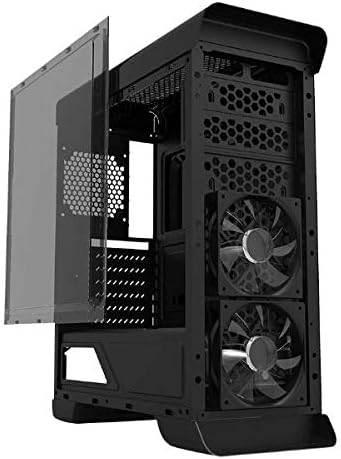
Foto: Akụkụ view of the Gamemax G503X Elysium case with the transparent acrylic panel detached, showing the internal structure and front fans.
2. Nwụnye motherboard
- Lay the case on its side.
- Install the necessary motherboard standoffs into the motherboard tray according to your motherboard's form factor (ATX, Micro ATX, Mini-ITX).
- Carefully place your motherboard onto the standoffs, aligning the screw holes.
- Chekwaa motherboard site na skru ndị enyere.
3. Mbanye nwụnye
3.1. 5.25" Drive (Optical Drive)
The case features one 5.25" drive bay. Remove the front panel cover, slide the drive into the bay, and secure it with screws or tool-less clips if available.
3.2. 3.5" HDD Drives
Install up to two 3.5" HDDs into the designated drive cages. These typically use trays or direct screw mounting. Ensure they are securely fastened.
3.3. 2.5" SSD Drives
Install up to two 2.5" SSDs onto the dedicated mounting points, usually located behind the motherboard tray or on the PSU shroud. Secure with screws.
4. Ntinye ihe mkpuchi CPU
Install your CPU cooler according to its manufacturer's instructions. Ensure the cooler's height does not exceed the maximum supported height of 158mm for this case.
5. Nwụnye kaadị eserese (GPU).
- Remove the necessary PCI slot covers from the rear of the case (up to 7 slots available).
- Insert your graphics card into the appropriate PCIe slot on your motherboard.
- Secure the graphics card with screws. The case supports graphics cards up to 380mm in length.

Foto: N'azụ view of the Gamemax G503X Elysium case, highlighting the 7 PCI expansion slots and the rear fan mount.
6. Fan Installation and Configuration
The case comes with pre-installed RGB fans. Additional fan mounting options are available:
- N'ihu: Up to 3x 120mm fans (2 pre-installed, 1 optional)
- N'azu: 1x 120mm fan (optional, may be pre-installed)
- N'elu: Up to 2x 120mm fans (optional)
Connect all fan power cables to your motherboard or a fan controller. The case includes an integrated fan controller for speed adjustment.
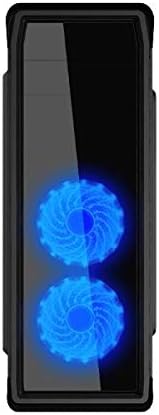
Foto: N'ihu view of the Gamemax G503X Elysium case, showcasing the two illuminated RGB fans visible through the front panel.
7. Njikwa USB
Utilize the space behind the motherboard tray and the provided cable tie points to route and secure cables. This improves airflow and aesthetics.
8. Connecting Front Panel I/O
Connect the following cables from the case's front panel to the corresponding headers on your motherboard:
- USB 3.0 nkụnye eji isi mee
- USB 2.0 nkụnye eji isi mee
- HD Audio header (for headphone and microphone jacks)
- Power switch, Reset switch, Power LED, HDD LED headers
Na-arụ ọrụ ahụ
Na-agbanye ike
Once all components are installed and connected, close the side panel. Connect your monitor, keyboard, mouse, and power cable to the PC. Press the power button on the front panel to start your system.
Njikwa Fans
The Gamemax G503X Elysium features an integrated fan controller on the top panel. Use this controller to adjust the speed of the connected case fans to High, Low, or Off, depending on your cooling needs and noise preference.
RGB ọkụ
The pre-installed fans feature RGB LEDs. The lighting effects are typically controlled via the motherboard's RGB software or a dedicated controller if included with the fans. Refer to your motherboard manual for RGB software instructions.
Nlekọta
Nhicha
Regular cleaning helps maintain optimal performance and extends the lifespan of your components. Use a can of compressed air to remove dust from inside the case, especially from fans and heatsinks. Wipe exterior surfaces with a soft, damp akwa . Zere iji kemịkalụ siri ike ma ọ bụ ihe na-emebi emebi.
Periodically check and clean any dust filters (if present) to ensure unrestricted airflow.
Nchọpụta nsogbu
- System does not power on: Ensure all power cables (motherboard, CPU, GPU, drives) are securely connected. Check that the power supply switch is in the 'ON' position. Verify front panel power switch connection to the motherboard.
- Ndị Fans anaghị agbagharị agbagharị: Check fan power connections to the motherboard or fan controller. Ensure the fan controller is set to 'High' or 'Low', not 'Off'.
- Enweghị ngosipụta mmepụta: Ensure your graphics card is properly seated and connected to the power supply. Verify that your monitor cable is connected to the graphics card, not the motherboard's integrated graphics port (unless using integrated graphics).
- Overheating issues: Ensure all case fans are spinning correctly and oriented for proper airflow (intake/exhaust). Check CPU cooler installation and thermal paste application. Ensure the case is not obstructed.
For further assistance, consult your motherboard and component manuals or contact Gamemax support.
Nkọwapụta
| Njirimara | Nkọwapụta |
|---|---|
| Ụdị ikpe | Mid Tower |
| Nlereanya | G503X Elysium |
| Agba | Nwa |
| Akụkụ akụkụ | Full Transparent Acrylic |
| Nkwado motherboard | ATX, Micro ATX, Mini-ITX |
| Ụgbọ okporo ígwè | 1x 5.25", 2x 3.5" HDD, 2x 2.5" SSD |
| Oghere Mgbasawanye PCI | 7 |
| N'ihu I / O Ports | 1x USB 3.0, 2x USB 2.0, HD Audio (Input/Output) |
| Njikwa Fans | Integrated (High/Off/Low) |
| Ndị Fans etinyegoro mbụ | 3x 120mm RGB Fans (typically 2 front, 1 rear) |
| Optional Fan Support | Front: 3x 120mm; Rear: 1x 120mm; Top: 2x 120mm |
| Max CPU cooler elu | 158mm |
| Ogologo Kaadị eserese kacha | 380mm |
| Oghere njikwa USB | Yes (behind motherboard tray) |
| Ihe onwunwe | Acrylic (side panel) |
| Ibu Ibu | 5.75 n'arọ |
Akwụkwọ ikike na nkwado
Gamemax products come with a limited warranty. Please refer to the warranty information provided with your purchase or visit the official Gamemax website for details on warranty terms and conditions. For technical support or inquiries, please contact your retailer or Gamemax customer service.