
1. Ngwaahịa gafereview
The Billboard BB425 Gaming Headset is designed for an immersive audio experience across various gaming platforms. It features a boom microphone for clear communication, enhanced bass for rich sound, and convenient in-line controls for volume adjustment and instant muting. The headset is lightweight and adjustable, ensuring a comfortable fit during extended use, and comes with a durable fabric cord.
- Igwe okwu Boom: Maka nkwukọrịta olu doro anya.
- Bass emelitere: Delivers a rich audio experience.
- In-line Control: Easily adjust volume and mute the microphone.
- Nhazi enwere ike imeghari: Lightweight and comfortable for prolonged gaming sessions.
- Durable Fabric Cord: Designed for longevity.
2. Nhazi ntuziaka
Follow these steps to connect your Billboard BB425 Gaming Headset to your device.
- Chọpụta ndị njikọ: The headset features a single 3.5mm TRRS jack for combined audio and microphone functionality. An included Y-splitter cable separates this into two 3.5mm TRS jacks: one for audio output (typically green) and one for microphone input (typically pink).
- For Devices with a Single 3.5mm Port (e.g., most laptops, gaming controllers, smartphones):
- Plug the headset's single 3.5mm TRRS jack directly into your device's combined audio/microphone port.
- For Devices with Separate Audio and Microphone Ports (e.g., most desktop PCs):
- Connect the headset's single 3.5mm TRRS jack into the female end of the Y-splitter cable.
- Plug the audio output jack (often green) of the Y-splitter into your device's audio output port.
- Plug the microphone input jack (often pink) of the Y-splitter into your device's microphone input port.
- Hazie dabara: Place the headset over your ears and adjust the headband for a comfortable and secure fit. Position the boom microphone near your mouth for optimal voice pickup.
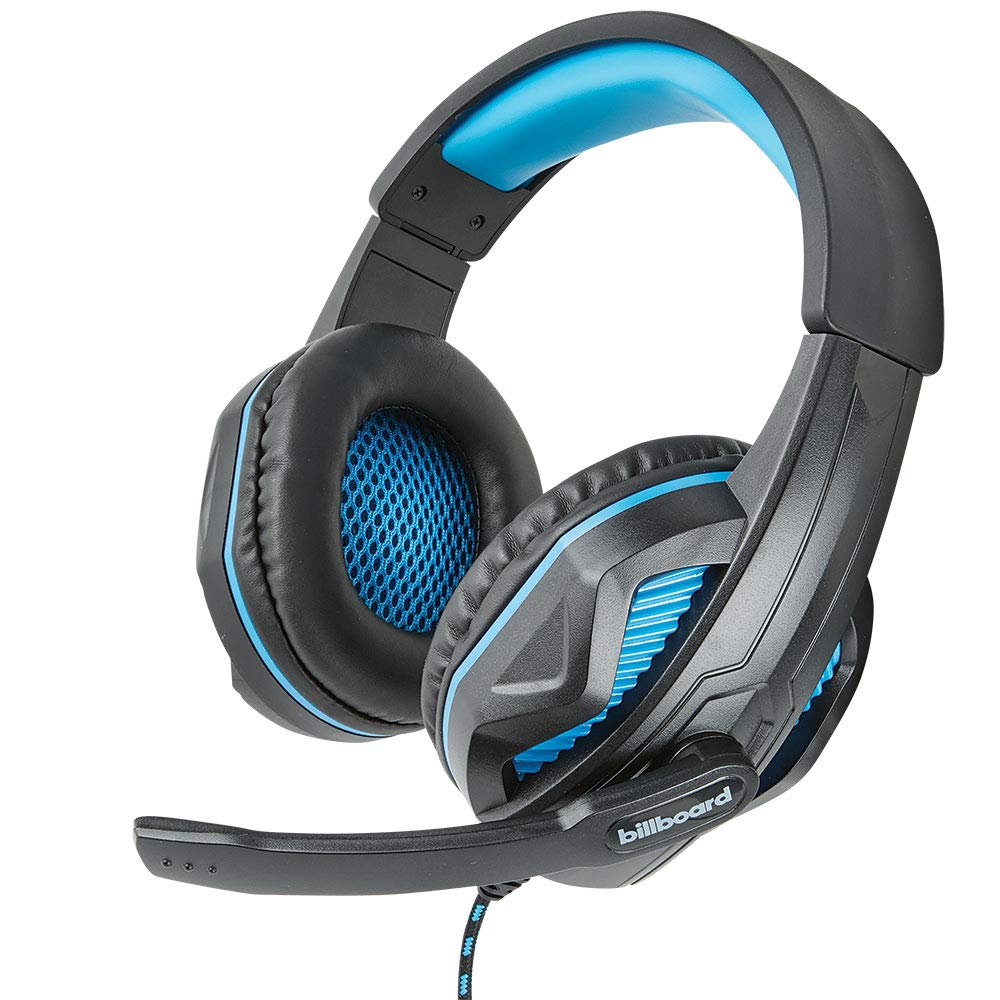
Image: The Billboard BB425 Gaming Headset's braided cable, in-line control unit, and the included Y-splitter cable with two 3.5mm TRS jacks for separate audio and microphone connections.
3. Ntuziaka ọrụ
The in-line control unit provides easy access to essential audio functions.
- Njikwa olu: Use the scroll wheel on the in-line control unit to adjust the audio volume. Scroll up to increase volume and down to decrease it.
- Mechie igwe okwu: The in-line control unit features a switch to mute or unmute the microphone. Slide the switch to the "OFF" position to mute your microphone, and to the "ON" position to enable it.
- Boom Microphone Adjustment: The flexible boom microphone can be positioned closer or further from your mouth to optimize voice clarity.
4. Nlekọta na nlekọta
Nlekọta kwesịrị ekwesị ga-agbatị ndụ ekweisi gị.
- Nhicha: Jiri ákwà dị nro ma kpọọ nkụ hichaa ekweisi ahụ. Maka ohiri isi ntị, jiri obere d hichaa ya.amp A pụrụ iji ákwà e ji ncha dị nro mee ihe, mana hụ na ha kpọrọ nkụ kpamkpam tupu e jiri ha. Ejila kemịkal siri ike ma ọ bụ ihe nhicha na-eme ka ihe dị nro.
- Nchekwa: Debe ekweisi n'ebe dị ọcha ma kpọọ nkụ, ebe okpomọkụ na anwụ na-anaghị apụta oke. Zere ka eriri ahụ ghara ịdị n'otu.
- Ijikwa: Do not pull on the cable to disconnect the headset. Always grasp the plug firmly. Avoid dropping or subjecting the headset to strong impacts.
5. Nchọpụta nsogbu
If you encounter issues with your Billboard BB425 Gaming Headset, refer to the following common solutions.
- Enweghị ụda ma ọ bụ ụda dị ala:
- Ensure the headset's 3.5mm jack(s) are fully inserted into the correct port(s) on your device.
- Check the in-line volume control wheel and adjust it to an audible level.
- Verify your device's audio output settings. Ensure the headset is selected as the default playback device.
- Jiri ngwaọrụ ọzọ nwalee ekweisi ka ewepụ ihe gbasara ngwaọrụ.
- Igwe okwu anaghị arụ ọrụ:
- Ensure the microphone mute switch on the in-line control unit is in the "ON" position.
- If using the Y-splitter, ensure the microphone jack (typically pink) is correctly plugged into your device's microphone input port.
- Check your device's microphone input settings. Ensure the headset microphone is selected as the default recording device and that its input volume is not muted or set too low.
- Nwalee igwe okwu ahụ site na iji ngwa ma ọ bụ ngwaọrụ ọzọ.
- Static or Distorted Audio:
- Hụ na njikọ niile dị nchebe ma ghara ịpụ na uzuzu ma ọ bụ ihe mkpofu.
- Try connecting the headset to a different audio port or device to check if the issue persists.
- Avoid placing the cable near strong electromagnetic interference sources.
6. Nkọwapụta
| Njirimara | Nkọwa |
|---|---|
| Aha Nlereanya | BB425 |
| Ụdị | Bọọdụ ịgba chaa chaa |
| Teknụzụ Njikọta | Ekwenyere |
| Jack ekweisi | 3.5mm ọkpụrụkpụ |
| Ntinye ntị | N'elu Ntị |
| Ụdị Ihe | Na Ntị |
| Ngwa dakọtara | Gaming Consoles, Desktops, Laptops, Telephones |
| Atụmatụ pụrụ iche | Enhanced bass |
| Ụdị njikwa | In-line control (Volume, Mute) |
| Njirimara USB | Retractable, Durable Fabric Cord |
| Ihe onwunwe | Plastic |
| Agba | Nwa |
| Akụkụ ngwaahịa | 25.15 x 22.86 x 8.89 cm |
| Ibu Ibu | 386 g |
| Batrị achọrọ | Mba |
7. Akwụkwọ ikike Ozi
This product is covered by a manufacturer's warranty. For specific details regarding warranty coverage, duration, and terms, please refer to the warranty card included with your product or visit the official Billboard websaịtị. Debe nnata nzụta gị dị ka ihe akaebe nke ịzụrụ ihe maka akwụkwọ ikike ọ bụla.
8. Nkwado ndị ahịa
If you require further assistance or have questions not addressed in this manual, please contact Billboard customer support. Contact information can typically be found on the product packaging or the official Billboard websaịtị.
Onye nrụpụta: Usoro ESI & Ngwa