
1. Okwu mmalite
The PONYBRO HDMI 2.0 Switch is designed to expand your display's HDMI input capabilities, allowing you to connect up to five HDMI source devices to a single HDMI display. This device supports high-resolution video up to 4K@60Hz, HDR10, and 3D, ensuring a high-quality visual experience. It features automatic switching for convenience and can also be controlled manually via a button or the included remote control.
2. Atụmatụ
- 4K@60Hz Ultra HD & HDR10 Support: Delivers crystal-clear 4K Ultra HD resolution at 60Hz with HDR10, providing vibrant colors and sharp details. Compatible with HDMI 2.0/1.4 devices including PS5, Xbox Series X, 4K Blu-ray players, Roku, Apple TV, and soundbars.
- 5-Port Auto-Switching & Remote Control: Automatically detects and switches between 5 HDMI devices. Manual control is available via the device button or the included remote.
- Zero Delay & 18Gbps Bandwidth: Ensures no lag or signal loss with 18Gbps high-speed bandwidth, suitable for competitive gaming and 4K HDR content. HDMI 2.0 certified for reliable performance.
- Nkwụnye & Ntọlite Play: No drivers or software required. Simply connect your devices to the 5 inputs and your TV to the output.
- Nhazi kọmpat: Saves space in various setups.
3. Ihe ngwugwu
Biko chọpụta na ihe niile dị na ngwugwu gị:
- PONYBRO HDMI 2.0 Switch (5x1)
- Onye Njikwa Nweta IR
- AC Power Adapter (5V DC)
- Akwụkwọ ntuziaka (akwụkwọ a)

Image: The PONYBRO HDMI Switch, remote control, power adapter, and user manual are included in the package.
4. Ihe osise
Familiarize yourself with the ports and indicators on your HDMI switch:

Image: Front panel of the PONYBRO HDMI Switch, highlighting the IR receiver, input indicator LEDs (N1-N5), input selection button, and power button/LED.

Image: Rear panel of the PONYBRO HDMI Switch, showing the DC 5V power input, HDMI OUT port, and five HDMI IN ports (HDMI IN1 to HDMI IN5).
5. Nhazi ntuziaka
- Jikọọ Ngwaọrụ Isi Iyi HDMI: Connect up to five HDMI source devices (e.g., PS5, Xbox, PC, Fire TV, Blu-ray player) to the HDMI IN1, IN2, IN3, IN4, and IN5 ports on the PONYBRO HDMI Switch using high-quality HDMI 2.0 cables.
- Jikọọ na Ngosipụta: Connect the HDMI OUT port of the PONYBRO HDMI Switch to an HDMI input port on your TV, monitor, or projector using a high-quality HDMI 2.0 cable.
- Njikọ Ike: Plug the included 5V DC power adapter into the DC 5V port on the switch, then plug the adapter into a power outlet. The power LED on the switch will illuminate.
- Ike Na Ngwaọrụ: Power on your HDMI source devices and your display. The switch will typically auto-detect the active input and switch to it.

Image: Setup diagram illustrating how to connect various HDMI input devices (New Fire TV, Roku Ultra, Blu-Ray Player, Apple TV 4K, XboxOneS, PS4/PS5) to the PONYBRO HDMI Switch, which then outputs to an HD screen.
6. Ntuziaka ọrụ
The PONYBRO HDMI Switch offers multiple ways to select your desired input source:
Ngbanwe akpaaka
The switch is designed to automatically detect and switch to the most recently activated HDMI source. If you power on a device connected to the switch, it should automatically switch to that input.
Manual Switching (Device Button)
Press the "Switch" button on the front panel of the HDMI switch to cycle through the available HDMI input sources (IN1, IN2, IN3, IN4, IN5). The corresponding LED indicator will light up to show the active input.
Manual Switching (Remote Control)
Use the included IR remote control to select your desired input directly. The remote has dedicated buttons for each input (1, 2, 3, 4, 5) and a power button.
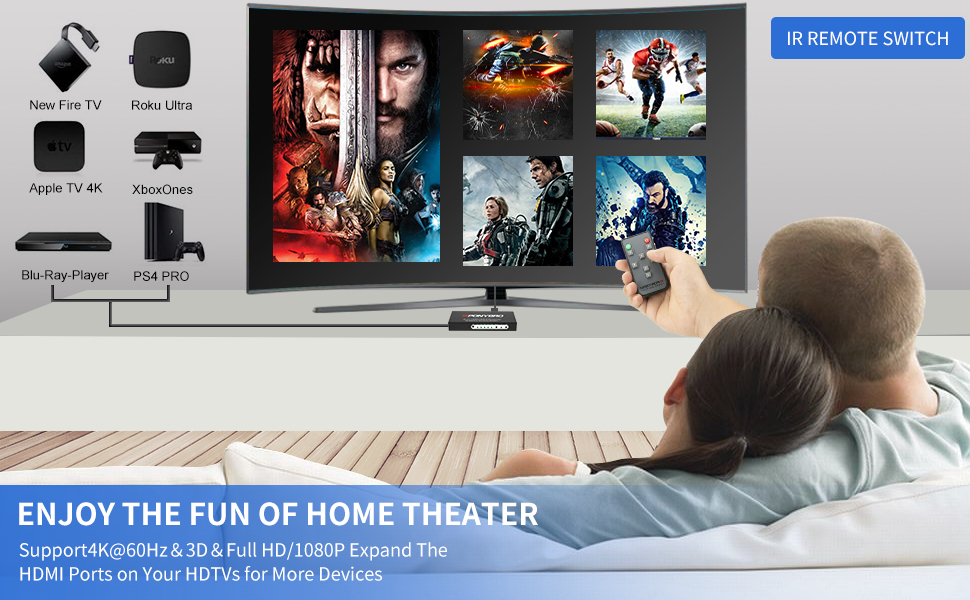
Image: The remote control for the PONYBRO HDMI Switch, showing buttons for power and direct selection of inputs 1 through 5.
Gbanyụọ/ Gbanyụọ
Press the power button on the front panel or the remote control to turn the switch on or off. The Standby Status LED indicates the power status.
Video: An official PONYBRO video demonstrating the features and operation of the 4K 60Hz HDMI 2.0 Switch 5x1 with Remote.
7. Nchọpụta nsogbu
- Enweghị mgbaama/ihuenyo oghere:
- Ensure the switch is powered on and the power adapter is securely connected.
- Verify all HDMI cables are securely connected to both the source devices, the switch, and the display.
- Try selecting the input manually using the button on the switch or the remote control.
- Ensure your display is set to the correct HDMI input channel where the switch is connected.
- Test with different HDMI cables, especially certified HDMI 2.0 cables for 4K@60Hz content.
- Flickering/Poor Picture Quality:
- Use high-quality, certified HDMI 2.0 cables, especially for 4K@60Hz or HDR content. Longer cables may require active HDMI cables.
- Reduce the resolution or refresh rate of the source device to see if the issue persists.
- Ensure your display supports the resolution and refresh rate being output by your source device.
- Auto-Switching Not Working:
- Auto-switching typically activates when a new device is powered on or an active device is powered off. Ensure only one source is active for reliable auto-switching.
- Some devices may not provide a strong enough signal to trigger auto-switching. In such cases, use manual switching.
- Njikwa anya anaghị aza:
- Ensure there are no obstructions between the remote and the IR receiver window on the switch.
- Dochie batrị na njikwa anya.
- Point the remote directly at the IR receiver window.
8. Nkọwapụta
| Njirimara | Nkọwa |
|---|---|
| Nlereanya | B087CTR22G |
| Ụdị | PONYBRO |
| Agba | Matte Black |
| Ụdị njikọ | HDMI |
| Ọnụọgụ nke ọdụ ụgbọ mmiri | 5 (Input) / 1 (Output) |
| Mkpebi akwadoro | Up to 4K@60Hz, 1080P, 720P, 3D |
| Nkwado HDR | HDR10 |
| Bandwit | 18Gbps |
| Ngwa dakọtara | PS5/Xbox/PC/Fire TV/Roku/Apple TV |
| Ịnye ọkụ | DC 5V |
| Ibu Ibu | 8 ounces |
9. Nlekọta
- Debe ngwaọrụ ahụ n'ebe dị jụụ, kpọrọ nkụ, pụọ na ìhè anyanwụ kpọmkwem na ebe okpomọkụ.
- Zere ikpughe ngwaọrụ ahụ na mmiri ma ọ bụ oke okpomọkụ.
- Jiri ákwà dị nro ma kpọọ nkụ hichaa ngwaọrụ ahụ. Ejila ihe nhicha mmiri ma ọ bụ ihe na-ehicha ikuku.
- Gbaa mbọ hụ na ikuku ikuku dị na gburugburu ngwaọrụ iji gbochie ikpo oke ọkụ.
10. Akwụkwọ ikike na nkwado
PONYBRO offers comprehensive support for its products:
- Akwụkwọ ikike: We support a 60-day money-back guarantee unconditionally.
- Free Exchange Service: A 12-month free exchange service is provided for product quality issues.
- Ndị ọrụ nlekọta ndị ahịa: For any issues or questions regarding future use, please contact PONYBRO customer service.