
Divoom ACDIVDITPNK
Divoom Ditoo Retro Pixel Art Game Bluetooth Speaker Instruction Manual
Model: ACDIVDITPNK
1. Okwu mmalite
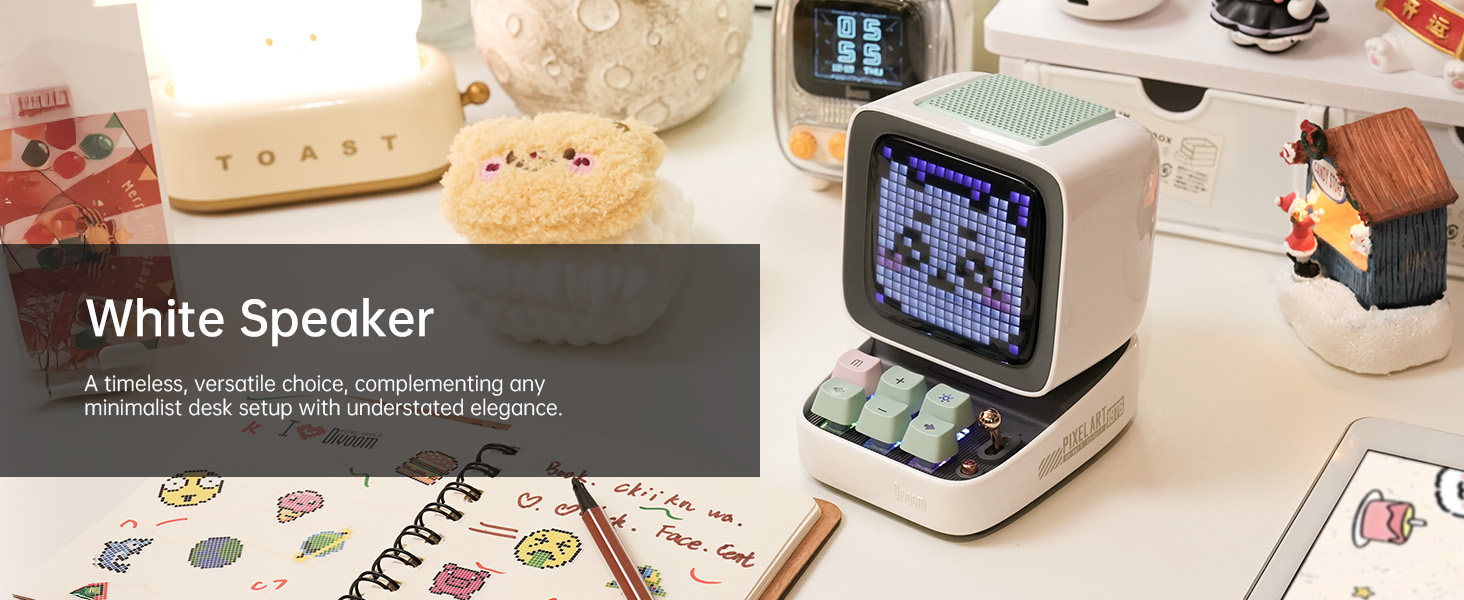
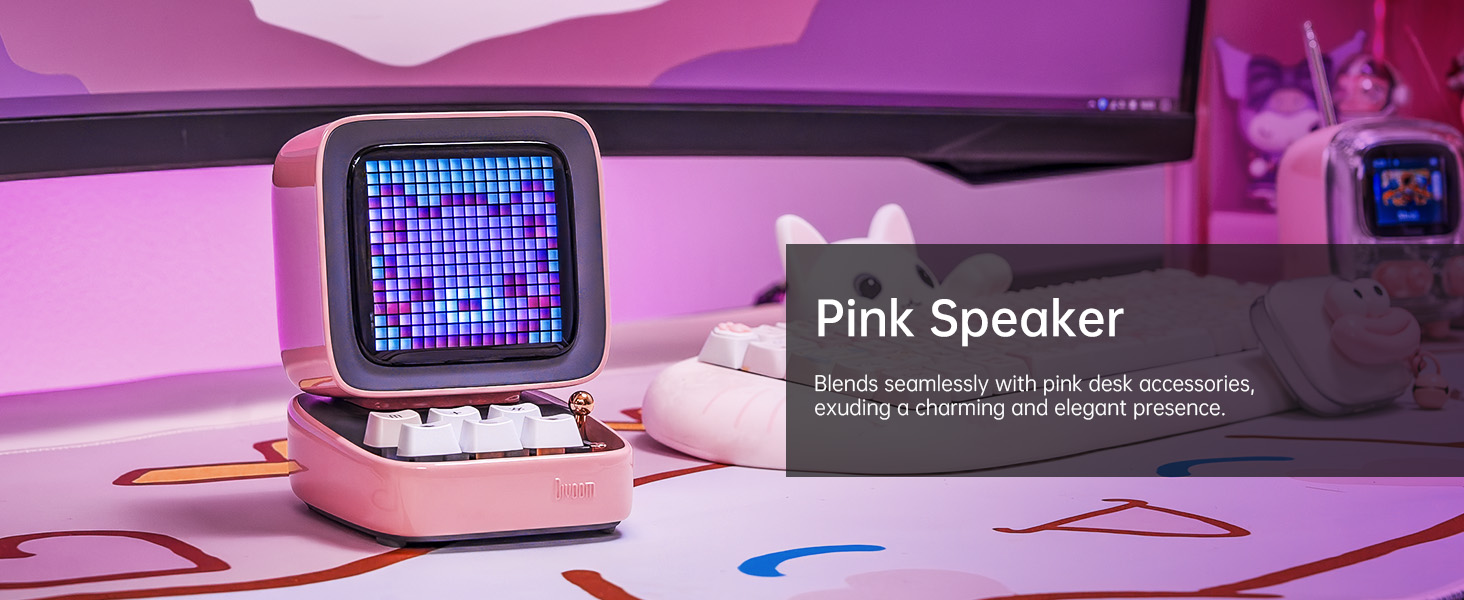
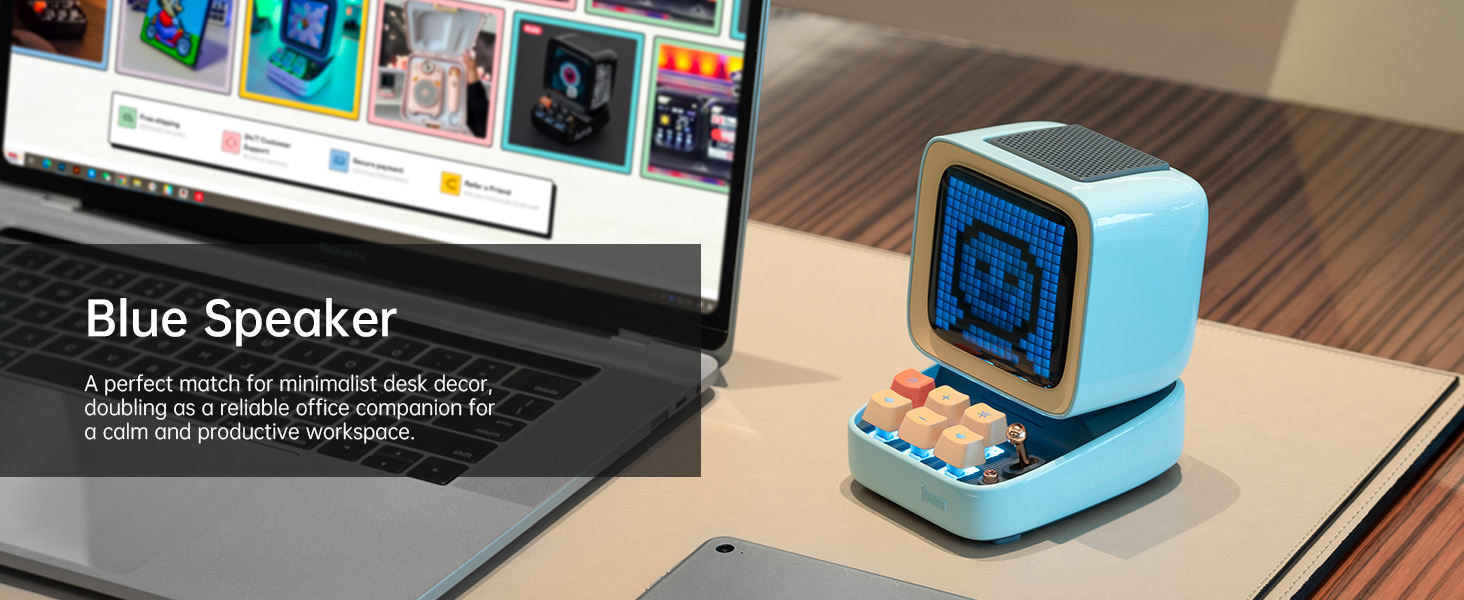
The Divoom Ditoo is a versatile retro-styled pixel art Bluetooth speaker designed to enhance your daily life with its unique blend of audio quality and interactive visual display. It features a 16x16 LED screen for pixel art, a powerful 10W DSP speaker, and a range of smart functions controlled via a dedicated mobile application. This manual provides detailed instructions for setting up, operating, maintaining, and troubleshooting your Divoom Ditoo speaker.

2. Ntuziaka Nhazi
2.1. Gịnị gụnyere
Upon unboxing your Divoom Ditoo, please ensure all the following items are present:
- DitooPro Speaker
- Igbe onyinye
- USB-C eriri USB
- Ntuziaka mmalite ngwa ngwa
- Cute Sticker

2.2. Ịchaji ngwaọrụ
Before first use, fully charge your Divoom Ditoo speaker. Connect the provided USB-C charging cable to the USB-C charging port (13) located on the back of the device and plug the other end into a compatible USB power adapter (not included). The battery indicator (9) will show charging status. A full charge provides approximately 8 hours of playback, though this may vary based on display brightness and image complexity.
2.3. Ike izizi
To power on the Divoom Ditoo, press and hold the ON/OFF button (14) located on the back of the device until the screen illuminates.
2.4. Ngwa nwụnye
For full functionality and customization, download the Divoom app on your smartphone or tablet. Scan the QR code on the product packaging or visit the official Divoom websaịtị: http://www.divoom.com/AppDownLoad
2.5. Njikọ Bluetooth
Once the app is installed and the Ditoo is powered on, open the Divoom app on your device. The app will guide you through the Bluetooth pairing process. Ensure Bluetooth is enabled on your smartphone/tablet. Select 'Ditoo' from the list of available devices to connect.
3. Ọrụ
3.1. Njikwa karịrịview
The Divoom Ditoo features a set of physical buttons and a lever for direct control, in addition to app control. Refer to the diagram and table below for button functions:

| Mba. | Bọtịnụ/Ọdụ ụgbọ mmiri | Function (Press) | Function (Hold) |
|---|---|---|---|
| 1 | "m" button | Banye/Wepụ sistemụ menu | Gbanwuo/ Gbanyụọ ọkụ azụ kiiboodu |
| 2 | "+" button | Welie olu | Gbanwee mmetụta ọkụ |
| 3 | "*" Lighting button | Gbanwee ọrụ ọkụ | Gbanwee mmetụta ọkụ |
| 4 | "-" button | Egwu gara aga | Mmetụta ọkụ ikpeazụ |
| 5 | "---" Lower key | Belata olu | Nchapụta dị ala |
| 6 | "+" button | Egwu ozo | Mmetụta ọkụ na-esote |
| 7 | Lever | Short pull: Play/Pause | Long pull: Start voice memo recording |
| 8 | bọtịnụ isi iyi | Switch between different audio sources | Double press: Disconnect Bluetooth connection |
| 9 | Ihe ngosi batrị | Pịa bọtịnụ ọ bụla ka ịlele ọkwa batrị | N/A |
| 10 | ọdụ ụgbọ mmiri bas | N/A | N/A |
| 11 | Mpịakọta ọdụ ụgbọ mmiri n'azụ | N/A | N/A |
| 12 | Tọgharịa oghere ntụtụ | N/A | N/A |
| 13 | USB Ụdị-C ọdụ ụgbọ mmiri | N/A | N/A |
| 14 | Bọtịnụ ngbanwu/ Gbanyụọ | N/A | Jide: Gbanye/ Gbanyụọ ọkà okwu |
| 15 | oghere kaadị TF | Egwu gụghachi site na kaadị TF | N/A |
3.2. Pixel Art Creation & Gallery
The Divoom Ditoo's standout feature is its pixel art display. Use the Divoom app to create your own pixel art designs or browse a vast online gallery of user-generated content. You can display static images, animations, or even text messages on the screen.


3.3. Nghaghachi egwu
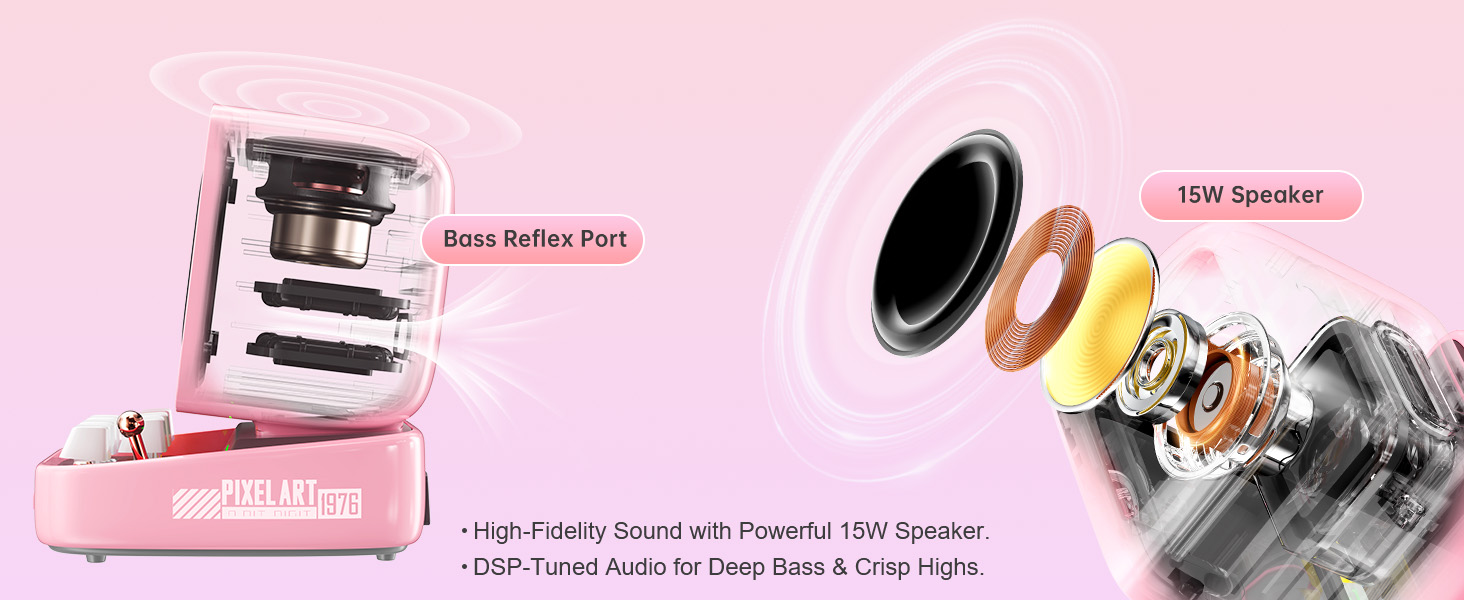
Connect your Ditoo via Bluetooth to stream music from your smartphone or tablet. The 10W DSP-tuned speaker delivers clear audio with deep bass and crisp highs. The pixel display can also visualize the music with dynamic equalizer effects.
3.4. Smart Alarm & Sleep Aid
Utilize the Divoom Ditoo as a smart alarm clock with customizable wake-up sounds. The app also offers a sleep aid function with 24 soothing white noise sounds to help you relax and fall asleep.
3.5. Akụkụ ndị ọzọ
The Divoom Ditoo offers a variety of additional features:
- Online Radio: Access various internet radio stations through the app.
- Amamọkwa: Receive social media notifications displayed on the screen.
- Egwuregwu Obere: Play classic pixel games like Tetris and Snake directly on the device.
- Memo olu: Record short voice messages.
- Time Planner: Organize your schedule and set reminders.
- RGB ọkụ: Customize the keyboard backlight with a wide range of colors.
4. Nlekọta
4.1. Nhicha
To clean your Divoom Ditoo, gently wipe the exterior surfaces with a soft, dry, lint-free cloth. Avoid using abrasive cleaners, solvents, or spray cleaners directly on the device. Do not expose the device to excessive moisture.
4.2. Nlekọta batrị
To prolong battery life, avoid fully discharging the device frequently. If storing the device for an extended period, charge it to approximately 50% before storage and recharge every few months to prevent deep discharge.
5. Nchọpụta nsogbu
If you encounter issues with your Divoom Ditoo, please refer to the following common troubleshooting steps:
- Ngwaọrụ anaghị agba ọkụ: Ensure the device is fully charged. Connect it to a power source using the USB-C cable and try again.
- Okwu njikọ Bluetooth:
- Gbaa mbọ hụ na agbanyere Bluetooth na ama / mbadamba gị.
- Make sure the Ditoo is within the 10-meter Bluetooth range.
- Try disconnecting and re-pairing the device via the Divoom app or your device's Bluetooth settings.
- Restart both the Ditoo speaker and your connected device.
- Display Not Working Correctly:
- Check the brightness settings using the "---" lower key button (5) or through the app.
- If the display appears washed out, especially with light colors, this can be a characteristic of the pixel screen; try designs with stronger contrast.
- Okwu ogo ụda:
- Ensure the volume is adjusted on both the Ditoo and your connected device.
- Check for any obstructions around the speaker or bass port (10).
- High-Pitched Buzzing Sound (when plugged in with high brightness): If you experience a high-pitched buzzing sound when the device is plugged in and brightness is high, try reducing the display brightness or operating the device on battery power.
- Okwu arụmọrụ ngwa: Ensure your Divoom app is updated to the latest version. Try restarting the app or reinstalling it if problems persist.
- Ngwaọrụ anaghị anabata: Locate the reset pin hole (12) on the back of the device. Use a small pin or paperclip to press the reset button inside. This will restart the device without erasing data.
If these steps do not resolve your issue, please contact Divoom customer support for further assistance.
6. Nka na ụzụ nkọwa
Below are the detailed technical specifications for the Divoom Ditoo speaker:
| Nkọwapụta | Uru |
|---|---|
| Aha Nlereanya | Ditoo |
| Nọmba Nlereanya ihe | ACDIVDITPNK |
| Akụkụ ngwaahịa | 2.64"D x 2.48"W x 2.64"H (67mm x 63mm x 67mm) |
| Ibu Ibu | 1.76 pound (gram 800) |
| Agba | Pink |
| Nha Ọkà Okwu | 48 millimeters |
| Ike Nwepu kacha elu | 15 Watt |
| Nzaghachi ugboro ugboro | 20000 Hz |
| Teknụzụ Njikọta | Bluetooth (ikuku) |
| Oke Bluetooth | 10 mita |
| Ike batrị | 5000 ndeamp Oge awa |
| Battery Life (Playback) | Ruo awa 8 (dị iche na ojiji) |
| Isi Iyi Ike | Akwanyere batrị |
| Usoro njikwa | Njikwa ngwa |
| Atụmatụ pụrụ iche | Pixel Art Creation, Alarm Clock, Online Radio, Game, Voice Memo, Notification, Wireless Bluetooth |
| Ngwa dakọtara | Laptọọpụ, Kọmputa nkeonwe, Smartphone |
| Mba onye si | China |
7. Akwụkwọ ikike na nkwado
For warranty information and customer support, please refer to the official Divoom website or the contact details provided in your product packaging. You can also find a digital version of the user manual (PDF) at: https://manuals.plus/m/3cf8fd57ae4f3f798dc4eeb47cfd5a619d8060411270294fb558812758a969b7
Divoom is committed to providing quality products and support. If you have any questions or require assistance, do not hesitate to reach out to their customer service team.
Ask a question about this manual
Ask about setup, troubleshooting, compatibility, parts, safety, or missing instructions. Manuals+ will review the question and use this page’s manual context to help answer it.