
1. Okwu mmalite
This manual provides essential instructions for the installation, operation, and maintenance of your innr Puck Light PL 115 kit. The innr Puck Light system consists of three dimmable warm white LED puck lights (2700K) designed for smart home integration. These lights are compatible with Zigbee-certified hubs such as Philips Hue*, Amazon Echo Plus, and Samsung SmartThings. Please read this manual thoroughly before use to ensure proper functionality and safety.
*Note: Does not work with Apple HomeKit, Hue Entertainment, or Hue Secure.
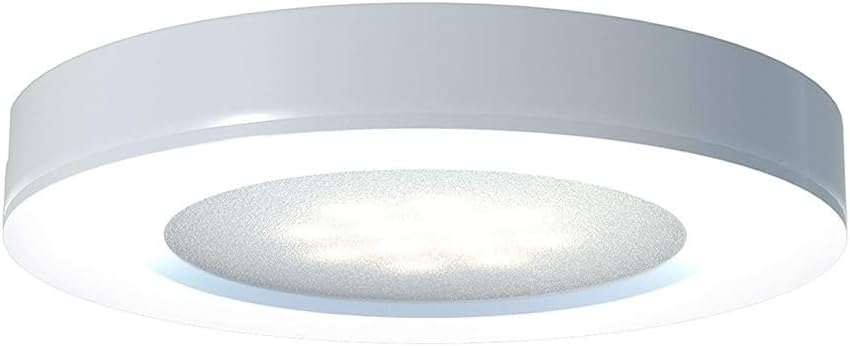
Image 1.1: The innr Puck Light PL 115, a smart LED puck light designed for various applications.
2. Ozi nchekwa
Please observe the following safety precautions to prevent damage to the product or injury to yourself:
- Nchekwa Eletriki: Ensure the power supply is disconnected before installation or maintenance. Only use the provided power adapter.
- Eji ime ụlọ naanị: This product is designed for indoor use in dry locations. Do not expose to water or high humidity.
- Okpomọkụ: Operate within the specified temperature range. Avoid extreme heat or cold.
- Nwụnye: Install the puck lights securely. Do not cover the lights with materials that could impede heat dissipation.
- Igha: These lights are dimmable via a compatible smart home system. Do not attempt to dim with standard dimmer switches.
- Ụmụaka: Debe ebe ụmụaka na-apụghị iru.
- mkpofu: Tụfuo ngwaahịa ahụ dịka iwu obodo si dị maka ihe mkpofu eletrọniki.
3. Ihe ngwugwu
The innr Puck Light PL 115 kit includes the following items:
- 3x innr LED Puck Lights (G4, 2700K Warm White)
- 1x nkwụnye ọkụ
- Cables (2 meters per puck light)
- Mounting hardware (screws, adhesive pads)
Additional puck lights can be purchased separately and added to this kit, up to a total of 5 puck lights per power adapter.

Image 3.1: The innr Puck Light PL 115 kit, showing three puck lights and packaging.
4. Ntọala na nwụnye
4.1 Nwụnye anụ ahụ
- Họrọ ebe: Select a suitable indoor location for your puck lights, such as under cabinets, shelves, or in display cases.
- Ịkwanye:
- Ugwu elu: Use the provided screws or adhesive pads to secure the puck lights to the desired surface. Ensure cables are routed neatly and safely.
- Ugwu ewepụrụ: If recessing, ensure the mounting hole size matches the puck light dimensions (refer to specifications). Secure the light into the opening.
- Jikọọ ọkụ: Connect each puck light to the provided cables, ensuring a secure connection.
- Jikọọ ihe nkwụnye ọkụ: Tinye ihe nkwụnye ọkụ n'ime oghere eletrik ọkọlọtọ.

Image 4.1: A single innr Puck Light, showing its design for surface or recessed mounting.
4.2 Ngwakọta ụlọ Smart
The innr Puck Lights are Zigbee-compatible and require a compatible bridge or hub for smart control. Supported systems include Philips Hue*, Amazon Echo Plus/Show (2nd Gen), and Samsung SmartThings.

Image 4.2: innr Puck Lights installed under a cabinet, demonstrating typical usage.
Pairing with Philips Hue Bridge:
- Ensure your Philips Hue Bridge is powered on and connected to your network.
- Mepee ngwa Philips Hue na ekwentị ma ọ bụ mbadamba gị.
- Gaa na "Ntọala" > "Ntọala ọkụ" > "Tinye ọkụ".
- Select "Search" to find new lights.
- Power on your innr Puck Lights. The app should detect them. If not, try turning the lights off and on again.
- Once detected, you can name and assign the lights to rooms.
*Note: innr lights do not support Apple HomeKit, Hue Entertainment, or Hue Secure features.
Pairing with Amazon Alexa (Echo Plus/Show 2nd Gen):
- Ensure your Echo Plus or Echo Show (2nd Gen) device is powered on and connected to your Wi-Fi network.
- Say, "Alexa, discover my devices," or open the Alexa app and go to "Devices" > "Lights" > "Add Device".
- Power on your innr Puck Lights. Alexa should detect them.
- Once detected, you can control them via voice commands or the Alexa app.
Pairing with Amazon Alexa (Other Echo Devices with a Bridge):
For Echo Dot, Echo, Echo Show (1st Gen), and Echo Spot, a compatible bridge (e.g., Philips Hue Bridge, innr Bridge, or Samsung SmartThings Hub) is required.
- First, pair your innr Puck Lights with your chosen compatible bridge (e.g., Philips Hue Bridge) as described above.
- Ensure your Alexa device is linked to that bridge's skill in the Alexa app.
- Say, "Alexa, discover my devices," or use the Alexa app to find the lights connected through your bridge.
Pairing with Samsung SmartThings:
- Ensure your Samsung SmartThings Hub is powered on and connected.
- Mepee ngwa SmartThings.
- Tap the "+" icon, then "Device", and select "Light" or "Generic Zigbee Device".
- Follow the on-screen instructions to put the hub into pairing mode.
- Power on your innr Puck Lights. The hub should detect them.
- Once detected, you can control them via the SmartThings app.

Image 4.3: Visual representation of innr's compatibility with major smart home platforms like Philips Hue, Amazon Alexa, Google Assistant, Homey, and Samsung SmartThings.
5. Operating Your innr Puck Lights
Once successfully paired with your smart home system, you can control your innr Puck Lights using the respective app or voice commands.
5.1 Njikwa ngwa
Use the Philips Hue, Amazon Alexa, or Samsung SmartThings app to:
- Gbanye/Gbanyụọ ọkụ.
- Adjust brightness (dimming).
- Group lights for simultaneous control.
- Tọọ usoro oge na oge.
- Create scenes for specific moods or activities.

Image 5.1: innr Puck Lights providing illumination in a kitchen setting, controllable via smart app.
5.2 Voice Control (with Alexa)
If paired with Amazon Alexa, you can use voice commands:
- "Alexa, gbanye [Aha Ọkụ]."
- "Alexa, gbanyụọ [Aha Ọkụ]."
- "Alexa, dim [Aha ìhè] ruo 50%."
- "Alexa, set [Light Name] to warm white." (Note: These lights are fixed at 2700K warm white, so color change commands will not apply.)
6. Nlekọta
The innr Puck Lights are designed for low maintenance. Follow these guidelines:
- Nhicha: Disconnect power before cleaning. Use a soft, dry cloth to wipe the surface of the puck lights. Do not use liquid cleaners or abrasive materials.
- Ogologo ndụ ọkụ: The integrated LED bulbs have a long lifespan and are not user-replaceable.
- Njikwa USB: Periodically check cables for any signs of wear or damage. Ensure they are not pinched or exposed to sharp edges.
7. Nchọpụta nsogbu
If you encounter issues with your innr Puck Lights, refer to the following common problems and solutions:
- Lights not pairing:
- Ensure the lights are powered on.
- Verify your smart home bridge/hub is powered on and connected to your network.
- Bring the lights closer to the bridge/hub during the pairing process.
- Try a power cycle: turn the lights off for 10 seconds, then on again, and immediately initiate pairing.
- Confirm compatibility: Remember, these lights do not work with Apple HomeKit, Hue Entertainment, or Hue Secure.
- Lights unresponsive after pairing:
- Check the distance between the lights and your bridge/hub. Zigbee signals can be affected by obstacles.
- Ensure your bridge/hub's firmware is up to date.
- If using with Alexa, ensure the correct skill is enabled and the devices are discovered.
- A power cycle of the lights or the bridge/hub may resolve temporary communication issues.
- Consider the Zigbee mesh network: other Zigbee devices can strengthen the signal. If you have many non-innr Zigbee devices, there might be compatibility nuances (as noted in some user reviews).
- Lights not dimming:
- Ensure you are using the smart home app or voice commands for dimming, not a physical dimmer switch.
- Verify the lights are properly paired and responsive to other commands (on/off).
- Lights flickering:
- Check power connections for looseness.
- Gbaa mbọ hụ na nkwụnye ọkụ na-arụ ọrụ nke ọma.
- If flickering persists, contact customer support.
8. Nkọwapụta
| Njirimara | Nkọwa |
|---|---|
| Ụdị | ebe obibi |
| Nọmba nlereanya | PL 115 /05 |
| Akụkụ ngwaahịa (L x W x H) | 7 x 7 x 1.5 cm (per puck light) |
| Ibu Ibu | 668 grams (total kit) |
| Ọnụọgụ ọkụ | 3 |
| Agba | Ọcha |
| Okpomọkụ agba agba | 2700 Kelvin (ọkụ na-acha ọcha) |
| Flux na-egbuke egbuke | 165 lm (per puck light) |
| Wattage | 9 Watts (total for 3 lights) |
| Voltage | 230 volts |
| Atụmatụ pụrụ iche | Enwere ike ibelata |
| Usoro njikwa | Application (Smart Home App) |
| Ụdị nwụnye | Surface Mount / Recessed Mount |
| Angle Beam | 120 ogo |
| Ndekọ ngosi agba (CRI) | 82 |
| Oge ngbanwe | < 0.5 nkeji |
| Njikọta | Zigbee (requires compatible bridge) |
9. Akwụkwọ ikike & Nkwado
For warranty information and customer support, please refer to the documentation included with your purchase or visit the official innr website. If you experience any issues not covered in this manual, please contact innr customer service for assistance.
Akụrụngwa dị n'ịntanetị: Maka ozi kachasị ọhụrụ, Ajụjụ Ndị A Na-ajụkarị, na nkwado, biko gaa na www.innr.com.