
Okwu mmalite
The Mcbazel Route Air Wireless Audio Adapter is designed to provide wireless audio connectivity for your gaming consoles and PC. This compact adapter allows you to connect Bluetooth headphones to your Nintendo Switch, Switch Lite, PC, or PS4, enhancing your gaming experience with high-quality, low-latency audio. It supports simultaneous connection to two wireless audio devices.
Ntuziaka nhazi
Follow these steps to set up your Mcbazel Route Air Wireless Audio Adapter:
- For Nintendo Switch Dock Usage: The L-shaped USB adapter is specifically for use with the official Nintendo Switch Dock. For the Switch console itself, only the wireless headphone adapter is needed.
- Nyocha mbụ: Before connecting the wireless headphone adapter to the Switch console, ensure the volume adjustment bar on the console shows a speaker icon. This indicates that the console is ready for audio output.
- Jikọọ nkwụnye: Connect the wireless headphone adapter to the USB-C port on your Nintendo Switch console.
- Njikọ nke otu oge: Each wireless adapter can connect to two wireless headphones simultaneously, allowing for shared audio experiences.
- Ntọala ọwa: Set up connections to Channel A and Channel B accordingly for multiple headphones.
- Initiate Pairing (Adapter): Press and hold the pairing button on the wireless adapter for approximately 4 seconds. The adapter's LED light will begin flashing, indicating it is in pairing mode.
- Initiate Pairing (Headphone): Now, press the pairing button on your Bluetooth headphone. The location of the pairing button may vary depending on the headphone brand.
- Ihe ịga nke ọma Njikọ: Once the connection is successful, the LED light on the wireless adapter will stop flashing and remain solid.
- Nyochaa njikọ: After the connection is established, the volume adjustment bar on your Switch console will display a USB icon, confirming that audio is being routed through the adapter.

Image: The Mcbazel Route Air Wireless Audio Adapter connected to the USB-C port of a Nintendo Switch console.

Image: The L-shaped USB adapter component connected to a Nintendo Switch dock, with the main adapter unit shown separately.
Video: Official setup guide for the Gulikit Route Air Wireless Audio Adapter for Nintendo Switch, demonstrating connection and pairing steps.
Ntuziaka ọrụ
Once paired, the adapter will automatically connect to your headphones when both devices are powered on and within range. The adapter provides low-latency audio for an immersive gaming experience.
- Mmepụta ọdịyo: Audio will be routed wirelessly to your connected Bluetooth headphones.
- Njikwa olu: Adjust volume directly on your connected headphones or through the console's system settings.
- Dual Headphone Mode: If two headphones are paired, audio will be transmitted to both simultaneously.
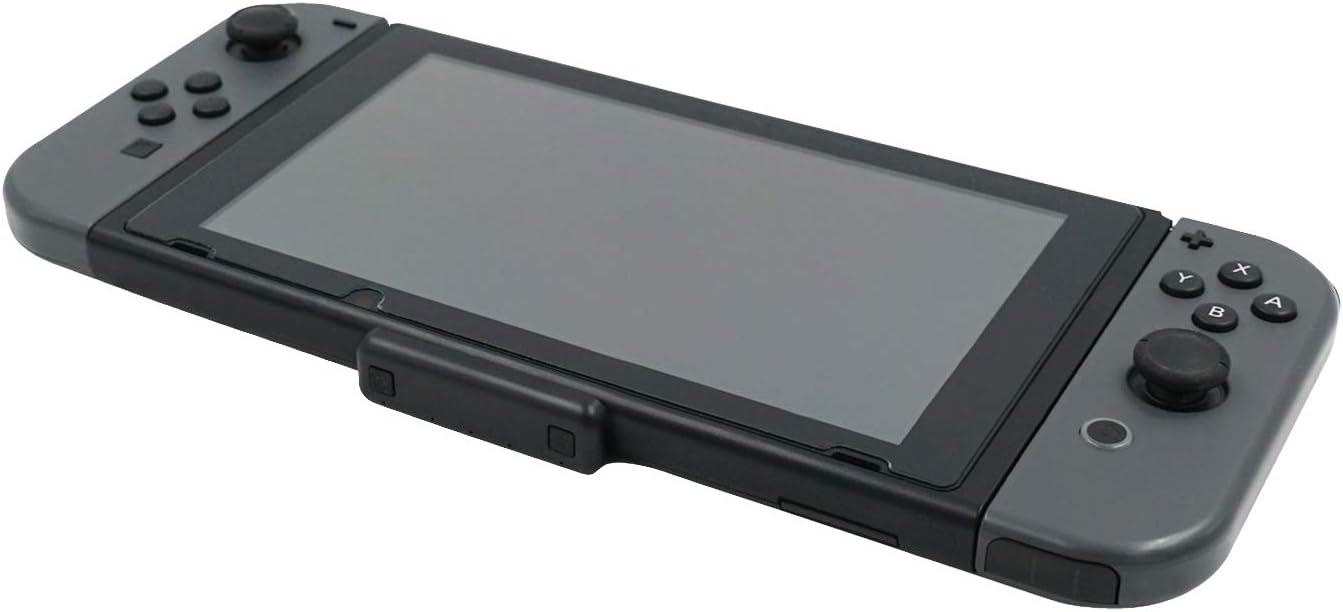
Image: An angled perspective of the Mcbazel Route Air Wireless Audio Adapter seamlessly integrated with a Nintendo Switch console.
Nlekọta
To ensure the longevity and optimal performance of your Mcbazel Route Air Wireless Audio Adapter, please follow these maintenance guidelines:
- Nhicha: Jiri akwa dị nro dị nro hichaa ihe nkwụnye ọkụ. Zere iji ihe nhicha mmiri ma ọ bụ ihe na-ekpo ọkụ.
- Nchekwa: Store the adapter in a cool, dry place when not in use. Protect it from extreme temperatures and direct sunlight.
- Ijikwa: Jiri nlezianya jikwaa ihe nkwụnye ọkụ. Zere idobe ya ma ọ bụ tinye ya na mmetụta siri ike.
- Njikọ ọdụ: Keep the USB-C port and other connectors free from dust and debris.
Nchọpụta nsogbu
Ọ bụrụ na ị na-enwe nsogbu na ihe nkwụnye gị, lee ihe ngwọta ndị a na-ahụkarị:
| Nsogbu | Ngwọta |
|---|---|
| Enweghị mmepụta ọdịyo |
|
| Headphones Not Pairing |
|
| Intermittent Connection / Audio Drops |
|
| Incorrect Audio Icon on Switch |
|
Nkọwapụta
- Nọmba nlereanya: ns-010133
- Akụkụ ngwaahịa: 1.18 x 3.15 x 3.15 sentimita asatọ
- Ibu ihe: 1.48 ounces (0.04 Kilogram)
- Ụdị njikọ: USB Ụdị C
- Ngwa dakọtara: Nintendo Switch, Switch Lite, PC, PS4
- Onye nrụpụta: Mcbazel
- Ụbọchị mbụ enwere: Jenụwarị 11, 2020
Akwụkwọ ikike na nkwado
Mcbazel products are manufactured to high-quality standards. For specific warranty information, please refer to the documentation included with your purchase or contact Mcbazel customer support. Keep your proof of purchase for warranty claims.
For further assistance or technical support, please visit the official Mcbazel websaịtị ma ọ bụ kpọtụrụ ngalaba ọrụ ndị ahịa ha.