
Okwu mmalite
This manual provides essential instructions for the proper use, setup, and maintenance of your BYTECH Lightning Cable (Model: CLMFCBLASST). This cable is designed for charging and data transfer with compatible Apple iOS devices, including iPhones, iPads, and iPods, as well as connecting to laptops and personal computers.
Ngwaahịa gafereview
The BYTECH Lightning Cable is a durable accessory for your Apple devices. It features a Lightning connector on one end and a USB-A connector on the other, facilitating both power delivery for charging and data exchange. The cable supports fast charging capabilities for compatible devices.
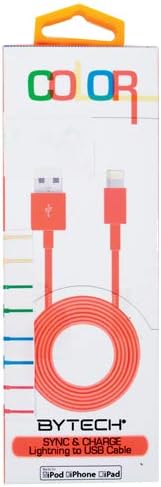
This image displays the retail packaging for the BYTECH Lightning to USB Cable. The packaging is white with 'COLOR' printed at the top in multi-colored letters. An orange Lightning to USB cable is visible through a clear window, coiled neatly. The bottom of the package indicates 'BYTECH SYNC & CHARGE Lightning to USB Cable' and compatibility with iPod, iPhone, and iPad.
Ngwa:
- Lightning Connector: Connects to your Apple iOS device (iPhone, iPad, iPod).
- Njikọ USB-A: Connects to a USB power adapter, computer USB port, or other USB charging source.
- USB: The flexible cord connecting the two connectors, designed for durability and efficient power/data transfer.
Melite
To begin using your BYTECH Lightning Cable, follow these steps:
- Chọpụta njikọ: Locate the Lightning connector (smaller, 8-pin) and the USB-A connector (larger, rectangular).
- Jikọọ na Isi Iyi Ike ma ọ bụ Kọmputa:
- For charging, insert the USB-A connector into a compatible USB wall adapter or car charger.
- For charging and data transfer, insert the USB-A connector into an available USB port on your laptop or personal computer.
- Connect to iOS Device: Insert the Lightning connector into the charging port of your iPhone, iPad, or iPod. Ensure it is fully seated.
- Nyochaa njikọ: Your device should indicate that it is charging or connected to a computer.
Ntuziaka ọrụ
Nchaji Ngwaọrụ gị:
Once connected as described in the "Setup" section, your iOS device will begin charging automatically. The cable supports fast charging when paired with a compatible power adapter and device.
Nyefee data:
When connected to a computer, the cable enables data transfer between your iOS device and the computer. This allows for syncing media, documents, and other files using iTunes or Finder (macOS Catalina and later).
- Connect your iOS device to your computer using the BYTECH Lightning Cable.
- Unlock your iOS device and respond to any "Trust This Computer?" prompts by tapping "Trust" and entering your passcode if required.
- Open iTunes (Windows/older macOS) or Finder (macOS Catalina and later) on your computer.
- Select your device within the application to manage and transfer data.
Nlekọta
Proper care extends the life of your cable:
- Nchekwa: When not in use, coil the cable loosely. Avoid tight coiling or sharp bends, especially near the connectors, as this can damage the internal wires.
- Nhicha: Jiri ákwà dị nro ma kpọọ nkụ hichaa eriri na njikọ ya nwayọ. Ejila ihe nhicha mmiri ma ọ bụ ihe ndị na-eme ka ọ dị nro.
- Ijikwa: Always grasp the connector head when plugging or unplugging the cable. Avoid pulling directly on the cable itself.
- gburugburu: Keep the cable away from extreme temperatures, direct sunlight, and moisture.
Nchọpụta nsogbu
If you encounter issues with your BYTECH Lightning Cable, consider the following:
- Ngwaọrụ anaghị akwụ ụgwọ:
- Gbaa mbọ hụ na ejikọrọ akụkụ abụọ nke eriri ahụ nke ọma.
- Try a different USB power adapter or computer USB port.
- Check the charging port on your iOS device for debris or lint.
- Test the cable with a different compatible iOS device, if available.
- Okwu mbufe data:
- Ensure your iOS device is unlocked and you have tapped "Trust This Computer" when prompted.
- Restart both your iOS device and your computer.
- Update iTunes or Finder to the latest version.
- Gbalịa ọdụ ụgbọ USB dị iche na kọmputa gị.
- Mmebi eriri USB: Inspect the cable for any visible signs of damage, such as fraying, cuts, or bent connectors. Discontinue use if damage is found.
Nkọwapụta
| Njirimara | Nkọwa |
|---|---|
| Ụdị | Bytech |
| Nọmba nlereanya | CLMFCBLASST |
| UPC | 805112016938 |
| Ụdị njikọ | Lightning (Male) to USB-A (Male) |
| Ụdị USB | Àmụmà |
| Ngwa dakọtara | iPhone, iPad, iPod, Laptop, Personal Computer |
| Njirimara Pụrụ Iche | Nchaji ngwa ngwa |
| Eji akwadoro | Charging, data transfer for iOS devices |
| Ọnụọgụ nke ntụtụ | 8 (Lightning) |
| Ibu Ibu | 1.76 ounces |
| Akụkụ ngwaahịa | 1 x 1 x 1 inch (Nkwakọ ngwaahịa) |
Akwụkwọ ikike na nkwado
For warranty information or technical support regarding your BYTECH Lightning Cable, please refer to the official Bytech websaịtị ma ọ bụ kpọtụrụ ndị ahịa ha ozugbo. Debe akwụkwọ nnata ịzụrụ maka akwụkwọ ikike.
Maka ajụjụ izugbe, ị nwere ike ịga na Bytech brand page on Amazon.