
Star Micronics 39651110
Star Micronics mC-Print3 Thermal POS Printer User Manual
Ụdị: 39651110
1. Okwu mmalite
This manual provides comprehensive instructions for the setup, operation, maintenance, and troubleshooting of your Star Micronics mC-Print3 3-inch Ethernet (LAN) / USB / Lightning Thermal POS Printer. Designed for efficiency and reliability, the mC-Print3 is a compact and fast thermal printer suitable for various point-of-sale environments.
The mC-Print3 features a printing speed of 250 mm/sec and incorporates Print-Flat Technology for consistent receipt quality. It offers extensive software compatibility across Windows, iOS, Android, web, and cloud platforms. Connectivity options include USB and Ethernet LAN, with advanced features like CloudPRNT and a peripheral hub. Its splash-proof enclosure ensures durability in demanding settings.
2. Ozi nchekwa
Please read all safety instructions carefully before operating the printer. Failure to do so may result in injury or damage to the device.
- Ensure the printer is connected to a power source that matches the specified voltage chọrọ.
- Do not expose the printer to excessive moisture or extreme temperatures. The splash-proof design offers protection against splashes, but it is not fully waterproof.
- Zere igbochi oghere ikuku iji gbochie ikpo oke ọkụ.
- Do not attempt to disassemble or repair the printer yourself. Refer all servicing to qualified personnel.
- Use only recommended paper types and sizes to prevent paper jams and ensure optimal print quality.
- Keep hands clear of the paper cutter during operation.

3. Kedu ihe dị na Igbe ahụ
Upon unboxing your Star Micronics mC-Print3 printer, verify that all the following items are included:
- mC-Print3 Printer
- Test Paper Roll
- eriri USB
- Ịnye ọkụ
4. Nhazi
4.1. Nhazi anụ ahụ
Before connecting the printer, ensure it is placed on a stable, flat surface.

4.2. Mpempe akwụkwọ
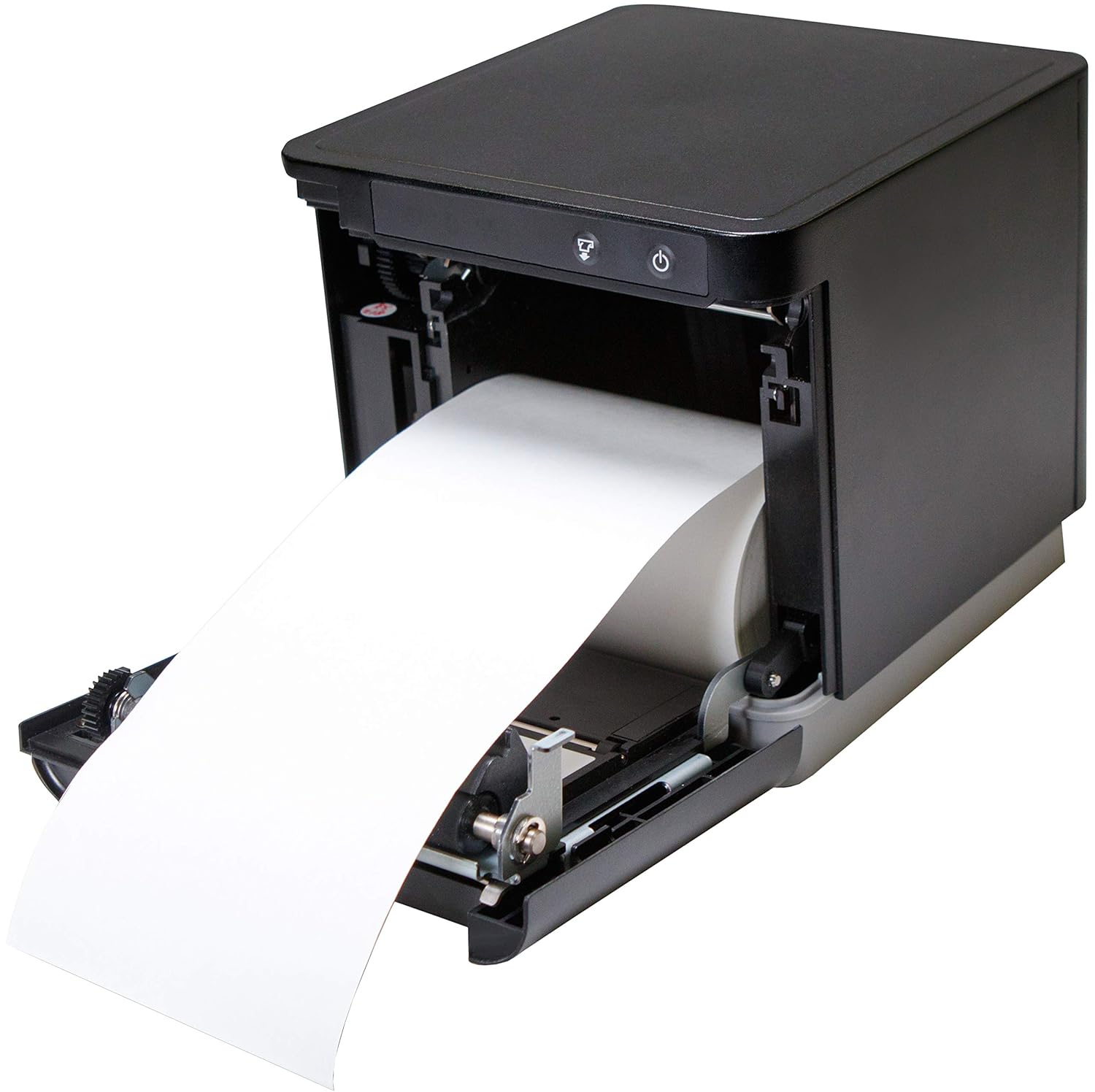
The mC-Print3 features a convenient front-loading paper mechanism.
- Mepee mkpuchi ihu nke ngwa nbipute.
- Insert the thermal paper roll, ensuring the paper feeds from the bottom of the roll.
- Pull a small amount of paper past the cutter and close the cover firmly until it clicks.
4.3. Njikọ eriri
The mC-Print3 offers multiple connectivity options. Connect the power supply and your chosen interface cable (USB or Ethernet LAN) to the rear of the printer. The printer also features a peripheral hub for connecting other POS devices.


4.4. Ngwanrọ na nwụnye ọkwọ ụgbọala
The mC-Print3 supports a wide range of operating systems including Windows, iOS, Android, web, and cloud environments. Drivers and SDKs are available from the Star Micronics website to facilitate integration with your POS system.
For iOS devices, the unique SteadyLAN™ technology allows for internet connection to the tablet via the USB cable, eliminating the need for Wi-Fi or Bluetooth for network access.
Video 4.1: This video demonstrates the SteadyLAN technology, showing how an iPad can receive internet connectivity and power directly through the printer's USB connection, simplifying POS setup.
5. Ntuziaka ọrụ
5.1. Mbipụta Isi
Once connected and configured with your POS software, the printer will automatically receive print commands. The mC-Print3's fast printing speed of 250 mm/sec ensures quick transaction processing.

5.2. Peripheral Hub Functionality
The integrated peripheral hub allows you to connect various devices such as barcode scanners, customer displays, and RFID readers directly to the printer, streamlining your POS setup.
Video 5.1: This video highlights the mC-Print series' compact design and superior connectivity, including the peripheral hub that supports various POS devices like customer displays and barcode scanners.
6. Nlekọta
6.1. Na-ehicha ihe nbipute
Nhicha mgbe niile na-enyere aka ịnọgide na-enwe ogo mbipụta ma gbatịa ndụ nke ngwa nbipute gị.
- Turn off the printer and disconnect the power cable before cleaning.
- Jiri akwa dị nro na-enweghị akwa dampened with a mild, non-abrasive cleaner to wipe the exterior.
- For the thermal print head and platen roller, use an alcohol-based cleaning pen or a cotton swab lightly dampHapụ ya ka ọ kpọọ nkụ kpamkpam tupu e jiri ya.
6.2. Paper Roll Replacement
Replace the paper roll as described in Section 4.2 when the paper low sensor is activated or print quality degrades.
7. Nchọpụta nsogbu
This section addresses common issues you might encounter with your mC-Print3 printer.
| Nsogbu | Ihe nwere ike ime | Ngwọta |
|---|---|---|
| Ngwa nbipute anaghị agba ọkụ | Power cable disconnected; faulty power supply. | Check power connections; try a different outlet; replace power supply if necessary. |
| Enweghị mmepụta mbipụta | Paper jam; out of paper; incorrect driver/software settings; connectivity issue. | Clear paper jam and reload paper; install correct drivers; verify USB/Ethernet connection. |
| Ọdịmma ebipụta na-adịghị mma | Dirty print head; incorrect paper type; worn-out print head. | Clean the print head; ensure correct thermal paper is used; contact support if print head is worn. |
| Paper getting stuck/hole in receipt | Paper not loaded correctly; internal mechanism issue. | Ensure paper is loaded straight and cover is closed properly. If issue persists, contact Star Micronics support. |
8. Nkọwapụta
- Aha nlereanya: mC-ebipụta3
- Akụkụ ngwaahịa: 5.5 x 5.25 x 5 sentimita asatọ
- Ibu ihe: 2.8 pound
- Teknụzụ mbipụta: Thermal
- Ọsọ mbipụta kacha elu: 250 mm/sec (Monochrome)
- Teknụzụ Njikọta: Wired Connectivity (USB, Ethernet LAN)
- Agba: Nwa
- Onye nrụpụta: Star Micronics America, Inc
- Njirimara Pụrụ Iche: Ethernet, Peripheral Hub, CloudPRNT, SteadyLAN™
9. Akwụkwọ ikike na nkwado
The Star Micronics mC-Print3 printer typically comes with a manufacturer's limited warranty. For specific warranty terms and conditions, please refer to the documentation included with your purchase or visit the official Star Micronics websaịtị.
Maka nkwado teknụzụ, nbudata ndị ọkwọ ụgbọala, na akụrụngwa ndị ọzọ, biko gaa na Star Micronics Store on Amazon or their official support portal.
Ask a question about this manual
Ask about setup, troubleshooting, compatibility, parts, safety, or missing instructions. Manuals+ will review the question and use this page’s manual context to help answer it.