
1. Okwu mmalite
Thank you for choosing the Homcloud Wi-Fi LED Strip Controller, Model AS-SL1. This device allows you to control 12-24V RGB + White LED strips via Wi-Fi, offering smart lighting solutions for your home. This manual provides essential information for safe installation, operation, and maintenance of your controller. Please read it thoroughly before use and retain it for future reference.
2. Ozi nchekwa
- Ensure the power supply is disconnected before installation or maintenance to prevent electric shock.
- This device is designed for indoor use only. Do not expose it to moisture or extreme temperatures.
- Use only with 12-24V DC power supplies and compatible RGB + White LED strips. Exceeding the specified voltage ma ọ bụ wattage (192 Watts max) can damage the device and LED strips.
- Do not attempt to open or modify the controller. This will void the warranty and may cause damage or injury.
- Debe ebe ụmụaka na-apụghị iru.
- Ensure all wiring connections are secure and correctly polarized (positive to positive, negative to negative).
3. Ihe ngwugwu
Biko lelee ngwungwu maka ihe ndị a:
- Homcloud Wi-Fi LED Controller (AS-SL1)
- Akwụkwọ ntuziaka (akwụkwọ a)
4. Ngwaahịa gafereview
The Homcloud AS-SL1 is a compact Wi-Fi controller designed to manage RGB + White LED strips. It features terminal blocks for secure wiring connections and an integrated Wi-Fi module for smart control via a mobile application or voice commands.
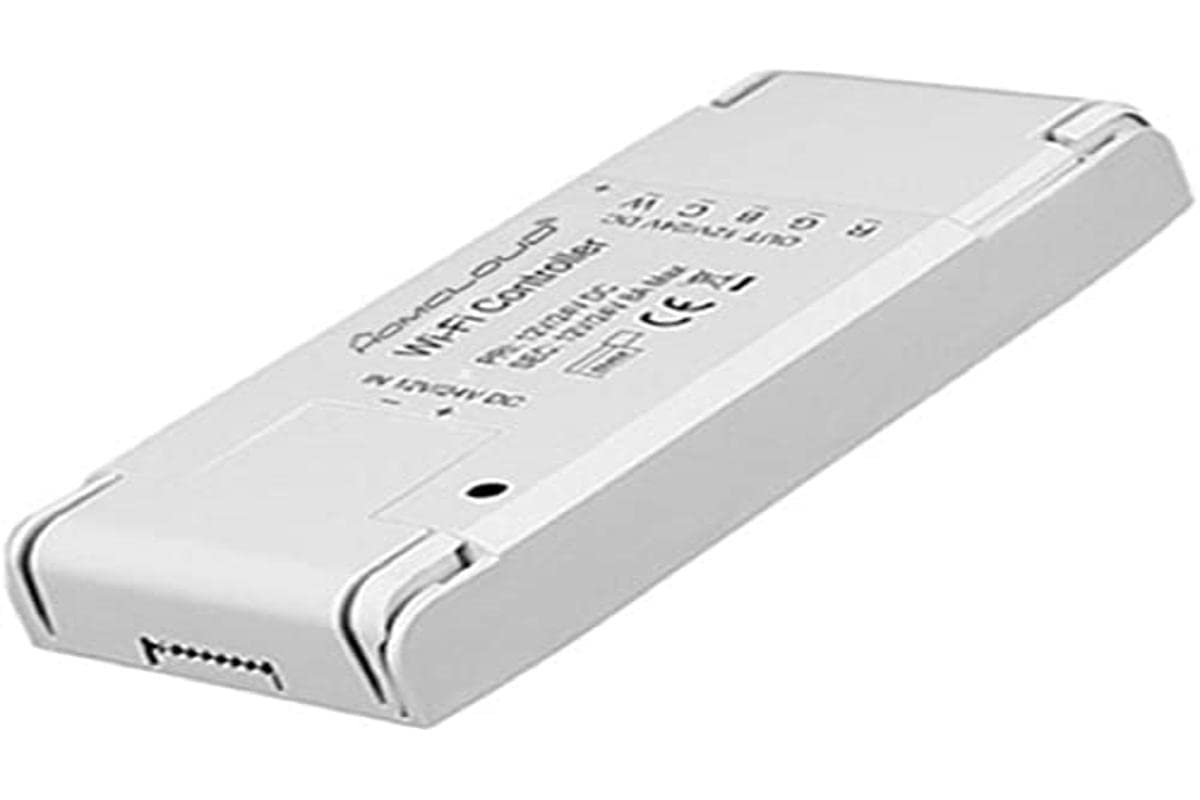
Foto 1: Homcloud Wi-Fi LED Strip Controller (AS-SL1). This image shows the compact design of the controller with its input and output terminals.
Akụkụ ndị bụ isi:
- Wi-Fi Connectivity (2.4GHz)
- Compatible with 12-24V RGB + White LED Strips
- App Control (via Homcloud app or compatible smart home platforms)
- Voice Control (compatible with smart assistants)
- Programmable Schedules and Timers
- Nweta anya
5. Nhazi
5.1 Nwụnye waya
- Kwadebe akụrụngwa: Ensure you have your Homcloud Wi-Fi LED Controller, a compatible 12-24V DC power supply, and an RGB + White LED strip.
- Kwụpụ ike: Before making any connections, ensure the power supply is unplugged from the mains.
- Connect Power Supply to Controller: Locate the input terminals on the controller (usually marked DC IN, V+, V- or similar). Connect the positive (+) output of your 12-24V DC power supply to the V+ terminal and the negative (-) output to the V- terminal. Ensure connections are secure.
- Connect LED Strip to Controller: Locate the output terminals on the controller (usually marked V+, R, G, B, W or similar). Connect the corresponding wires from your RGB + White LED strip to these terminals.
- LED Strip V+ to Controller V+
- LED Strip R to Controller R
- LED Strip G to Controller G
- LED Strip B to Controller B
- LED Strip W to Controller W
- Nyochaa njikọ: Double-check all wiring for correct polarity and secure connections. Loose connections can cause malfunctions or damage.
Note: A detailed wiring diagram is typically provided in the physical product packaging. Ensure you follow the specific wiring instructions for your LED strip and power supply.
5.2 Ngwakọta ọnụ
- Budata ngwa: Download the "Homcloud" app from your smartphone's app store (iOS or Android).
- Debanye aha/Nbanye: Mepee ngwa ahụ wee debanye aha maka akaụntụ ọhụrụ ma ọ bụ banye na nke dị adị.
- Njikwa Ike: Plug in the power supply to the mains. The LED strip should light up briefly or flash, indicating it's in pairing mode. If not, refer to the app's instructions for resetting the device to pairing mode (often involves cycling power multiple times).
- Tinye ngwaọrụ: In the Homcloud app, tap the "+" icon (usually in the top right corner) to add a new device. Select "Lighting" or "LED Controller" from the device list.
- Jikọọ na Wi-Fi: Follow the on-screen instructions to connect the controller to your 2.4GHz Wi-Fi network. Ensure your phone is also connected to the same 2.4GHz network during pairing.
- Njikọta zuru oke: Once the device is successfully added, you can rename it and begin controlling your LED strip through the app.
6. Ntuziaka ọrụ
6.1 Njikwa ngwa
Once paired, the Homcloud app provides full control over your LED strip:
- Gbanyụọ/ Gbanyụọ: Toggle the power button to turn the LED strip on or off.
- Nhọrọ agba: Use the color wheel or predefined color palettes to choose any desired color for RGB LEDs.
- Ndozi ọkụ Ọcha: Adjust the brightness and color temperature (if supported by your LED strip) of the dedicated white LEDs.
- Njikwa ihie: Slide the brightness bar to adjust the intensity of the light.
- Ụdị ihe nkiri: Select from various pre-programmed scene modes (e.g., Party, Relax, Reading) or create custom scenes.
- Mmekọrịta egwu: Some apps offer music synchronization features, allowing the lights to react to sound.
- Ndị ngụ oge & Usoro: Set schedules for the LED strip to turn on/off at specific times or activate certain scenes.
6.2 Njikwa olu
The Homcloud AS-SL1 controller supports voice control through compatible smart assistants (e.g., Amazon Alexa, Google Assistant). To enable voice control:
- Akaụntụ njikọ: In your smart assistant's app (e.g., Alexa app, Google Home app), search for the "Homcloud" skill or service.
- Nye ikike: Link your Homcloud account with your smart assistant account.
- Chọpụta Ngwaọrụ: Ask your smart assistant to discover new devices. Your LED strip controller should appear.
- Iwu olu: I nwere ike iji iwu olu ugbu a dịka:
- "Alexa, turn on [LED strip name]"
- "Hey Google, set [LED strip name] to blue"
- "Alexa, dim [LED strip name] to 50%"
7. Nlekọta
- Nhicha: Disconnect power before cleaning. Use a soft, dry cloth to wipe the controller. Do not use liquid cleaners or solvents.
- gburugburu: Ensure the controller is kept in a dry, indoor environment, away from direct sunlight, high temperatures, and corrosive substances.
- Njikọ: Lelee njikọ wiwi oge ụfọdụ ka ị hụ na ọ nọ na nchekwa.
8. Nchọpụta nsogbu
| Nsogbu | Ihe nwere ike ime | Ngwọta |
|---|---|---|
| Igwe ọkụ LED anaghị agba ọkụ. | No power; incorrect wiring; faulty LED strip or power supply. | Check power connection. Verify all wiring connections (V+, V-, R, G, B, W). Test LED strip and power supply separately if possible. |
| Controller cannot connect to Wi-Fi. | Incorrect Wi-Fi password; 5GHz Wi-Fi network; controller not in pairing mode; weak Wi-Fi signal. | Ensure correct 2.4GHz Wi-Fi password. Confirm your router supports 2.4GHz. Reset controller to pairing mode (refer to app instructions). Move controller closer to router. |
| App control is unresponsive. | Poor Wi-Fi connection; app glitch; controller offline. | Check your home Wi-Fi network. Restart the Homcloud app. Power cycle the controller. |
| Njikwa olu anaghị arụ ọrụ. | Smart assistant not linked to Homcloud account; device not discovered; incorrect voice command. | Ensure Homcloud skill/service is enabled and linked in your smart assistant app. Ask the assistant to discover devices. Use correct voice commands as listed in section 6.2. |
9. Nkọwapụta
| Njirimara | Nkọwa |
|---|---|
| Nọmba nlereanya | AS-SL1 |
| Ụdị | Homcloud |
| Ntinye Voltage | 12-24 volts DC |
| Ike kacha mma | 192 Watt |
| Teknụzụ ikuku | Wi-Fi (2.4GHz) |
| Usoro njikwa | Njikwa ngwa, njikwa olu |
| Atụmatụ pụrụ iche | Voice control, remote access, programmable, timer functions |
| Ojiji gburugburu | Eji ime ụlọ naanị |
| Akụkụ (L x W x H) | 0.01 x 0.01 x 0.01 cm (approx. 0.004 x 0.004 x 0.004 inches) - Note: These dimensions seem unusually small and might be placeholder data. |
| Ibu | 10 Grams (approx. 0.35 oz) |
| UPC | 700443260688 |
10. Akwụkwọ ikike na nkwado
Specific warranty information for the Homcloud AS-SL1 controller is not provided in the product details. For warranty claims or technical support, please contact your retailer or visit the official Homcloud website. Please have your model number (AS-SL1) and proof of purchase ready when contacting support.