
1. Ngwaahịa gafereview
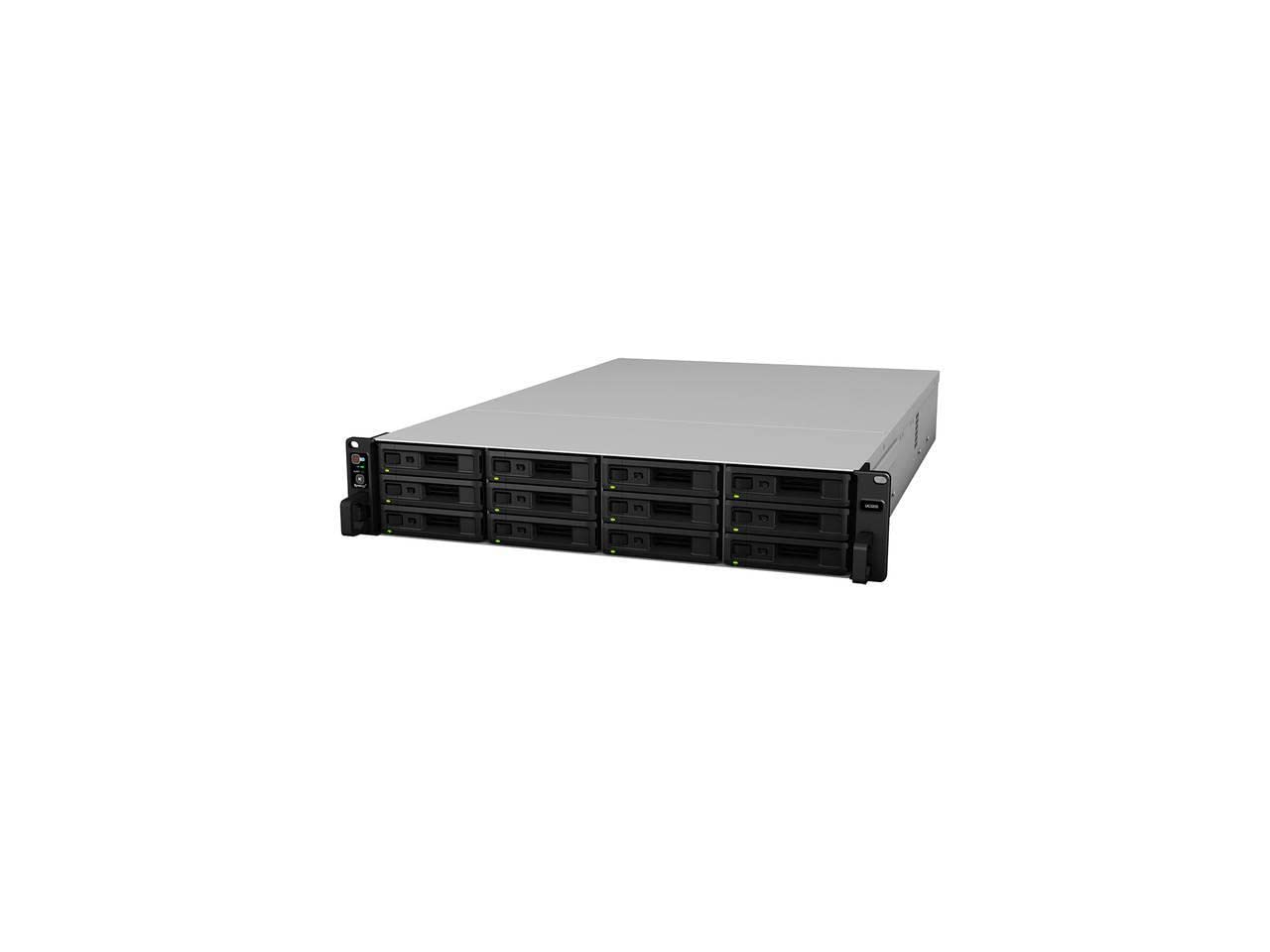
The Synology UC3200 is a 12-bay unified controller designed for high-availability SAN environments. It features an active-active architecture to ensure non-disruptive iSCSI services, providing resilient data protection solutions with a simplified management interface. This system is engineered to maximize service uptime for critical services.
Akụkụ ndị bụ isi:
- Arụmọrụ dị elu: Active-active storage solution for non-disruptive iSCSI services.
- Exceptional I/O: Over 140,000 4K random Write IOPS for enterprise-class performance with low latency.
- Flexible Capacity: Scalable up to 36 drives with RXD1219sas expansion units.
- Virtualization Ready: Compatible with VMware vSphere, Microsoft Hyper-V, Citrix XenServer, and OpenStack Cinder.
Ngwaahịa gafereview Vidiyo
Vidiyo a na-enye nkọwa zuru okeview of the Synology DS620slim, which shares some operational principles with the UC3200, particularly regarding drive installation and compact design philosophy. While not the exact model, it illustrates basic Synology NAS concepts.
2. Ntọala na nwụnye
This section outlines the general steps for setting up your Synology UC3200. For detailed instructions, please refer to the official Synology documentation.
2.1 Mwepu na nyocha
Carefully remove the UC3200 from its packaging. Inspect the unit for any signs of damage during transit. Ensure all components listed in the packing list are present.
2.2 Ntinye draịva
The UC3200 is a diskless unit, requiring the installation of 2.5-inch or 3.5-inch Serial Attached SCSI (SAS) hard drives. Follow these general steps:
- Locate the drive bays on the front of the unit.
- Unlock and pull out a drive tray.
- Secure your SAS hard drive(s) into the drive tray(s) using the provided screws.
- Slide the drive tray(s) back into the bay(s) until they click into place.

2.3 Connecting to Power and Network
Connect the power cables to the power supply units and plug them into appropriate power outlets. Connect the network cables from the UC3200's LAN ports to your network switch or router.
2.4 Initializing the System
Power on the UC3200. Use Synology Assistant or a web browser to find and initialize the device on your network. Follow the on-screen prompts to install DiskStation Manager (DSM) and configure your storage pools and volumes.
3. Ọrụ
The Synology UC3200 operates on Synology's DiskStation Manager (DSM) operating system, providing a user-friendly interface for managing your storage and services.
3.1 iSCSI Services
The UC3200 is optimized for iSCSI services, offering high performance and reliability for SAN environments. Configure iSCSI LUNs and Targets through the DSM interface to connect to your virtualization hosts or servers.
3.2 Data Protection and High Availability
Leverage the active-active architecture for continuous service availability. Implement data protection features such as snapshots, replication, and backup solutions available within DSM to safeguard your critical data.
3.3 Virtualization Integration
Utilize the UC3200's compatibility with major virtualization platforms like VMware vSphere, Microsoft Hyper-V, Citrix XenServer, and OpenStack Cinder to enhance your virtualized infrastructure.
4. Nlekọta
Regular maintenance ensures the longevity and optimal performance of your Synology UC3200.
4.1 Mmelite Sistemụ
Regularly check for and install DSM updates to ensure your system has the latest features, security patches, and performance improvements.
4.2 Nleba anya ahụike mbanye
Monitor the health of your installed hard drives using DSM's Storage Manager. Replace drives proactively if S.M.A.R.T. warnings or other indicators suggest potential failure.
4.3 Nhicha
Keep the unit's ventilation areas clear of dust to prevent overheating. Periodically clean the exterior with a soft, dry cloth. Ensure the system is powered off before cleaning.

5. Nchọpụta nsogbu
This section provides general guidance for common issues. For more complex problems, consult Synology's official support resources.
5.1 Okwu ike
- Enweghị ike: Verify power cables are securely connected to both the unit and the power outlet. Check the power source.
- Mmechi na-atụghị anya ya: Ensure proper ventilation and check for overheating. Consider connecting to an Uninterruptible Power Supply (UPS) to prevent data loss during power outages.
5.2 Nsogbu Njikọta Netwọk
- Enweghị ike ịnweta DSM: Check network cable connections and ensure the network switch/router is functioning correctly. Verify the UC3200's IP address using Synology Assistant.
- Ịrụ ọrụ netwọk dị nwayọ: Check network cable quality, switch configuration, and ensure network interfaces are operating at their expected speeds.
5.3 Drive-Related Issues
- Achọpụtaghị mbanye: Ensure drives are properly seated in their trays. Check drive compatibility with the UC3200.
- Storage Pool Degradation: Replace faulty drives as indicated by DSM's Storage Manager and allow the system to repair the storage pool.
6. Nkọwapụta
| Njirimara | Nkọwa |
|---|---|
| Nọmba nlereanya | UC3200 |
| Ụgbọ okporo ígwè | 12 (Diskless) |
| Ụdị draịva dakọtara | 2.5"/3.5" SAS Hard Disk Drives |
| Interface Hard Drive | Serial Attached SCSI (SAS) |
| Akụkụ (HxWxD) | 88 mm x 430.5 mm x 692 mm (3.5"D x 16.9"W x 27.2"H) |
| Ibu | 55 pound (ihe dị ka 24.9 n'arọ) |
| Ihe onwunwe | Ọla, plastik |
| Agba | Nwa |
| Onye nrụpụta | Synology |
| Ụbọchị mbụ dị | Nọvemba 14, 2019 |
7. Akwụkwọ ikike na nkwado
7.1 Akwụkwọ ikike nwere oke
The Synology UC3200 is backed by Synology's 5-year limited warranty. This warranty covers hardware defects under normal use conditions. For full terms and conditions, please refer to the official Synology warranty policy available on their websaịtị.
7.2 Nkwado nka na ụzụ
For technical assistance, troubleshooting, or service requests, please visit the official Synology support portal. You can find FAQs, knowledge base articles, and contact information for direct support.
- Nkwado n'ịntanetị: www.synology.com/support
- Akwụkwọ: Comprehensive documentation, including detailed installation guides and DSM user manuals, is available on the Synology websaịtị.