
1. Okwu mmalite
Thank you for choosing the iClever BK10 Bluetooth Keyboard. This manual provides essential information for setting up, operating, maintaining, and troubleshooting your new wireless keyboard. Please read it carefully to ensure optimal performance and longevity of your device.
Kedu ihe dị na Igbe ahụ
- IClever BK10 Igodo Bluetooth
- USB-C eriri USB
- Akwụkwọ ntuziaka onye ọrụ
- Protective Silicone Cover (for key protection)

Figure 1: Included items with the iClever BK10 Bluetooth Keyboard.
2. Atụmatụ igodo
- Sleek & Wireless Design: Constructed with stainless steel and ABS, featuring a 10-degree tilt for comfortable desktop use.
- Multi-Device & Multi-OS Compatibility: Seamlessly switch between up to 3 devices using Bluetooth 5.1 technology. Automatically recognizes and adapts to Windows, macOS, iPadOS, Android, iPhone, and Chromebooks.
- Responsive & Low-Profile Igodo: Scissor-key mechanism provides enhanced feedback, stability, and quiet typing (below 50 dB). Optimized key-travel and anti-slip tapes ensure comfort and precision.
- Compact & Efficient: Full-size layout with a standard numeric keypad. Includes hotkeys for Calculator, Fn lock, Mute, Volume up/down, and more to boost productivity.
- USB-C Rechargeable & Energy Saving: Built-in rechargeable battery offers up to 45 days of use after a 2-hour charge. Features an automatic power-saving sleep mode after 30 minutes of inactivity.
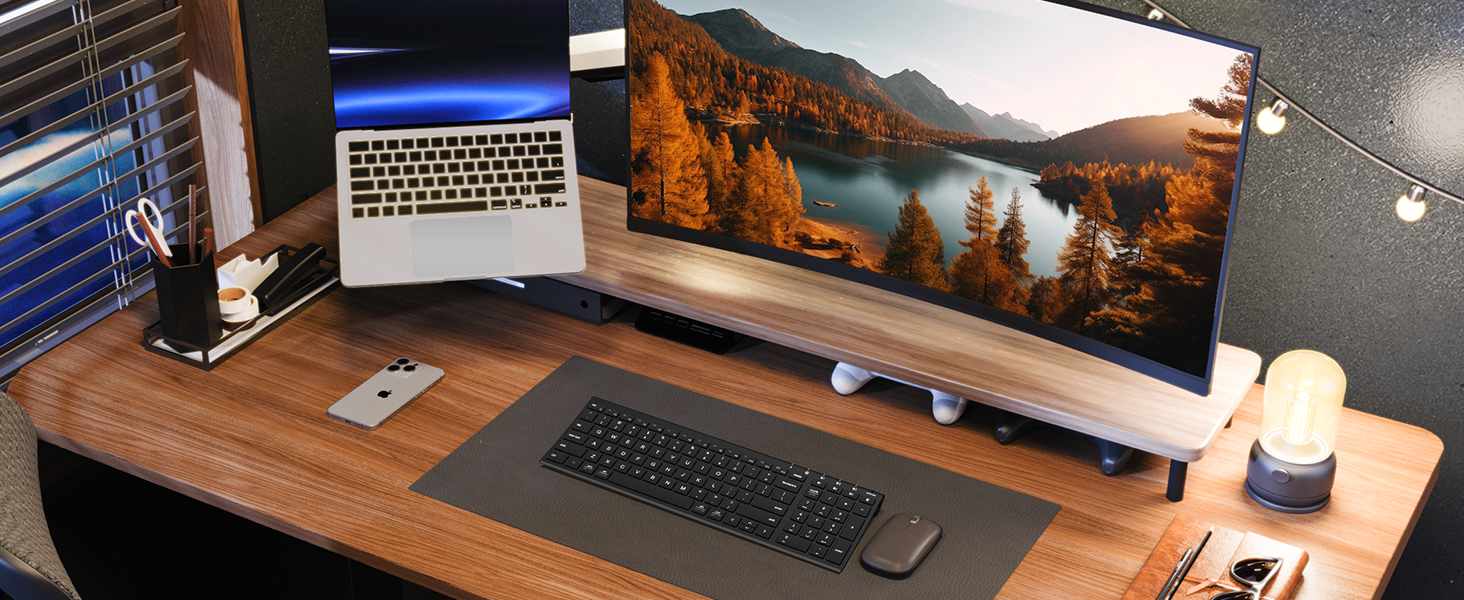
Figure 2: The sleek and wireless design of the iClever BK10 keyboard.
3. Nhazi
3.1 Ịchaji ahụigodo
Before initial use, fully charge the keyboard using the provided USB-C cable. Connect the USB-C end to the keyboard's charging port (located on the right side) and the USB-A end to a power source (e.g., computer USB port, USB wall adapter). The charging indicator light will illuminate during charging and turn off when fully charged.

Figure 3: USB-C charging port on the iClever BK10 keyboard.
3.2 Gbanyụọ/ gbanyụọ
Locate the ON/OFF switch on the top right side of the keyboard. Slide the switch to the 'ON' position to power on the keyboard. Slide it to 'OFF' when not in use to conserve battery life.
3.3 Njikọ Bluetooth
The iClever BK10 keyboard supports pairing with up to three devices simultaneously. Follow these steps to pair your devices:
- Gbanyụọ ahụigodo site na iji mgba ọkụ / Gbanyụọ.
- Press and hold one of the Bluetooth channel keys (B1, B2, or B3) for 3-5 seconds until its indicator light starts flashing rapidly. This indicates the keyboard is in pairing mode.
- On your device (computer, tablet, smartphone), go to Bluetooth settings and search for available devices.
- Select "iClever BK10" from the list of found devices.
- Follow any on-screen prompts to complete the pairing process. The indicator light on the keyboard will stop flashing and remain solid for a few seconds, then turn off, indicating successful pairing.
- Repeat these steps for up to two additional devices using the other Bluetooth channel keys (B2 and B3).

Figure 4: Multi-device connectivity of the iClever BK10 keyboard.
4. Ntuziaka ọrụ
4.1 Ịgbanwe n'etiti ngwaọrụ
To switch between paired devices, simply press the corresponding Bluetooth channel key (B1, B2, or B3) once. The keyboard will connect to the selected device automatically.
4.2 Function Keys and Hotkeys
The iClever BK10 keyboard features a row of function keys (F1-F12) that also serve as hotkeys for various media and system controls. To use the hotkey functions, press the 'Fn' key simultaneously with the desired function key. Some common hotkeys include:
- Fn+F1: Ụlọ
- Fn+F2: ọchụchọ
- Fn+F3: Họrọ Ha niile
- Fn+F4: Detuo
- Fn+F5: Tapawa
- Fn+F6: Bee
- Fn+F7: Egwu gara aga
- Fn+F8: Gwuo/kwụsịtụ
- Fn+F9: Track na-esote
- Fn+F10: Ogbi
- Fn+F11: Mpịakọta ọnụ
- Fn+F12: Elu elu
The keyboard also includes dedicated keys for Calculator, Fn lock, and a standard numeric keypad for efficient data entry.

Nyocha 5: N'eluview of keyboard layout and multi-OS features.
4.3 Operating System Layout Recognition
The keyboard automatically recognizes different operating systems (Windows, macOS, iPadOS, Android) and adjusts its key layout accordingly. For example, the 'Win' key functions as 'Alt' on Mac, and 'Alt' functions as 'Cmd'.
5. Nlekọta
5.1 Nhicha
To clean your keyboard, power it off and disconnect any cables. Use a soft, lint-free cloth slightly dampened with water or a mild cleaning solution. Avoid excessive moisture and harsh chemicals. The included silicone cover can be removed and washed with mild soap and water.
5.2 Nlekọta batrị
Iji bulie ogologo ndụ batrị:
- Zere ịchaji batrị ugboro ugboro.
- Chajie ahụigodo ahụ mgbe ihe ngosi batrị dị ala.
- Chekwaa ahụigodo ahụ n'ebe dị jụụ, kpọrọ nkụ ma ọ bụrụ na ejighi ya ogologo oge.
- The keyboard enters a power-saving sleep mode after 30 minutes of inactivity. Press any key to wake it up.
6. Nchọpụta nsogbu
6.1 Keyboard Not Connecting/Pairing
- Hụ na ejiri ahụigodo ahụ rụọ ọrụ ma chajị ya nke ọma.
- Gbaa mbọ hụ na agbanyere Bluetooth na ngwaọrụ gị.
- Place the keyboard within the effective range (typically 10 meters) of your device.
- If already paired, try unpairing the keyboard from your device's Bluetooth settings and then re-pairing it.
- Gbalịa ịmalitegharị ma ahụigodo ma ngwaọrụ gị.
6.2 Igodo anaghị aza
- Check if the keyboard is connected to the correct device (verify the active Bluetooth channel).
- Hụ na batrị ahụ adịghị oke ala.
- Hichaa irighiri ihe ọ bụla site na gburugburu igodo emetụtara.
6.3 Connectivity Issues/Lag
- Belata nnyonye anya site n'ịpụpụ na ngwaọrụ ikuku ndị ọzọ (dịka ọmụmaatụ, rawụta Wi-Fi, ekwentị enweghị waya).
- Hụ na draịva Bluetooth nke ngwaọrụ gị dị ọhụrụ.
- Try connecting to a different Bluetooth channel on the keyboard.
7. Nkọwapụta
| Njirimara | Nkọwa |
|---|---|
| Nọmba nlereanya | BK10 |
| Teknụzụ Njikọta | Bluetooth 5.1 |
| Ngwa dakọtara | Windows laptops/desktops, MacBook/iMac, iPad/iPhone, Android tablets/phones, Chromebooks |
| Ọnụọgụ igodo | 104 |
| Ụdị mgbanwe igodo | Mmasị-mgbanwe |
| Ọkwa mkpọtụ | <50dB |
| Isi Iyi Ike | Batrị enwere ike ịgbanye (USB-C) |
| Ndụ batrị | Up to 45 days (after 2 hours charging) |
| Akụkụ ngwaahịa (L x W x H) | 14.41" x 4.92" x 0.63" |
| Ihe onwunwe | Acrylonitrile Butadiene Styrene, Aluminom |
8. Akwụkwọ ikike & Nkwado
8.1 Ozi akwụkwọ ikike
The iClever BK10 Bluetooth Keyboard comes with a Akwụkwọ ikike nke ọnwa 12 from the date of purchase. This warranty covers manufacturing defects and ensures your product is free from material and workmanship flaws under normal use.
8.2 Nkwado ndị ahịa
If you encounter any issues or have questions regarding your iClever BK10 Bluetooth Keyboard, please refer to the contact information provided in your product packaging or visit the official iClever support websaịtị maka enyemaka.