
ROCCAT ROC-12-940-BN
Roccat Vulcan 122 Mechanical Gaming Keyboard User Manual
Model: ROC-12-940-BN
1. Okwu mmalite
The Roccat Vulcan 122 is a high-performance mechanical gaming keyboard designed for precision and durability. It features Roccat's unique Titan switches, advanced AIMO RGB lighting, and a robust aluminum construction. This manual provides detailed instructions for setting up, operating, maintaining, and troubleshooting your keyboard.

Image: The Roccat Vulcan 122 keyboard shown with a Roccat mouse and headset, demonstrating its vivid, dynamic lighting synergy with AIMO.
Akụkụ ndị bụ isi:
- Unique design with lowered keycaps and reduced reaction time.
- RGB lighting with configurable LED effects and adjustable AIMO effects.
- High-quality and resistant design with robust materials and an anodized aluminum surface.
- Advanced anti-ghosting with N-Key Rollover (NKRO).
- Programmable macro keys and ROCCAT Easy-Shift[+].
2. Nhazi
2.1 Jikọọ ahụigodo
To connect your Roccat Vulcan 122 keyboard:
- Mepee ihe mkpuchi ahụigodo na ihe ndị ọzọ dị na ya.
- Plug the USB connector from the keyboard into an available USB port on your computer.
- The operating system will automatically detect and install the necessary drivers.
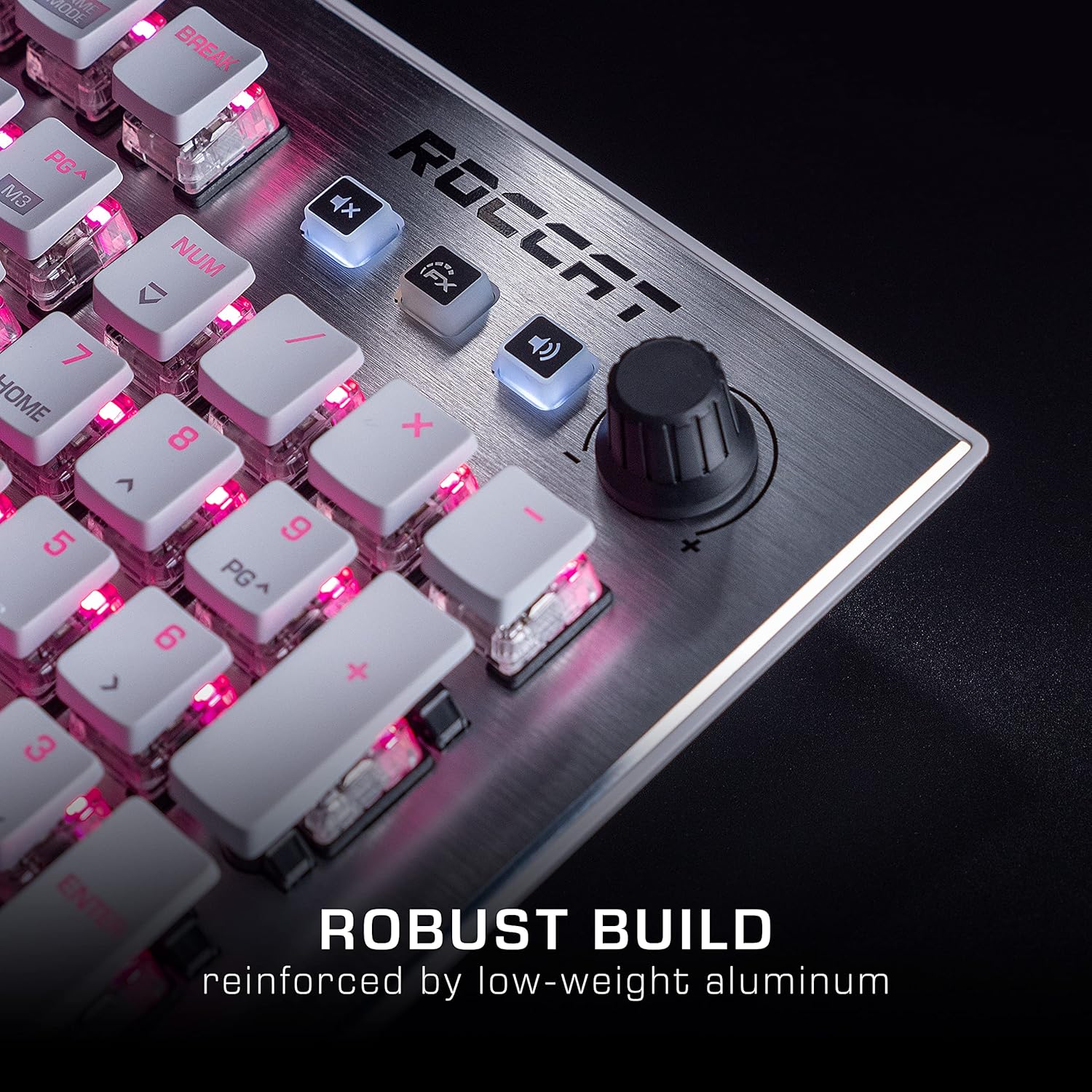
Image: The Roccat Vulcan 122 keyboard shown with its detachable wrist rest, ready for connection.
2.2 Software Installation (ROCCAT Swarm)
For full functionality and customization, install the ROCCAT Swarm software:
- Visit the official ROCCAT websaịtị (www.roccat.com) ma gaa na ngalaba nkwado.
- Download the latest version of the ROCCAT Swarm software for your operating system.
- Gbaa installer ma soro ntuziaka na ihuenyo.
- After installation, launch ROCCAT Swarm to configure your keyboard settings, lighting, and macros.
3. Na-arụ ọrụ ahụigodo
3.1 Ọrụ igodo ọkọlọtọ
The Vulcan 122 functions as a standard QWERTY keyboard. All alphanumeric keys, function keys (F1-F12), navigation keys, and the numeric keypad operate as expected.
3.2 Media Controls
The keyboard features dedicated media controls for convenient audio management.
- Mpịakọta Mpịakọta: Located in the upper right corner, rotate to adjust system volume.
- Oghere bọtịnụ: Pịa iji mechie/wepụ ụda.
- bọtịnụ FX: Cycles through lighting effects or other programmable functions.

Foto: A nso nso view of the mixer-style media controls on the Roccat Vulcan 122, including the volume knob and dedicated function keys.
3.3 RGB Lighting Customization (AIMO)
The Vulcan 122 features advanced RGB lighting with Roccat's AIMO intelligent lighting system. Use the ROCCAT Swarm software to:
- Select from various pre-set lighting effects.
- Customize individual key illumination.
- Adjust brightness and speed of effects.
- Synchronize lighting with other AIMO-compatible devices.
3.4 Programmable Macro Keys and Easy-Shift[+]
The keyboard includes programmable macro keys and the Easy-Shift[+] function, allowing you to assign secondary functions to keys.
- Use the ROCCAT Swarm software to record and assign macros to designated keys.
- Easy-Shift[+] allows you to double the number of assignable functions by holding down the Easy-Shift[+] key (usually Caps Lock by default, configurable in Swarm) and pressing another key.
3.5 Anti-Ghosting with NKRO
The Vulcan 122 features advanced anti-ghosting technology with N-Key Rollover (NKRO), ensuring that every key press is registered accurately, even when multiple keys are pressed simultaneously.

Image: A hand demonstrating typing on the Roccat Vulcan 122 keyboard, emphasizing the ergonomic design of the keys for comfortable use.
4. Nlekọta
4.1 Ihicha ahụigodo
To ensure the longevity and optimal performance of your Vulcan 122 keyboard, regular cleaning is recommended.
- Kwụpụ kiiboodu na kọmputa gị tupu ihicha.
- Jiri akwa dị nro na-enweghị ntụpọ dampened with water or a mild cleaning solution to wipe the keycaps and surface. Avoid harsh chemicals.
- For dust and debris between keys, use compressed air. The raised keycap design makes cleaning easier.
- Hụ na ahụigodo ahụ kpọrọ nkụ kpamkpam tupu ị jikọọ ya ọzọ.

Image: A close-up of the Roccat Vulcan 122 keyboard keys, illustrating their design which facilitates easy cleaning and resistance to dust and liquids.
5. Nchọpụta nsogbu
If you encounter issues with your Roccat Vulcan 122 keyboard, refer to the following common problems and solutions:
- Ahụigodo anaghị aza:
- Gbaa mbọ hụ na ejikọrọ eriri USB na nchekwa na ma ahụigodo ma kọmputa.
- Gbalịa itinye ahụigodo ahụ n'ọdụ ụgbọ mmiri USB dị iche.
- Malitegharịa ekwentị gị na kọmputa.
- Check if the keyboard is disabled in your operating system's device manager.
- Ọkụ RGB anaghị arụ ọrụ ma ọ bụ ezighi ezi:
- Ensure the ROCCAT Swarm software is installed and up to date.
- Check lighting settings within the Swarm software.
- Perform a firmware update for the keyboard via Swarm.
- Igodo ndị na-anaghị edebanye aha ma ọ bụ na-eme mkpọtụ:
- Clean the affected keys as described in the Maintenance section.
- Ensure the keyboard's firmware is up to date.
- Nwalee ahụigodo na kọmpụta ọzọ ka ewepụ nsogbu ndị metụtara sistemụ.
- ROCCAT Swarm software not detecting keyboard:
- Gbaa mbọ hụ na ejikọrọ ahụigodo nke ọma.
- Restart the Swarm software and your computer.
- Reinstall the ROCCAT Swarm software.
- Check for any conflicting software or drivers.
6. Nkọwapụta
| Njirimara | Nkọwa |
|---|---|
| Ụdị | Roccat |
| Aha Nlereanya | Vulcan 122 |
| Nọmba nlereanya | ROC-12-940-BN |
| Nkọwa ahụigodo | Mechanical |
| Ngbanwe Ụdị | Atụ aka |
| Ihe onwunwe | Aluminom |
| Atụmatụ pụrụ iche | Ịkụ azụ azụ |
| Ngwa dakọtara | Laptop (PC) |
| Nkwado Sistemụ arụmọrụ | Windows 10, Windows 7 na Windows 8 |
| Akụkụ ngwaahịa | 46.2 x 23.5 x 3.2 cm |
| Ibu Ibu | 1.15 n'arọ |

Foto: Ihe gbawara view diagram illustrating the components of a Roccat Titan Tactile mechanical switch, highlighting its design for swift and precise response.
7. Akwụkwọ ikike na nkwado
7.1 Ozi akwụkwọ ikike
Your Roccat Vulcan 122 keyboard is covered by a manufacturer's warranty. The specific terms and duration of the warranty may vary by region and retailer. Please retain your proof of purchase for warranty claims. For detailed warranty information, refer to the warranty card included with your product or visit the official ROCCAT websaịtị.
7.2 Nkwado nka na ụzụ
For technical assistance, driver updates, or further inquiries, please visit the official ROCCAT support page:
Ị nwere ike ịchọta FAQs, ntuziaka nsogbu, na ozi kọntaktị maka ọrụ ndị ahịa na ha websaịtị.
Ask a question about this manual
Ask about setup, troubleshooting, compatibility, parts, safety, or missing instructions. Manuals+ will review the question and use this page’s manual context to help answer it.