
Okwu mmalite
Nero Platinum Unlimited is a comprehensive multimedia suite designed for Windows operating systems. It provides a wide range of tools for video editing, photo enhancement, media conversion, data burning, and system optimization. This manual provides instructions for installing, operating, and maintaining the software.
Achọrọ Sistemụ
- Sistemụ nrụọrụ: Windows 11, Windows 10, Windows 8, or Windows 7 (32-bit or 64-bit)
- Ihe nhazi: 2 GHz AMD or Intel processor
- RAM: 1 GB RAM (2 GB or more recommended for HD/4K editing)
- Oghere draịvụ ike: 5 GB for typical installation of all components
- Kaadị eserese: Microsoft DirectX 9.0 compatible graphics card with 3D acceleration, 128 MB video memory (256 MB or more recommended)
- Njikọ Ịntanetị: Required for product activation, updates, and some online features
Ntọala na nwụnye
Follow these steps to install Nero Platinum Unlimited on your computer:
- Download the Software: Nweta echichi file from the official Nero website or your purchase platform. Note that this product is typically delivered as a digital download with a license key, not a physical CD.
- Gbaa installer: Locate the downloaded executable file (e.g., `Nero_Platinum_Unlimited_Installer.exe`) and double-click it to start the installation process.
- Soro ngwa ngwa na ihuenyo: The installer will guide you through the necessary steps. Accept the license agreement and choose your installation preferences.
- Enter License Key: When prompted, enter your unique product license key. This key is essential for activating the software.
- Nwụnye zuru ezu: Allow the installation process to finish. This may take several minutes depending on your system.
- Malitegharịa ekwentị gị na kọmputa: It is recommended to restart your computer after installation to ensure all components are properly configured.

Na-arụ ọrụ ngwanrọ
Nero Platinum Unlimited includes several applications for various multimedia tasks. Below are instructions for key functionalities.
1. Video Editing with Nero Video
Nero Video allows you to create and edit high-quality videos, including 4K and 8K content. It supports various features such as transitions, titles, and effects.
- Start a New Project: Launch Nero Video and select 'New Project'.
- Import Media: Drag and drop video clips, images, and audio files into the media library.
- Arrange on Timeline: Place your media onto the timeline to sequence your video.
- Add Effects and Transitions: Use the effects panel to apply visual enhancements and transitions between clips.
- Bupu vidiyo: Once editing is complete, select 'Export' to render your video in your desired format and resolution.

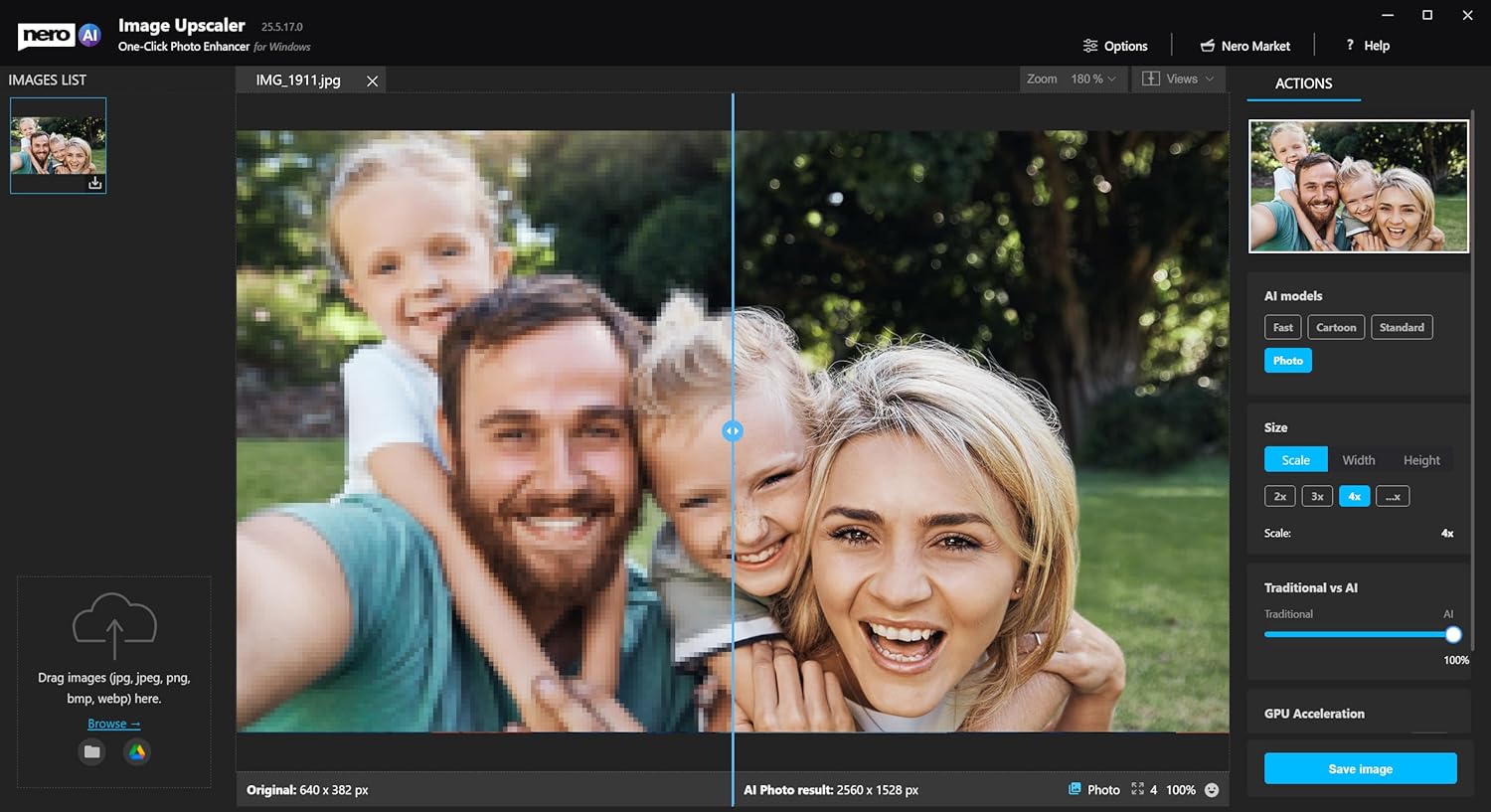
2. AI-Powered Photo Enhancement with Nero Image Upscaler
Utilize AI to enhance and upscale your images, improving quality and detail.
- Open Image Upscaler: Launch the Nero Image Upscaler application.
- Buo onyonyo: Dọrọ ma dobe onyonyo gị file into the application or use the 'Browse' option.
- Select AI Model and Scale: Choose an AI model (e.g., Photo, Cartoon, Standard) and select the desired upscale factor (e.g., 2x, 3x, 4x).
- Tupuview na Chekwa: Tupuview the enhanced image and click 'Save image' to export the result.
3. Media Organization with Nero MediaHome
Nero MediaHome helps you organize, play, and stream your photos, videos, and music.
- Import Media: MediaHome automatically scans and imports media from specified folders on your computer.
- Browse and Categorize: View your media by date, albums, faces, or custom categories.
- Create Slideshows: Select photos and use the slideshow creation tools to build presentations with music and effects.
- Play and Stream: Use the built-in player for media playback or stream content to compatible devices.

4. Media Conversion with Nero Recode
Convert video and audio files between various formats for compatibility with different devices or platforms.
- Tinye Files: Launch Nero Recode and add the video or audio files you wish to convert.
- Select Output Device/Quality: Choose a target device profile or manually select output settings (format, resolution, quality).
- Start Conversion: Specify the output folder and click 'Start' to begin the conversion process.

5. Data Burning and Ripping with Nero Burning ROM
Nero Burning ROM is a classic tool for burning data, audio, and video to CDs, DVDs, and Blu-ray discs, and for ripping audio CDs.
- Select Compilation Type: Open Nero Burning ROM and choose the type of disc you want to create (e.g., Data Disc, Audio CD, Video DVD).
- Tinye Files: Dọrọ ma dobe ya files you wish to burn into the compilation window.
- Hazie ntọala: Adjust burning speed, disc-at-once/track-at-once, and other options. For enhanced security, use SecurDisc settings to encrypt your data.
- Start Burn: Insert a blank disc and click 'Burn' to start the process.

6. oyiri File Management with Nero DuplicateManager Photo
Efficiently find and remove duplicate or similar images to free up disk space.
- Select Folders: Launch Nero DuplicateManager Photo and specify the folders to scan for duplicates.
- Scan for Duplicates: Initiate the scan to identify identical or visually similar images.
- Review and Delete: Review the detected duplicates, choose which copies to keep, and remove unwanted files.

7. System Optimization with Nero TuneItUp PRO
Improve your PC's performance and protect your privacy with optimization tools.
- Run Smart Check: Launch Nero TuneItUp PRO and perform a 'Smart Check' to identify areas for optimization.
- Review Nkwanye: The scan will highlight issues such as trash files, browser data, and registry errors.
- Apply Optimizations: Select the recommended actions (e.g., 'Delete' for trash files, 'Configure' for startup items) to improve system speed and stability.

8. Data Backup with Nero BackItUp
Protect your important files with automatic backup solutions.
- Create a Backup Job: Launch Nero BackItUp and select 'Create new backup job'.
- Select Data: Họrọ nke files, folders, or entire drives you wish to back up.
- Choose Destination: Select a backup destination, such as an external hard drive, network drive, or cloud storage.
- Schedule Backups: Configure a schedule for automatic backups (e.g., daily, weekly).
Nlekọta
To ensure optimal performance and security of your Nero Platinum Unlimited software:
- Debe ngwanrọ emelitere: Regularly check for and install software updates. Updates often include bug fixes, performance improvements, and new features.
- Maintain System Health: Utilize Nero TuneItUp PRO periodically to clean junk files, optimize startup programs, and maintain your PC's overall health.
- Ndabere oge niile: Use Nero BackItUp to create regular backups of your important data.
Nchọpụta nsogbu
If you encounter issues with Nero Platinum Unlimited, consider the following troubleshooting steps:
- Verify System Requirements: Ensure your computer meets the minimum system requirements for the software.
- Check License Key: Confirm that your license key was entered correctly during installation and that the software is activated.
- Wụnye ngwanrọ ọzọ: If problems persist, try uninstalling and then reinstalling the software. Ensure you download the latest version from the official Nero websaịtị.
- Mmelite ndị ọkwọ ụgbọala: Ensure your graphics card and other relevant hardware drivers are up to date.
- Consult Nero Support: For persistent or complex issues, refer to the official Nero support resources or contact their customer service.
Nkọwapụta
| Nọmba Nlereanya ihe | NER912800F085 |
| Onye nrụpụta | Nero Inc. |
| Akụkụ ngwaahịa | 5.25 x 1.25 x 7.5 sentimita asatọ |
| Ibu Ibu | 1.6 ounces |
| Ụbọchị mbụ dị | Septemba 12, 2019 |
Akwụkwọ ikike na nkwado
For information regarding product warranty, technical support, or additional assistance, please visit the official Nero support website. You can typically find FAQs, knowledge bases, and contact options for customer service there.
Nero Support Websaịtị: https://www.nero.com/eng/support/