
1. Okwu mmalite
This manual provides detailed instructions for the proper use and maintenance of your Zerone AYNEFY0oxm4abc37 USB Endoscope. This device is designed for visual inspection in hard-to-reach areas, offering compatibility with Android smartphones and various computer operating systems. Please read this manual thoroughly before operating the endoscope to ensure optimal performance and longevity.
2. Ngwaahịa gafereview
2.1 Atụmatụ
- Nhazi kọmpat: Features a slim 5.5mm diameter lens for accessing narrow spaces.
- Ọnụọgụ enweghị mmiri: IP67 waterproof-rated, suitable for moist or underwater inspections.
- Ọkụ na-agbanwe agbanwe: Equipped with 6 adjustable LED lights to enhance visibility in dark environments.
- Onyonyo nkọwa dị elu: 2.0MP CMOS HD camera provides clear and detailed images and videos.
- Ihe owuwu na-adịgide adịgide: Crafted from high-quality materials for reliability and extended use.
- Ndakọrịta sara mbara: 3-in-1 USB connector supports Android smartphones (with OTG function) and computers (Windows XP/W7/W8/VISTA/W10).
- Ogologo Ogologo: Includes a 5-meter USB cable for flexible inspection tasks.
2.2 Akụkụ

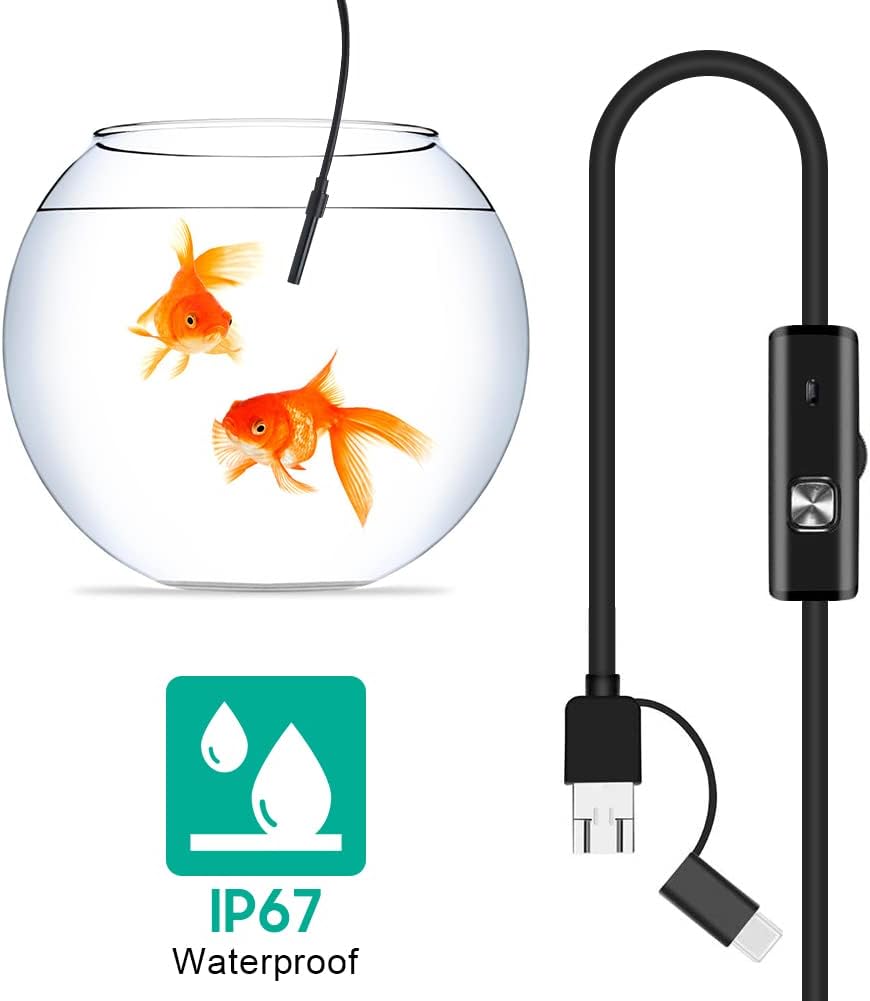


3. Nhazi
3.1 System chọrọ
- Ngwa Android: Android 4.4 or higher with OTG (On-The-Go) and UVC (USB Video Class) support.
- Kọmputa: Windows XP, Windows 7, Windows 8, Windows Vista, Windows 10.
3.2 Nwụnye ngwanrọ
For Android devices, download and install a compatible camera application from the Google Play Store that supports USB OTG endoscopes. Recommended applications include 'USB Camera', 'AN98', or 'CameraFi'. For Windows computers, the device typically functions with the built-in 'Camera' application or other webcam software. Drivers are usually installed automatically upon connection.
3.3 Connecting the Endoscope
- Maka gam akporo: Connect the appropriate connector (Micro-USB or USB-C) of the endoscope cable to your smartphone. Ensure your phone's OTG function is enabled in settings if it doesn't automatically detect the device.
- Maka PC: Connect the standard USB-A connector of the endoscope cable to an available USB port on your computer.
- Open the installed camera application on your device. The endoscope feed should appear.
4. Ntuziaka ọrụ
4.1 Na-edozi ọkụ ọkụ LED
The control unit on the cable features a wheel or button to adjust the brightness of the 6 LED lights at the camera tip. Rotate the wheel or press the button to increase or decrease illumination as needed for clear viewing in various environments.
4.2 Iji Ngwa
- Side Mirror: Attach the side mirror to the camera tip to view objects at a 90-degree angle. This is useful for inspecting walls of pipes or tight corners.
- Igwe Ọdụdọ: Attach the magnet to the camera tip to retrieve small metallic objects from inaccessible areas.
- nko: Attach the hook to the camera tip to retrieve small non-metallic objects.
4.3 Ịse Foto na Vidiyo
Use the functions within your chosen camera application to capture still images or record video footage from the endoscope. Refer to your application's specific instructions for these features.

5. Nlekọta
5.1 Nhicha
- After each use, gently wipe the camera lens and probe with a soft, dry cloth.
- Maka unyi isi ike, ntakịrị damp cloth can be used, ensuring no liquid enters the control unit or connectors.
- Do not use abrasive cleaners or solvents, as these can damage the lens or casing.
5.2 Nchekwa
- Store the endoscope in a cool, dry place, away from direct sunlight and extreme temperatures.
- Zere ịgbagọ eriri ahụ ma ọ bụ gbagọọ ya nke ọma iji gbochie mmebi dị n'ime ya.
- Keep the lens cap on when not in use to protect the lens from dust and scratches.
6. Nchọpụta nsogbu
- No Image/Device Not Detected:
- Ensure the endoscope is securely connected to your device.
- For Android, verify that OTG function is enabled in your phone's settings.
- Gbalịa ọdụ ụgbọ USB dị iche na kọmputa gị.
- Ensure the correct camera application is open and selected (if multiple cameras are detected).
- Malitegharịa ekwentị gị wee nwaa ọzọ.
- Onyonyo na-adịghị ahụkebe:
- The endoscope has a fixed focal length. Ensure the object being viewed is within the optimal focal range (typically a few centimeters from the lens).
- Clean the camera lens for any smudges or debris.
- Adjust the LED brightness to prevent overexposure or underexposure.
- Igwe ọkụ LED anaghị arụ ọrụ:
- Check the LED brightness adjustment wheel/button on the control unit.
- Ensure the endoscope is properly connected and receiving power.
- Application Crashes/Freezes:
- Try a different compatible camera application.
- Gbaa mbọ hụ na sistemụ arụmọrụ ngwaọrụ gị emechaala.
- Close other background applications to free up system resources.
7. Nkọwapụta
| Njirimara | Nkọwapụta |
|---|---|
| Nọmba nlereanya | AYNEFY0oxm4abc37 |
| Dayameta oghere | 5.5mm |
| Mkpebi igwefoto | 2.0MP CMOS HD (Video Capture Resolution: 1080p) |
| Ọkụ ọkụ LED | 6 Igwe ọkụ na-agbanwe agbanwe |
| Ogologo eriri USB | 5 mita |
| Ngosi nke enweghị mmiri | IP67 |
| Njikọta | 3-in-1 USB (USB-A, Micro-USB, USB-C) |
| Ndakọrịta | Android (OTG/UVC support), Windows XP/7/8/VISTA/10 |
| Akụkụ ngwaahịa | 4.72 x 4.72 x 1.38 sentimita asatọ |
| Ibu Ibu | 4.6 ounces |
| Agba | Nwa |
| Onye nrụpụta | Zerone |
8. Akwụkwọ ikike na nkwado
For warranty information or technical support, please refer to the product packaging or contact the retailer from whom the product was purchased. You may also visit the official Zerone websaịtị maka enyemaka ọzọ.