
BOAVISION 1080P WiFi PTZ Camera
BOAVISION 1080P WiFi PTZ Security Camera User Manual
Model: 1080P WiFi PTZ Camera
Okwu mmalite
This manual provides detailed instructions for the installation, operation, and maintenance of your BOAVISION 1080P WiFi PTZ Security Camera. Please read this manual thoroughly before using the product to ensure proper functionality and safety.
Ndepụta nkwakọ ihe
Chọpụta na ihe niile dị na ngwugwu:
- BOAVISION WiFi PTZ IP Camera
- Igwe netwọkụ
- Ndenye Malite Manual
- Ịnye ọkụ
- Screws Bag (for mounting)
- Waterproof Port Kit
- Ntinye CD

Image: Contents of the BOAVISION PTZ Camera package, including the camera, network cable, power supply, mounting screws, waterproof port, and manual.
Ntọala na nwụnye
1. Njikọ ike
Connect the provided power adapter to the camera's power input port and then plug it into a power outlet. The camera will initiate its startup sequence.
2. Njikọ netwọkụ
The camera supports 2.4GHz Wi-Fi connectivity. Ensure your Wi-Fi network is 2.4GHz, as 5GHz networks are not supported. For initial setup or a stable connection, you may use the provided network cable to connect the camera directly to your router.
3. Ngwa nwụnye na ijikọ
Download the "CamHiPro" application from the Google Play Store (for Android devices) or the Apple App Store (for iOS devices). The camera is also compatible with PC (Mac OS, Windows) software available on the included CD or for download.
- Install the CamHiPro app on your smartphone or tablet.
- Open the app and follow the on-screen instructions to add your camera. This typically involves scanning a QR code on the camera or manually entering its ID.
- Configure Wi-Fi settings within the app if connecting wirelessly.

Image: The CamHiPro app interface shown on various devices, including smartphones, tablets, and computers, highlighting multi-platform compatibility.
4. Physical Mounting
The camera is designed for outdoor wall mounting. Use the provided screws and waterproof port kit to secure the camera in your desired location. Ensure the mounting surface is stable and can support the camera's weight.

Image: A BOAVISION PTZ camera mounted, illustrating its 355-degree pan and 90-degree tilt capabilities, controlled via a mobile application.
Ntuziaka ọrụ
Pan/Tilt and Optical Zoom
Control the camera's movement and zoom directly from the CamHiPro app. The camera offers 355 degrees of horizontal pan and 90 degrees of vertical tilt, providing a wide 328-foot view. The 5x optical zoom allows for detailed observation without loss of image quality.

Image: Comparison showing a scene at 1X optical zoom versus 5X optical zoom, demonstrating the camera's ability to magnify distant objects clearly.
HD Color Night Vision
The camera features 1080P resolution and is equipped with 6 array infrared LEDs and 2 white supplement lights, enabling clear color night vision up to 196 feet. You can switch between normal (infrared), smart, and full-color night vision modes via the app.
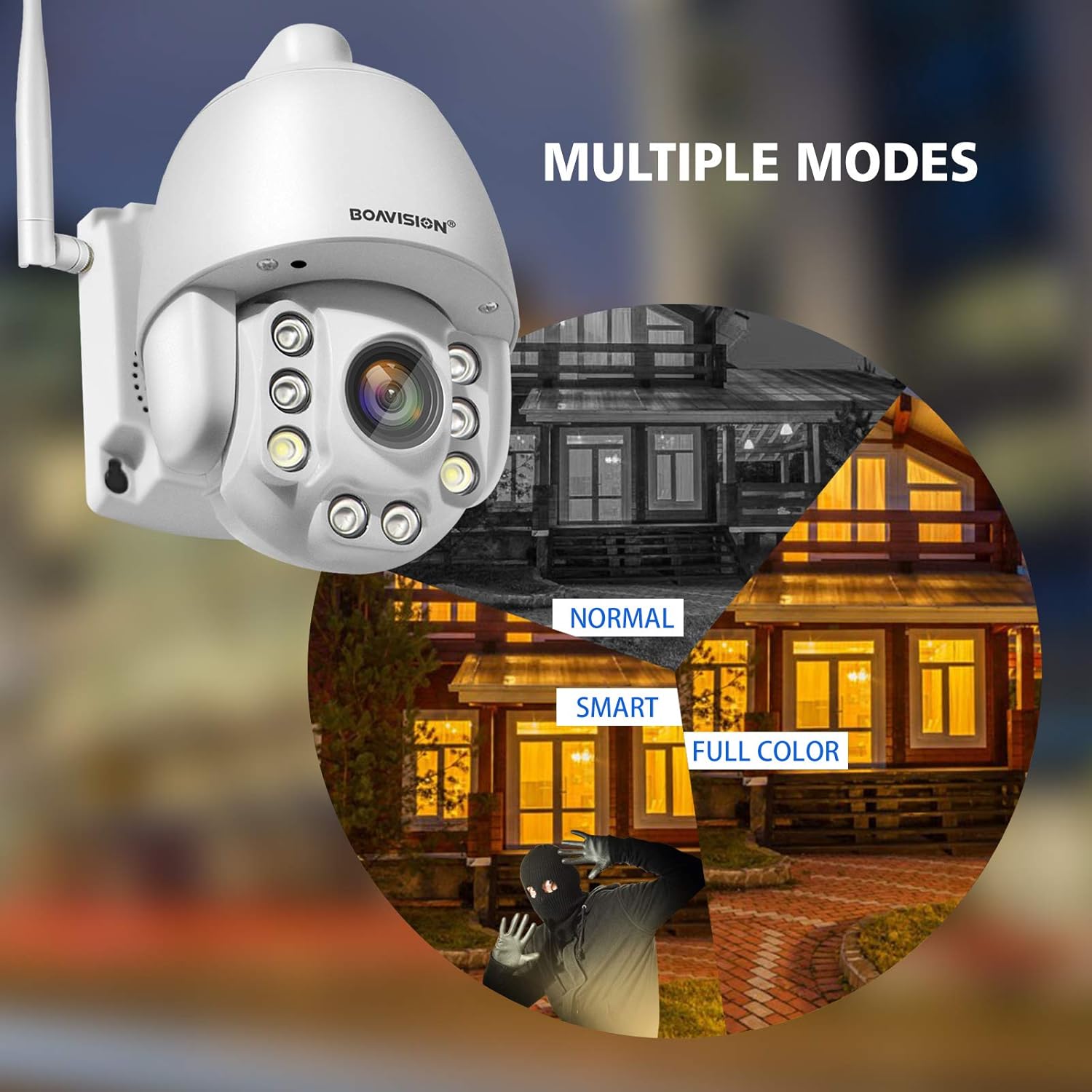
Image: Illustrates the three night vision modes: Normal (infrared black and white), Smart (activates white light upon motion), and Full Color (constant white light for color video at night).
Audio Ụzọ Abụọ
Utilize the built-in microphone and speaker for two-way communication. The anti-noise technology ensures clear audio. This feature allows you to speak with visitors or deter intruders remotely through the app.

Image: A delivery person at a door, with speech bubbles indicating two-way audio communication between the person and someone viewing through the camera app on a smartphone.
Nchọpụta ngagharị na ọkwa
Configure motion detection zones and sensitivity within the CamHiPro app. Upon detecting motion, the camera can send push notifications to your phone or email alerts, providing real-time security updates.

Image: Depicts a person triggering motion detection at night, with the camera's spotlight activating and an alert shown on a smartphone screen.
Nchekwa
The camera supports local storage via a TF card slot (microSD card, not included). Ensure the card is inserted correctly for continuous recording or event-triggered recording. Cloud storage options may also be available through the app.
Nlekọta
- Nhicha: Jiri akwa dị nro na-ehicha oghere igwefoto mgbe niile iji hụ na ịdịmma onyonyo doro anya. Ejila kemịkalụ siri ike.
- Mmelite femụwe: Check the CamHiPro app periodically for firmware updates to ensure optimal performance and security.
- Ịnye ọkụ: Ensure the power supply is securely connected and free from damage.
- Ihe mgbochi mmiri: Verify that all connections, especially the waterproof port, are sealed correctly to maintain the IP66 weather resistance.
Nchọpụta nsogbu
- Igwefoto anaghị ejikọta na Wi-Fi:
- Hụ na netwọk Wi-Fi gị dị 2.4GHz. Igwefoto anaghị akwado Wi-Fi 5GHz.
- Nyochaa na paswọọdụ Wi-Fi ziri ezi.
- Place the camera closer to the Wi-Fi router to improve signal strength.
- Malitegharịa igwefoto ahụ na rawụta gị.
- Try connecting via Ethernet cable for initial setup.
- No image or poor image quality:
- Lelee njikọ ike.
- Hichaa oghere igwefoto.
- Ensure sufficient lighting for optimal image quality, especially at night.
- Verify network stability and bandwidth.
- Motion detection alerts not received:
- Check app notification settings on your phone and within the CamHiPro app.
- Ensure motion detection is enabled and sensitivity is adjusted correctly.
- Verify the camera has a stable internet connection.
- Nsogbu ọdịyo ụzọ abụọ:
- Ensure microphone and speaker permissions are granted to the CamHiPro app.
- Check volume settings on your device and within the app.
- Minimize background noise for clearer communication.
Nkọwapụta
| Nlereanya | 1080P WiFi PTZ Camera |
| Mkpebi | 1080p (1920x1080) |
| Mbugharị anya | 5x |
| Ogologo Pan/Tilt | Pan: 355 degrees, Tilt: 90 degrees |
| Oke ọhụụ abalị | Ruo 196 ụkwụ (mita 60) |
| Ụdị Ọhụụ abalị | HD Color Night Vision (Infrared, Smart, Full Color modes) |
| Audio | Two-Way Audio with Anti-Noise Technology |
| Njikọta | 2.4GHz Wi-Fi (IEEE 802.11b/g/n), Ethernet |
| Nchekwa | TF Card Slot (MicroSD, up to 128GB, not included) |
| Ndakọrịta | iOS, Android, Mac OS, Windows (via CamHiPro app/software) |
| Isi Iyi Ike | Ihe nkwụnye AC/DC |
| Nguzogide ihu igwe | IP66 (ihe mkpuchi uzuzu na mmiri anaghị egbochi ya) |
| Akụkụ (L x W x H) | 6.89 x 4.53 x 4.33 sentimita asatọ |
| Ibu | 1.76 pound |
| Ụdị nkwụnye | Ugwu mgbidi |
| Usoro Nseta vidiyo | MPEG-4 |
Ozi akwụkwọ ikike
Specific warranty details are typically provided with your purchase documentation or on the manufacturer's official website. Please refer to these resources for information regarding warranty duration and terms.
Nkwado ndị ahịa
For technical assistance, troubleshooting not covered in this manual, or further inquiries, please contact BOAVISION customer support. Refer to the contact information provided in your product packaging or on the official BOAVISION websaịtị.
Ị nwekwara ike ịga na BOAVISION Store on Amazon maka ozi ngwaahịa na akụrụngwa ndị ọzọ.
Ask a question about this manual
Ask about setup, troubleshooting, compatibility, parts, safety, or missing instructions. Manuals+ will review the question and use this page’s manual context to help answer it.