
Okwu mmalite
This manual provides detailed instructions for the safe and efficient use of your Maxcom MM426 Dual SIM Mobile Phone. Designed for simplicity and ease of use, this GSM mobile phone features a 1.8-inch color display, Dual SIM capability, Bluetooth connectivity, and an essential SOS function for emergencies. Please read this manual thoroughly before operating your device.
Ihe ngwugwu
Gbaa mbọ hụ na ihe niile dị na ngwugwu ngwaahịa gị:
- Maxcom MM426 Mobile Phone
- Batrị (Lithium-ion)
- chaja
- eriri USB
- Nchaji obere ụlọ
- Akwụkwọ ntuziaka onye ọrụ
- Akwụkwọ ikike kaadị
Ekwentị gafereview
Familiarize yourself with the key components of your Maxcom MM426 mobile phone.
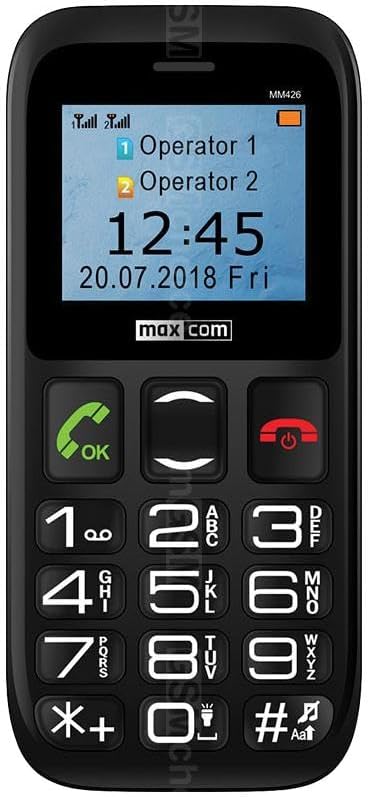
Foto: N'ihu view of the Maxcom MM426 mobile phone, showing its 1.8-inch color display and large, easy-to-read keypad with clearly marked buttons for calls, navigation, and numbers.
- Ngosipụta: 1.8-inch color LCD screen for clear visibility of menus, contacts, and messages.
- Igodo: Large, tactile buttons for easy dialing and navigation.
- Call/End Buttons: Dedicated buttons for initiating and ending calls.
- Igodo nsoroụzọ: For moving through menus and options.
- Bọtịnụ SOS: Located on the back for emergency calls (see Special Features section).
- Jack ekweisi 3.5mm: Maka ijikọ ekweisi.
Melite
1. Ntinye batrị
- Jiri nlezianya wepụ mkpuchi azụ nke ekwentị.
- Insert the Lithium-ion battery into the battery compartment, ensuring the gold contacts align with the phone's terminals.
- Dochie mkpuchi azụ ruo mgbe ọ pịrị na-echekwara n'ime ebe.
2. SIM Card Installation (Dual SIM)
The Maxcom MM426 supports two SIM cards, allowing you to manage two different numbers simultaneously.
- Ka ewepụrụ batrị ahụ, chọta oghere kaadị SIM.
- Insert your SIM cards into the designated slots (SIM1 and SIM2) with the gold contacts facing down and the cut corner aligned as shown in the diagram (refer to the physical manual for diagram).
- Ensure the SIM cards are fully seated.
3. MicroSD Card Installation (Optional)
To expand storage for photos, music, or other files, you can install a MicroSD card (up to 32 GB, sold separately).
- Locate the MicroSD card slot, usually near the SIM card slots.
- Insert the MicroSD card into the slot until it clicks into place.
4. Ịchaji ekwentị
Before first use, fully charge the phone's battery. Charging takes approximately 3 hours.
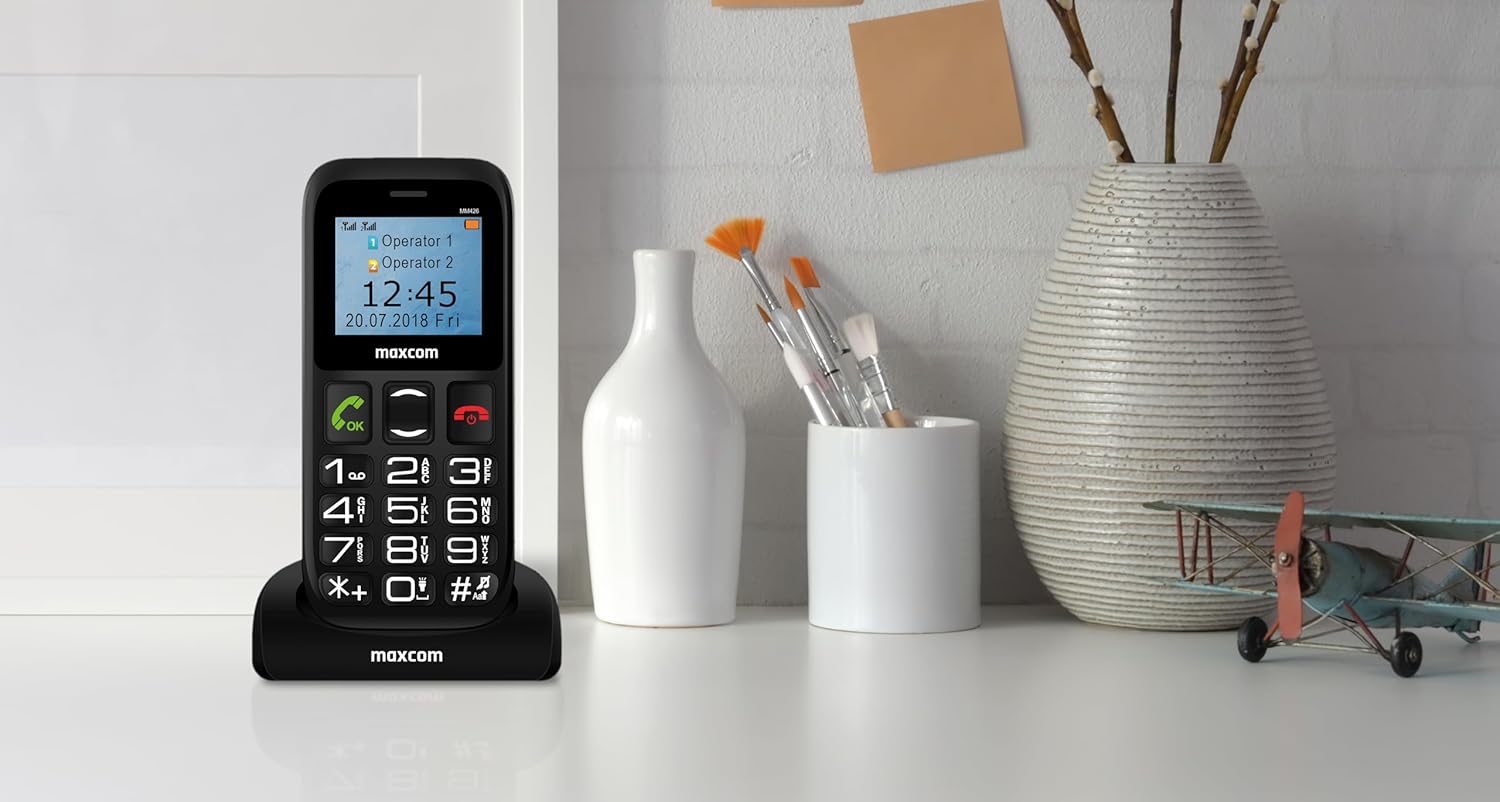
Foto: The Maxcom MM426 mobile phone placed in its dedicated charging cradle, ready for charging. The phone's screen displays network and time information.
- Connect the USB cable to the charger and plug the charger into a power outlet.
- Place the phone into the charging cradle, ensuring it is properly seated. The charging indicator on the phone's screen should activate.
- Alternatively, you can connect the USB cable directly to the phone's charging port.
- Ozugbo chajachara, kwụpụ chaja.
Isi ọrụ
1. Gbanyụọ / gbanyụọ
- Iji gbanye: Pịa ma jide End Call/Power bọtịnụ (bọtịnụ uhie) ruo mgbe ihuenyo nwuo.
- Iji gbanyụọ: Pịa ma jide End Call/Power button until the power-off options appear, then select "Power off".
2. Ịkpọ oku
- Jiri ahụ igodo tinye nọmba ekwentị.
- Pịa Kpọọ bọtịnụ (bọtịnụ akwụkwọ ndụ akwụkwọ ndụ) iji malite oku ahụ.
- Ka ịkwụsị oku a, pịa Kwụsị oku bọtịnụ.
- To call from contacts, navigate to the "Contacts" menu, select a contact, and press the Kpọọ bọtịnụ.
3. Ịnata oku
- When a call comes in, the phone will ring and display the caller's information.
- Pịa Kpọọ button (green button) to answer.
- Pịa Kwụsị oku button (red button) to reject or end the call.
4. Sending SMS Messages
- Go to the "Messages" menu.
- Select "Write message" or "New SMS".
- Enter your message using the keypad. Press the # key to switch input modes (e.g., ABC, abc, 123).
- Tinye nọmba ekwentị onye nnata ma ọ bụ họrọ na kọntaktị.
- Select "Send".
5. Na-agbanwe olu
During a call or when navigating menus, use the dedicated volume keys (if present) or the navigation keys to adjust the volume. You can also adjust ringtone and media volumes in the "Settings" menu.
Atụmatụ pụrụ iche
1. Ọrụ SOS
The SOS button provides a quick way to contact pre-set emergency numbers in critical situations.

Foto: N'azụ view of the Maxcom MM426 mobile phone, highlighting the prominent orange SOS button designed for quick access in emergencies.
- Setting up SOS Numbers: Gaa na Settings > SOS Settings to add up to five emergency contact numbers.
- Using the SOS Function: Na ihe mberede, pịa ma jide bọtịnụ SOS on the back of the phone for a few seconds. The phone will automatically call and send an emergency SMS to the pre-set numbers in sequence until one is answered.
2. Njikọ Bluetooth
Connect your phone to other Bluetooth-enabled devices like headsets or car kits.
- Gaa na Ntọala > Bluetooth.
- Turn Bluetooth On.
- Họrọ"Chọọ maka devices" or "Pair new device".
- Choose your desired device from the list and follow the on-screen prompts to pair.
3. Redio FM
Enjoy listening to your favorite radio stations.
- Plug in a 3.5mm headset (acts as an antenna).
- Go to the "FM Radio" application from the main menu.
- Use the navigation keys to scan for stations or tune manually.
4. MP3 ọkpụkpọ
Kpọọ ọdịyo MP3 fileechekwara na kaadị MicroSD gị.
- Ensure an MicroSD card with MP3 files etinyere.
- Go to the "Music" or "MP3 Player" application from the main menu.
- Browse and select your desired audio files igwu egwu.
Nlekọta
1. Cleaning Your Phone
- Jiri ákwà dị nro ma kpọọ nkụ hichaa elu ekwentị ahụ.
- Avoid using liquid cleaners, aerosols, or harsh chemicals, as these can damage the device.
- The phone is not water-resistant; keep it away from liquids.
2. Nlekọta batrị
- Ewepụla batrị na oke okpomọkụ.
- Use only the original charger and battery provided with the phone.
- If the phone will not be used for an extended period, charge the battery to about 50% before storing it.
Nchọpụta nsogbu
If you encounter problems with your phone, refer to the following common issues and solutions:
| Nsogbu | Ngwọta enwere ike |
|---|---|
| Ekwentị anaghị agbanye. | Ensure the battery is correctly installed and fully charged. Try charging the phone for at least 30 minutes. |
| Enweghị ike ịkpọ ma ọ bụ nata oku. | Check if SIM cards are properly inserted. Ensure you have network signal. Contact your mobile operator if the issue persists. |
| Enweghị mgbama netwọkụ. | Move to an open area. Check network settings in the phone menu. Restart the phone. |
| Batrị na-agbapụ ngwa ngwa. | Reduce screen brightness. Close unused applications. Limit background data usage (if applicable). Ensure the battery is not old or damaged. |
| Enweghị ike ịnụ onye na-akpọ oku / Onye na-akpọ oku enweghị ike ịnụ m. | Check volume settings. Ensure microphone and speaker are not blocked. Test with another call. |
If these solutions do not resolve your issue, please contact Maxcom customer support.
Nkọwapụta
| Nlereanya | MM426 |
| Ụdị | Maxcom |
| Akụkụ | 12 x 0.8 x 0.8 cm |
| Ibu | 72 g |
| Ngosipụta | LCD 1.8-inch, mkpebi 240 x 320 |
| RAM | 4 MB |
| Ụdị CPU | Cortex |
| Teknụzụ ekwentị | 2G (GSM) |
| Oghere kaadi SIM | SIM abụọ |
| Njikọta | Bluetooth |
| Ebe nchekwa enwere ike ịgbasa | MicroSD ruo 32 GB |
| Ụdị batrị | Lithium-ion |
| Ike batrị | 600 mAh |
| Oge Okwu | Ruo awa iri abụọ |
| Oge Nchaji | Ihe ruru. awa 3 |
| Igwefoto | 3 MP (Rear) |
| Atụmatụ pụrụ iche | SOS button, FM Radio, MP3 Player, Keypad input |
| Mmiri Nguzogide | Ọ bụghị mmiri na-eguzogide ọgwụ |
Akwụkwọ ikike na nkwado
Your Maxcom MM426 mobile phone comes with a warranty. Please refer to the included Warranty Card for details on coverage and terms. For technical assistance, troubleshooting beyond this manual, or warranty claims, please contact Maxcom customer support. Keep your purchase receipt and warranty card handy.
You can find more information and support on the official Maxcom websaịtị ma ọ bụ site na ịga na Maxcom Store on Amazon.