
1. Okwu mmalite
Thank you for choosing the Targus W620 Wireless Optical Mouse. This manual provides detailed instructions for setting up, operating, and maintaining your mouse to ensure optimal performance and longevity. The Targus W620 offers reliable 2.4 GHz wireless connectivity, a precise 1600 DPI optical sensor, and a compact design suitable for both office and mobile use.
2. Ihe ngwugwu
Biko lelee ngwungwu maka ihe ndị a:
- Targus W620 Wireless Optical Mouse
- USB nnata
- 2 x AAA batrị
3. Ngwaahịa gafereview
Familiarize yourself with the components of your Targus W620 Wireless Optical Mouse.
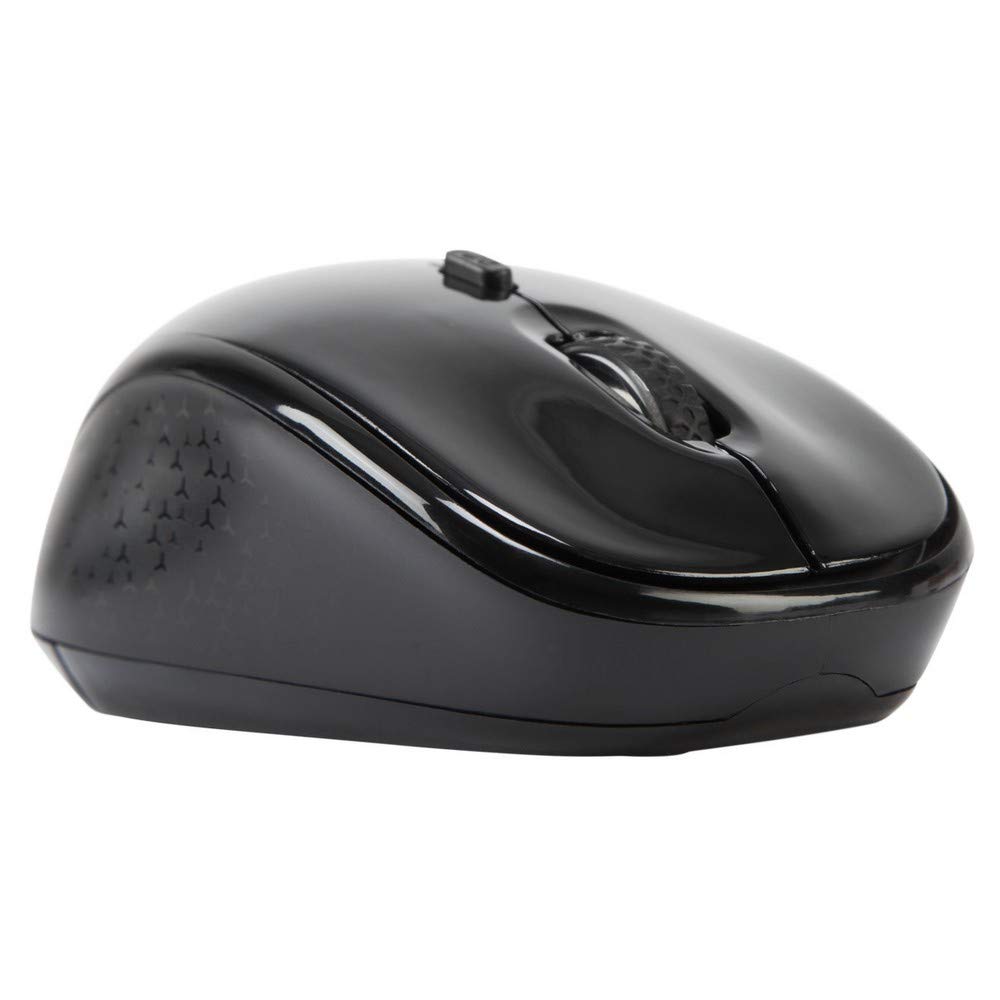
Foto nke 3.1: N'elu view of the Targus W620 Wireless Optical Mouse. This image displays the primary buttons and scroll wheel.
- Bọtịnụ Pịa aka ekpe: Standard isi pịa ọrụ.
- Pịa aka nri bọtịnụ: Ọkọlọtọ nke abụọ pịa ọrụ.
- Mpempe akwụkwọ mpịakọta: Maka mpịakọta kwụ ọtọ na ọrụ pịa etiti.
- Bọtịnụ DPI: Na-agbanwe mmetụta òké (DPI).
- Ihe mmetụta anya: Located on the bottom, detects mouse movement.
- Akụkụ batrị: Located on the bottom, holds two AAA batteries.
- Nchekwa USB nnata: A dedicated slot on the bottom for storing the USB receiver when not in use.

Foto nke 3.2: N'okpuru view of the mouse, highlighting the battery compartment and optical sensor.
4. Nhazi ntuziaka
Follow these steps to set up your Targus W620 Wireless Optical Mouse:
- Wụnye batrị:
- Chọta mkpuchi nke ebe batrị dị n'okpuru òké ahụ.
- Mepee mkpuchi ahụ oghe.
- Fanye batrị AAA abụọ ahụ, na-ahụ polarity ziri ezi (+/-).
- Mechie mkpuchi nke batrị batrị nke ọma.
- Jikọọ eriri USB:
- The USB receiver is typically stored in a slot on the bottom of the mouse for transport. Gently remove it.
- Tinye eriri USB n'ọdụ ụgbọ mmiri dị na kọmputa gị.

Foto nke 4.1: The mouse with its USB receiver, ready for connection.
- Ike Na:
- There is no explicit power switch on this model; the mouse activates upon movement and connection.
- Kọmputa gị kwesịrị ịchọpụta na wụnye ndị ọkwọ ụgbọala dị mkpa na-akpaghị aka. Nke a nwere ike iwe obere oge.
- Once drivers are installed, the mouse is ready for use.
5. Ntuziaka ọrụ
The Targus W620 Wireless Optical Mouse is designed for intuitive use. Here are its primary functions:
- Nsoro ụzọ: Move the mouse on a flat surface to control the cursor on your screen.
- Pịa aka ekpe: Use for selecting items, opening files, or activating functions.
- Pịa aka nri: Use for accessing context menus or secondary functions.
- Mpempe akwụkwọ mpịakọta: Rotate the wheel to scroll vertically through documents and web pages. Press the scroll wheel for a middle-click function, often used for opening links in new tabs or auto-scrolling.
- Ndozi DPI: Press the DPI button (located behind the scroll wheel) to cycle through the available DPI settings (800, 1200, 1600 DPI). This changes the sensitivity of the mouse cursor. A higher DPI means the cursor moves further with less physical mouse movement.
6. Nlekọta
Proper maintenance ensures the longevity and performance of your mouse.
- Nhicha: Jiri akwa dị nro, kpọrọ nkụ, akwa enweghị akwa iji hichaa mpụta nke òké ahụ. Maka unyi isi ike, ntakịrị dampen akwa na mmiri. Zere iji kemịkalụ siri ike ma ọ bụ ihe nchacha.
- Ihe mmetụta anya: Keep the optical sensor area on the bottom of the mouse clean and free from dust or debris to ensure accurate tracking.
- Ngbanwe batrị: When the mouse performance degrades or stops responding, it is likely time to replace the batteries. Follow the steps in Section 4.1 to replace the two AAA batteries.
- Nchekwa: When transporting or storing the mouse, always place the USB receiver back into its dedicated storage slot on the bottom of the mouse to prevent loss.
7. Nchọpụta nsogbu
If you encounter issues with your Targus W620 mouse, try the following solutions:
| Nsogbu | Ngwọta enwere ike |
|---|---|
| Mouse not responding or cursor not moving. |
|
| Ntugharị cursor na-adịghị agbanwe agbanwe ma ọ bụ na-awụlikwa elu. |
|
| DPI button not changing sensitivity. |
|
| Nsogbu njikọ ikuku. |
|
8. Nkọwapụta
| Ụdị | Targus |
| Nọmba nlereanya | AMW620AP |
| Teknụzụ Njikọta | Igwe Ikuku 2.4 GHz (Ugboro Redio) |
| Teknụzụ nchọpụta ngagharị | Optical (BlueTrace Technology) |
| Ọkwa DPI | 800/1200/1600 DPI (nwere ike idozi) |
| Ọnụọgụ bọtịnụ | 4 (Left, Right, Scroll Wheel, DPI) |
| Ntuzi aka | Right (Comfortable for ambidextrous use) |
| Isi Iyi Ike | Batrị 2 x AAA (gụnyere) |
| Ibu Ibu | 26 grams |
| Ndakọrịta sistemụ arụmọrụ | Linux, Windows XP (Compatible with modern Windows and macOS) |
| Ngwaike Platform | Mac, PC |
| Agba | Nwa |
9. Akwụkwọ ikike na nkwado
Ozi akwụkwọ ikike: The Targus W620 Wireless Optical Mouse comes with a Akwụkwọ ikike onye nrụpụta afọ 3 site na ụbọchị ịzụrụ. Akwụkwọ ikike a na-ekpuchi ntụpọ dị na ngwa na arụ ọrụ n'okpuru ojiji nkịtị. Biko dowe ihe akaebe nke ịzụrụ ihe maka akwụkwọ ikike.
Nkwado ndị ahịa: For technical assistance, troubleshooting beyond this manual, or warranty inquiries, please visit the official Targus website or contact their customer support service. Refer to the contact information provided with your product packaging or on the Targus official websaịtị.