
Okwu mmalite
Thank you for choosing the EZQuest USB C Hub Docking Station 8-in-1. This manual provides detailed instructions for setting up, operating, and maintaining your device. Please read this manual thoroughly before use to ensure optimal performance and longevity of your product.
Ngwaahịa gafereview
The EZQuest USB C Hub Docking Station 8-in-1 is designed to expand the connectivity of your USB-C enabled devices, offering a comprehensive solution for various peripherals and display needs. It features multiple ports for data transfer, video output, network connection, and power delivery.
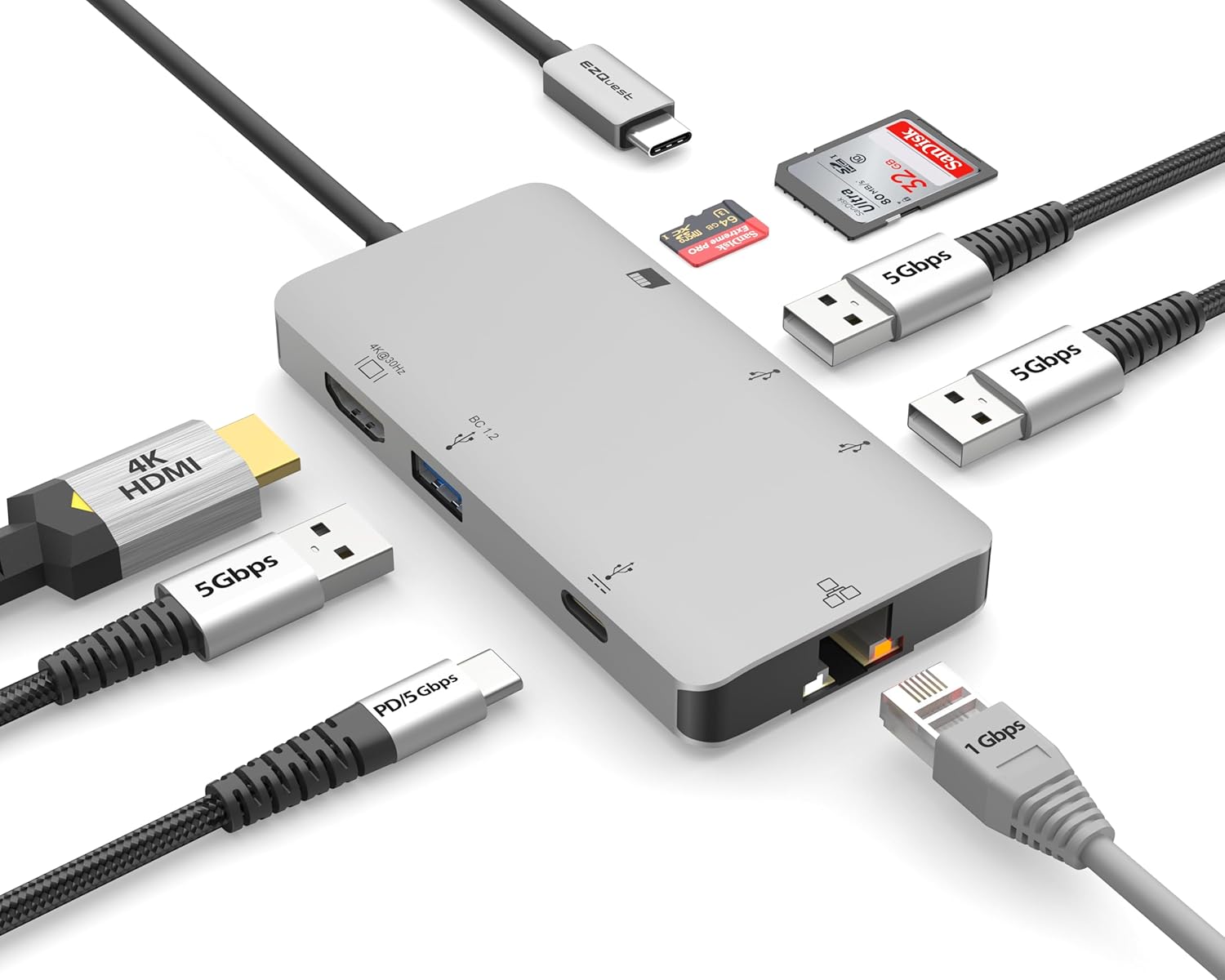
Image: The EZQuest USB C Hub Docking Station 8-in-1, showcasinnhazi ya dị obere na eriri USB-C agbakwunyere.

Image: A diagram illustrating the 8-in-1 expansion capabilities of the hub, including HDMI, USB-C PD, USB 3.0, Ethernet, and card readers.
Ntuziaka nhazi
- Jikọọ na ngwaọrụ nnabata: Plug the integrated USB-C cable of the EZQuest hub into an available USB-C/Thunderbolt 3/4 port on your laptop, tablet, or smartphone.
- Nnyefe Ike (Nhọrọ): For charging your host device, connect your USB-C power adapter to the USB-C Power Delivery port on the hub. The hub supports up to 100W input with 85W pass-through charging.
- Ngosipụta HDMI: Connect an HDMI cable from your monitor to the HDMI port on the hub for 4K 30Hz video output.
- Njikọ Ethernet: For a stable wired network, connect an Ethernet cable to the Gigabit Ethernet port on the hub.
- USB Peripherals: Connect your USB-A devices (e.g., mouse, keyboard, external hard drive) to the three USB-A 3.0 ports.
- SD/Micro SD Cards: Insert your SD or Micro SD cards into the respective slots for data transfer.

Image: A user connecting the EZQuest USB C Hub to a laptop's USB-C port.

Image: Illustrates connecting a power adapter to the hub for pass-through charging of a laptop.
Ntuziaka ọrụ
Ihe ngosi (HDMI)
The HDMI port supports 4K resolution at 30Hz. Connect an HDMI-enabled display to extend or mirror your desktop for enhanced productivity or multimedia viewing. Ensure your display and device support 4K 30Hz for optimal performance. Note that the USB-C ports on the hub are for data and power delivery, not for connecting a monitor.
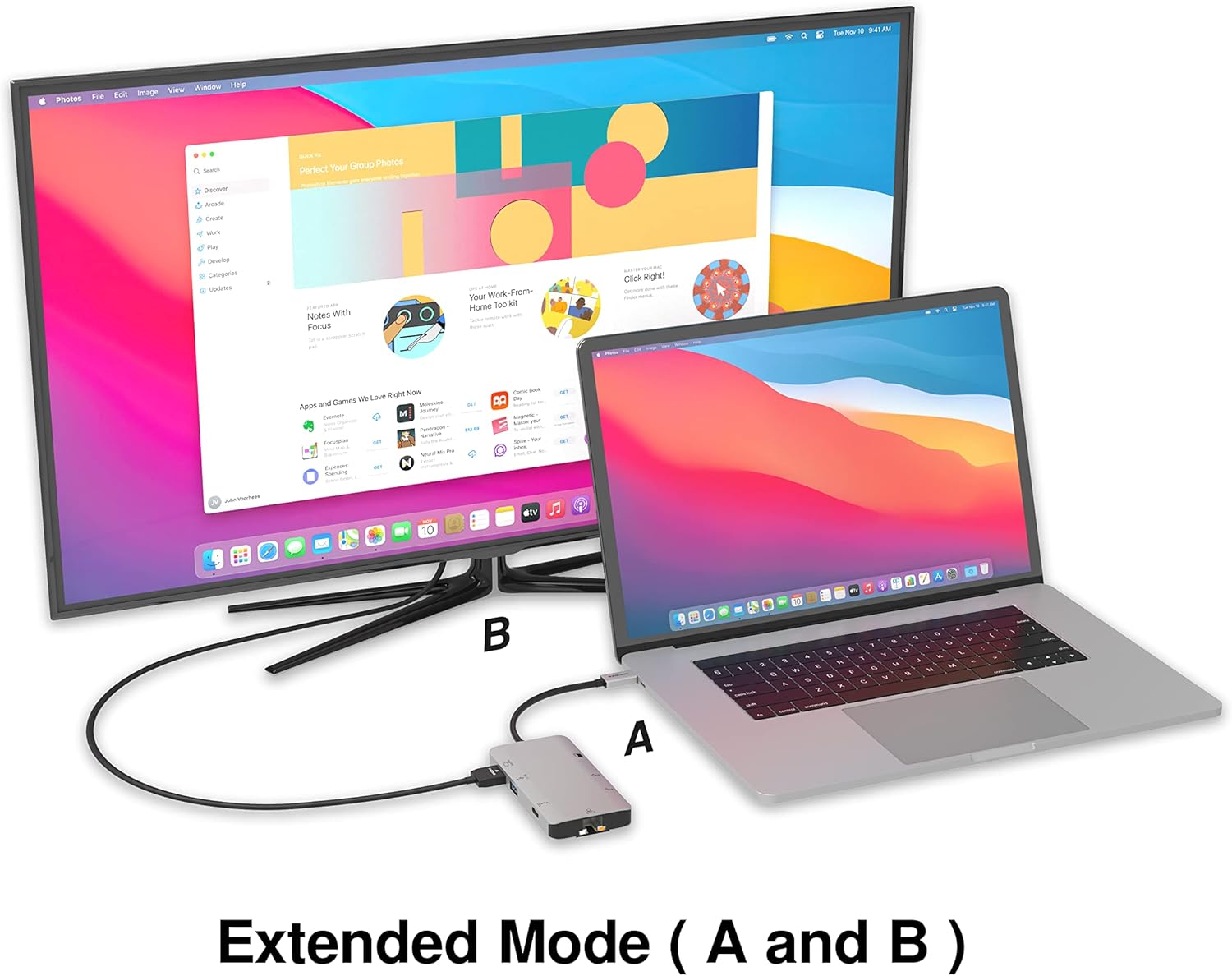
Image: A laptop connected to an external monitor via the hub, demonstrating extended display mode.
Data Transfer (USB-A & SD/Micro SD)
The three USB-A 3.0 ports offer data transfer speeds up to 5Gbps. The SD and Micro SD card slots allow for simultaneous read and write operations, facilitating quick file transfers from memory cards.

Image: Various devices like USB drives, SD cards, and an Ethernet cable connected to the EZQuest hub.
Network Connection (Gigabit Ethernet)
The Gigabit Ethernet port provides a stable and high-speed wired internet connection, ideal for large downloads, uploads, or streaming where Wi-Fi might be unreliable. An LED indicator confirms network activity.
Nkesa ike
The USB-A ports distribute power efficiently. One USB-A port with BC1.2 outputs 5V/1.5A (7.5W), while the other two USB-A ports deliver 5V/0.9A (4.5W) each. The total shared power when all ports are in use is 10 watts.

Image: A diagram detailing the power output and data transfer speeds of the USB-A ports on the hub.
Atụmatụ na ọdụ ụgbọ mmiri
| Typedị Port | Ọnụọgụ | Ọrụ |
|---|---|---|
| HDMI | 1 | 4K @ 30Hz Video Output (Extended/Mirror Mode) |
| USB-C Power Delivery/Data | 1 | Up to 100W Power Input (85W Pass-Through), 5Gbps Data Transfer |
| USB-A 3.0 | 3 | 5Gbps Data Transfer (One port BC1.2 5V/1.5A, two ports 5V/0.9A) |
| Gigabit Ethernet | 1 | 10/100/1000 Mbps Wired Network Connection with LED Indicator |
| Onye na-agụ kaadị SD | 1 | SDHC/SDXC Read/Write |
| Micro SD kaadị Reader | 1 | Micro SDHC/SDXC Read/Write |
Ndakọrịta
This USB C Hub is compatible with a wide range of devices:
- Computers featuring USB-C, USB 4, Thunderbolt 4, or Thunderbolt 3 ports.
- USB-C smartphones and tablets equipped with OTG (On-The-Go) support.
Unsupported Device:
- The USB-A ports on this docking station do not support Apple SuperDrive. For connecting an Apple SuperDrive, an alternative adapter (e.g., EZQuest X40100 USB-C to USB-A Female Mini Adapter) directly to your Mac is recommended.
Nchọpụta nsogbu
- Enweghị mmepụta ihe ngosi:
- Gbaa mbọ hụ na ọdụ ụgbọ mmiri USB-C nke ngwaọrụ gị na-akwado mmepụta vidiyo (Ọnọdụ ọzọ DisplayPort).
- Check all cable connections (USB-C from hub to device, HDMI from hub to monitor).
- Verify your monitor input source is set correctly to HDMI.
- Nwaa eriri HDMI ma ọ bụ ihe nlele dị iche ma ọ bụrụ na ọ dị.
- Okwu ịchaji:
- Ensure your USB-C power adapter is connected to the hub's USB-C PD port.
- Verify your power adapter provides sufficient wattage (up to 100W recommended for laptops).
- Check if the host device's USB-C port supports Power Delivery.
- Nyefee data nwayọ:
- Ensure you are using USB 3.0 compatible devices and cables for optimal speeds.
- The total shared power for USB-A ports is 10W; excessive power draw from multiple devices may affect performance.
- Ethernet Not Working:
- Lelee njikọ eriri Ethernet na ma ebe a na-edebe ihe na rawụta/modem gị.
- Verify network settings on your host device.
- Ensure the LED indicator on the Ethernet port is active.
- SD/Micro SD Card Not Recognized:
- Gbaa mbọ hụ na etinyere kaadị ahụ nke ọma n'ime oghere ziri ezi.
- Try reinserting the card or using a different card.
- Lelee ma kaadị ahụ emebiela ma ọ bụ mebie.
Nkọwapụta
| Njirimara | Nkọwa |
|---|---|
| Nọmba nlereanya | X40030 |
| Akụkụ ngwaahịa | 0.81 x 1.63 x 0.2 sentimita asatọ |
| Ibu Ibu | 1.6 ounces |
| Ngwaọrụ Akụrụngwa | USB Ụdị C |
| HDMI mmepụta | 4K @ 30Hz |
| Ntinye USB-C PD | Ruo 100W |
| USB-C PD mmepụta | Ruo 85W |
| USB-A 3.0 Data Speed | 5Gbps |
| Ọsọ Ethernet | 1 Gigabit (10/100/1000 Mbps) |
| Card Reader Support | SDHC, SDXC, Micro SDHC, Micro SDXC |
| Ihe onwunwe | Anodized Aluminum Housing |
Nlekọta
- Nhicha: Jiri ákwà dị nro ma kpọọ nkụ hichaa ebe ahụ. Zere ihe nhicha mmiri ma ọ bụ ihe na-eme ka ọ dị ka aerosol.
- Nchekwa: Chekwaa oghere ahụ n'ebe dị jụụ, kpọrọ nkụ na-adịghị na ìhè anyanwụ kpọmkwem na oke okpomọkụ.
- Ijikwa: Avoid dropping the device or subjecting it to strong impacts. Do not attempt to disassemble the hub.
Akwụkwọ ikike na nkwado
The EZQuest USB C Hub Docking Station 8-in-1 comes with a Akwụkwọ ikike na-enweghị nchekasị nke afọ 1. This warranty covers manufacturing defects and ensures peace of mind regarding your investment.
For technical support, warranty claims, or any product-related inquiries, please visit the official EZQuest website or contact their customer service team through the contact information provided with your product packaging.