
1. Okwu mmalite
This manual provides detailed instructions for the installation, operation, and maintenance of your Everycom EC801B 80mm Thermal Printer. Please read this manual thoroughly before using the printer to ensure proper function and longevity of the device. The EC801B is a high-speed thermal receipt printer equipped with an auto-cutter and versatile connectivity options including USB and LAN.
2. Ozi nchekwa
- DO NOT DISASSEMBLE THE PRINTER PERSONALLY. For any service-related queries, please contact Everycom support.
- The printer should be installed on a flat and solid surface to avoid vibration or impact damage.
- Ensure the power supply matches the printer's requirements to prevent electrical damage.
- Keep the printer away from water, dust, and direct sunlight.
3. Ihe ngwugwu
Biko chọpụta na agụnyere ihe niile edepụtara n'okpuru na ngwugwu gị:
- 1 x Everycom EC801B Thermal Receipt Printer
- 1 x nkwụnye ọkụ
- 1 x USB Data USB
- 1 x Paper Roll (Sample)
- 1 x Akwụkwọ ntuziaka onye ọrụ
- 1 x CD Ọkwọ ụgbọala

Image: Contents of the Everycom EC801B printer package, including the printer unit, power adapter, USB cable, sample paper roll, user manual, and driver CD.
4. Ngwaahịa gafereview
Familiarize yourself with the various parts of your Everycom EC801B thermal printer.
4.1 Ihu na elu View

Foto: N'ihu view of the Everycom EC801B thermal printer, showing the paper output slot and control panel.

Foto: Top view of the Everycom EC801B thermal printer, highlighting the control panel with POWER, ERROR, PAPER indicators, and the FEED button.
4.2 Ogwe njikwa
- Ihe ngosi IKE: Illuminates when the printer is powered on.
- Ihe ngosi mperi: Flashes or illuminates to indicate an error (e.g., paper out, cover open).
- PAPER Indicator: Illuminates when paper is present, flashes when paper is low.
- Bọtịnụ Nri: Press to advance paper. Hold to print a self-test page.
4.3 Rear Panel (Connectivity Ports)

Foto: N'azụ view of the Everycom EC801B thermal printer, showing the power port, cash drawer port, Ethernet (LAN) port, and USB port.
- Ọdụ ụgbọ mmiri IKE: Jikọọ na nkwụnye ọkụ.
- CASH Drawer Port: Connects to a compatible cash drawer.
- Ọdụ LAN (Ethernet): Connects to a network for network printing.
- Ọdụ ụgbọ mmiri USB: Connects to a computer via USB cable.
5. Nhazi
5.1 Ntinye anụ ahụ
Place the printer on a stable, flat surface. Ensure there is adequate space around the printer for ventilation and easy access to ports and paper loading.
5.2 Njikọ eriri
- Njikọ ike: Connect the power adapter to the printer's POWER port and then plug the adapter into a power outlet.
- Njikọ data (Họrọ otu):
- USB: Connect the USB data cable from the printer's USB port to an available USB port on your computer.
- LAN: Connect an Ethernet cable from the printer's LAN port to your network router or switch.
- Cash Drawer (Optional): If using a cash drawer, connect its cable to the printer's CASH Drawer port.
5.3 Mpempe akwụkwọ
- Open the printer cover by pushing the cover open lever (if present) or lifting the top cover.
- Insert the 80mm thermal paper roll into the compartment, ensuring the paper feeds from the bottom and the leading edge extends out of the printer.
- Close the printer cover firmly until it clicks into place. Ensure there is no slack in the paper.

Foto: Top view of the Everycom EC801B printer with the cover open, revealing the paper roll compartment.
5.4 Nwụnye ọkwọ ụgbọala
For the printer to communicate with your computer, drivers must be installed.
- Insert the provided Driver CD into your computer's CD-ROM drive.
- Follow the on-screen instructions to install the printer drivers. If your computer does not have a CD drive, drivers can typically be downloaded from the Everycom official websaịtị.
- After installation, configure the printer settings through your operating system's printer management tools.
6. Ntuziaka ọrụ
6.1 Gbanyụọ/ gbanyụọ
To power on the printer, ensure the power adapter is connected and press the power switch located on the side or rear of the printer. The POWER indicator light will illuminate. To power off, press the power switch again.
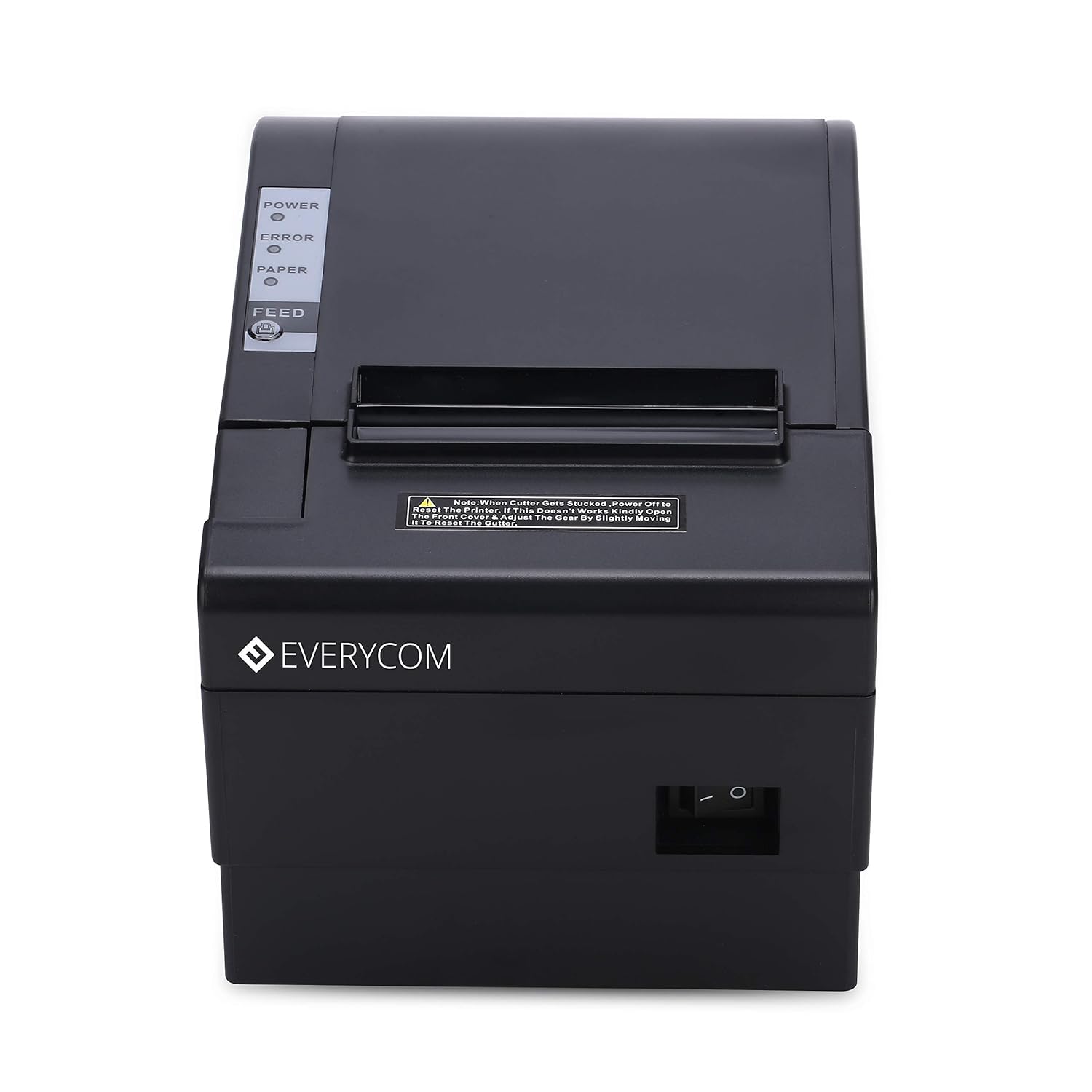
Foto: N'ihu view of the Everycom EC801B printer, showing the location of the power switch on the side.
6.2 Printing a Self-Test Page
A self-test page can confirm basic printer functionality and print quality without requiring a computer connection.
- Ensure the printer is powered off and paper is loaded.
- Pịa ma jide Nri bọtịnụ.
- Mgbe ị na-ejide Nri button, turn on the printer.
- Hapụ ya Nri button once the printer starts printing. A self-test page will print, showing printer information and a sample print.

Image: Everycom EC801B printer actively printing a self-test receipt with a QR code and text.
6.3 Basic Printing Operation
Once drivers are installed and the printer is connected, you can print from any application that supports printing. Select the Everycom EC801B from your list of available printers and initiate the print command.
6.4 Auto Cutter Function
The EC801B features an automatic cutter that will cut the receipt paper after each print job, or as configured in your printer settings/software.
7. Nlekọta
7.1 Na-ehicha ngwa nbipute
Ịsacha ihe mgbe niile na-enyere aka ịnọgide na-enwe mma mbipụta ma na-agbatị ndụ onye na-ebipụta ihe.
- Isi Bipụta: Jiri ákwà owu mee obere ihe.ampened with isopropyl alcohol to gently wipe the thermal print head. Allow it to dry completely before use.
- Ụzọ akwụkwọ: Use a soft, dry cloth to remove any paper dust or debris from the paper path.
- Mputa: Jiri nwayọ hichaa mpụta, damp akwa . Ejila kemịkalụ siri ike ma ọ bụ ihe mkpocha abrasive.
7.2 Ndochi akwụkwọ mpịakọta
When the PAPER indicator flashes or printing becomes faint, it's time to replace the paper roll. Follow the steps in Section 5.3 to load a new 80mm thermal paper roll.
8. Nchọpụta nsogbu
If you encounter issues with your printer, refer to the following common problems and solutions:
| Nsogbu | Ihe nwere ike ime | Ngwọta |
|---|---|---|
| Printer does not power on | No power, faulty adapter | Check power cable connection, ensure outlet is working, try another adapter if available. |
| No printing / Blank output | Paper loaded incorrectly, no paper, print head issue, driver issue | Reload paper correctly (thermal side facing print head), replace paper roll, clean print head, reinstall drivers. |
| ERROR indicator on/flashing | Paper out, cover open, print head overheat | Check paper, close cover firmly, allow printer to cool down. |
| Ọdịmma ebipụta na-adịghị mma | Dirty print head, low quality paper, old paper roll | Clean print head, use high-quality thermal paper, replace old paper. |
| Kọmputa amataghị ngwa nbipute | Driver not installed, incorrect cable, port issue | Install/reinstall drivers, check USB/LAN cable connection, try a different port. |
If the problem persists after attempting these solutions, please contact Everycom customer support.
9. Nkọwapụta
Key technical specifications for the Everycom EC801B Thermal Printer:
| Njirimara | Nkọwa |
|---|---|
| Nlereanya | EC801B |
| Teknụzụ obibi akwụkwọ | Thermal Line Printing |
| Ọsọ Bipụta | 220 mm / sekọnd |
| Ogologo akwụkwọ | 80mm |
| Njikọta | USB, LAN (Ethernet) |
| Onye na-egbutu akpaaka | Ee |
| Mmepụta ngwa nbipute | Monochrome |
| Akụkụ (LxWxH) | 18.6 x 14.5 x 13.3 cm |
| Ibu Ibu | 1.2 n'arọ |
| Onye nrụpụta | Everycom Electronics (Made in India) |
10. Akwụkwọ ikike na nkwado
The Everycom EC801B Thermal Printer comes with a Akwụkwọ ikike nke afọ 1 site na ụbọchị ịzụrụ ya. Akwụkwọ ikike a na-ekpuchi ntụpọ na nsogbu nrụpụta n'okpuru ọnọdụ ojiji nkịtị.
For technical assistance, troubleshooting, or warranty claims, please contact Everycom Customer Support:
- Nọmba na-anaghị akwụ ụgwọ: 1800 121 4480
- Customer Support Working Hours: Monday - Saturday, 10:00 AM - 6:30 PM (Except on Public Holidays)

Image: Everycom customer service contact details, including the toll-free number and working hours.