
1. Okwu mmalite
The Autel MaxiLink ML519 is an advanced OBDII/EOBD scanner designed to assist in diagnosing vehicle issues. This tool provides comprehensive diagnostic functions, including reading and clearing trouble codes, viewing live data, performing I/M readiness tests, and more. It is compatible with most OBDII-compliant vehicles manufactured from 1996 onwards in the US, and from 2000 for EU-based and Asian cars.
2. Ngwaahịa gafereview
2.1 Atụmatụ
- Reads and clears generic (P0, P2, P3, U0) and manufacturer-specific (P1, P3, U1) codes, and pending codes.
- Gbanyụọ Check Engine Light (MIL), na-ekpochapụ koodu, ma tọgharịa ihe nleba anya.
- Patented One-Click I/M Readiness Status Key for quick emissions readiness check.
- Views freeze frame data.
- Displays live PCM data stream in text and graphing formats.
- Performs O2 Monitor Test, On-Board Monitor Test (Mode 6), and Component Test.
- Retrieves vehicle identification information (VIN, CALID, and CVN).
- Built-in DTC lookup library for code definitions.
- Memory backup for off-vehicle data review na nyocha.
- Internet updatable for software and language.
- Prints data via Windows-based PC.
Ihe ngwugwu 2.2
The Autel MaxiLink ML519 package typically includes the following items:
- MaxiLink ML519 Unit
- OBD II Connector Cable
- USB Data Line
- Ntuziaka ngwa ngwa
- Akpa nchekwa

Image: Contents of the Autel MaxiLink ML519 package, including the scanner unit, cables, quick guide, and storage bag.
3. Nhazi
3.1 Connecting the Scanner to the Vehicle
- Turn the vehicle's ignition off.
- Locate the vehicle's 16-pin Data Link Connector (DLC). The DLC is usually located under the dashboard on the driver's side.
- Connect the OBD II connector cable from the ML519 scanner to the vehicle's DLC. Ensure a secure connection.
- Turn the vehicle's ignition to the ON position (engine off). The scanner will automatically power on.
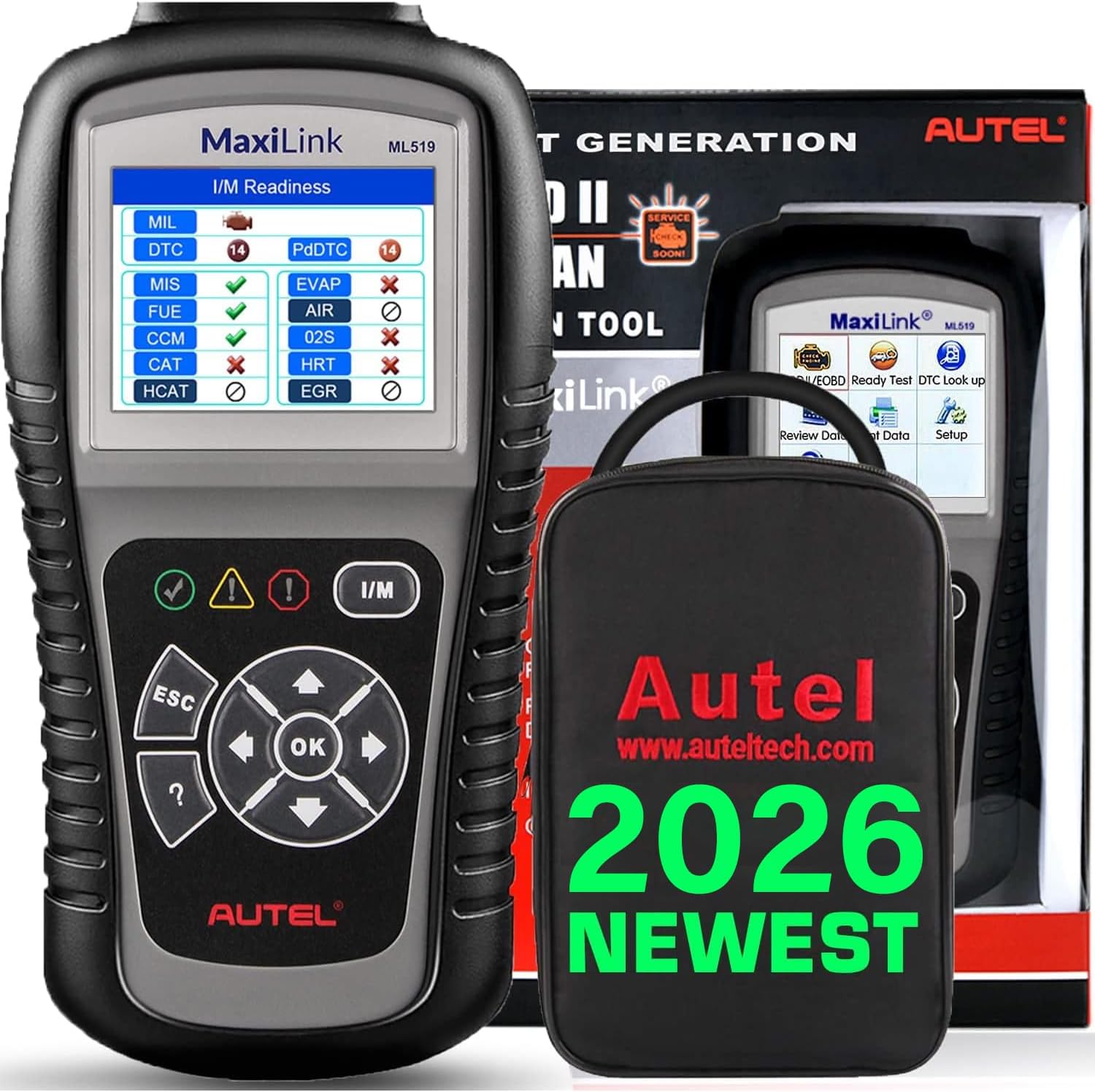
Image: The Autel MaxiLink ML519 scanner connected to a vehicle's OBD-II port, displaying its main menu.
4. Ntuziaka ọrụ
4.1 Full OBDII Scan Tool Functions
The ML519 supports all 10 modes of OBD II operation, providing comprehensive diagnostic capabilities.

Foto: Ofeview of the Autel MaxiLink ML519's full OBDII scan tool functions, including erase codes, DTC definition, live data, and more.
4.2 Reading and Clearing Diagnostic Trouble Codes (DTCs)
To read DTCs:
- Site na isi menu, họrọ 'Read Codes'.
- The scanner will display any stored or pending DTCs.
To clear DTCs:
- Site na isi menu, họrọ 'Erase Codes'.
- Confirm the action when prompted. This will turn off the Check Engine Light (MIL) and reset monitors.
4.3 One-Click I/M Readiness (Ready Test)
This function allows you to quickly check the readiness status of the vehicle's emission system, which is crucial for annual emission tests. The ML519 provides visual and audible indications.
- Pịa raara onwe ya nye Njikere I/M bọtịnụ dị na nyocha ahụ.
- The screen will display the status of various monitors (e.g., Misfire, Fuel System, O2 Sensors, EVAP). A green checkmark indicates readiness, while an 'X' indicates not ready.

Image: The Autel MaxiLink ML519 displaying the I/M Readiness screen, showing the status of various emission monitors with checkmarks and 'X' symbols.
4.4 Viewna Live Data
The ML519 can display real-time sensor data from the vehicle's Powertrain Control Module (PCM) in both text and graphical formats. This allows for detailed analysis of vehicle performance.
- Site na isi menu, họrọ 'Live Data'.
- Choose between 'View Data' (text list) or 'Graph Data' (graphical representation).
- Use the navigation buttons to scroll through parameters or zoom in/out on graphs.

Image: The Autel MaxiLink ML519 displaying live data, showing RPM in a graphical format and a list of data parameters.
4.5 DTC Lookup Function
The built-in DTC lookup library provides detailed definitions for generic and manufacturer-specific trouble codes, helping you understand the cause of a fault.
- Site na isi menu, họrọ 'DTC Lookup'.
- Enter the DTC code using the scanner's buttons.
- The scanner will display the definition of the entered code.

Image: The Autel MaxiLink ML519 displaying the DTC Lookup function, showing how to input a code and view nkọwa ya.
4.6 Other Diagnostic Tests
- O2 Monitor Test: Na-eweghachi nsonaazụ ule ihe nlele sensọ O2 maka ule ndị emechara ọhụrụ site na kọmputa dị n'ụgbọala ahụ.
- Nnwale Nyocha N'elu Ụgbọala (Ụdị 6): Na-eweghachite nsonaazụ ule maka akụkụ na sistemụ powertrain metụtara mwepụta nke anaghị enyocha mgbe niile.
- Nnwale akụrụngwa: Allows initiation of a leak test for the vehicle's EVAP system.
- Retrieve Vehicle Information: Displays the Vehicle Identification Number (VIN), Calibration ID (CALID), and Calibration Verification Number (CVN).
4.7 Data Printing
The ML519 allows you to print diagnostic data via a Windows-based PC. Connect the scanner to your PC using the provided USB cable and use the Autel PC Suite software (available for download from the Autel website) to manage and print data.
5. Nlekọta
5.1 Nlekọta n'ozuzu
- Keep the scanner dry and clean. Avoid exposure to moisture or extreme temperatures.
- Do not use abrasive cleaners or solvents on the unit. Use a soft, damp akwa maka nhicha .
- Store the scanner in its protective storage bag when not in use to prevent damage.
6. Nchọpụta nsogbu
6.1 Okwu nkịtị na Ngwọta
- Scanner does not power on: Ensure the OBD II cable is securely connected to the vehicle's DLC and the vehicle's ignition is in the ON position. Check the vehicle's battery voltage (must be 8.0 to 18.0 V).
- Link error: Verify the vehicle is OBDII compliant. Check the connection of the OBD II cable. Turn the ignition off, wait 10 seconds, then turn it back on.
- Enweghị nkwukọrịta na ụgbọala: Confirm the vehicle supports OBDII protocols. Try connecting to a different OBDII-compliant vehicle to rule out scanner issues.
- Screen freezes: Disconnect the scanner from the vehicle, then reconnect. If the issue persists, perform a software update.
7. Nkọwapụta
| Nkọwapụta | Uru |
|---|---|
| Ngosipụta | TFT color display (320 x 240 dpi) |
| Okpomọkụ na-arụ ọrụ | 0°C ruo 60°C (32°F ruo 140°F) |
| Okpomọkụ nchekwa | -20°C ruo 70°C (-4°F ruo 158°F) |
| Ike Mpụga | 8.0 to 18.0 V via vehicle battery |
| Nha ihuenyo | 3.5 sentimita asatọ |
| Operating System (for PC connection) | Windows XP (or later for updates) |
| Ibu Ibu | 300 grams |
8. Mmelite ngwanrọ
The Autel MaxiLink ML519 comes with lifetime free software updates. Regular updates ensure compatibility with newer vehicle models and provide enhanced features. To update the software:
- Download the Autel PC Suite software from the official Autel websaịtị.
- Install the software on a Windows-based PC.
- Connect the ML519 scanner to your PC using the provided USB cable.
- Follow the on-screen instructions in the PC Suite to download and install the latest software updates to your device.
9. Akwụkwọ ikike na nkwado
9.1 Ozi akwụkwọ ikike
The Autel MaxiLink ML519 is backed by a 12-month warranty against defects in materials and workmanship from the date of purchase. This warranty covers repair or replacement of the product under normal use conditions.
9.2 Nkwado ndị ahịa
For any questions, technical assistance, or warranty claims, please contact Autel customer service. Refer to the official Autel website for the most current contact information or use the email provided in your product documentation.