
1. Okwu mmalite
Thank you for choosing the Gembird MUS-6B-01 Optical USB Mouse. This manual provides essential information for setting up, operating, maintaining, and troubleshooting your new mouse. Please read these instructions carefully to ensure optimal performance and longevity of your device.

Image: The official Gembird brand logo, featuring the company name in a stylized font with a geometric design.
2. Ngwaahịa gafereview
The Gembird MUS-6B-01 is a reliable 6-button optical USB mouse designed for comfortable and precise navigation. Its ambidextrous design makes it suitable for both left and right-handed users.
Akụkụ ndị bụ isi:
- Nyocha anya: Provides smooth and accurate cursor control.
- 6 bọtịnụ: Includes standard left/right click, scroll wheel, DPI adjustment, and two side buttons for enhanced functionality.
- Njikọ USB: Simple plug-and-play connection to your computer.
- Ambidextrous imewe: Comfortable for both left and right-handed users.
Ngwa:
- Pịa aka ekpe bọtịnụ
- Pịa aka nri bọtịnụ
- Scroll Wheel (also functions as a middle click button)
- Bọtịnụ mmezi DPI
- Bọtịnụ n'ihu (Akụkụ)
- Bọtịnụ Azụ (Akụkụ)
- Optical Sensor (underside)
- USB Connector (at the end of the cable)
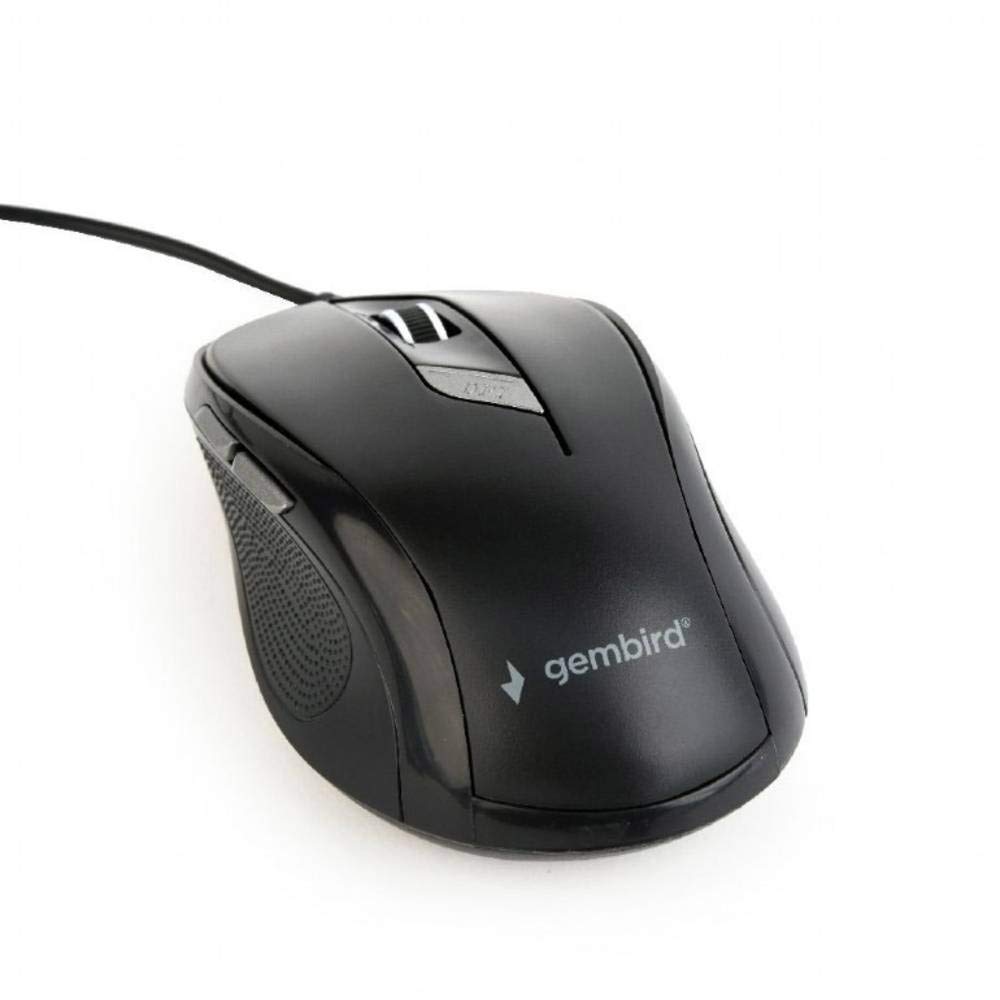
Foto: A n'elu-ala view of the Gembird MUS-6B-01 optical USB mouse. The mouse is black with a matte finish, featuring a scroll wheel, left and right click buttons, a DPI button, and two side buttons. A black USB cable extends from the front of the mouse.
3. Nhazi
Setting up your Gembird MUS-6B-01 mouse is a simple plug-and-play process.
Nzọụkwụ nwụnye:
- Chọta ọdụ ụgbọ mmiri USB dị na kọmputa gị.
- Plug the USB connector of the Gembird MUS-6B-01 mouse firmly into the USB port.
- Your operating system (Windows, Linux) will automatically detect and install the necessary drivers. This process may take a few moments.
- Once the drivers are installed, the mouse is ready for use.
No additional software installation is typically required for basic functionality.
4. Ntuziaka ọrụ
Familiarize yourself with the functions of each button on your Gembird MUS-6B-01 mouse.
Ọrụ ndị bụ isi:
- Pịa aka ekpe: Primary action, selecting items, opening files.
- Pịa aka nri: Opens context menus, provides additional options.
- Mpempe akwụkwọ mpịakọta: Pịgharịa gaa na elu ma ọ bụ ala site na akwụkwọ na web ibe.
- Pịa etiti (Mpịakọta wiil): Often used to open links in new tabs or for specific application functions.
Ọrụ dị elu:
- Bọtịnụ mmezi DPI: Located behind the scroll wheel, this button allows you to cycle through different sensitivity (DPI) settings. Press it to change the cursor speed to suit your preference.
- Forward Button (Side): Typically navigates forward in web ihe nchọgharị ma ọ bụ file ndị na-eme nchọpụta.
- Backward Button (Side): Typically navigates backward in web ihe nchọgharị ma ọ bụ file ndị na-eme nchọpụta.
The functionality of the side buttons may vary depending on the application or operating system settings. Some operating systems allow customization of these buttons.
5. Nlekọta
Proper care will help extend the life of your Gembird MUS-6B-01 mouse.
Nhicha:
- Kwụpụ òké na kọmputa gị tupu ihicha.
- Jiri nro dị nro damp, lint-free cloth to wipe the surface of the mouse.
- For stubborn dirt, a small amount of mild soap solution can be applied to the cloth (not directly to the mouse).
- Jiri ákwà owu ma ọ bụ ikuku a kpọchiri akpọchi hichaa gburugburu wiil mpịakọta na n'etiti bọtịnụ.
- Ensure the optical sensor on the underside is clean and free of dust or debris.
- Ejila kemịkalụ siri ike, ihe nhicha ihe na-emebi ihe, ma ọ bụ mikpuo òké ahụ n'ime mmiri.
Nchekwa:
When not in use for extended periods, store the mouse in a clean, dry environment away from extreme temperatures and direct sunlight.
6. Nchọpụta nsogbu
If you encounter issues with your Gembird MUS-6B-01 mouse, try the following troubleshooting steps:
| Nsogbu | Ngwọta enwere ike |
|---|---|
| Òké anaghị aza |
|
| Erratic or jumpy cursor movement |
|
| Bọtịnụ anaghị arụ ọrụ |
|
7. Nkọwapụta
Detailed technical specifications for the Gembird MUS-6B-01 Optical USB Mouse:
| Njirimara | Nkọwapụta |
|---|---|
| Ụdị | Gembird |
| Aha Nlereanya | MUS-6B-01 |
| Teknụzụ Njikọta | Ekwenyere (USB) |
| Teknụzụ nchọpụta ngagharị | Ngwa anya |
| Ọnụọgụ bọtịnụ | 6 |
| Ntuzi aka | Ambidextrous |
| Sistemu eji arụ ọrụ dakọtara | Linux, Windows 7, Windows XP (and newer versions) |
| Ngwaike Platform | Kọmputa nkeonwe |
| Ogologo eriri USB | 5.0 mita |
| Ibu Ibu | 74 grams |
| Ihe onwunwe | Plastic |
| Agba | Nwa |
| Batrị achọrọ | Mba |
8. Ozi nchekwa
Biko debe ụkpụrụ nchekwa ndị a:
- Ekwela ka òké ahụ banye n'ime mmiri ma ọ bụ oke mmiri.
- Zere idobe ma ọ bụ idobe òké na mmetụta siri ike.
- Do not attempt to disassemble or repair the mouse yourself. Refer to qualified service personnel.
- Debe ngwaọrụ ahụ pụọ na oke okpomọkụ yana ìhè anyanwụ kpọmkwem.
- Tụfuo ihe mkpofu eletrọniki n'ụzọ kwesịrị ekwesị dịka iwu obodo si dị.
9. Akwụkwọ ikike na nkwado
Gembird products are designed for reliability and performance. For specific warranty terms and conditions, please refer to the warranty card included with your product or visit the official Gembird website. For technical support or further assistance, please contact your retailer or the Gembird customer service department.