
Okwu mmalite
Thank you for choosing the NEC NP-MC372X Portable Projector. This manual provides essential information for the safe and efficient use of your projector. Please read these instructions thoroughly before operating the device and retain them for future reference. The NEC NP-MC372X is an XGA LCD projector designed for clear and bright presentations, offering 3700 lumens of brightness and a native resolution of 1024x768.
Ozi nchekwa
Na-edebe ihe nchekwa nchekwa ndị a mgbe niile iji gbochie ọkụ, ujo eletrik, ma ọ bụ mmerụ ahụ:
- Ekpuchila oghere ikuku. Hụ na oghere zuru oke gburugburu ihe ngosi ahụ maka ikuku ikuku kwesịrị ekwesị.
- Elela anya ozugbo na oghere projector mgbe lamp dị na ya, ebe ọ bụ na ìhè na-egbuke egbuke nwere ike imebi anya.
- Edokwala ihe nrịbama n'ụgbọ, ihe nkwụnye ma ọ bụ tebụl na-adịghị akwụsi ike.
- Unplug the projector from the power outlet before cleaning. Use a dry cloth for cleaning.
- Tụtụ aka n'aka ndị ọrụ ruru eru.
Ihe ngwugwu
Nyochaa na etinyere ihe niile edepụtara n'okpuru na ngwugwu gị:
- NEC NP-MC372X Portable Projector
- Igwe ọkụ ọkụ
- HDMI USB
- Njikwa anya
Ngwaahịa gafereview
The NEC NP-MC372X is a versatile projector featuring an LCD display, 1024x768 native resolution, and 3700 lumens brightness. It includes a 1.2x zoom lens and offers a lamp life of up to 10,000 hours. Connectivity options include Dual HDMI, VGA, and USB.
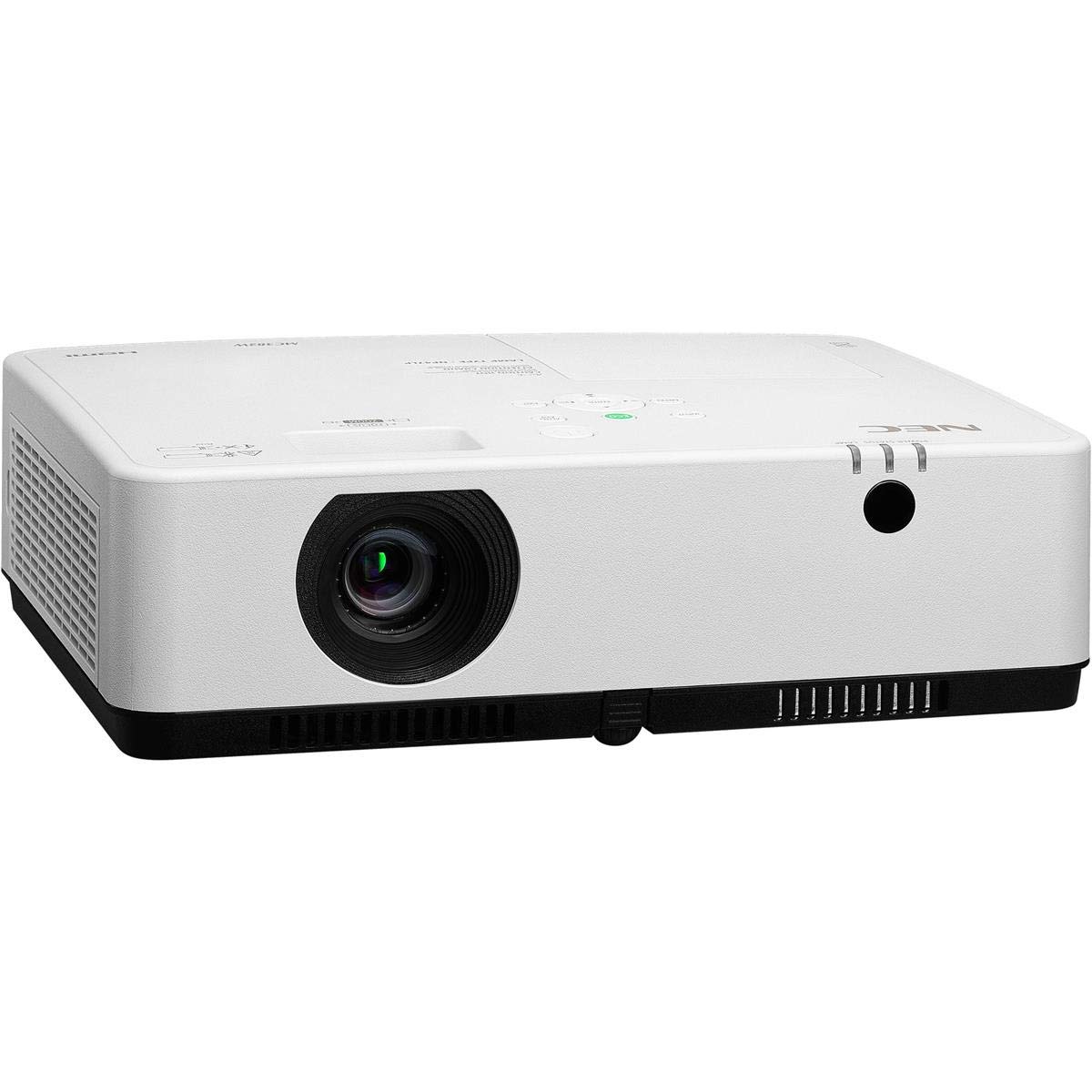
Foto nke 1: N'ihu na n'elu view of the NEC NP-MC372X Portable Projector, showing the lens and control panel.

Foto 2: N'ihu view of the projector, highlighting the projection lens.

Ọgụgụ 3: N'azụ view of the projector, displaying the various input and output ports including HDMI, VGA, USB, LAN, and audio connections.
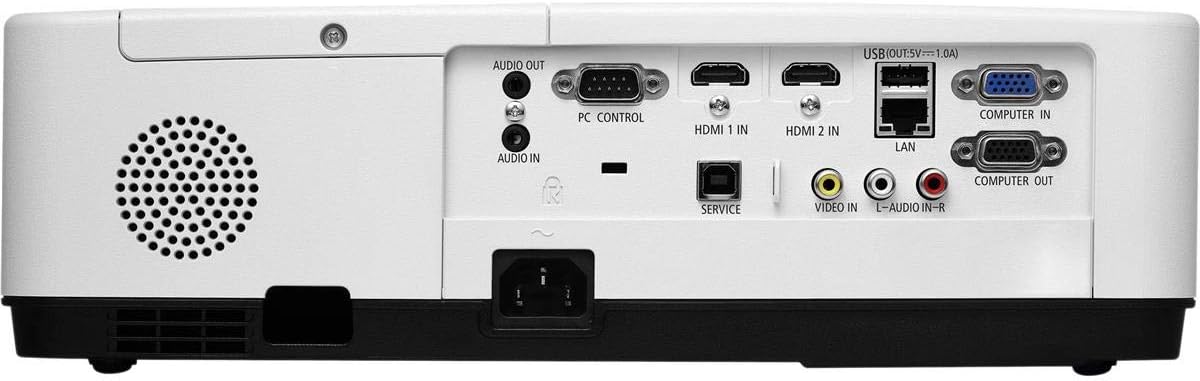
Foto 4: Akụkụ view of the projector, showing the ventilation grille for heat dissipation.
Melite
Ndobe anụ ahụ
Place the projector on a stable, flat surface or mount it securely. Ensure the projector is positioned at an appropriate distance from the screen to achieve the desired image size. Maintain clear space around the projector for ventilation.
Ngwa jikọọ
Refer to Figure 3 for port locations. Connect your source device (e.g., laptop, gaming console) to the projector using one of the following methods:
- HDMI: Use an HDMI cable to connect to either HDMI 1 IN or HDMI 2 IN.
- VGA: Use a VGA cable to connect to COMPUTER IN. For audio, connect a 3.5mm audio cable to AUDIO IN.
- USB: Connect a USB device to the USB port for direct media playback.
- LAN: Jikọọ eriri Ethernet na ọdụ ụgbọ mmiri LAN maka njikọta netwọkụ.
Ịgbanyụ/ Gbanyụọ
1. Connect the power cable to the projector and a power outlet.
2. Press the power button on the projector or the remote control to turn on the projector.
3. To turn off, press the power button again. Confirm shutdown when prompted.
Ntuziaka ọrụ
Basic Operation with Remote Control
Use the included remote control to navigate menus, select input sources, and adjust settings. Point the remote control towards the projector's remote sensor.
Nhọrọ Isi mmalite ntinye
Press the 'Input' button on the remote control or projector control panel to cycle through available input sources (HDMI 1, HDMI 2, Computer In, USB).
Ndozi onyonyo
- Gbado anya: Rotate the focus ring on the lens until the image is sharp.
- Bugharịa: Use the zoom ring on the lens to adjust the image size without moving the projector. The projector features a 1.2x optical zoom.
- Ndozi isi okwu: If the image appears trapezoidal, use the keystone correction function in the projector menu to square the image.
Atụmatụ pụrụ iche
- Multi Presenter: This feature allows multiple users to connect and display content wirelessly from their devices. Refer to the on-screen menu for setup instructions.
- USB Viewer Capability: Insert a USB drive into the USB port to directly view photos, videos, and documents without a connected computer.
- Nkọwa okwu emechiri emechi: Enable closed captioning for compatible video sources through the projector's menu settings.
Nlekọta
Lamp Ndochi
Onye na-eme ihe nkiri lamp has an operating life of up to 10,000 hours. When the lamp reaches the end of its life, a warning message will appear. Consult a qualified service technician for lamp replacement to ensure proper installation and safety.
Nhicha
- Mputa: Hichapụ projector casing with a soft, dry, lint-free cloth. For stubborn marks, slightly dampen akwa na mmiri.
- oghere: Use a professional lens cleaning kit or a soft, dry cloth specifically designed for optical lenses. Avoid harsh chemicals.
- Ihe nzacha ikuku: Regularly check and clean the air filter to prevent dust buildup, which can affect performance and lamp life. Refer to the projector's on-screen menu for filter usage time.
Nchọpụta nsogbu
Ọ bụrụ na ị hụ nsogbu, gbalịa ngwọta ndị a tupu ịkpọtụrụ onye na-akwado gị:
- Enweghị onyonyo: Ensure all cables are securely connected. Verify the correct input source is selected. Check if the lens cap is removed.
- Enweghị ụda: Confirm audio cables are connected (if applicable). Adjust volume on both the projector and the source device.
- Njikwa anya anaghị arụ ọrụ: Check the batteries in the remote. Ensure there are no obstructions between the remote and the projector's sensor.
- Onyonyo na-agba agba: Adjust the focus ring on the lens. Ensure the projection surface is flat.
- Ịdọ aka ná ntị ekpo oke ọkụ: Ensure ventilation openings are not blocked. Clean the air filter if necessary.
Nkọwapụta
| Njirimara | Nkọwapụta |
|---|---|
| Ụdị | NEC |
| Aha Nlereanya | MC372X |
| Nọmba nlereanya | NP-MC372X |
| Ụdị ngosi | LCD |
| Mkpebi obodo | 1024 x 768 (XGA) |
| Icha ọkụ | 3700 Lumen |
| Teknụzụ Njikọta | HDMI, USB, VGA, LAN |
| Bugharịa | 1.2x ngwa anya |
| Ndụ na-arụ ọrụ Light Source | Awa 10,000 |
| Wattage | 267 watts (typical 120V) |
| Ụdị njikwa | Njikwa anya |
| Ibu Ibu | 7.1 pound |
| Voltage | 120 volts |
| UPC | 805736070248 |
Akwụkwọ ikike na nkwado
The NEC NP-MC372X Portable Projector comes with a Akwụkwọ ikike dị afọ 3. For warranty claims or technical support, please contact NEC customer service. You can find contact information on the official NEC websaịtị ma ọ bụ site na onye na-ere ahịa ngwaahịa gị.