
Okwu mmalite
Thank you for choosing the MARVO KG925G Mechanical Gaming Keyboard. This manual provides essential information for setting up, operating, maintaining, and troubleshooting your new keyboard. Please read this manual carefully before use to ensure optimal performance and longevity of your device.
Ihe ngwugwu
Chọpụta na ihe niile dị na ngwugwu:
- MARVO KG925G Mechanical Gaming Keyboard
- Akwụkwọ ntuziaka (akwụkwọ a)
Melite
Achọrọ Sistemụ
- Sistemụ arụmọrụ: Windows 8 ma ọ bụ mgbe e mesịrị
- Ọdụ ụgbọ USB 2.0 dị
Jikọọ ahụigodo
- Chọta ọdụ ụgbọ mmiri USB 2.0 dị na kọmputa gị.
- Plug the USB connector of the MARVO KG925G keyboard into the USB port.
- Sistemụ arụmọrụ ahụ ga-achọpụta ma wụnye draịva dị mkpa na akpaghị aka. Usoro a nwere ike were obere oge.
- Once the drivers are installed, the keyboard's backlighting will illuminate, indicating it is ready for use.
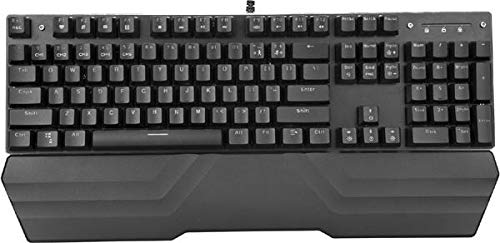
Image: The MARVO KG925G Mechanical Gaming Keyboard with its USB cable connected, ready for use. The keyboard features a wrist rest and illuminated keys.
Ntuziaka ọrụ
Ọrụ Izizi nke Igodo
The MARVO KG925G functions as a standard QWERTY keyboard for typing and general computer use.
Multimedia Igodo
The keyboard includes dedicated multimedia functions, typically accessed via the Fn key combined with the F-keys (F1-F12). Refer to the keycap legends for specific functions such as volume control, media playback, and launching applications.
- Fn + F1-F12: Access various multimedia and system functions.
Njikwa Ọkụ Azụ
The MARVO KG925G features customizable backlighting. Specific key combinations are used to change lighting modes, brightness, and speed. Consult the keyboard's keycap legends or the manufacturer's website for detailed instructions on advanced lighting customization.
- Ụdị ọkụ: Typically cycled using a dedicated key or Fn + a specific key (e.g., Scroll Lock, Pause Break, or a dedicated lighting key).
- Ndozi ihie: Often controlled by Fn + Up/Down arrow keys.
Nlekọta na nlekọta
Ndozi nke ọma na-eme ka ahụ dị ogologo na arụmọrụ nke ahụigodo gị.
- Nhicha: Jiri akwa dị nro ma kpọọ nkụ hichaa elu ahụigodo. Maka ihicha miri emi, jiri mkpọ ikuku abịakọrọ wepụ uzuzu na irighiri ihe n'etiti igodo igodo. Zere iji kemịkalụ siri ike ma ọ bụ ihe na-emebi emebi.
- Mwụfu: In case of liquid spills, immediately unplug the keyboard from your computer. Turn it upside down to drain any liquid and allow it to dry completely for at least 24-48 hours before reconnecting. Do not attempt to use the keyboard while it is wet.
- Nchekwa: Chekwaa ahụigodo ahụ n'ebe dị jụụ, kpọrọ nkụ pụọ na ìhè anyanwụ kpọmkwem na oke okpomọkụ.
Nchọpụta nsogbu
If you encounter issues with your MARVO KG925G keyboard, refer to the following common solutions:
| Nsogbu | Ngwọta enwere ike |
|---|---|
| Ahụigodo anaghị aza. |
|
| Backlighting is not working. |
|
| Igodo anaghị edebanye aha nke ọma. |
|
Nkọwapụta
- Ụdị: KG925G
- Akara: MARVO
- Njikọta: USB 2.0
- Ụdị ahụigodo: Igwe eji egwu igwe
- Atụmatụ: Illumination, Wrist Rest, Multimedia Keys
- OS dakọtara: Windows 8 na n'elu
- Akụkụ: Ihe dịka 47.5 x 18.7 x 8.4 cm (18.7 x 7.4 x 3.3 sentimita asatọ)
Akwụkwọ ikike na nkwado
For warranty information and technical support, please refer to the warranty card included with your product or visit the official MARVO websaịtị. Debe ihe akaebe nke ịzụrụ maka akwụkwọ ikike.