
1. Okwu mmalite
Daalụ maka ịzụrụasing the Yenkee YKB 3200 Gaming Keyboard. This manual provides essential information for the proper setup, operation, and maintenance of your new keyboard. Please read this manual thoroughly before using the product to ensure optimal performance and longevity.
2. Ozi nchekwa
- Debe kiiboodu pụọ na mmiri mmiri na oke mmiri.
- Ewepụla ahụigodo ahụ na oke okpomọkụ.
- Zere idobe ma ọ bụ idobe ahụigodo na mmetụta siri ike.
- Do not attempt to disassemble or repair the keyboard yourself. Refer all servicing to qualified personnel.
- Use only a dry, soft cloth for cleaning.
3. Ihe ngwugwu
Biko lelee ihe dị n'ime ngwugwu ahụ mgbe ị na-ewepụ ihe ndị ahụ. Ọ bụrụ na ihe ọ bụla efuola ma ọ bụ mebie, kpọtụrụ onye na-ere ahịa gị.
- Yenkee YKB 3200 Gaming Keyboard with integrated smartphone holder
- eriri USB (agbakwunyere)
4. Ngwaahịa gafereview
The Yenkee YKB 3200 is a robust gaming keyboard designed for an enhanced gaming experience. It features a durable metal construction, responsive rubber dome keys, and dynamic rainbow backlighting.
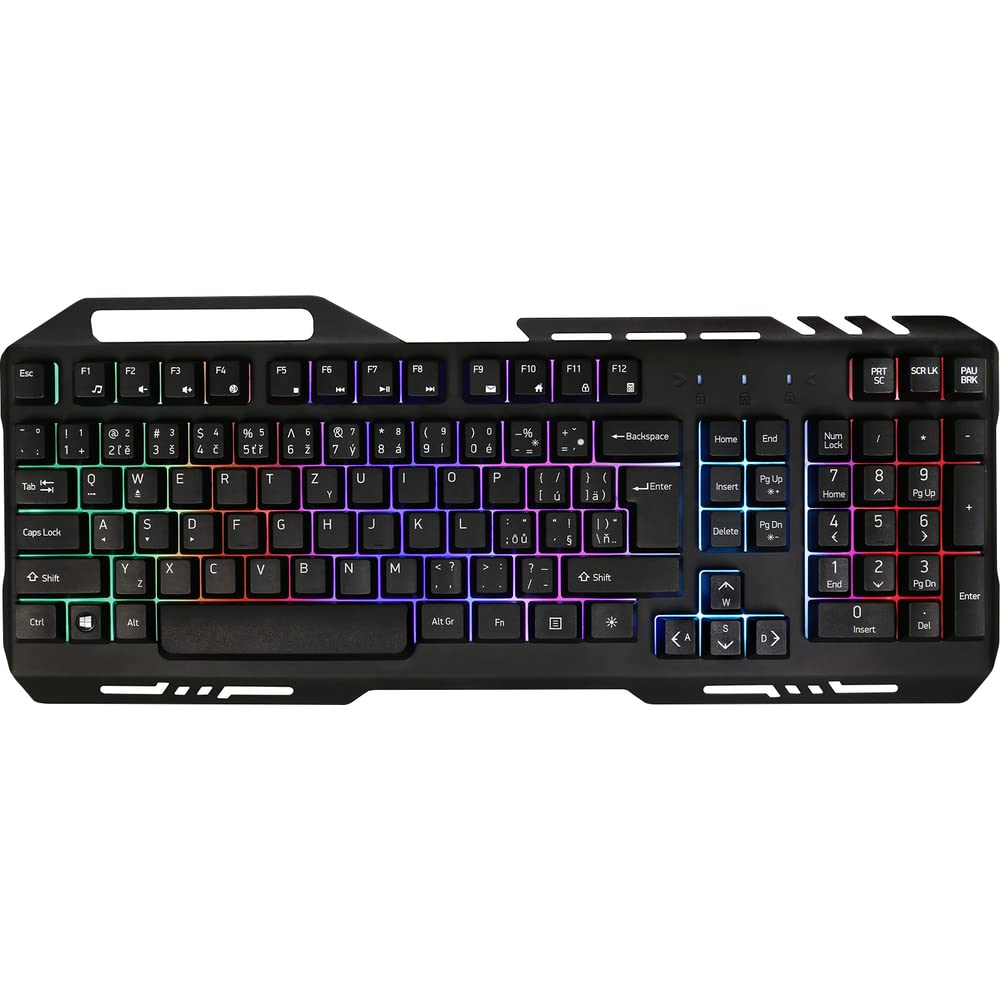
Image 1: Yenkee YKB 3200 Gaming Keyboard. This image displays the full keyboard with its metal frame and illuminated keys, highlighting the integrated smartphone holder at the top.
Akụkụ ndị bụ isi:
- Metal Keyboard Design: Provides enhanced durability and a premium feel.
- Integrated Smartphone Holder: Conveniently located at the top of the keyboard for easy access to your mobile device.
- Durable Rubber Dome Keys: Offers a comfortable and responsive typing experience.
- Nine Rainbow Backlight Modes: Customizable lighting effects to suit your preference and gaming atmosphere.
- Njikọ USB: Simple plug-and-play connection to your computer.
- 1.5m Cable Length: Na-enye ample iru maka nhazi dị iche iche.
5. Nhazi
- Mepee ahụigodo: Jiri nlezianya wepụ ahụigodo ahụ na nkwakọ ngwaahịa ya.
- Jikọọ na Kọmputa: Locate an available USB port on your computer (PC or laptop). Insert the USB connector of the keyboard into the USB port.
- Nwụnye ọkwọ ụgbọala: The keyboard is plug-and-play and typically does not require additional driver installation. Your operating system should automatically detect and install the necessary drivers.
- Nkwanye: Place the keyboard on a stable, flat surface. You can use the integrated smartphone holder to position your mobile device.
- Ọrụ nnwale: Open a text editor or browser to test if the keys are responding correctly.
6. Ntuziaka ọrụ
Njikwa ọkụ azụ:
The Yenkee YKB 3200 features nine distinct rainbow backlight modes. These modes can typically be cycled through using a dedicated function key combination.
- Agbanwe ngingdị: Look for a key labeled 'FN' (Function) and a key with a light bulb icon or 'Scroll Lock' / 'Pause Break'. Pressing FN + Light Bulb / Scroll Lock / Pause Break (depending on keyboard layout) will cycle through the available backlight modes.
- Na-edozi ihie: Some keyboards allow brightness adjustment using FN + Up/Down Arrow keys. Refer to your specific keyboard layout for exact key combinations.
- Turning Backlight On/Off: A long press of the backlight control key or a specific FN combination might turn the backlight on or off.
Multimedia na igodo ọrụ:
The keyboard may include additional function keys (F1-F12) that, when combined with the 'FN' key, provide multimedia control or quick access to applications. Common functions include:
- FN + F1-F12: Volume control, media playback, email, web browser, etc. (Specific functions vary by model).
7. Nlekọta
Nhicha:
- Nchacha izugbe: Use a soft, dry, lint-free cloth to wipe the surface of the keyboard.
- Mwepụ uzuzu: Jiri ikuku abịakọrọ wepụ uzuzu na irighiri ihe n'etiti igodo.
- Unyi isi ike: Maka ntụpọ isi ike, ntakịrị dampen the cloth with water or a mild, non-abrasive cleaning solution. Ensure no liquid enters the keyboard.
Nchekwa:
Mgbe a naghị eji ya ruo ogologo oge, debe ahụigodo ahụ n'ebe dị jụụ ma kpọọ nkụ, ebe anwụ na-anaghị anwụ kpọmkwem ma ọ bụ oke okpomọkụ.
8. Nchọpụta nsogbu
| Nsogbu | Ihe nwere ike ime | Ngwọta |
|---|---|---|
| Ahụigodo anaghị aza | Njikọ USB rụrụ arụ, ọdụ ụgbọ USB adịghị mma, nsogbu ọkwọ ụgbọ ala. | Ensure USB cable is securely connected. Try a different USB port. Restart your computer. |
| Ìhè azụ anaghị arụ ọrụ | Backlight turned off, low brightness setting. | Press the backlight control key combination (e.g., FN + Scroll Lock) to cycle modes or adjust brightness. |
| Igodo na-arapara ma ọ bụ anaghị anabata ya | Dirt or debris under keys. | Clean the keyboard using compressed air and a soft cloth. |
9. Nkọwapụta
| Njirimara | Nkọwapụta |
|---|---|
| Ụdị | Yenkee |
| Nọmba nlereanya | YKB 3200 |
| Teknụzụ Njikọta | USB |
| Ogologo eriri USB | 1.5 mita |
| Nkọwa ahụigodo | Ịgba egwu |
| Backlight Theme | Rainbow (9 modes) |
| Ngwa dakọtara | Laptọọpụ, PC |
| Akụkụ ngwaahịa | 45.2 x 20 x 3.5 cm |
| Ibu ngwaahịa | 841 g |
| Ngwa gụnyere | USB cable (attached) |
10. Akwụkwọ ikike na nkwado
Yenkee products are designed and manufactured to the highest quality standards. For information regarding warranty terms and conditions, please refer to the warranty card included with your purchase or visit the official Yenkee website. For technical support or service inquiries, please contact your local retailer or the Yenkee customer support team.