
Divoom 90100058091
Divoom TimeBox Evo Instruction Manual
Pixel Art Bluetooth Speaker with 16x16 LED Display
1. Okwu mmalite
The Divoom TimeBox Evo is a versatile and compact Bluetooth speaker featuring a vibrant 16x16 pixel LED display. It combines high-quality audio with customizable pixel art, offering a unique blend of entertainment and utility. This manual provides essential information for setting up, operating, and maintaining your TimeBox Evo.

Figure 1.1: Divoom TimeBox Evo displaying a pixel art image.
2. Kedu ihe dị na Igbe ahụ
Biko hụ na ihe niile dị na nkwakọ ngwaahịa:
- 1 × Timebox-Evo
- 1 x eriri USB
- 1 x 3.5mm USB USB
- 1 × Akwụkwọ ntuziaka onye ọrụ
3. Nhazi
3.1 Ịgbanye na Ịchaji
To power on the TimeBox Evo, press and hold the power button located on the side of the device. The device comes with a USB-C charging cable. Connect the cable to the USB-C charging port on the device and a compatible USB power source to charge. A full charge provides approximately 6 hours of playback.

Figure 3.1: Product dimensions and charging information.
3.2 Ngwa nwụnye na njikọ Bluetooth
The Divoom TimeBox Evo is primarily controlled via the Divoom mobile application. Download the 'Divoom' app from your device's app store:
Once installed, open the app and follow the on-screen instructions to pair your TimeBox Evo via Bluetooth. Ensure Bluetooth is enabled on your smartphone or tablet.
Video 3.1: Official Divoom guide on connecting the TimeBox Evo via Bluetooth.
4. Ijikwa ngwaọrụ
4.1 Njikwa ntọala
The TimeBox Evo features intuitive buttons on its top panel for quick control:
- Bọtịnụ Kwụsị/Kwụsị: Press to play or pause music. Hold to answer/end calls or reject incoming calls.
- Bọtịnụ ala ala: Press to decrease volume. Hold for previous song.
- Clock/Timer Button: Press for auto power OFF timer. Hold to enter manual alarm.
- Bọtịnụ nkwalite olu: Press to increase volume. Hold for next song.
- Bọtịnụ ọwa: Press to change display channel. Hold to change effects.
- Power Button (Side): Press to check battery status. Hold to power ON/OFF.

Nyocha 4.1: N'eluview of the TimeBox Evo's physical buttons and their functions.
4.2 Pixel Art Display
The 16x16 pixel LED screen is the centerpiece of the TimeBox Evo. Through the Divoom app, you can:
- Create Your Own Art: Design custom pixel art and animations using the app's intuitive editor.
- Explore the Community Gallery: Browse and download thousands of pixel art designs created by other users worldwide.
- Display Functional Information: Show the time, date, weather, or other useful data on the screen.
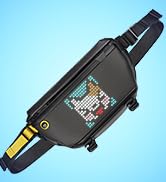
Figure 4.2: The Divoom app allows for pixel art creation, browsing a clock gallery, and more.
4.3 Ọrụ Elekere na Mkpu
The TimeBox Evo functions as a smart alarm clock with various features:
- Mkpu nwere ike ịhazi ya: Set multiple alarms with personalized pixel art animations and 12 different wake-up sounds.
- Ụda Ọcha: Utilize 24 soothing sounds to aid sleep, including campfire, frog, seashore, and more.

Figure 4.3: TimeBox Evo showing time, with features for white noise and alarm clock.
4.4 Nghaghachi egwu
Enjoy high-quality audio with the TimeBox Evo's 6W DSP speaker. Connect your device via Bluetooth to stream music. The display can also show real-time music visualizers, adding a dynamic element to your listening experience.

Ọgụgụ 4.4: Ime view highlighting the 6W powerful speaker.
4.5 Atụmatụ ndị ọzọ
The Divoom app unlocks a variety of additional functionalities for your TimeBox Evo:
- Voice Message: Record and play voice messages.
- Ozi Ozi: Receive notifications from your phone on the display.
- Timer & Countdown: Set timers and countdowns for various activities.
- bọọdụ akara: Use the display as a digital scoreboard for games.
- Egwuregwu: Play simple pixel games directly on the device.
Video 4.1: An official video showcasing various functions and ornaments of the Divoom TimeBox Evo.
5. Nkọwapụta
| Njirimara | Nkọwa |
|---|---|
| Aha Nlereanya | Igbe oge-Evo |
| Akụkụ ngwaahịa | 3.88"D x 3.88"W x 1.5"H |
| Ibu Ibu | 316 grams (11.1 ounces) |
| Ike Nwepu kacha elu | 6 Watt |
| Ike batrị | 2500 mAh |
| Ndụ batrị | Awa 6 |
| Oge Nchaji | Awa 3 |
| Teknụzụ nzikọrịta ozi ikuku | Bluetooth (ụdị 5.0) |
| Usoro njikwa | Ngwa, metụ |
| Agba | Nwa |
6. Nchọpụta nsogbu
If you encounter any issues with your Divoom TimeBox Evo, please try the following common troubleshooting steps:
- Ngwaọrụ anaghị agba ọkụ: Gbaa mbọ hụ na chajịrị ngwaọrụ ahụ nke ọma. Jikọọ ya na isi iyi ike wee nwaa ọzọ.
- Okwu njikọ Bluetooth: Make sure Bluetooth is enabled on your phone/tablet and the TimeBox Evo is in pairing mode. Try restarting both devices.
- Ọrụ ngwa: Ensure your Divoom app is updated to the latest version. If issues persist, try reinstalling the app.
- Enweghị ụda: Check the volume levels on both the TimeBox Evo and your connected device. Ensure the device is properly paired.
7. Akwụkwọ ikike na nkwado
For detailed warranty information and further support, please refer to the official user manual or visit the Divoom brand store.
- Akwụkwọ ntuziaka onye ọrụ (PDF): Budata PDF
- Divoom Official Store: Gaa na Ụlọ Ahịa
Ask a question about this manual
Ask about setup, troubleshooting, compatibility, parts, safety, or missing instructions. Manuals+ will review the question and use this page’s manual context to help answer it.